Claude Cowork integration with Coralogix
Cowork is Anthropic's agentic workspace inside Claude Desktop. Rather than responding to prompts sequentially, Claude tackles intricate, multi-step tasks autonomously — users describe a desired outcome and return to completed work, with direct file access on the local machine, browser automation via Claude in Chrome, and sub-agent coordination for parallel execution.
Cowork emits OpenTelemetry (OTel) telemetry — logs, metrics, and more — natively and is configured at the organization level from the Claude admin panel, so individual users don't need to install anything. Once enabled, Cowork streams full session activity, token usage, cost estimates, and tool calls into Coralogix.
What you need
- A Coralogix account with a Send-Your-Data API key. In Coralogix, navigate to Settings, then API Keys.
- Your Coralogix OTLP endpoint:
ingress.:443. Use the domain selector at the top of this page to select your region. - A Claude for Teams or Enterprise account with Cowork enabled, and admin access to the Claude admin panel.
Set up
Configure monitoring in Cowork
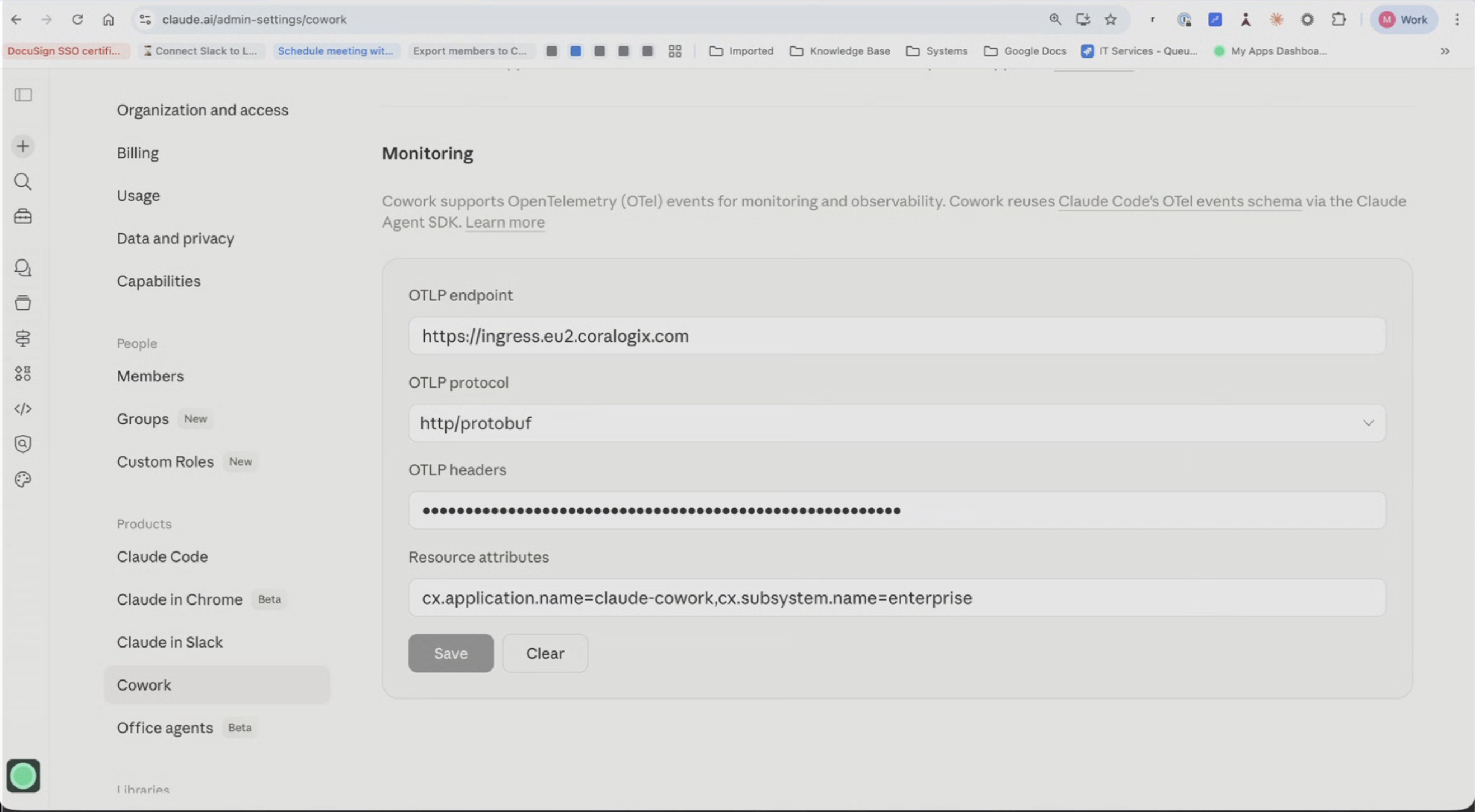
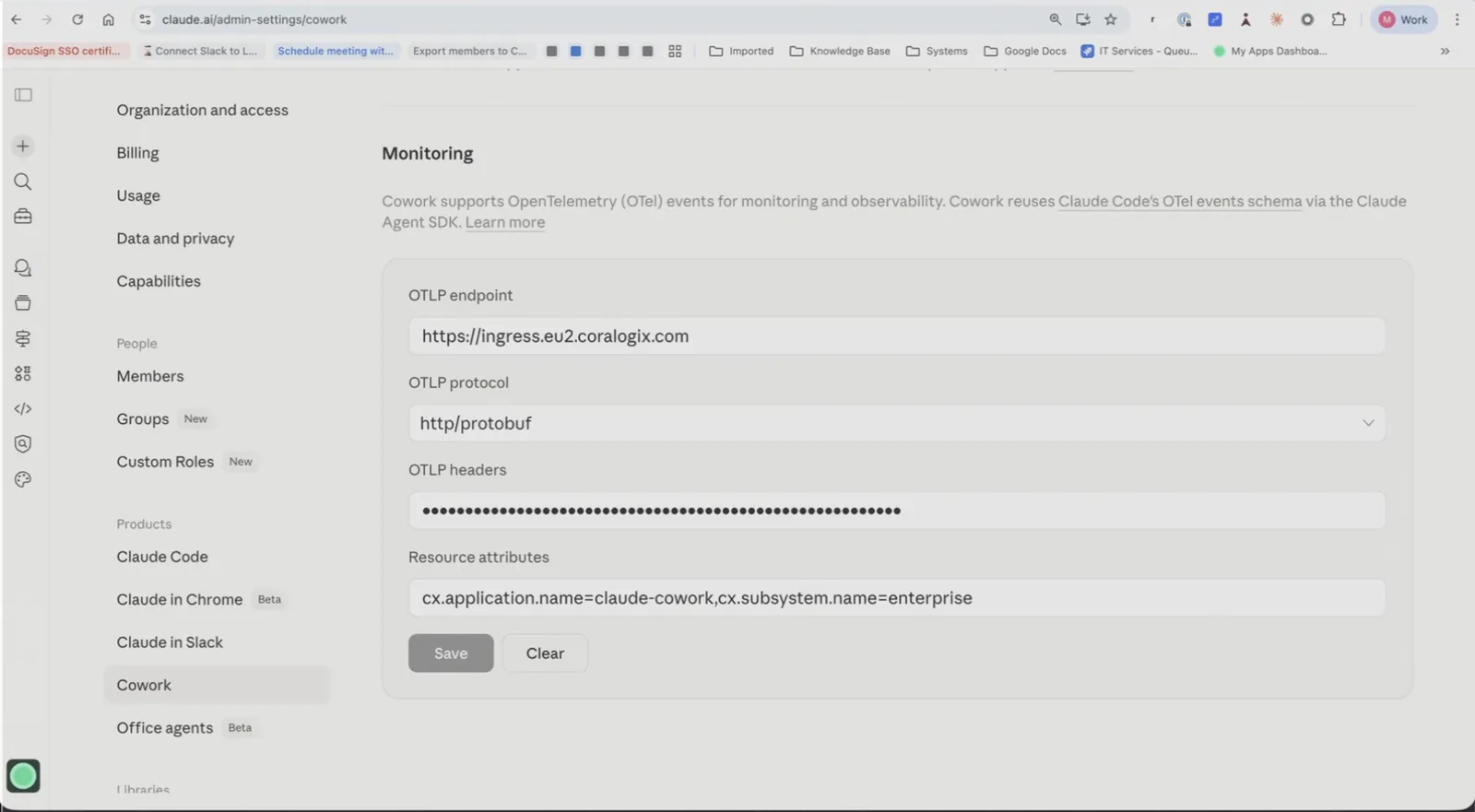
In Claude.ai, navigate to Admin Settings, then Cowork, then Monitoring.
Fill in the four fields with your Coralogix values:
Field Value OTLP endpoint ingress.:443OTLP protocol http/protobufOTLP headers Authorization=Bearer <YOUR_CX_API_KEY>Resource attributes cx.application.name=<APP_NAME>,cx.subsystem.name=<SUBSYSTEM_NAME>Replace
<YOUR_CX_API_KEY>with your Send-Your-Data API key, and set<APP_NAME>and<SUBSYSTEM_NAME>to the values you want to use for routing in Coralogix (see Application name and subsystem below).Header format
OTLP headers and Resource attributes must each be a single line with no spaces around commas. Any extra space or newline will cause ingestion to fail.
Select Save.
Application name and subsystem
Coralogix organizes incoming telemetry by two resource attributes: Application name and Subsystem. For Claude Cowork, we recommend:
| Attribute | Recommended value | Why |
|---|---|---|
cx.application.name | claude-cowork | Lets you filter dashboards and queries by Claude surface. |
cx.subsystem.name | The team name — for example, team1, enterprise, data-eng | Lets you filter by team and compare usage across teams. |
Example value for the Resource attributes field:
With this convention in place, the shared Claude dashboard can be filtered by agent (which Claude surface) and by team (who's using it) from a single dropdown.
View in AI Center
Once Cowork is streaming telemetry, navigate to AI Center > Code Agents > Claude to see Cowork data alongside Claude Code. The Select an application dropdown lists every <application> - <subsystem> pair you configured (for example, claude-cowork - enterprise, claude-cowork - team2), so you can slice usage, cost, sessions, and token data by agent and by team.
How displayed cost is calculated
The cost shown in the dashboard is derived from the usage metrics Cowork sends to Coralogix — it does not factor in your Anthropic subscription plan. This works the same way as usage-based Enterprise billing: Coralogix displays the metric value as-is.
As a result, the displayed cost is accurate for Enterprise plans, which are billed on usage, but only an estimate for every other plan. If you're on a fixed-price plan such as Team, the figure shown may be higher than what you actually pay Anthropic — for example, a $100/month Team plan whose usage metrics report $1,000 will display as $1,000.
To tell plans apart in the dashboard, set cx.subsystem.name to the plan or team name as recommended under Application name and subsystem. You can then filter to separate Enterprise usage from Team and other fixed-price plans.
Validate the integration
After saving the configuration, start a Cowork session and send a few messages. Then confirm data is flowing in Coralogix:
- Navigate to Logs and filter by the application name you configured to see events appear in real time.
- Open Code Agents Intelligence to see the full session dashboard, filterable by Application name and Subsystem.
Monitor data in Coralogix
Cowork emits both logs and metrics over OTel. Logs appear in Coralogix Logs and can be queried using DataPrime or Lucene. Metrics power the widgets in the Code Agents dashboard and are queried using PromQL.
For the full reference of log event types, attributes, and metrics emitted by Cowork, see Claude monitoring usage in the official Claude documentation.
Sensitive data
User prompt content is included in log events by default. Tool parameters may also contain sensitive data. Configure a Coralogix Parsing Rule with the Remove Field action to drop fields before indexing if needed.
Data scopes
The Claude Cowork dashboard runs on metrics. Support for data scopes on Claude Cowork metrics is forthcoming. See Code agents observability — Data scopes for the per-agent breakdown.
Troubleshoot
No data appears in Coralogix
Cause: the OTLP headers or resource attributes field contains stray whitespace. Fix: confirm both fields are single unbroken lines with no spaces around commas and no trailing newlines.
Data appears under the wrong application or subsystem
Cause: the Resource attributes field uses the wrong key format. Fix: confirm the field uses the format cx.application.name=<value>,cx.subsystem.name=<value> — keys are dot-separated, lowercase, and joined by =.
Next steps
Once your integration is set up, explore Code agents to monitor token usage, costs, tool calls, code changes, and session data across all your coding agents.