GitHub app for AI discovery
Overview
Security and compliance teams often have little visibility into how and where AI is used across their code. The GitHub app for AI discovery connects to GitHub and scans your repositories to find AI-related projects, track which models they use, and show which applications Coralogix already monitors. The result is a clear view of where AI appears across your codebase and the risks that come with it.
What you need
-
Organization-owner access to the GitHub organization you want to scan. GitHub shows the install button only to organization owners, so a repository-admin or other enterprise-admin role isn't enough.
-
If your organization restricts GitHub App installations (common in enterprises), be ready to approve the app request, or have the person who can approve it on hand.
-
If your organization or enterprise uses an IP allow list, add Coralogix's egress IP ranges before you start, or GitHub blocks the authorization step. Contact your account manager for the current Coralogix IP addresses.
-
The following Coralogix permissions to configure the integration:
Resource Action Description integrationsReadConfigView deployed integrations integrationsManageAdd, remove, or update integration packages
Learn more about Coralogix roles and permissions.
Supported GitHub environments
The integration currently supports organizations hosted on github.com. To check which environment you're on, look at the URL you use to browse your repositories.
| GitHub environment | Your repositories live at | Supported |
|---|---|---|
| github.com, including GitHub Enterprise Cloud and EMU accounts | github.com/your-org | Yes (see What you need) |
| GitHub Enterprise Cloud with data residency | your-company.ghe.com | Not yet |
| GitHub Enterprise Server (self-hosted) | your own hostname, for example github.company.com | Not yet |
Under Enterprise Managed Users (EMU), regular members can't install third-party GitHub Apps. An enterprise or organization owner must perform the installation, and your enterprise's GitHub App policy might need to allow the app first.
Setup
Step 1: Create the integration in Coralogix
- In Coralogix, go to Data Flow, then Integrations.
- Select GitHub AI Insight.
- Select Add New, give the integration a name, and save.
The integration shows Pending — Authorization required. That's expected, because GitHub isn't connected yet.
Step 2: Install the Coralogix GitHub app on your organization
You're installing an existing app, not creating one. The cx-ai-discovery app is published by Coralogix. Don't create a new GitHub App in your own settings, because a self-created app can't connect to Coralogix and authorization keeps failing.
-
Open the app page at github.com/apps/cx-ai-discovery. It's also linked from the integration's Authorization panel.
-
Select Install. If an installation was started earlier, select Configure instead.
-
When GitHub asks where to install, select your organization, not your personal account.
-
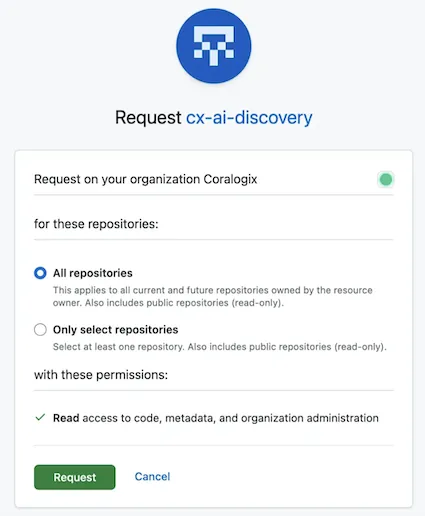
Select All repositories, then confirm.
-
Verify the installation. In GitHub, go to your organization's Settings, then Third-party Access, then GitHub Apps.
cx-ai-discoveryshould be listed as installed.
If the button says Request instead of Install, your organization requires approval for new GitHub Apps. Submit the request, then have an organization owner approve it under Settings, then Third-party Access, then GitHub Apps, then pending requests. In EMU enterprises, an enterprise owner must first allow the app in the enterprise's GitHub App policy. Wait until the app appears as installed before you continue, because authorizing while the request is pending fails.
Step 3: Authorize the connection
- Back on the Coralogix integration page, select Authorize. A GitHub window opens for you to sign in and approve, which links Coralogix to the installation from Step 2. Whoever authorizes must be a member of the organization where the app was installed.
- Select Authorize, then Allow, in the GitHub prompt.
- Return to Coralogix. Within a few seconds, the integration status changes to Active.
Step 4: Run your first scan
- Go to AI Center, then AI-SPM.
- On the App Discovery tab, which now shows the connected state, select Start Scan.
- Scan time depends on the number of repositories. Results appear as repositories finish.
Troubleshooting
| Symptom | Cause | Fix |
|---|---|---|
| Selecting Authorize opens GitHub, then shows an internal-error message every time | The app isn't installed on your organization, or the install request is still pending approval. This is the most common issue: Authorize was selected before Step 2 was finished. | Complete Step 2, verify the app appears under Settings, then Third-party Access, then GitHub Apps, then select Authorize again. |
| Same error, but the app is verified as installed on the organization | Your organization or enterprise IP allow list is blocking Coralogix's servers. | Add Coralogix's egress IP ranges to the IP allow list, then run Authorize again. If you're unsure, contact Support with the approximate time of your attempt. |
| The install page offers only your personal account, or your organization is missing | You aren't an owner of the target organization, or, under EMU, enterprise policy hides third-party apps. | Ask an organization owner to perform Step 2. In EMU enterprises, an enterprise owner must allow the app in policy first. |
| The install button shows Request | Your organization requires approval for GitHub Apps. | Submit the request and have an owner approve it before you authorize. |
| The integration stays Pending — Authorization required indefinitely | Authorization was never completed (any of the causes above). | Work through Steps 2 and 3. The status changes to Active only after both install and authorize succeed. |
| The app was installed on a personal account by mistake | The scan would cover personal repositories, or the connection can't find the organization installation. | Uninstall it from the personal account under personal Settings, then Applications, then reinstall it on the organization. |
| Setup is complete, but AI Center, then AI-SPM, still shows a not-connected state | The page checks the integration state when it loads. | Refresh the AI-SPM page after the integration shows Active. |
Your repositories live at your-company.ghe.com or your own hostname | GitHub Enterprise data-residency tenants and self-hosted Enterprise Server aren't supported yet. | Contact your Coralogix account team. Don't use the GitHub Enterprise (audit logs) integration as a substitute, because it's a different product for audit-log ingestion and doesn't enable AI-SPM. |
FAQ
What access does the app get?
Read-only access to repository contents and metadata for the repositories in the installation. The app can't write to your repositories.
Do I need to create or configure anything in GitHub developer settings?
No. Coralogix maintains the app. You only install it in Step 2.
We use SAML SSO. Do I need to authorize tokens for SSO?
No. GitHub App tokens are authorized for SAML SSO organizations automatically, so no extra step is needed.
Can I select only some repositories?
The scan covers the repositories the installation can access. Select All repositories for full AI-usage visibility; selecting a subset limits discovery to those repositories.
Can I connect more than one organization?
Install the app on the organization whose repositories you want scanned, and make sure the person who authorizes belongs to that organization. For multi-organization setups, contact Support.
Who can perform the setup?
An organization owner performs Step 2 (install). Any member of that organization can perform Step 3 (authorize).