.NET OpenTelemetry instrumentation
This tutorial demonstrates how to instrument .NET applications to capture logs, metrics and traces using OpenTelemetry, and send them to Coralogix.
The OpenTelemetry .NET instrumentation for metrics, traces, and logs is currently stable. You can find the OpenTelemetry .NET SDK documentation here.
The examples provided here do not represent a concrete standard for instrumenting .NET applications but serve as guides for basic implementation. You should review your codebase and determine the best approach to manual or auto instrumentation for your specific project.
Prerequisites
- Coralogix domain associated with your account.
- Coralogix Send-Your-Data API key.
- .NET SDK 6.0 or later installed.
Auto-Instrumentation
The OpenTelemetry .NET Auto-Instrumentation enables you to send traces and metrics from .NET applications to Coralogix without modifying your source code.
Required Configuration
# Coralogix endpoint and authentication
export OTEL_EXPORTER_OTLP_ENDPOINT="https://ingress.<CORALOGIX_REGION>.coralogix.com:443"
export OTEL_EXPORTER_OTLP_HEADERS="Authorization=Bearer <your-api-key>"
export OTEL_EXPORTER_OTLP_PROTOCOL="grpc"

# Service identification
export OTEL_SERVICE_NAME="my-dotnet-service"
export OTEL_RESOURCE_ATTRIBUTES="application.name=my-app,cx.application.name=my-app,cx.subsystem.name=my-subsystem"
Replace <CORALOGIX_REGION> with your Coralogix domain: eu1, eu2, us1, us2, ap1, or ap2.
For complete setup instructions including profiler configuration, see the OpenTelemetry .NET Auto-Instrumentation GitHub repository and Zero Code Configuration methods and settings.
Manual Instrumentation
Before instrumenting logs, traces, or metrics, we will set up Coralogix details and a shared OpenTelemetry Resource. You'll reuse these across all signals.
1. Create a new .NET console application
dotnet new console -n CoralogixOtelExample
cd CoralogixOtelExample
2. Set the environment variables required for Coralogix
export CORALOGIX_API_KEY="<your-coralogix-api-key>"
export CORALOGIX_APP_NAME="my-app"
export CORALOGIX_SUBSYSTEM_NAME="my-subsystem"
export CORALOGIX_DOMAIN="EU1"
Domain Options: EU1, EU2, US1, US2, AP1, AP2
3. Install the necessary NuGet packages
dotnet add package OpenTelemetry --version 1.9.0
dotnet add package OpenTelemetry.Exporter.OpenTelemetryProtocol --version 1.9.0
dotnet add package OpenTelemetry.Extensions.Hosting --version 1.9.0
dotnet add package Microsoft.Extensions.Logging --version 8.0.0
We will add signal-specific packages later in the corresponding sections.
4. Set up Coralogix configuration and shared Resource
using System.Diagnostics;
using Microsoft.Extensions.Logging;
using OpenTelemetry;
using OpenTelemetry.Logs;
using OpenTelemetry.Resources;
using OpenTelemetry.Trace;

namespace CoralogixOtelExample;

class Program
{
    private static readonly ActivitySource ActivitySource = new("CoralogixOtelExample", "1.0.0");

    static void Main(string[] args)
    {
        try
        {
            var config = LoadConfiguration();

            var resourceBuilder = BuildResourceAttributes(config);

            Console.WriteLine("OpenTelemetry configured successfully");
        }
        catch (InvalidOperationException ex)
        {
            Console.Error.WriteLine($"Configuration Error: {ex.Message}");
            Environment.Exit(1);
        }
    }

    private static CoralogixConfig LoadConfiguration()
    {
        var domain = Environment.GetEnvironmentVariable("CORALOGIX_DOMAIN") ?? "EU1";
        var apiKey = Environment.GetEnvironmentVariable("CORALOGIX_API_KEY");
        var applicationName = Environment.GetEnvironmentVariable("CORALOGIX_APP_NAME") ?? "dotnet-otel-example";
        var subsystemName = Environment.GetEnvironmentVariable("CORALOGIX_SUBSYSTEM_NAME") ?? "example-subsystem";

        if (string.IsNullOrWhiteSpace(apiKey))
        {
            throw new InvalidOperationException(
                "CORALOGIX_API_KEY is required. Set it via environment variable.");
        }

        return new CoralogixConfig
        {
            Domain = domain,
            ApiKey = apiKey,
            ApplicationName = applicationName,
            SubsystemName = subsystemName
        };
    }

    private static ResourceBuilder BuildResourceAttributes(CoralogixConfig config)
    {
        return ResourceBuilder.CreateDefault()
            .AddService(
                serviceName: config.SubsystemName,
                serviceNamespace: config.ApplicationName,
                serviceVersion: "1.0.0")
            .AddAttributes(new Dictionary<string, object>
            {
                ["cx.application.name"] = config.ApplicationName,
                ["cx.subsystem.name"] = config.SubsystemName
            });
    }
}

record CoralogixConfig
{
    public required string Domain { get; init; }
    public required string ApiKey { get; init; }
    public required string ApplicationName { get; init; }
    public required string SubsystemName { get; init; }
}
5. Running the example
dotnet run
Logs
For logging, we will initialize a LoggerProvider that integrates with the standard Microsoft.Extensions.Logging framework. This allows you to use familiar logging patterns while automatically exporting to Coralogix.
1. Configure the Logger Provider
// Add this method to the Program class
private static ILoggerFactory ConfigureLogging(ResourceBuilder resourceBuilder, CoralogixConfig config)
{
    return LoggerFactory.Create(builder =>
    {
        builder.SetMinimumLevel(LogLevel.Information);
        builder.AddOpenTelemetry(options =>
        {
            options.SetResourceBuilder(resourceBuilder);
            options.AddOtlpExporter(otlpOptions => ConfigureOtlpExporter(otlpOptions, config));
            options.IncludeFormattedMessage = true;
            options.IncludeScopes = true;
        });
    });
}

private static void ConfigureOtlpExporter(OpenTelemetry.Exporter.OtlpExporterOptions options, CoralogixConfig config)
{
    options.Endpoint = new Uri($"https://ingress.{config.Domain}.coralogix.com:443");
    options.Protocol = OpenTelemetry.Exporter.OtlpExportProtocol.Grpc;
    options.Headers = $"Authorization=Bearer {config.ApiKey}";
}
2. Use the logger to emit logs
static void Main(string[] args)
{
    try
    {
        var config = LoadConfiguration();
        var resourceBuilder = BuildResourceAttributes(config);

        using var loggerFactory = ConfigureLogging(resourceBuilder, config);
        var logger = loggerFactory.CreateLogger<Program>();

        // Emit logs
        logger.LogInformation("Hello from Coralogix .NET OpenTelemetry!");
        logger.LogWarning("This is a warning message");
        logger.LogError("This is an error message");

        // Structured logging
        logger.LogInformation("User {UserId} performed {Action}", "user-123", "login");

        // Give time for logs to be exported
        Thread.Sleep(5000);
    }
    catch (InvalidOperationException ex)
    {
        Console.Error.WriteLine($"Configuration Error: {ex.Message}");
        Environment.Exit(1);
    }
}
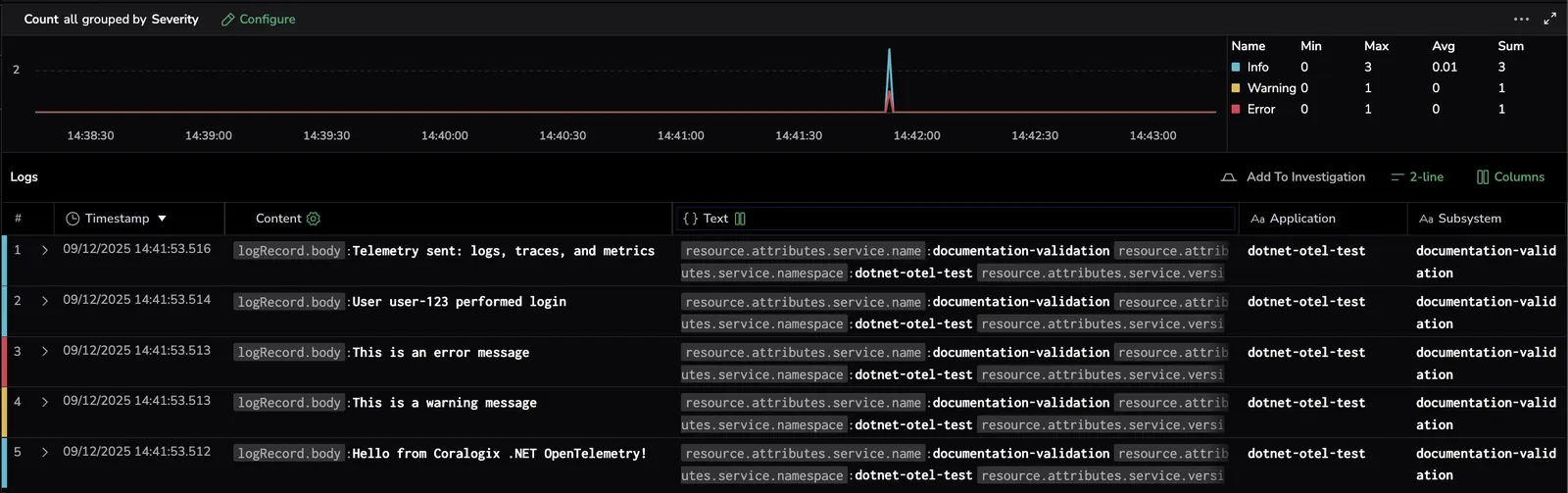
After a successful run, you can view your logs in the Coralogix Logs dashboard.
Traces
For tracing, we will initialize an OpenTelemetry TracerProvider that provides ActivitySource to create spans. In this example, we'll manually instrument a simple operation.
1. Configure the Trace Provider
// Add this method to the Program class
private static TracerProvider ConfigureTracing(ResourceBuilder resourceBuilder, CoralogixConfig config)
{
    return Sdk.CreateTracerProviderBuilder()
        .SetResourceBuilder(resourceBuilder)
        .AddSource(ActivitySource.Name)
        .AddOtlpExporter(options => ConfigureOtlpExporter(options, config))
        .Build();
}
2. Create traces with spans
static void Main(string[] args)
{
    try
    {
        var config = LoadConfiguration();
        var resourceBuilder = BuildResourceAttributes(config);

        using var tracerProvider = ConfigureTracing(resourceBuilder, config);
        using var loggerFactory = ConfigureLogging(resourceBuilder, config);
        var logger = loggerFactory.CreateLogger<Program>();

        // Create a trace span
        using (var activity = ActivitySource.StartActivity("SampleOperation"))
        {
            activity?.SetTag("user.id", "user-123");
            activity?.SetTag("operation.type", "example");

            logger.LogInformation("Processing sample operation");

            activity?.SetStatus(ActivityStatusCode.Ok);
        }

        // Give time for telemetry to export
        Thread.Sleep(1000);
    }
    catch (InvalidOperationException ex)
    {
        Console.Error.WriteLine($"Configuration Error: {ex.Message}");
        Environment.Exit(1);
    }
}
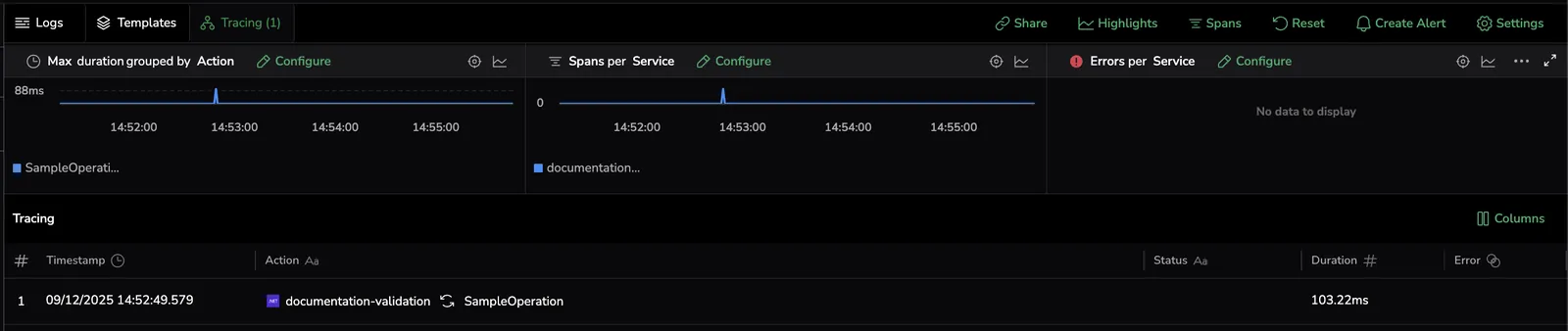
You can view your traces in the Coralogix Tracing dashboard.
Metrics
For producing metrics, we will set up a MeterProvider, which lets us use a Meter to define and record metrics. Read more about supported metrics in the official documentation.
1. Install the necessary NuGet package for metrics
dotnet add package OpenTelemetry.Instrumentation.Runtime --version 1.9.0
2. Configure the Meter Provider
using OpenTelemetry.Metrics;

// Add this method to the Program class
private static MeterProvider ConfigureMetrics(ResourceBuilder resourceBuilder, CoralogixConfig config)
{
    return Sdk.CreateMeterProviderBuilder()
        .SetResourceBuilder(resourceBuilder)
        .AddMeter("CoralogixOtelExample")
        .AddRuntimeInstrumentation()
        .AddOtlpExporter(options => ConfigureOtlpExporter(options, config))
        .Build();
}
3. Create and record metrics
using System.Diagnostics.Metrics;

// Add to the Program class
private static readonly Meter Meter = new("CoralogixOtelExample", "1.0.0");

static void Main(string[] args)
{
    try
    {
        var config = LoadConfiguration();
        var resourceBuilder = BuildResourceAttributes(config);

        using var meterProvider = ConfigureMetrics(resourceBuilder, config);

        // Create a counter metric
        var requestCounter = Meter.CreateCounter<long>("sample.counter", "requests", "Sample counter metric");

        // Record some metrics
        for (int i = 0; i < 10; i++)
        {
            requestCounter.Add(1, new KeyValuePair<string, object?>("status", "success"));
        }

        // Give time for metrics to export
        Thread.Sleep(1000);
    }
    catch (InvalidOperationException ex)
    {
        Console.Error.WriteLine($"Configuration Error: {ex.Message}");
        Environment.Exit(1);
    }
}
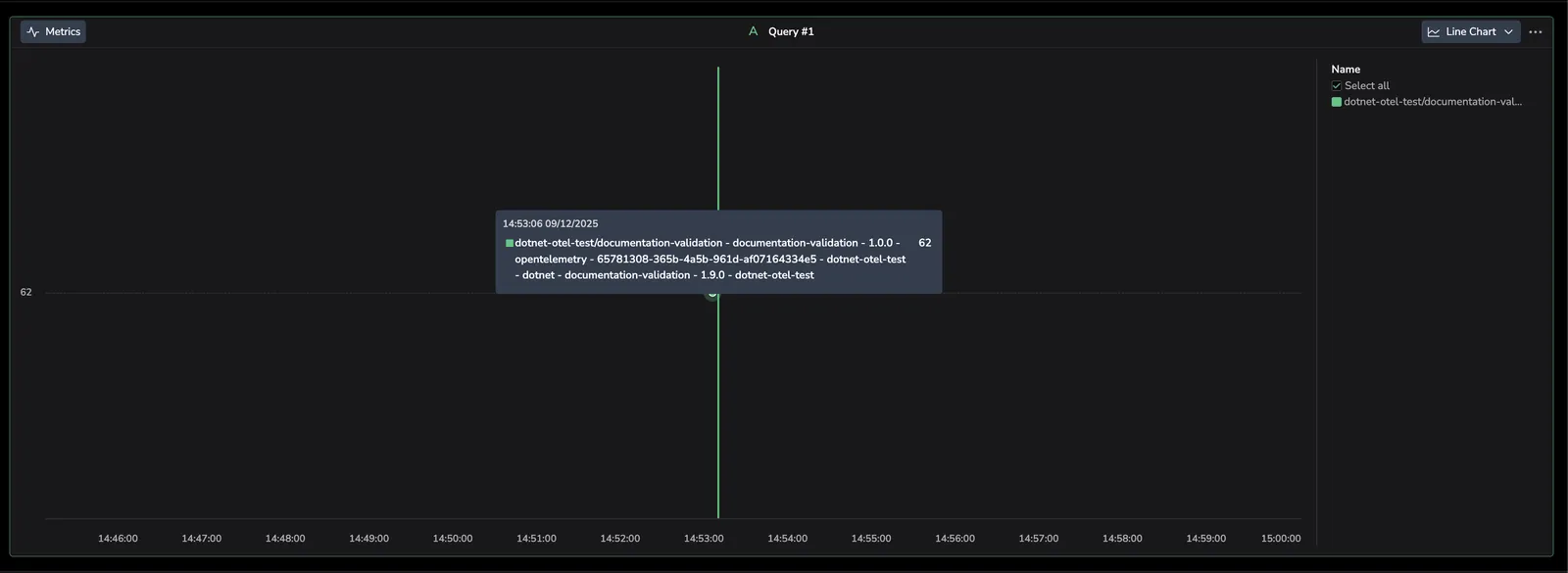
You can view your metrics in the Coralogix Metrics dashboard.
Exceptions
For exceptions in logs, pass the exception object to the logger instead of formatting the exception into the log message. OpenTelemetry .NET exports the log following the OpenTelemetry semantic conventions for exceptions in logs.
OpenTelemetry .NET API support
If you are already using Microsoft.Extensions.Logging, log the exception with one of the exception overloads.
1. Log exceptions with Microsoft.Extensions.Logging
static void Main(string[] args)
{
    try
    {
        var config = LoadConfiguration();
        var resourceBuilder = BuildResourceAttributes(config);

        using var loggerFactory = ConfigureLogging(resourceBuilder, config);
        var logger = loggerFactory.CreateLogger<Program>();

        try
        {
            throw new InvalidOperationException("database connection failed");
        }
        catch (Exception ex)
        {
            logger.LogError(ex, "Could not process item {ItemId}", 42);
        }

        Thread.Sleep(1000);
    }
    catch (InvalidOperationException ex)
    {
        Console.Error.WriteLine($"Configuration Error: {ex.Message}");
        Environment.Exit(1);
    }
}
If you use LoggerMessage source generation, keep the first Exception parameter separate from the message template.
OpenTelemetry.Exporter.OpenTelemetryProtocol exports exception logs using the exception semantic conventions starting in 1.8.0.
2. Send exception logs manually with the Logs Bridge API
using OpenTelemetry;
using OpenTelemetry.Logs;

using var loggerProvider = Sdk.CreateLoggerProviderBuilder()
    .AddConsoleExporter()
    .Build();

var logger = loggerProvider.GetLogger("ManualExceptions");

try
{
    throw new InvalidOperationException("database connection failed");
}
catch (Exception ex)
{
    LogRecordAttributeList attributes = default;
    attributes.RecordException(ex);

    logger.EmitLog(
        new LogRecordData
        {
            Body = "Could not process item 42",
            Severity = LogRecordSeverity.Error,
            SeverityText = "Error",
        },
        attributes);
}
The Logs Bridge API is experimental. Sdk.CreateLoggerProviderBuilder, LoggerProvider.GetLogger, LogRecordData, and LogRecordAttributeList.RecordException are available in pre-release builds starting in OpenTelemetry.Api 1.6.0-alpha.1.
NLog bridge
If your application uses NLog directly, you can capture exceptions with the NLog bridge in OpenTelemetry .NET Auto-Instrumentation.
1. Enable the NLog bridge
export OTEL_DOTNET_AUTO_LOGS_ENABLED=true
export OTEL_DOTNET_AUTO_LOGS_ENABLE_NLOG_BRIDGE=true
2. Log the exception with NLog
using NLog;

var logger = LogManager.GetCurrentClassLogger();

try
{
    throw new InvalidOperationException("database connection failed");
}
catch (Exception ex)
{
    logger.Error(ex, "Could not process item {0}", 42);
}
NLog bridge support is available in OpenTelemetry .NET Auto-Instrumentation 1.14.0 and later. Supported NLog versions are >= 5.0.0 and < 7.0.0. If NLog is configured as a Microsoft.Extensions.Logging provider, use the Microsoft.Extensions.Logging path instead of enabling the NLog bridge to avoid duplicate logs.
log4net bridge
If your application uses log4net directly, you can capture exceptions with the log4net bridge in OpenTelemetry .NET Auto-Instrumentation.
1. Enable the log4net bridge
export OTEL_DOTNET_AUTO_LOGS_ENABLED=true
export OTEL_DOTNET_AUTO_LOGS_ENABLE_LOG4NET_BRIDGE=true
2. Log the exception with log4net
using log4net;

var logger = LogManager.GetLogger(typeof(Program));

try
{
    throw new InvalidOperationException("database connection failed");
}
catch (Exception ex)
{
    logger.Error("Could not process item 42", ex);
}
log4net bridge support is available in OpenTelemetry .NET Auto-Instrumentation 1.10.0 and later. Supported log4net versions are >= 2.0.13 and < 4.0.0. The bridge is added only when log4net is configured with at least one appender.