Time-series chart
The time-series chart sits above the results grid in Explore. It plots the count of records from your current query — or an aggregation you choose — bucketed over time. The chart updates as you adjust the query, filters, or time range and is available on both the logs and spans datasets.
Use the chart to:
- See a spike, drop, or sustained shift in volume at a glance.
- Spot anomalies that warrant drilling into the underlying rows.
- Compare grouped series (for example, log count by severity, or span count by service) side by side.
For aggregated, non-time-bucketed views, use the Overview tab for logs or the Overview tab for spans instead. The time-series chart and the Overview tab share the same query but answer different questions: trend over time versus shape across groups.
Configure the chart
Select the pencil icon on the chart to open the Graph configuration panel. Select Apply to commit changes, Cancel to discard them, or Reset to default to clear all overrides.
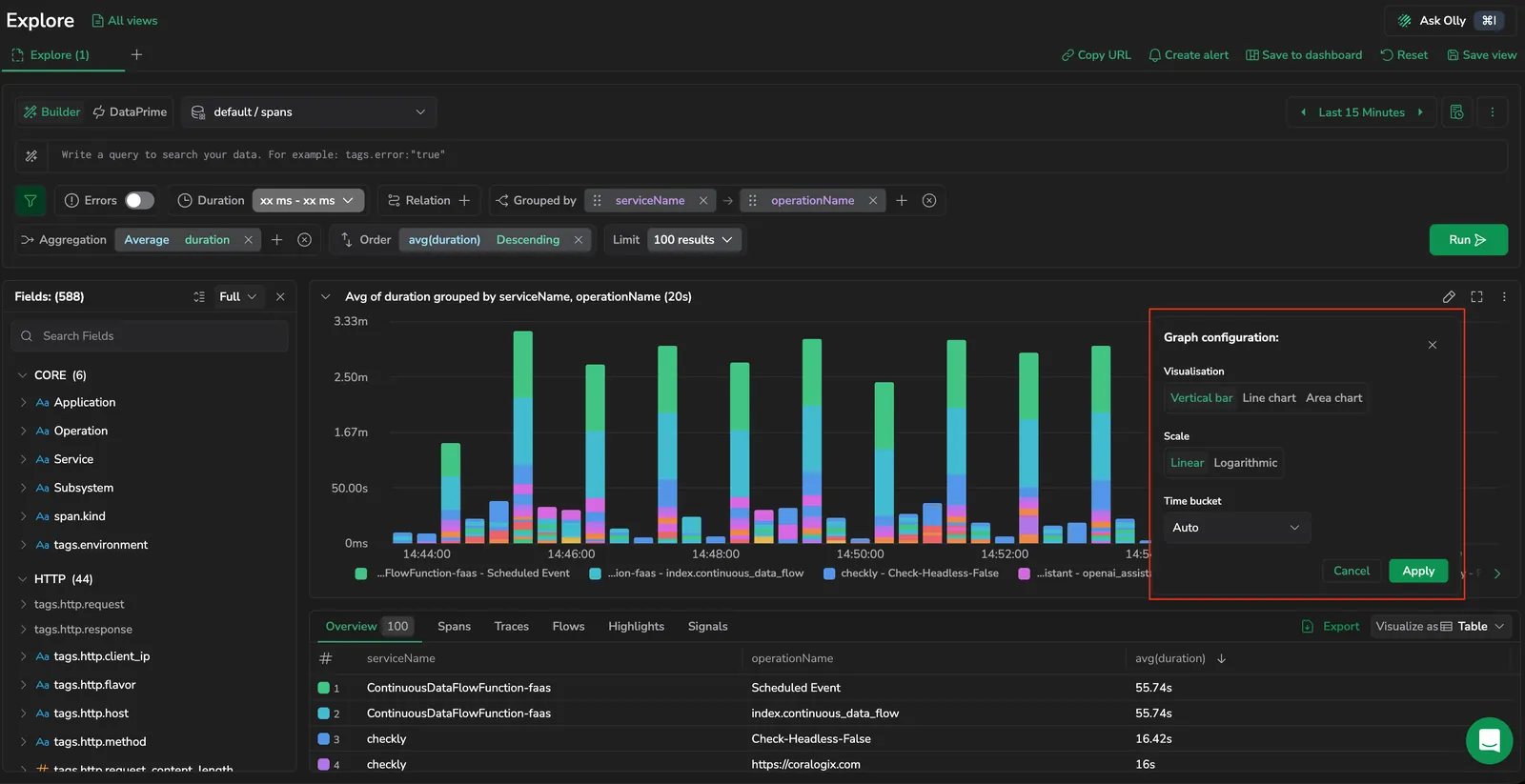
Visualisation
Toggle between three chart types:
- Vertical bar: bars along a time axis. Use this to compare discrete buckets and spot peaks.
- Line chart: points connected by a line. Use this for smooth trend visualization across many buckets.
- Area chart: line chart with the area below filled. Use this to emphasize cumulative volume.
Scale
Choose Linear or Logarithmic for the Y-axis. Use logarithmic when your data spans several orders of magnitude and smaller values are difficult to see on a linear scale.
Time bucket
Control the time interval used to group data points. Choose Auto to let Coralogix pick an interval based on the selected time range, or pick a specific bucket size: 1 Minute, 5 Minutes, 15 Minutes, 30 Minutes, 1 Hour, 2 Hours, 6 Hours, or 1 Day.
Aggregation
By default, the chart plots a count of records per bucket. Use Aggregation and Aggregation Field to plot a different metric — for example, avg of a duration field, or p95 of a latency field. The Aggregation Field selector searches numeric fields only.
Group graph by key
Optionally pick a field to split the chart into one series per distinct value. Each bar or line then represents one group (for example, one series per severity, application, or service).
If the selected field has too many distinct values, the chart shows a Key cardinality is too high warning. Pick a lower-cardinality field or narrow the query first.
Sync with main query
When enabled, the chart respects every filter and grouping in the main query, so the chart's series match exactly what the results grid shows. When disabled, the chart configuration runs as a side query independent of the main query — useful when you want to keep an overview chart in view while drilling into a narrower subset of rows.
Interact with the chart
- Hover any bar, line point, or area segment to read its exact value and bucket interval.
- Drag across a region to zoom into that time range — the time range picker updates to reflect the selection and results refresh automatically.
- Select a data point to open a context menu with Drilldown (open the rows that contributed to that value), Include in query / Exclude from query (add the value as a filter), and copy actions. In Builder mode the filter is added as a Lucene clause; in DataPrime mode it's appended to the query as a DataPrime
filterclause so you can iterate on a DataPrime pipeline without rewriting it.
Related resources
- Overview tab for logs — aggregated tables and charts for non-time-bucketed groupings.
- Overview tab for spans — the spans equivalent.
- Query Builder — build the query that drives the chart.