Manage infrastructure health rules
Use health rules to apply health policies consistently across your infrastructure. Define a rule once, and Coralogix continuously enforces the selected policies on every current and future resource that matches your scope, so you avoid repetitive setup and configuration drift.
How health rules work
A health rule has two parts:
- Scope: the resources the rule applies to. You select a resource type (for example, Deployments, Hosts, Nodes, or Pods) and, optionally, narrow it with ownership tags for Service, Environment, and Team.
- Policies: the health policies the rule enables on every resource in scope. Where a policy supports a customizable threshold, the rule also sets that threshold, the value at which the policy becomes critical.
When you save a rule, Coralogix enables the selected policies on all matching resources. Any new resource that later matches the scope inherits the same policies automatically.
Without health rules, you would open each resource individually, enable the same policies one by one, and repeat that work for every new resource. Health rules let you define the configuration once and keep it consistent everywhere it applies.
What you need
- Access to Infrastructure in your Coralogix account.
- The
INFRASTRUCTURE-HEALTH-RULES:READpermission to view rules, andINFRASTRUCTURE-HEALTH-RULES:MANAGEto create, edit, enable, disable, duplicate, or delete them. See the centralized Permissions list for the system roles that include them. - Ownership tags (Service, Environment, or Team) assigned to the resources you want to scope. See Ownership for setup.
- A resource type that has health policies available. Resource types without policies do not appear when you create a rule.
View health rules
To open the health rules page, select Infrastructure, then Health Rules.
The page lists every rule in a table with these columns:
| Column | Description |
|---|---|
| Rule Name | Display name of the rule. |
| Rule Health | Current overall status of the rule: Healthy, Critical, or Unmonitored. |
| Resource Type | Resource type the rule targets, such as Deployments, Hosts, Nodes, or Pods. |
| Enabled Policies | Number of policies the rule enables out of the total available for the resource type, shown as a fraction such as 2/5. |
| Service | Service ownership filter, if set. |
| Environment | Environment ownership filter, if set. |
| Team | Team ownership filter, if set. |
| Updated At | Time of the last change. |
| Enabled | Toggle to enable or disable the rule. |

Displays every health rule with its current rule health, scope, and enabled policy count.
To narrow the list, use the filters in the left sidebar (Rule Name, Rule Health, Resource Type, Service, Environment, and Team), or search by name in the search bar above the table.
Understand rule health
Rule health summarizes the worst current state of any policy the rule enables, across all resources in its scope:
- Healthy: every enabled policy is passing on every matching resource.
- Critical: at least one enabled policy is in a critical state on at least one matching resource.
- Unmonitored: the rule has no matching resources, or the rule is disabled.
Rule health appears in the Rule Health column, in the left-sidebar filter, and as a chip in the rule details drawer.
Create a health rule
Rule creation is a three-step wizard: Scope, Policies, then Summary.
- Select Infrastructure, then Health Rules.
- Select Create rule. The New rule wizard opens at step 1, Scope.
- Define the scope:
- In Rule Name, enter a descriptive name, for example,
Production payments health. - In Resource Type, select the resource type the rule targets. Only resource types with available policies appear.
- (Optional) Set Team, Service, and Environment to narrow which resources match. Combine them to target a precise set, for example, resources where service is
payments-apiand environment isproduction. Adding at least one ownership filter is recommended so the rule targets only the resources you own. If you set no filters, the rule applies to every resource of the selected type. - (Optional) In Excluded Resources, select individual resources to exempt from the rule, even if they match the scope.
- Review the Preview pane on the right, which lists the resources currently matching your scope and a live match count. Use it to confirm the rule targets what you expect before continuing.
- Select Next.
- In Rule Name, enter a descriptive name, for example,
- Define the policies. The table lists every policy available for the resource type, with a title, a description, a Threshold, and an Enabled toggle. Enable each policy you want the rule to enforce. For a policy that supports a customizable threshold, set its Threshold to control the level at which the policy becomes critical; policies without a customizable threshold show only the Enabled toggle. Then select Next.
- Review the Summary of the scope and enabled policies. Select Back to edit a previous step, or select Create to save.
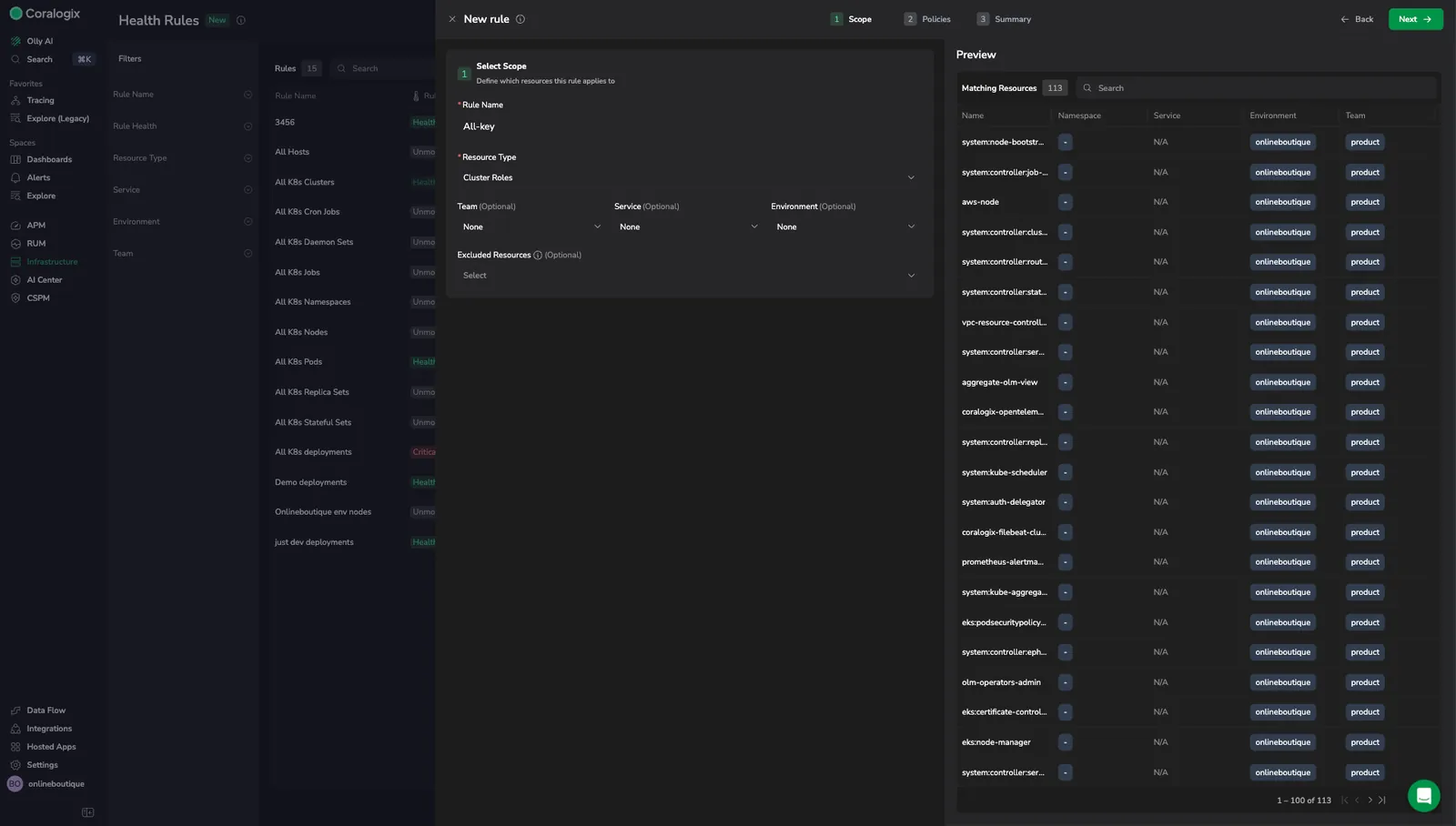
Shows the scope step, where the preview pane confirms which resources the rule will match.
The new rule appears in the table. Allow up to five minutes for the policies to propagate to all matching resources.
Set a custom threshold
Some health policies expose a customizable threshold, such as a CPU or memory utilization percentage. These policies ship with a system default threshold and show an editable Threshold value in the Policies step; policies without a customizable threshold show only the Enabled toggle. To make a policy more or less sensitive for the resources in this rule's scope, change the Threshold before you save. The rule applies that threshold to every matching resource, so different classes of resources can use different sensitivity levels while you manage all policy customization from health rules.
When more than one rule sets a threshold for the same policy on a resource, the strictest, most conservative value wins. See Customize policy thresholds for how Coralogix resolves the effective threshold.
A single default threshold rarely fits every workload. Custom thresholds let you match each policy to how critical its resources are: hold production services to a stricter limit so problems surface earlier, and relax the limit for development or batch workloads so routine spikes do not raise false alarms. Because the threshold lives on the rule, it stays consistent across all current and future matching resources, so you tune sensitivity once instead of editing each resource by hand.
Example: enforce policies for production payment services
A team wants strict health monitoring on all production deployments for its payments service:
- Create a rule named
Production payments health. - Set Resource Type to Deployments.
- Set Service to
payments-api, Environment toproduction, and Team tobackend. - Enable the policies you want to enforce from the policies available for that resource type.
- Select Create.
Every matching deployment, including new deployments that match these filters later, automatically has these three policies enforced.
View rule details
Select any row in the table to open the rule details drawer. The header shows the rule name, a rule health chip, the resource type, an Enabled toggle, Edit Rule, and Delete Rule. The drawer has three tabs.
Details shows metadata about the rule:
| Field | Description |
|---|---|
| Created by | User who created the rule. |
| Created at | Time the rule was created. |
| Last modified by | User who last changed the rule. |
| Last updated | Time of the last change. |
| Excluded resources | Resources explicitly excluded from the rule. |
Policies lists every policy the rule enables, with its title, description, and the threshold the rule applies.
Resources shows the resources the rule currently applies to:
| Column | Description |
|---|---|
| Name | Resource identifier. |
| Overall Health | Overall health of the resource, not just the policies from this rule. Shows Healthy or Critical. |
| Healthy Policies | Fraction of this rule's policies passing for the resource, such as 2/2 or 0/2. |
| Service | Service ownership tag. |
| Environment | Environment ownership tag. |
| Team | Team ownership tag. |
The Overall Health column always reflects the resource's overall health, so it stays consistent with Infrastructure Explorer. If a resource shows Critical but every policy from this rule is passing, an info icon explains that the resource is critical because of policies managed by other rules. Select Infra Explorer in the top right to open these resources in Infrastructure Explorer with the rule's filters applied.
Edit a rule
Edit a rule in either of these ways:
- Open the details drawer and select Edit Rule.
- Open the more actions menu on a rule row and select Edit Rule.
The edit view shows the same fields as the create wizard on a single page, pre-filled with the current configuration. Change the name, resource type, ownership filters, excluded resources, or enabled policies, then select Update. Changes apply to all matching resources. For example, removing a policy from the rule disables that policy on every resource the rule manages.
Enable or disable a rule
Use the toggle in the Enabled column of the table, or the toggle in the rule details drawer:
- Disabling a rule stops it from enforcing its policies, and those policies are deactivated on the matching resources.
- Enabling a rule applies its policies to all matching resources, including new resources that match later. Enabling a rule overrides manual policy settings on those resources.
Changes take effect within a few minutes.
Delete a rule
Open the more actions menu on a rule row and select Delete Rule, or select Delete Rule in the details drawer. Confirm when prompted. When you delete a rule, the policies it managed are no longer enforced on the matching resources.
How rules affect resource health
Health rules change how policies are managed at the resource level.
- Resources without a rule: you can manually enable or disable individual policies from the resource's Health section in Infrastructure Explorer.
- Resources with a rule: policy management becomes read-only. You cannot toggle individual policies, and a banner explains that policies are controlled by health rules. You can still select a policy to view its details. Policies that no rule enables show as Unmonitored. To regain manual control of a specific resource, exclude it from all rules that apply to it.
View the rules that apply to a resource
In a resource's details drawer, the Health section has two tabs:
- Health rules: lists every rule that applies to the resource. Select a rule to open its details. If a rule applies to the resource type but this resource is excluded, the rule appears with an Excluded indicator. If no rules apply, an empty state links to the health rules page.
- Health policies: lists the resource's policies. This list is read-only while any rule manages the resource.
When multiple rules apply
When more than one rule applies to the same resource:
- All policies from all applicable rules are enabled on the resource.
- If two rules enable the same policy, the policy is evaluated once.
- If a resource is excluded from one rule but a second rule also enables the same policy and applies to the resource, that policy stays active through the second rule.
Default rules
Coralogix creates default rules for each resource type. You can enable, disable, edit, or delete a default rule like any other rule. For accounts that previously toggled policies manually, the default rules exist but stay off so they do not overwrite that configuration. Turn them on whenever you are ready.
Best practices
- Scope each rule with at least one ownership tag. Set Service, Environment, or Team so the rule targets only the resources you intend to manage. Rules with no ownership filter apply broadly and lock manual policy management on resources you may not have planned to cover.
- Use descriptive names. Name rules so their purpose is clear at a glance, for example,
Production payments: critical monitoring. - Review the default rules. Check the rules Coralogix creates for each resource type, and customize or disable them to match your needs.
- Use exclusions sparingly. If you exclude many resources, adjust the rule's filters instead.
- Coordinate with your team. Rules affect all matching resources and lock out manual changes, so align with your team before creating rules on shared infrastructure.
Limitations
- Propagation delay: allow up to five minutes after you create, update, or delete a rule before the change is reflected on all matching resources.
- Ownership tag dependency: filters depend on ownership tags being assigned to your resources. If tags have not propagated or are not configured, rules that use those filters do not match the resources you expect. See Ownership.
- Single value per filter: each ownership filter accepts one value, for example,
service = payments-api. - Excluded resources: you select excluded resources individually, up to 100 per rule.