Install and set up Microsoft Teams
Set up Microsoft Teams for Coralogix in three stages: a Teams administrator installs the Coralogix app in your tenant, you set up the integration in Coralogix, then you create a connector for a channel.
The Microsoft Teams connector is in private beta. To request access and the app package, contact your Coralogix account team (TAM) or Support.
Why set up Microsoft Teams
Connecting Microsoft Teams routes Coralogix alert and Case notifications into the channels your team already works in, so incidents surface where people are instead of in a separate tool. The native app also replaces the retired Office 365 incoming webhooks that older Teams notifications relied on, and it reflects the full Case lifecycle (assign, acknowledge, resolve, and close) in the channel in near real time. Set it up once (install, integrate, connect), and every router can send to Teams like any other destination.
Install the app in Teams
Only a Microsoft Teams administrator can install the app in the tenant.
- Ask your Coralogix TAM for the app ZIP file.
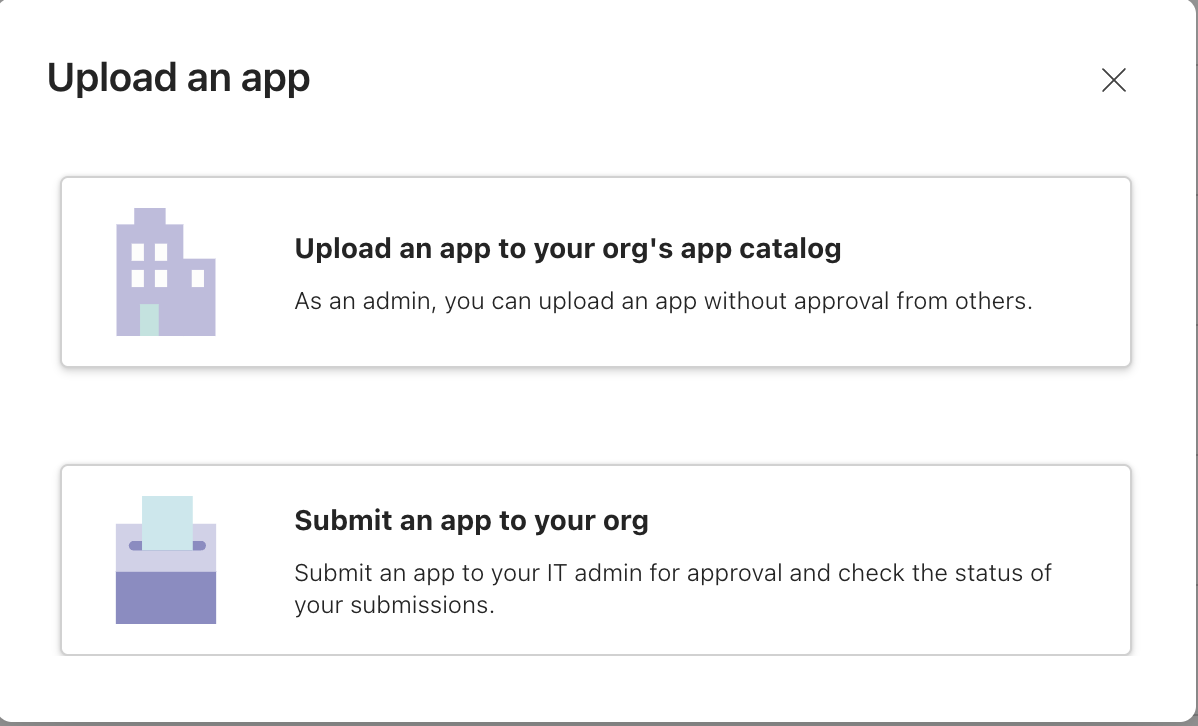
- In Microsoft Teams, go to Apps, then Manage your apps, then Upload an app.
- Select Upload an app to your org's app catalog. If you are not an admin, you can submit it for an admin to approve.
- Add the app to each Team where you want to use it:
- Select the three-dots menu next to the team name, then Manage team.
- Select Apps, then Get more apps.
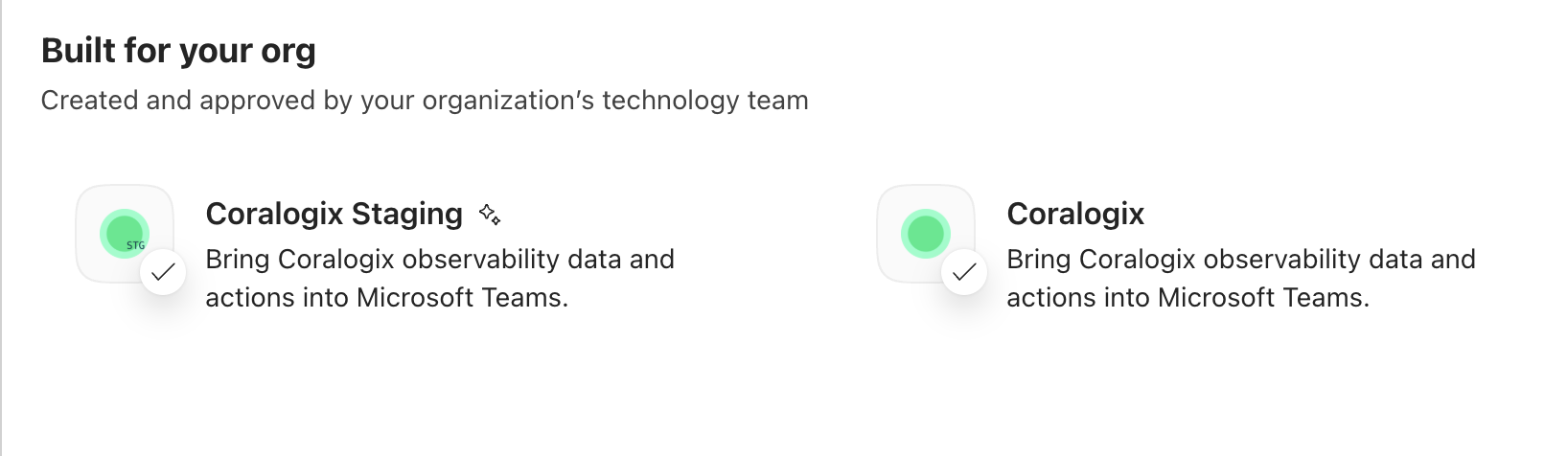
- Select Coralogix from the Built for your org section.
- Select the General channel of the target team. This installs the app for all public channels in that team.
- Repeat for every team you want the app to work in.
Set up the integration in Coralogix
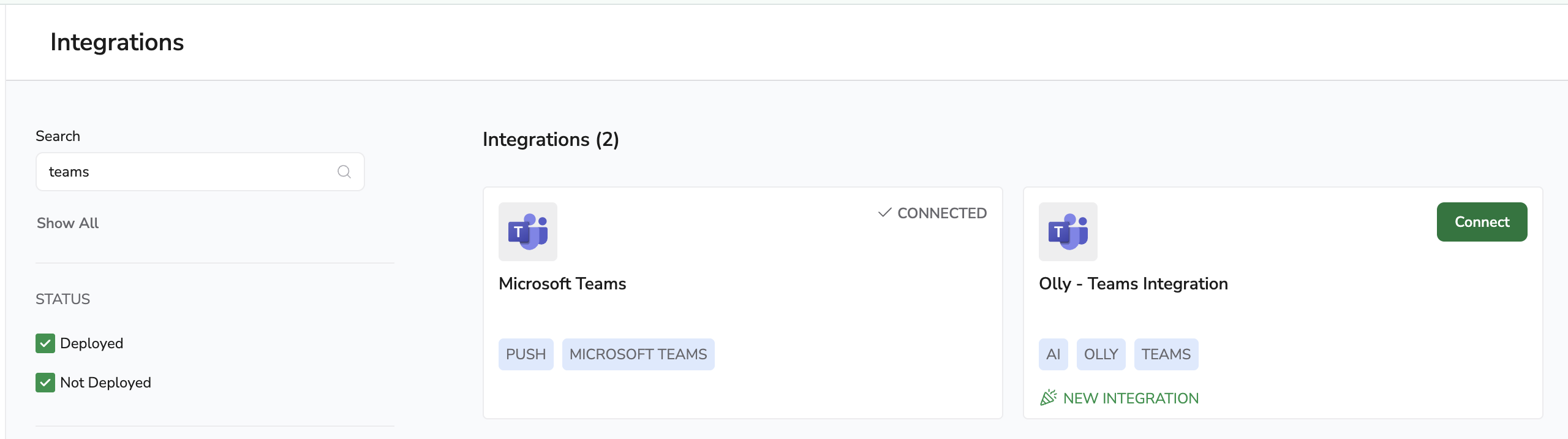
- Go to the Integrations page.
- Select Microsoft Teams (not Olly).
- Select Add New.
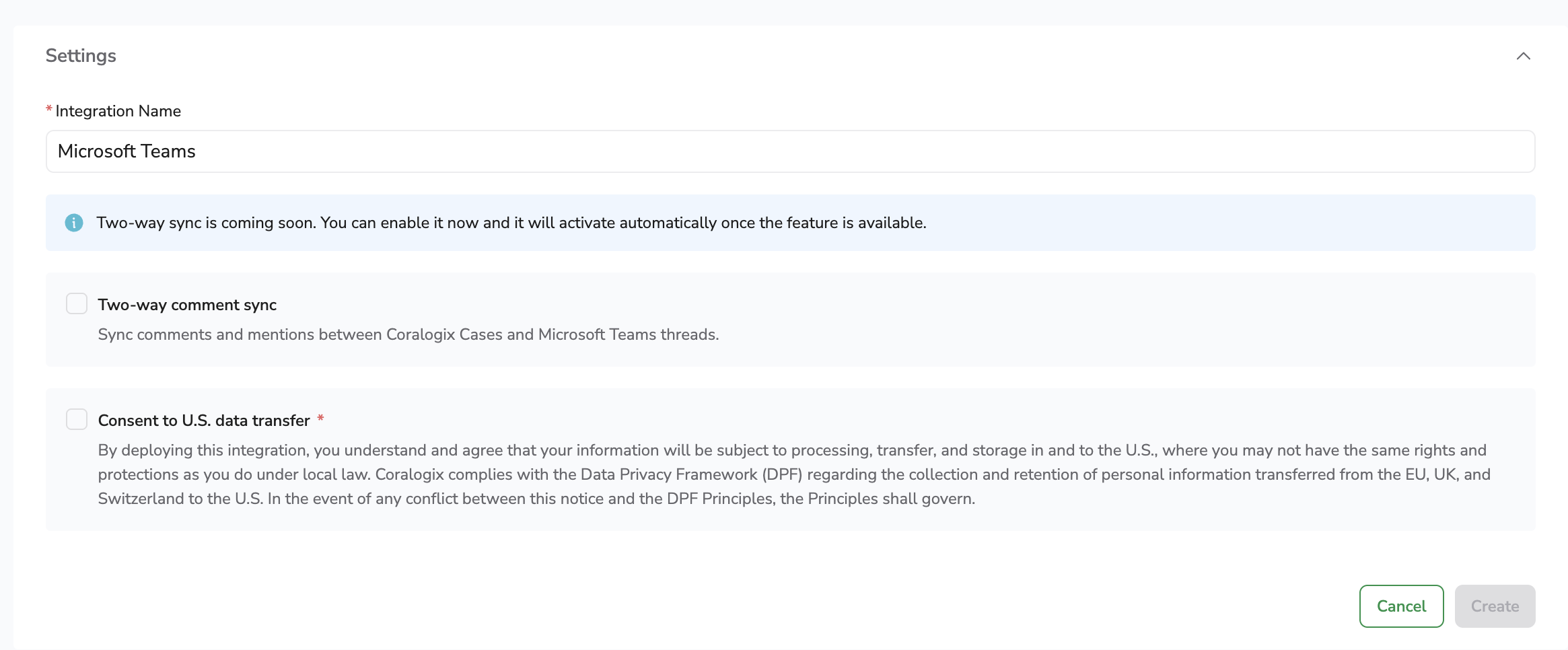
- Enter a name. If you want two-way sync, select it (it activates for this integration once that feature ships), and consent to US data transfer.
- Authorize the integration. This step requires a Microsoft Teams administrator:
- If you are a Teams admin: select Authorize and consent to the requested permissions.
- If you are not: send the authorization link to your Teams admin to approve (the same admin who approves the uploaded app package).
- Create connectors here or from Notification Center.
Create a connector
A connector links to a single Microsoft Teams channel. The app must already be added to the team, and for a private channel you must add the app to that channel.
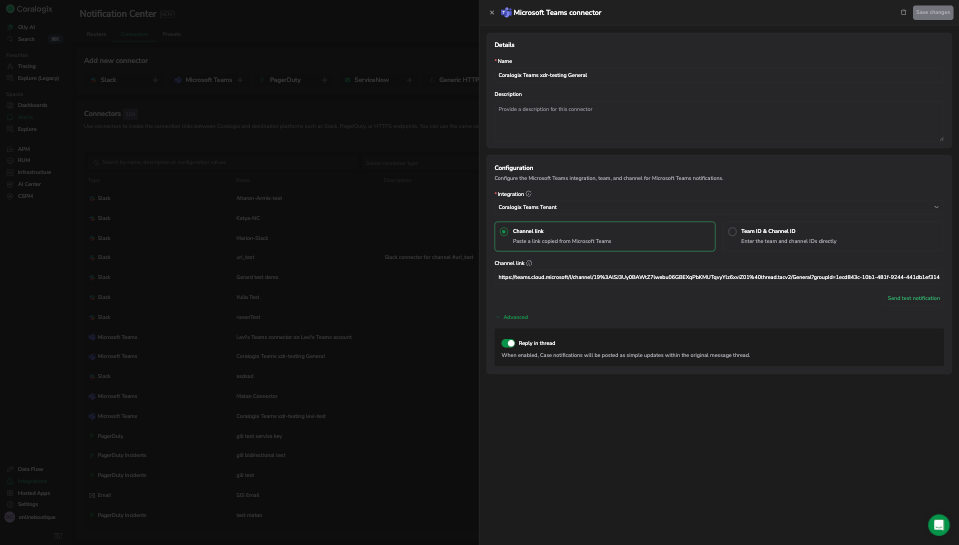
- Go to Notification Center, then Connectors, and select + Microsoft Teams.
- Select the integration. It is pre-filled if you have only one.
- Set the channel by pasting a channel link, or by entering the Team ID and Channel ID directly:
- To get the link, select the three-dots menu next to the channel name, then Copy link, and paste it into the field.
- To enter IDs manually, the Team ID is the
groupIdquery parameter in the link, and the Channel ID is the segment betweenchanneland the channel name.
- Select whether updates reply in the thread.
FAQ
How do I use a connector with a private channel?
The app can only post to a private channel it belongs to. Add it from the channel: open Manage channel, select Coralogix, then select Add. You can then use that channel's ID in a connector.
What should I do when the app is available in the Marketplace?
Once the app is published to the Microsoft Teams Marketplace, move your installation to the Marketplace version so you receive future updates. A Teams administrator uninstalls the manually uploaded app, then installs the Marketplace one:
- Remove the current app: search for Coralogix, select it, then select Actions, then Delete.
- Install the Marketplace app: search for Coralogix, then install it.
- Re-add the app to the required teams and channels.
You do not need to re-create the integration in Coralogix.