Claude Code client-side integration with Coralogix
Claude Code ships with built-in OpenTelemetry support, which means you can send its full telemetry (token usage, model costs, tool calls, code changes, and session activity) directly to Coralogix with no custom code required. Once connected, every Claude Code session in your organization streams live data to a dedicated dashboard, giving you cost visibility, usage patterns, and code impact in one place.
This integration is available for Claude Team and Enterprise plans. Together with Claude Cowork, it is currently the only integration method available for the Claude Team plan and Claude on third-party platforms.
Data you get per session: cost per session, models used, tool calls, code changes (lines added and removed, commits, pull requests), and correlations between Git repositories and Claude Code sessions. Cost figures are estimated based on token usage reported by Claude Code directly.
For organization-level actual cost, seat, and governance data, add the Claude Usage & Compliance APIs integration (Enterprise only).
See the Claude Cowork integration for the admin-panel setup for Claude Cowork.
Supported environments
- OS: macOS, Linux, and Windows (native or WSL).
- Shell:
bashorzsh. The shell-based per-developer setup runs on macOS, Linux, and Windows Subsystem for Linux (WSL).
What you need
- A Coralogix account with a Send-Your-Data API key. In Coralogix, navigate to Settings, then API Keys.
- Your Coralogix OpenTelemetry Protocol (OTLP) endpoint:
https://ingress.eu2.coralogix.com. Use the domain selector at the top of this page to select your region. - Claude Code installed and running on your machine.
Set up
Deploy org-wide with managed settings
For Claude for Teams or Enterprise (Claude Code 2.1.38 or newer), use server-managed settings to push the Coralogix configuration to every developer automatically. No shell scripts, no .env distribution, no per-developer action required.
-
In Claude.ai, navigate to Admin Settings, then Claude Code, then Managed Settings and select Manage.
-
Paste the settings JSON:
{"env": {"CLAUDE_CODE_ENABLE_TELEMETRY": "1","OTEL_METRICS_EXPORTER": "otlp","OTEL_LOGS_EXPORTER": "otlp","OTEL_EXPORTER_OTLP_PROTOCOL": "http/protobuf","OTEL_EXPORTER_OTLP_ENDPOINT": "https://ingress.eu2.coralogix.com","OTEL_EXPORTER_OTLP_HEADERS": "Authorization=Bearer <YOUR_CX_API_KEY>,CX-Application-Name=claude-code,CX-Subsystem-Name=<TEAM_NAME>","OTEL_RESOURCE_ATTRIBUTES": "cx.application.name=claude-code,cx.subsystem.name=<TEAM_NAME>","OTEL_EXPORTER_OTLP_METRICS_TEMPORALITY_PREFERENCE": "delta"}}Replace
<YOUR_CX_API_KEY>and<TEAM_NAME>with your values, and give the headers the same application and subsystem as the resource attributes. The endpoint already shows the region you select at the top of this page.WarningInclude the
CX-Application-NameandCX-Subsystem-Nameheaders. Without them, developers on Claude Desktop send no logs or traces. See Logs and traces do not appear but metrics do. -
Select Add settings.
The admin console shows the configured settings JSON:
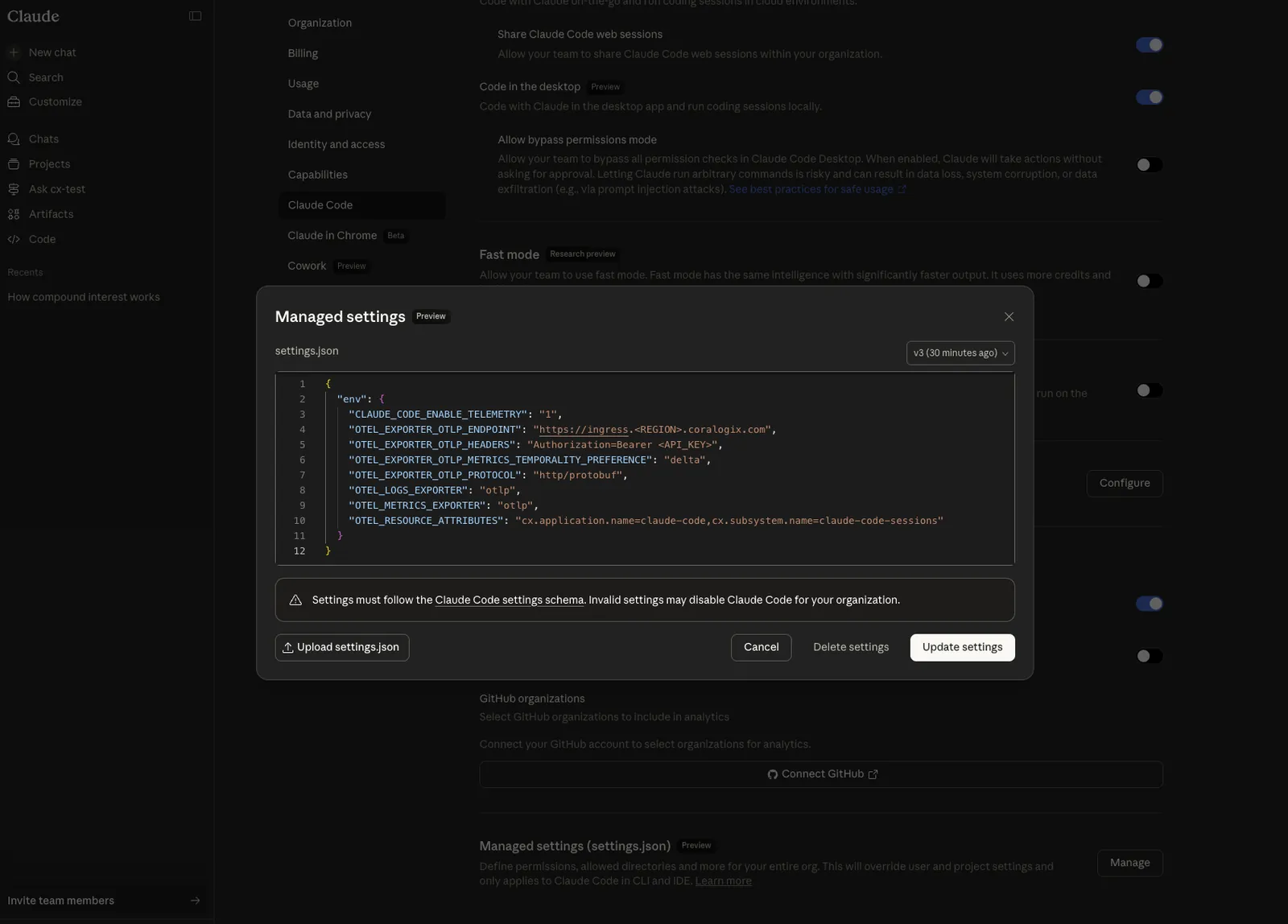
Settings reach all Claude Code clients at their next startup or within the hourly polling cycle.
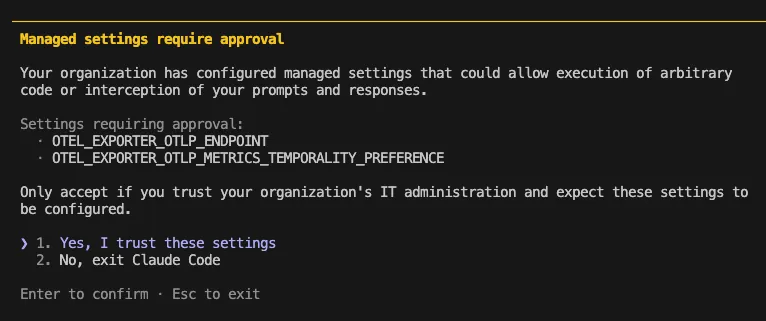
On their next claude startup, developers see a one-time approval dialog listing the configured environment variables. They select Yes, I trust these settings and Claude Code restarts with telemetry active.
Claude on third-party platforms
If your organization runs Claude Code against a third-party endpoint (for example, Amazon Bedrock or LiteLLM) rather than a managed Claude account, server-managed settings don't apply, so you can't push the Coralogix configuration from the Claude.ai admin console. Distribute it instead through a dedicated managed settings file deployed with your device-management (MDM) tooling.
-
Create a
managed-settings.jsonfile. -
Add the same telemetry
envblock shown in Deploy org-wide with managed settings, replacing<YOUR_CX_API_KEY>and<TEAM_NAME>with your values. -
Distribute the file to every developer with your MDM tooling, following Claude Code's managed settings guide. The settings reach all Claude Code clients at their next startup.
For the file locations on each platform and how this channel behaves when a proxy is active, see Telemetry stops when Claude Code routes through a proxy or gateway.
Deploy org-wide with Claude apps gateway
If your organization routes Claude Code through Claude apps gateway, configure Coralogix in gateway.yaml rather than in a client-side env block. Clients export OTLP to the gateway, which relays it verbatim to every destination you configure, and gateway-delivered settings override OTEL_* variables set locally.
-
Add Coralogix as a telemetry destination in
gateway.yaml. Settingtelemetry.forward_totogether withlisten.public_urlturns telemetry on and pushes the OTLP configuration to every connected client. The gateway builds the pushed OTLP endpoint fromlisten.public_url, so set it if your configuration doesn't already.telemetry:forward_to:- url: https://ingress.eu2.coralogix.comheaders:Authorization: Bearer <YOUR_CX_API_KEY>CX-Application-Name: claude-codeCX-Subsystem-Name: <TEAM_NAME>metrics: truelogs: truetraces: trueThe
CX-Application-NameandCX-Subsystem-Nameheaders go on the destination because the gateway relays telemetry itself, and they keep logs and traces routed for developers on Claude Desktop, which replaces theOTEL_RESOURCE_ATTRIBUTESvalue delivered to the client.Each destination opts into
metrics,logs, andtracesindependently, and the default is metrics only. Setlogs: trueso Claude Code's log events feed the Claude sessions dataset and every log-derived view in AI Center. -
The gateway doesn't push
OTEL_RESOURCE_ATTRIBUTES,OTEL_EXPORTER_OTLP_METRICS_TEMPORALITY_PREFERENCE, orCLAUDE_CODE_ENHANCED_TELEMETRY_BETA, which traces require. Set them in the matching policy'scli.envblock.managed:policies:- match: {}cli:env:OTEL_RESOURCE_ATTRIBUTES: "cx.application.name=claude-code,cx.subsystem.name=<TEAM_NAME>"OTEL_EXPORTER_OTLP_METRICS_TEMPORALITY_PREFERENCE: "delta"CLAUDE_CODE_ENHANCED_TELEMETRY_BETA: "1"To send metrics only, set
logs: falseandtraces: falseon the destination.
Per-user attribution needs no developer-side configuration: the client reads the signed-in identity and user.groups from the gateway-issued token, so per-user cost and per-team breakdowns work by default.
The managed tier doesn't merge. Only the highest-ranked source applies. Gateway-delivered settings outrank both an MDM-delivered property list or registry policy and managed-settings.json; only a configured policyHelper outranks the gateway. So for a signed-in developer without a policyHelper, the gateway is the only source that applies. Configure Coralogix in gateway.yaml only.
Metrics are aggregate counters. Token counts, request counts, and latency. Logs and traces can carry full shell commands, tool inputs, and file paths, covering anything Claude Code does on a developer's machine. Turn logs and traces on only for destinations whose access controls and retention justify that data.
Per-developer setup
Use this if your organization is not on Claude for Teams or Enterprise, or if you prefer not to use server-managed settings.
Install
Clone the Coralogix AI agent instrumentation repository and navigate to the Claude Code directory:
git clone https://github.com/coralogix/ai-agent-instrumentation.git
cd ai-agent-instrumentation/claude-code
Configure
-
Copy the example environment file:
cp .env.example .env -
Open
.envand set the following values:CX_API_KEY: your Send-Your-Data API keyCX_OTLP_ENDPOINT: your OTLP endpoint, including the scheme (https://ingress.eu2.coralogix.com)
-
Activate the instrumentation and start Claude Code:
source activate.shclaudeClaude Code sessions now stream telemetry to Coralogix.
Make it permanent
To activate instrumentation automatically in every new terminal session, add the following line to ~/.zshrc:
source /path/to/claude-code/activate.sh
Advanced: set environment variables directly
If you prefer to set the environment variables without the activation script, add the following to ~/.zshrc or ~/.bashrc:
if [ -f "$HOME/path/to/claude-code-coralogix/.env" ]; then
set -a; source "$HOME/path/to/claude-code-coralogix/.env"; set +a
fi
export CLAUDE_CODE_ENABLE_TELEMETRY=1
export OTEL_METRICS_EXPORTER=otlp
export OTEL_LOGS_EXPORTER=otlp
export OTEL_EXPORTER_OTLP_PROTOCOL=http/protobuf
export OTEL_EXPORTER_OTLP_ENDPOINT="${CX_OTLP_ENDPOINT}"
export OTEL_EXPORTER_OTLP_HEADERS="Authorization=Bearer ${CX_API_KEY}"
export OTEL_RESOURCE_ATTRIBUTES="cx.application.name=claude-code,cx.subsystem.name=${CX_SUBSYSTEM_NAME}"
export OTEL_EXPORTER_OTLP_METRICS_TEMPORALITY_PREFERENCE=delta
To cover an organization, deploy these values with your device-management tooling rather than asking each developer to edit a file. See Claude on third-party platforms.
For a single developer on Claude Desktop, set the same values in Claude Code's settings file at ~/.claude/settings.json. Shell variables reach Claude Code only in a terminal session, because a desktop application starts from the operating system's launcher and never reads ~/.zshrc or ~/.bashrc:
{
  "env": {
    "CLAUDE_CODE_ENABLE_TELEMETRY": "1",
    "OTEL_METRICS_EXPORTER": "otlp",
    "OTEL_LOGS_EXPORTER": "otlp",
    "OTEL_EXPORTER_OTLP_PROTOCOL": "http/protobuf",
    "OTEL_EXPORTER_OTLP_ENDPOINT": "https://ingress.eu2.coralogix.com",
    "OTEL_EXPORTER_OTLP_HEADERS": "Authorization=Bearer <YOUR_CX_API_KEY>,CX-Application-Name=claude-code,CX-Subsystem-Name=<TEAM_NAME>",
    "OTEL_RESOURCE_ATTRIBUTES": "cx.application.name=claude-code,cx.subsystem.name=<TEAM_NAME>",
    "OTEL_EXPORTER_OTLP_METRICS_TEMPORALITY_PREFERENCE": "delta"
  }
}
Include the CX-Application-Name and CX-Subsystem-Name headers. Without them, developers on Claude Desktop send no logs or traces. See Logs and traces do not appear but metrics do.
Application name and subsystem
Coralogix organizes incoming telemetry by two resource attributes: Application name and Subsystem. For Claude Code, we recommend:
| Attribute | Recommended value | Why |
|---|---|---|
cx.application.name | claude-code | Lets you filter dashboards and queries by Claude surface (e.g., distinguish Claude Code from Claude Cowork). |
cx.subsystem.name | The team name, for example, team1, enterprise, data-eng | Lets you filter by team and compare usage across teams. |
Example (managed settings):
"OTEL_RESOURCE_ATTRIBUTES": "cx.application.name=claude-code,cx.subsystem.name=platform"
With this convention in place, the shared Claude dashboard can be filtered by agent (which Claude surface) and by team (who's using it) from a single dropdown.
Repository breakdown
Claude Code's native telemetry reports cost and tokens per session, but not which Git repository the work touched. The Coralogix repository-tracking hook adds that dimension: it runs after every tool call, resolves the Git repository for the files Claude Code touched, and reports it to Coralogix. AI Center then attributes session cost and tokens to repositories and separates Managed repositories (those owned by an Organization you configure in Settings → AI Center → Code agent) from Unmanaged ones. See Git Repositories.
How it works
The hook is a Claude Code PostToolUse hook: a small script that Claude Code runs after each tool call. It identifies which Git repository the files Claude Code touched belong to and reports that repository to Coralogix, so AI Center can attribute the session to it. On macOS and Linux the hook is a shell script (claude.sh); on Windows it's a PowerShell script (claude.ps1). Both use only tools that ship with the operating system (no Node, Python, or other runtime to install) and both read their Coralogix configuration from the same Claude Code settings that carry your telemetry, so there are no separate hook credentials to manage. Repositories are identified by name, for example, your-org/your-service; work that doesn't belong to any repository is reported as unknown.
A single session can touch several repositories. AI Center splits the session's cost evenly across them.
What you need
The repository-tracking hook runs on macOS, Linux, and Windows.
- The hook script for each platform (
claude.sh(macOS and Linux) andclaude.ps1(Windows)) from the Coralogix AI agent instrumentation repository. - A Coralogix Send-Your-Data API key. The same key you use for OTLP.
- No extra runtime. The shell hook uses
/bin/sh,plutil, andcurl; the Windows hook uses Windows PowerShell 5.1. All ship with the operating system, so there is nothing to install, sign, or build per architecture. gitis optional. The hook callsgitto resolve repository names; without it, that machine reportsrepository_name="unknown".
Claude Code doesn't reliably pass its env block to hook subprocesses, it strips OTEL_* variables, and on Windows drops the block entirely (claude-code#20112). Instead, the hook reads OTEL_EXPORTER_OTLP_ENDPOINT, OTEL_EXPORTER_OTLP_HEADERS, and OTEL_RESOURCE_ATTRIBUTES directly from the same Claude Code settings files that hold your telemetry configuration. Configure those values once in the env block. There are no separate hook credentials.
Per-operating-system values
Deploy each platform's hook script to a stable path. A single hook command (shown below) detects the operating system and runs the matching script.
| Operating system | Hook script | Deploy path | Built-in runtime |
|---|---|---|---|
| macOS | claude.sh | /usr/local/bin/claude.sh | /bin/sh, plutil, curl |
| Linux | claude.sh | /usr/local/bin/claude.sh | /bin/sh, plutil, curl |
| Windows | claude.ps1 | C:\ProgramData\Coralogix\claude-code\claude.ps1 | Windows PowerShell 5.1 |
On macOS and Linux, make claude.sh readable and executable by the account that runs Claude Code.
Deploy org-wide with device management
To roll the hook out to every developer, deploy each platform's hook script with your device-management tooling (Jamf for macOS, Microsoft Intune for Windows) then distribute the hooks block through managed settings. Deploy the script files before the managed settings reach a machine; the hook command exits cleanly when the script isn't present yet, so an out-of-order rollout produces no session errors. Developers approve the settings once, exactly as with the base telemetry configuration.
The managed-settings block is your base telemetry env block plus a single hooks.PostToolUse command that dispatches by operating system, no hook-specific keys:
{
  "env": {
    "CLAUDE_CODE_ENABLE_TELEMETRY": "1",
    "OTEL_METRICS_EXPORTER": "otlp",
    "OTEL_LOGS_EXPORTER": "otlp",
    "OTEL_EXPORTER_OTLP_PROTOCOL": "http/protobuf",
    "OTEL_EXPORTER_OTLP_ENDPOINT": "https://ingress.eu2.coralogix.com",
    "OTEL_EXPORTER_OTLP_HEADERS": "Authorization=Bearer <YOUR_CX_API_KEY>,CX-Application-Name=claude-code,CX-Subsystem-Name=<TEAM_NAME>",
    "OTEL_EXPORTER_OTLP_METRICS_TEMPORALITY_PREFERENCE": "delta",
    "OTEL_RESOURCE_ATTRIBUTES": "cx.application.name=claude-code,cx.subsystem.name=<TEAM_NAME>"
  },
  "hooks": {
    "PostToolUse": [
      {
        "hooks": [
          { "type": "command", "command": "case \"$(uname -s)\" in Darwin|Linux) [ -x /usr/local/bin/claude.sh ] && exec /bin/sh /usr/local/bin/claude.sh; exit 0;; MINGW*|MSYS*|CYGWIN*) [ -f \"C:/ProgramData/Coralogix/claude-code/claude.ps1\" ] && exec powershell.exe -NoProfile -ExecutionPolicy Bypass -File C:/ProgramData/Coralogix/claude-code/claude.ps1; exit 0;; *) exit 0;; esac" }
        ]
      }
    ]
  }
}
On Windows, Claude Code runs hook commands through Git Bash, which is why one uname-based command serves both platforms. The Coralogix AI agent instrumentation repository provides ready-to-use deployment scripts: deploy-jamf.sh installs claude.sh to /usr/local/bin on macOS, and deploy-windows.ps1 installs claude.ps1 to C:\ProgramData\Coralogix\claude-code on Windows.
Install for one developer
-
Copy your platform's hook script to its stable path.
claude.shto/usr/local/bin/claude.shon macOS and Linux, orclaude.ps1toC:\ProgramData\Coralogix\claude-code\claude.ps1on Windows. -
Register it as a PostToolUse hook in
~/.claude/settings.json. The hook reads its Coralogix configuration from the sameenvblock, so there are no extra credentials to set. The full file looks like this:{"env": {"CLAUDE_CODE_ENABLE_TELEMETRY": "1","OTEL_METRICS_EXPORTER": "otlp","OTEL_LOGS_EXPORTER": "otlp","OTEL_EXPORTER_OTLP_PROTOCOL": "http/protobuf","OTEL_EXPORTER_OTLP_ENDPOINT": "https://ingress.eu2.coralogix.com","OTEL_EXPORTER_OTLP_HEADERS": "Authorization=Bearer <YOUR_CX_API_KEY>,CX-Application-Name=claude-code,CX-Subsystem-Name=<TEAM_NAME>","OTEL_EXPORTER_OTLP_METRICS_TEMPORALITY_PREFERENCE": "delta","OTEL_RESOURCE_ATTRIBUTES": "cx.application.name=claude-code,cx.subsystem.name=<TEAM_NAME>"},"hooks": {"PostToolUse": [{"hooks": [{ "type": "command", "command": "case \"$(uname -s)\" in Darwin|Linux) [ -x /usr/local/bin/claude.sh ] && exec /bin/sh /usr/local/bin/claude.sh; exit 0;; MINGW*|MSYS*|CYGWIN*) [ -f \"C:/ProgramData/Coralogix/claude-code/claude.ps1\" ] && exec powershell.exe -NoProfile -ExecutionPolicy Bypass -File C:/ProgramData/Coralogix/claude-code/claude.ps1; exit 0;; *) exit 0;; esac" }]}]}}The only addition on top of the base telemetry configuration is the
hooks.PostToolUseentry, which registers the platform's hook script to run after every tool call. -
Start a new Claude Code session. The hook reports a repository the first time Claude Code touches a file.
Classify repositories as Managed or Unmanaged
Repository names alone don't tell AI Center which repositories belong to your company. In Settings → AI Center → Code agent, configure the Organizations that own your repositories. Sessions on a matched repository are labeled Managed, and everything else is Unmanaged. Until you configure an Organization, every repository appears as Unmanaged.
For the steps and the full classification rules, see Classify repositories as Managed or Unmanaged.
View in AI Center
Once your Claude Code sessions are streaming telemetry, navigate to AI Center > Code Agents > Claude to see the unified Claude dashboard. The Select an application dropdown lists every <application> - <subsystem> pair you configured (for example, claude-code - team1, claude-code - team2), so you can slice usage, cost, sessions, and token data by team. If you also instrument Claude Cowork, Cowork data appears in the same dashboard.
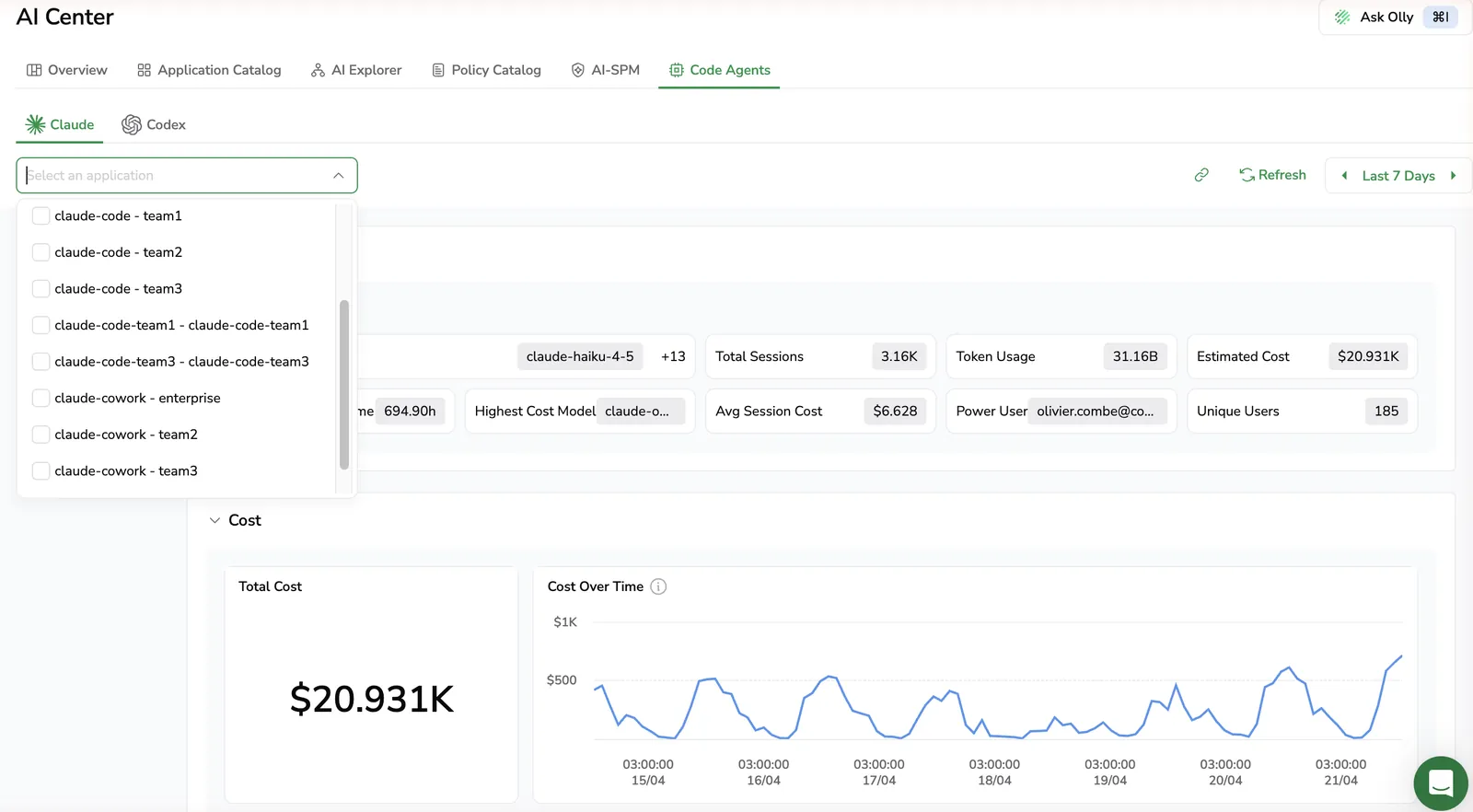
The dashboard cost is derived from the usage metrics Claude Code sends to Coralogix, displayed as-is. It does not factor in your Anthropic subscription plan, so it is accurate for usage-billed Enterprise plans and an estimate for others.
To tell plans apart, set cx.subsystem.name to the plan or team name (see Application name and subsystem) and filter on it. For the full accuracy caveats, see Dashboard costs don't match the Anthropic invoice.
Validate the integration
After running a Claude Code session, confirm that data is flowing:
- In Coralogix, navigate to Metrics Explorer and search for the metric prefix
claude_code. Token usage and cost data appear here. - Navigate to Logs and filter by your application and subsystem names to see tool call and session events.
- Open Code Agents Intelligence to see the full session dashboard.
Monitor data in Coralogix
Import the dashboard
- In Coralogix, navigate to Dashboards, then select New Dashboard, then Import from JSON.
- Upload
coralogix-dashboard.jsonfrom the cloned repository.
Data available
| Signal | Where in Coralogix |
|---|---|
| Token usage and costs | Metrics Explorer (claude_code prefix) |
| Tool calls | Logs |
| Code changes and commits | Dashboard |
Code Agents Intelligence
Use the Code Agents Intelligence dashboard to track costs, usage, code impact, and user activity across all sessions in your organization, filterable by Application name and Subsystem.
Data scopes
The Claude Code dashboard runs on metrics. Support for data scopes on Claude Code metrics is forthcoming. See Code agents observability, Data scopes for the per-agent breakdown.
Configuration examples
Reduce the metric export interval during testing
Lower the export interval to see data faster while validating your setup:
export OTEL_METRIC_EXPORT_INTERVAL=10000
Activate tool detail logging
Set OTEL_LOG_TOOL_DETAILS=1 to add Model Context Protocol (MCP) server and tool names to claude_code.tool_result log events, and to populate tool_parameters for MCP and Skill tool calls (Bash tool parameters ship by default). Tool detail logging is off by default.
Add custom resource dimensions
Attach extra labels (for example, environment) to every signal:
export OTEL_RESOURCE_ATTRIBUTES="cx.application.name=claude-code,cx.subsystem.name=platform,env=prod"
Telemetry reference
The AI Center Code Agents dashboard surfaces the most common cost, usage, and activity signals out of the box. To explore every metric, log event, and attribute that Claude Code emits (and use those signals as the basis for your own Custom Dashboards or alerts) see the Claude Code monitoring usage reference.
Data reference
Metrics
All metrics use delta temporality and appear in Metrics Explorer under the claude_code prefix.
| Metric | Labels | What it tracks |
|---|---|---|
claude_code_session_count_total | session_id, user_account_uuid | Sessions started |
claude_code_token_usage_tokens_total | model, type | Tokens by model and type (input, output, cacheRead, cacheCreation) |
claude_code_cost_usage_USD_total | model | Estimated USD cost per model |
claude_code_lines_of_code_count_total | type | Lines added and removed |
claude_code_commit_count_total | - | Git commits made |
claude_code_pull_request_count_total | - | Pull requests created |
claude_code_code_edit_tool_decision_total | decision, source, tool_name, language | Accept and reject decisions on code edits |
claude_code_active_time_total_s_total | type | Seconds Claude Code was actively processing (cli = AI/tool work, user = keyboard interaction) |
claude_code_session_repo_info | session_id, repository_name, user_email | Git repository worked on in each session (requires the repository-tracking hook) |
Log events
Query log events using DataPrime or Lucene, filtered by your application and subsystem names.
| Event type | Key attributes |
|---|---|
claude_code.api_request | model, token counts, cost, latency |
claude_code.api_error | status, error message |
claude_code.tool_result | tool name, duration, outcome |
claude_code.tool_decision | tool name, decision, source |
Every signal carries session.id, user.account_uuid, user.email, organization.id, app.version, and terminal.type.
Advanced configuration
| Variable | Default | Purpose |
|---|---|---|
OTEL_METRIC_EXPORT_INTERVAL | 60000 ms | How often the exporter flushes metrics |
OTEL_LOGS_EXPORT_INTERVAL | 5000 ms | Log flush interval |
OTEL_LOG_TOOL_DETAILS | off | Set to 1 to add Model Context Protocol (MCP) server and tool names to tool events, plus tool_parameters for MCP and Skill tool calls |
OTEL_METRICS_INCLUDE_SESSION_ID | true | Attaches session.id to metric labels, turn off to reduce cardinality |
OTEL_METRICS_INCLUDE_ACCOUNT_UUID | true | Attaches user.account_uuid to metric labels |
Troubleshoot
Metrics do not appear but logs do
Cause: OTEL_METRICS_EXPORTER is missing or the export interval is too long.
Fix: confirm you exported OTEL_METRICS_EXPORTER=otlp and lower OTEL_METRIC_EXPORT_INTERVAL to 10000 while testing.
Logs and traces do not appear but metrics do
Cause: Claude Desktop replaces OTEL_RESOURCE_ATTRIBUTES with its own value, dropping cx.application.name and cx.subsystem.name. Coralogix requires an application name for logs and traces, and accepts metrics that omit it, so metrics keep arriving while Coralogix discards logs and traces. Dashboards built on logs or traces, and metrics dashboards filtered on the application or subsystem, do not populate correctly. For logs the rejection arrives inside an HTTP 200 response, so the loss stays silent on both sides; Coralogix rejects traces with an HTTP 400 error. Developers who run claude in a terminal keep their attributes, so the same configuration can work for some of your developers and not others.
Confirm it by listing the OpenTelemetry variables the running client received. On macOS or Linux:
for p in $(pgrep -x claude); do ps eww -o command= -p $p | tr ' ' '\n' | grep '^OTEL_'; done
On Windows, open Process Explorer, find claude.exe, then select Properties and the Environment tab. In both cases, OTEL_RESOURCE_ATTRIBUTES shows Claude Desktop's value with no cx. entries.
Fix: add the CX-Application-Name and CX-Subsystem-Name headers to your configuration, which Claude Desktop leaves in place. Use the channel that delivers your telemetry configuration: managed settings, third-party platforms, or Claude apps gateway.
Only some developers send telemetry after a configuration change
Cause: Claude Code reads its settings at startup, so a new or changed configuration reaches each developer on their next restart. Rollout is gradual by design, and data appears per developer as they restart.
Two things extend the delay. A full restart on Claude Desktop includes quitting the menu-bar or tray icon, rather than only closing the window. And when the configuration delivers OTEL_EXPORTER_OTLP_ENDPOINT, the developer sees a one-time security approval dialog and telemetry flows only once they accept it.
Fix: confirm a specific developer by having them fully restart Claude Code and accept the approval dialog, then check for their user.email in Coralogix. To confirm the client received the configuration at all, list its OpenTelemetry variables with the command in Logs and traces do not appear but metrics do.
Costs show as zero
Cause: cost metrics require delta temporality.
Fix: confirm you set OTEL_EXPORTER_OTLP_METRICS_TEMPORALITY_PREFERENCE=delta.
Telemetry stops when Claude Code routes through a proxy or gateway
If Claude Code routes through a proxy, router, gateway, or third-party model provider (for example, LiteLLM, Amazon Bedrock, or a cost-tracking proxy) Claude Code treats it as a third-party provider and silently stops applying server-managed settings, including the OpenTelemetry configuration that streams usage and cost data to Coralogix. Telemetry stops with no error.
One gateway is an exception: Claude apps gateway, Anthropic's own self-hosted gateway, delivers managed settings and (once you configure its telemetry destinations) turns telemetry on itself, so it doesn't cause this blackout. It needs its own Coralogix wiring rather than the following fix.
Why telemetry stops
Claude Code fetches server-managed settings from Anthropic at startup, and those settings aren't applied when a third-party model provider is configured, a non-default ANTHROPIC_BASE_URL, or one of the provider flags CLAUDE_CODE_USE_BEDROCK, CLAUDE_CODE_USE_MANTLE, CLAUDE_CODE_USE_VERTEX, CLAUDE_CODE_USE_FOUNDRY, or CLAUDE_CODE_USE_ANTHROPIC_AWS. Any tool that sets one of these turns off dashboard-delivered telemetry for that developer.
The bypass is triggered by, among others:
- Claude Code routers and cost proxies: Headroom, claude-code-router, claude-code-proxy, y-router, and ccflare.
- AI gateways and LLM proxies: LiteLLM, Portkey, OpenRouter, Cloudflare AI Gateway, Kong AI Gateway, Apache APISIX, TrueFoundry, Requesty, Vercel AI Gateway, Braintrust, Martian, and Helicone in proxy mode (Helicone's async-logging mode does not trigger the bypass).
- Enterprise provider backends: Amazon Bedrock, Bedrock Mantle, Google Vertex AI, and Microsoft Foundry.
Fix
Deliver the OpenTelemetry environment variables through a channel that survives the bypass:
- A
managed-settings.jsonfile deployed with your MDM tooling, recommended for fleets. See Claude on third-party platforms for theenvblock, then deploy it to the platform path below. - A per-user
~/.claude/settings.jsonfile holding the sameenvblock, suitable for individual developers or small teams. It is not tamper-resistant and must be configured on each machine.
| Platform | managed-settings.json path |
|---|---|
| macOS | /Library/Application Support/ClaudeCode/managed-settings.json |
| Windows | C:\Program Files\ClaudeCode\managed-settings.json |
| Linux / WSL | /etc/claude-code/managed-settings.json |
On macOS, you can instead push a configuration profile with your MDM that targets the com.anthropic.claudecode managed-preferences domain with the same keys, harder for developers to tamper with than a file.
OpenTelemetry configuration is an advanced setting, so developers must fully restart Claude Code for the change to take effect, on Desktop, quit the menu-bar or tray icon as well.
Settings priority
Managed settings take precedence over command-line arguments and the local, project, and user settings files. Within the managed tier, Claude Code applies the first source that delivers any configuration at all, ignores empty deliveries, and does not merge sources, ranked highest first:
- A policy helper (
policyHelper), if configured. - Server-managed settings, from the Claude.ai admin console or from Claude apps gateway for gateway-signed-in developers.
- An MDM-delivered policy: a macOS managed-preferences property list, or the Windows
HKEY_LOCAL_MACHINEregistry. - The
managed-settings.jsonfile.
A single source applies per developer, so the channel that wins depends on how they connect:
| Developer connects through | Winning source | Put the Coralogix configuration here |
|---|---|---|
| Anthropic directly | Server-managed settings | Claude.ai admin console |
| A third-party proxy or provider flag | An MDM-delivered policy, or managed-settings.json | Your MDM policy or managed-settings.json; ~/.claude/settings.json for a single developer |
| Claude apps gateway | Gateway | gateway.yaml: telemetry.forward_to, plus the policy cli.env block |
This makes the MDM file a clean complement to the dashboard: developers without a proxy get the dashboard settings, and developers with a proxy fall through to the MDM file. Because the sources don't merge, the dashboard configuration must also contain the telemetry env block, if the dashboard configuration exists but omits that block, Claude Code ignores the MDM file for those developers and they send nothing. Keep the managed-settings.json file scoped to the telemetry block for the same reason.
For the underlying conditions and precedence rules, see Claude Code's server-managed settings and settings references.
Dashboard costs don't match the Anthropic invoice
Claude Code computes cost on the developer's machine: Anthropic returns token counts with each response, and the client multiplies them by a price list embedded in the client, then exports the cost and token-usage metrics to Coralogix (see Metrics).
Because the embedded price list reflects public list prices, dashboard cost is an estimate and can differ from your actual Anthropic invoice:
- Outdated clients compute with outdated prices until developers update Claude Code.
- Introductory or promotional pricing: a client without the updated price table reports a higher cost than billed for that model until it updates, for example during a model's launch-pricing period.
- US data-residency organizations: requests pinned to US infrastructure are billed at a higher rate than the global list price the client uses (see Claude's data residency pricing), so dashboard cost is understated by roughly 10%.
- Negotiated pricing: enterprise discounts and committed-use rates aren't known to the client.
Debug the repository-tracking hook
The hook swallows every error by design so it never disrupts a Claude Code session, which also means a failure is silent. To find out why repository data isn't reaching Coralogix, run the hook by hand with a sample event and confirm delivery with a query.
Run the hook the way Claude Code does
From inside a Git repository, pipe a sample PostToolUse event to the deployed script. Pass configuration with the override flags instead of reading it from settings files, and give the event a unique session_id you can search for afterward.
On macOS:
printf '{"session_id":"debug-1","cwd":"'"$(pwd)"'","tool_name":"Read","tool_input":{"file_path":"'"$(pwd)"'/README.md"},"user_email":"[email protected]"}' \
  | /bin/sh /usr/local/bin/claude.sh \
    --otlp-endpoint=https://ingress.eu2.coralogix.com \
    --otlp-headers="Authorization=Bearer <YOUR_CX_API_KEY>"
On Windows:
'{"session_id":"debug-1","cwd":"C:/path/to/repo","tool_name":"Read","tool_input":{"file_path":"C:/path/to/repo/README.md"},"user_email":"[email protected]"}' |
  powershell -NoProfile -File C:\ProgramData\Coralogix\claude-code\claude.ps1 -OtlpEndpoint "https://ingress.eu2.coralogix.com" -OtlpHeaders "Authorization=Bearer <YOUR_CX_API_KEY>"
The Coralogix AI agent instrumentation repository includes test-hook-local.sh, a macOS harness that runs this and prints the exact query to check.
Confirm delivery
The hook exits 0 even on failure, so the exit code confirms nothing. Query the metric instead. After 30–60 seconds, search Metrics Explorer for your marker:
claude_code_session_repo_info{session_id="debug-1"}
If the series appears, the hook works and the metric is landing. If it doesn't, work through the causes below.
Common causes
| Symptom | Cause and fix |
|---|---|
repository_name is unknown | git isn't installed or on PATH, or the path isn't inside a Git repository. Confirm git -C <dir> rev-parse --show-toplevel resolves. |
| Nothing is sent at all | No configuration resolved. The hook reads OTEL_EXPORTER_OTLP_ENDPOINT and OTEL_EXPORTER_OTLP_HEADERS from your Claude Code settings files. Confirm they're set, or pass the override flags above. |
| Metric never appears, HTTP 401 / 403 | Auth problem, wrong key, not a Send-Your-Data key, or missing metrics-ingestion permission. |
| Metric never appears, HTTP 400 / 404 | Wrong endpoint. It must be the ingress host, https://ingress.eu2.coralogix.com; the hook appends /v1/metrics. |
| Connection times out or TLS fails | A firewall or TLS-intercepting proxy is blocking egress to the ingress host on port 443. |
To see the HTTP status directly, reissue the same request with curl -v (macOS) against <endpoint>/v1/metrics with the Authorization header, or inspect the response from Invoke-WebRequest in an interactive PowerShell session on Windows.
Next steps
Once your integration is set up, explore Code agents to monitor token usage, costs, tool calls, code changes, and session data across all your coding agents.