Slack data ingestion
Collect messages from chosen Slack channels into Coralogix using the Contextual Data integration package.
The value is context at investigation time: when a channel is ingested as contextual data, you can read what your team was saying around the moment an event fired, alongside the event itself. Over time the same data supports collaboration tracking, performance monitoring, and compliance auditing.
What you need
- Permission to install apps in your Slack workspace.
- A Coralogix API key. You can create one during setup.
Create the integration in Coralogix
Select Integrations, then Contextual Data, then Slack, then Add new.
Enter an Integration Name and an App Name, then supply an API Key or select Create new key. Select Next.

Shows the first of the wizard's four sections, installation, setup, and channel selection follow.
Install the Coralogix app in Slack
Select Install to open Slack's authorization page. If the Coralogix app is already installed in your workspace, select Already installed and skip to the next section.
Check the workspace selector in the top-right corner is the workspace you want, then select Allow.
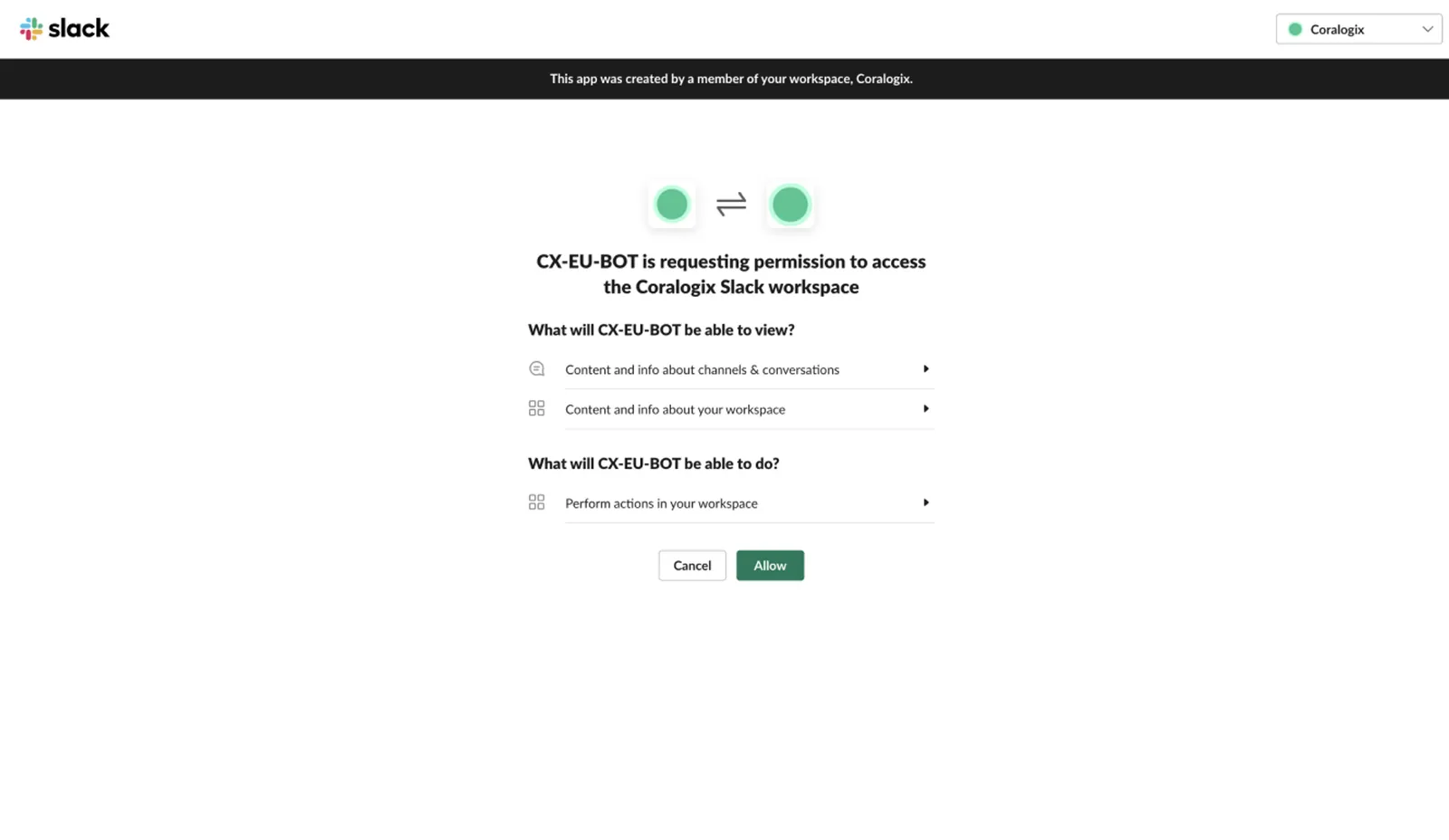
Shows the permissions the app requests and the workspace it will be installed into.
Link the app to your account
Copy the /cx-setup command shown in the wizard and run it in Slack. It carries the token that binds the app to your Coralogix account. Select Next once it has run.
Run the invite command shown on screen in each channel you want to monitor. Repeat it per channel. The app only sees channels it has been invited to.
Select Finish.

Shows the account-linking command, generated per integration.
The commands the wizard shows are specific to your Coralogix domain. Copy them from your own screen rather than from this page.