GitHub
The GitHub integration connects your GitHub organization to Coralogix through the Coralogix GitHub app. You install the app once and authorize it once, then enable the capabilities you want:
- Read sources gives Coralogix read-only access to your repository content, so features that need to look at code can retrieve it.
- Read audit logs collects your organization's GitHub audit log into Coralogix as logs.
- GitHub events streams repository and organization activity (pushes, pull requests, workflow runs, security alerts, and more) into Coralogix as logs, as GitHub emits them.
Each capability can be turned on and off independently, and each one you enable appears as its own entry under the integration.
The integration is in preview. Contact your Coralogix account team to have it enabled for your account.
How it works
One GitHub App installation backs all three capabilities, and each capability uses it differently:
| Capability | Direction | Timing |
|---|---|---|
| Read sources | Coralogix reads from the GitHub API | On demand, when a Coralogix feature needs a file |
| Read audit logs | Coralogix polls the GitHub audit-log API | Every minute, roughly a minute behind real time |
| GitHub events | GitHub pushes webhooks to Coralogix | As events happen |
Events reach Coralogix without any network configuration on your side. GitHub delivers each event to Coralogix, which resolves the organization the delivery came from, confirms the delivery is signed by GitHub, and writes it to your account as a log.
What you need
-
An organization owner to install the app. GitHub offers the install button for an organization only to its owners. Authorizing afterwards can be done by any member of that organization, except when Read audit logs is enabled, which GitHub allows only for owners.
-
Approval for GitHub Apps, if your organization restricts them. Be ready to approve the request, or have the person who can approve it on hand.
-
GitHub Enterprise Cloud, for the Read audit logs capability. GitHub does not expose the audit-log API on Free, Pro, or Team plans. The other two capabilities work on any plan.
-
An IP allow-list entry, if your organization or enterprise uses one. Add Coralogix's egress IP ranges before you start, or GitHub blocks the authorization step. Contact your account manager if the ranges for your domain are not listed.
-
These Coralogix permissions to configure the integration:
Resource Action Description integrationsReadConfigView deployed integrations integrationsManageAdd, remove, or update integration packages Learn more about Coralogix roles and permissions.
For the GitHub permissions the app itself requests, see GitHub app permissions.
Supported GitHub environments
| GitHub environment | Your repositories live at | Supported |
|---|---|---|
| github.com, including GitHub Enterprise Cloud and EMU accounts | github.com/your-org | Yes |
| GitHub Enterprise Cloud with data residency | your-company.ghe.com | Not yet |
| GitHub Enterprise Server (self-hosted) | your own hostname, for example github.company.com | Not yet |
Under Enterprise Managed Users (EMU), regular members cannot install third-party GitHub Apps. An enterprise or organization owner must perform the installation, and your enterprise's GitHub App policy might need to allow the app first.
To collect audit logs from GitHub Enterprise Server, use the GitHub Enterprise integration, which authenticates with a personal access token instead of an app.
Set up the integration
Step 1: Create the integration in Coralogix
-
From the Coralogix toolbar, go to Data Flow, then Integrations.
-
Select GitHub V2.
-
Select Add New.
-
Enter an Integration name.
-
Select the capabilities you want: Read sources, Read audit logs, Github Events. Create stays disabled until you select at least one. You can change the selection later.

-
Confirm Consent to U.S. data transfer if it is shown. It appears only where processing the data involves a transfer to the U.S.
-
Select Create.
Setup continues in the same wizard: Settings, then Authorization, then one panel for each capability you enabled, then Confirmation. Selecting Create marks Settings done and opens Authorization. GitHub is not connected yet.
Step 2: Install the Coralogix app on your organization
- Open the app page at github.com/apps/coralogix-v2. It is also linked from the integration's authorization panel.
- Select Install. If an installation was started earlier, select Configure instead.
- When GitHub asks where to install, select your organization, not your personal account.
- Choose the repositories the app may access. Select All repositories unless you have a reason to narrow it; the selection limits what Coralogix can read and which repositories can produce events.
- Review the permissions GitHub lists and confirm. See GitHub app permissions for what each one is for.
If the button says Request instead of Install, your organization requires approval for new GitHub Apps. Submit the request and have an owner approve it under Settings, then Third-party Access, then GitHub Apps. Wait until the app shows as installed before continuing, because authorizing while the request is pending fails.
You can install the app on more than one organization. Every installation becomes available to the integration.
Step 3: Authorize the connection
The Authorization panel opens as soon as the integration is created.

- Select Authorize. You are redirected to GitHub to sign in and approve, which links Coralogix to the installation from Step 2.
- Select Authorize, then Allow, in the GitHub prompt.
- Return to Coralogix. The integration reflects the connection within a few seconds.
The panel states that you must be an admin in your organization account. Whoever authorizes must be a member of the organization where the app was installed, and an owner of it if you enabled Read audit logs. Coralogix calls GitHub as that person, so their access in GitHub bounds what the integration can read, and the connection ends if they lose access to the organization. Authorize with an account that will stay in the organization, such as a service account with owner rights.
Step 4: Configure the capabilities you enabled
Once the connection is authorized, each enabled capability gets its own panel in the wizard. Read sources needs no configuration. Read audit logs is described in Capabilities below. Github Events opens this panel:

| Field | Notes |
|---|---|
| Integration name | Required. Prefilled with GitHub Events. |
| Application name | Required. Prefilled with github. This is the application name the events carry in Coralogix, so use the value you want to query on later. |
| Subsystem name | Optional. Leave it empty and each event is named after its GitHub organization; a delivery that carries no organization falls back to owner/repository, and one that carries neither (github_app_authorization and the app-level ping, for example) falls back to github. |
| All event types, All installations | Shown dimmed. The capability covers every event type and every installation. |
Select Create to save the panel, then select Complete in Confirmation to return to the integration list.
Step 5: Verify
-
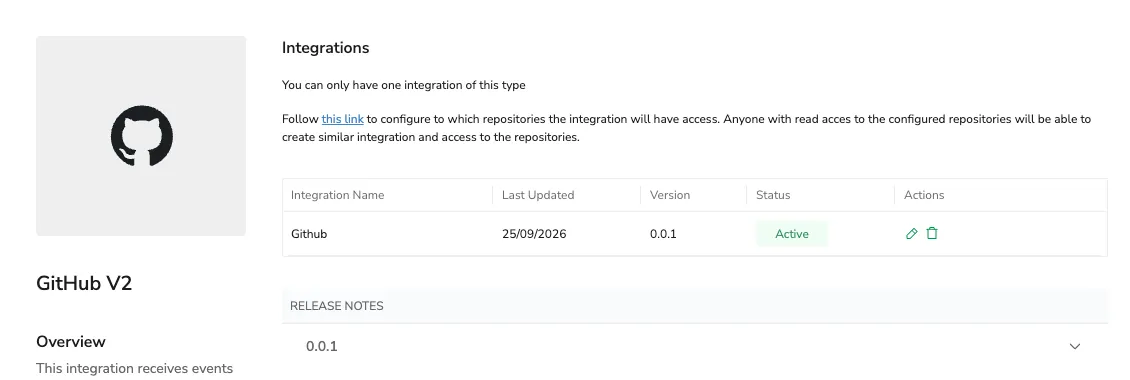
Integration status: on the GitHub V2 page, the integration is listed as Active.
-
Audit logs: perform an action in GitHub that is audited, such as changing an organization setting, then query your logs for the application and subsystem names you configured.
-
Events: push a commit or open a pull request in a repository covered by the installation, then query
source_system:github.
Allow a few minutes after saving before the first events arrive. Event routing is refreshed periodically rather than instantly, so a newly created or newly re-scoped events capability can take up to 15 minutes to become effective.
Capabilities
Read sources
Grants Coralogix read-only access to the content of the repositories the installation covers, so Coralogix features that need to look at your code can retrieve files on demand. Nothing is ingested on a schedule and nothing is stored as logs; files are read when a feature asks for them.
There is nothing to configure beyond enabling the capability.
Read audit logs
Collects the audit log of one GitHub organization and writes each entry to Coralogix as a log.
| Setting | Description |
|---|---|
| Integration name | Name of the audit-logs entry created under the integration. |
| Application name | The Coralogix application name the logs are written under. |
| Subsystem name | The Coralogix subsystem name the logs are written under. Defaults to GitHub Enterprise. |
| GitHub Enterprise hostname | The GitHub host to read from. Leave it at github.com. |
| GitHub Enterprise organization name | The organization whose audit log is collected. |
Coralogix polls the audit log about once a minute and stays roughly a minute behind real time, which is GitHub's own delay in making entries queryable. Collection resumes from where it left off, so a restart or a transient GitHub error does not lose entries.
Each audit-log entry is ingested verbatim, timestamped with the entry's own timestamp:
{
  "@timestamp": 1720085897949,
  "_document_id": "GXUcTiCjvb3Y48996FV9A",
  "action": "org_credential_authorization.grant",
  "actor": "octocat",
  "actor_id": 436730,
  "business": "acme",
  "created_at": 1720085897949,
  "operation_type": "create",
  "org": "acme",
  "org_id": 35295744
}
The fields are GitHub's, and which ones appear depends on the action. Coralogix adds nothing to the entry.
Two limits are worth knowing:
- One organization per audit-logs entry. To collect a second organization's audit log, add a second GitHub integration for it.
- Web events only. Git events (clones, fetches, and pushes recorded by the Git backend) are not collected.
GitHub events
Streams GitHub activity into Coralogix as logs. GitHub delivers each event as it happens.
| Setting | Description |
|---|---|
| Integration name | Name of the events entry created under the integration. |
| All event types | On by default: receive every event type the app can deliver. Turn it off to select specific event types. |
| Event types | The event types to receive, when All event types is off. |
| All installations | On by default: receive events from every organization the app is installed on. Turn it off to select specific organizations. |
| Installations | The organizations to receive events from, when All installations is off. Every repository the installation covers is included. |
For the full list of selectable event types and the GitHub permission each one requires, see GitHub app permissions.
Each delivery becomes one log:
{
  "source_system": "github",
  "github_event": "push",
  "github_delivery": "72d3162e-cc78-11e3-81ab-4c9367dc0958",
  "github": {
    "ref": "refs/heads/main",
    "repository": { "full_name": "acme/widgets" }
  }
}
githubholds GitHub's webhook payload, unmodified.github_eventis the event type, the same value GitHub sends in theX-GitHub-Eventheader.github_deliveryis GitHub's delivery id. It is the same on a manual redelivery, which makes duplicates identifiable.
Unless the integration specifies names, logs are written under the application name github, and under a subsystem name taken from the organization that produced the event, falling back to the repository full name.
Scoping is by organization, not by repository: an installation you select contributes events from every repository it covers. Narrow the repository set in GitHub, at the installation, if you need finer control.
Large events are truncated
A GitHub event larger than your account's log size limit is truncated. The default limit is 32 KB, and many events exceed it. These are mostly pull request activity, such as reviews, review comments, and pull request edits, because GitHub includes the full pull request, repository, and organization with each of them. Other events, such as pushes with many commits, can exceed it too.
A truncated log keeps only the part within the limit. What remains is no longer valid JSON, so the entry is stored as plain text: its fields, including github_event and github_delivery, cannot be queried, and only free-text search finds it.
The limit can be raised for your account. If you expect large GitHub events, ask your Coralogix account team to increase it before you enable GitHub events.
Data and privacy
For how Coralogix collects, processes, and stores your data, see the Coralogix Privacy Policy.
Troubleshooting
| Symptom | Cause | Resolution |
|---|---|---|
| Authorize opens GitHub and then fails | The app is not installed on your organization, or the install request is still pending approval. This is the most common cause. | Complete Step 2, confirm the app is listed under the organization's Settings, then Third-party Access, then GitHub Apps, and authorize again. |
| Same failure, but the app is confirmed installed | Your organization or enterprise IP allow list is blocking Coralogix. | Add Coralogix's egress IP ranges, then authorize again. If you are unsure, contact Support with the approximate time of the attempt. |
| The install page offers only your personal account | You are not an owner of the organization, or, under EMU, enterprise policy hides third-party apps. | Ask an organization owner to install the app. In EMU enterprises, an enterprise owner must allow the app in policy first. |
| No audit logs arrive | The authorizing user is not an organization owner, the organization is not on GitHub Enterprise Cloud, or the organization name is misspelled. | Re-authorize as an owner, confirm the plan, and check the organization name in the audit-logs settings. |
| Audit logs arrive but stop | GitHub rate-limited the organization. Collection backs off and resumes on its own. | No action. If it persists, review the rate limits your organization applies to app installations. |
| No events arrive | The routing for the integration has not propagated yet, or the repository is not covered by the installation. | Wait up to 15 minutes after saving. Then confirm in GitHub that the app has access to the repository. |
| Events arrive for some repositories only | The installation was scoped to selected repositories. | In GitHub, open the installation and add the repositories, or switch it to All repositories. |
| Everything stops working at once, after no change on the Coralogix side | The person who authorized the connection left the organization or lost access. | Authorize again with an account that has the access the enabled capabilities need. |
| Some events arrive as plain text, cut off mid-payload | The event is larger than your account's log size limit, 32 KB by default. This is mostly pull request activity, but other events can be affected too. | Ask your Coralogix account team to increase the limit. See Large events are truncated. |
| An event type you selected never arrives | The permission that unlocks it was not granted, or nothing has triggered it. | Check the event against GitHub app permissions, and confirm the organization approved that permission. |
Related resources
- GitHub app permissions
- GitHub Enterprise, for audit logs from GitHub Enterprise Server via a personal access token
- GitHub app for AI discovery
- Coralogix Privacy Policy