Move units
Move units between teams
Rebalance daily quota between teams without changing the organization total. Move units requires organization quota manage access; with read access the action appears but is disabled.
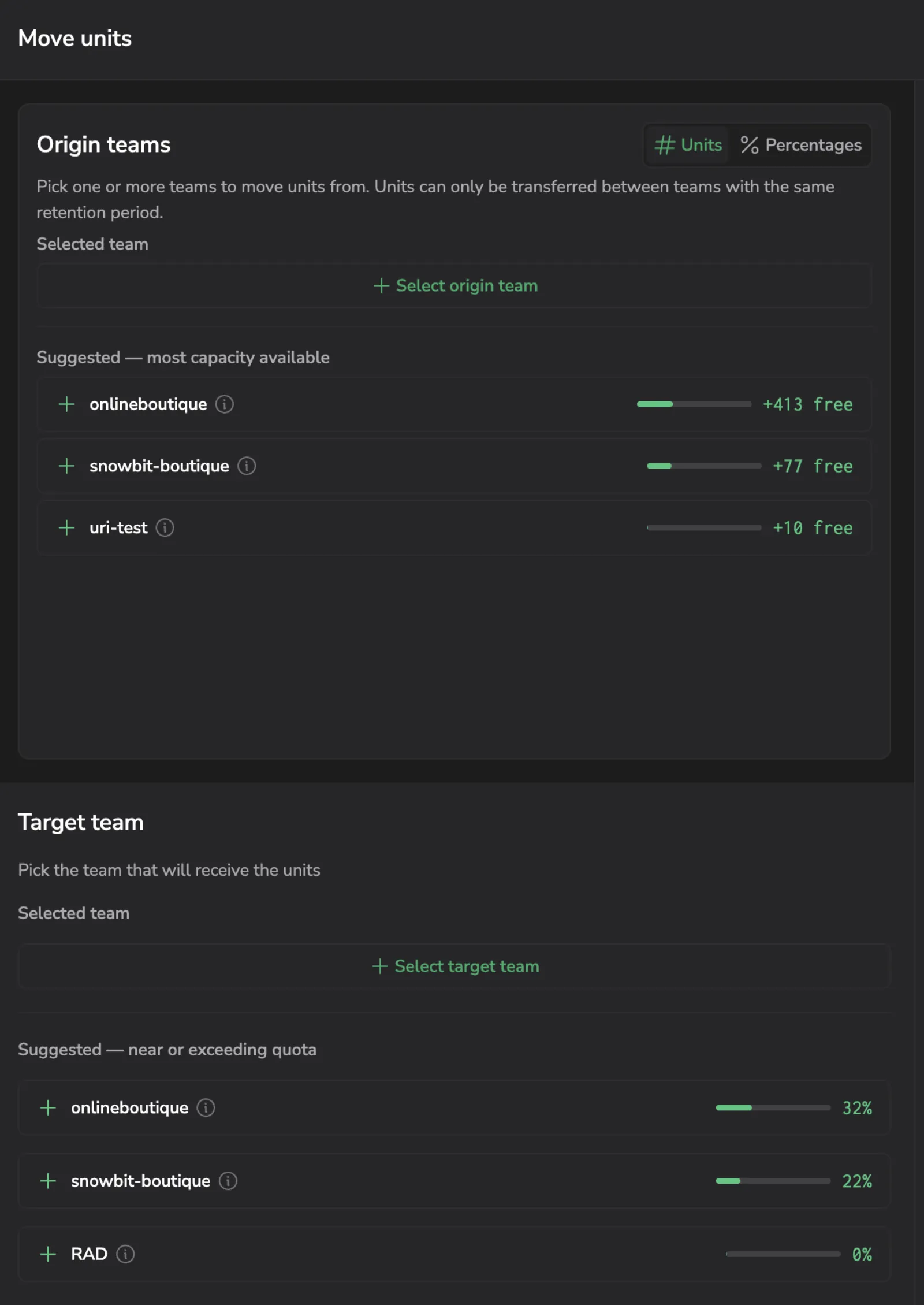
Select Move units to open the Move units drawer. It has three regions: Origin teams, the team giving up units; Target team, the team receiving them; and Preview, a live table of the resulting quota changes. Reset clears the drawer, and Apply changes stays disabled until an origin, a target, and an amount above zero are all set.
Choose the teams
Both pickers list the organization's teams that have a quota plan. Teams you are not a member of, teams whose data you have no read access to, and teams flagged as audit destinations are never listed.
Start from either side. Once you choose a team on one side, the other side narrows to the teams eligible to pair with it.
- Select Select origin team or Select target team to open a picker. Each row carries the team name, its daily quota, a utilization bar, and an info icon with the team's company ID, retention period, and Pay-As-You-Go state. Use the filter box at the top to search by name.
- Or take an entry from the Suggested list under an empty picker. Origin suggestions are labeled Suggested: most capacity available, are the teams with the most spare capacity, and each shows the units it has free. Target suggestions are labeled Suggested: near or exceeding quota, are the teams nearest to or over their quota, and each shows its utilization.
To exchange the two teams, select Move to target in the origin row's menu, or the swap control on the target card. The amount is kept.
Same-retention rule
Units transfer only between teams with identical retention periods. The drawer states the rule at the top, and each team's retention is in its info tooltip.
Teams with a different retention are hidden from the opposite picker rather than shown and disabled. When the chosen origin has no eligible partner at all, the target region names the team and its retention period and explains that no other team shares it, instead of offering an empty picker. Choosing a new origin whose retention differs from an already-selected target clears that target.
Set the amount
Set the amount on the origin row with the slider or the number field. The toggle in the Origin teams header switches the field between Units and Percentages, where a percentage is measured against the origin's daily quota.
As the amount changes, the row reports the origin's projected utilization: its peak daily usage measured against the quota it would keep. Above 100%, a warning icon explains that the remaining quota would fall below the team's maximum daily usage. Readings beyond 999% are shown as 999%+.
The origin row's menu also offers Use max safe amount, which sets the largest transfer that keeps projected utilization at or below 100% and leaves every reserved unit in place.
The target card previews the receiving side: its current quota, the units it receives, and its quota after the transfer, alongside its average, minimum, and maximum usage.
Reserved units
Quota rules can reserve units inside a team's quota. A team holding a reservation carries an amber Limit badge next to its quota, showing the daily quota minus everything reserved. The badge's tooltip lists each reservation by entity type or bundle, and Adjust allocations opens Quota rules in a new tab.
Reservations are enforced in two tiers:
| Reservation | Behavior |
|---|---|
| Coralogix-managed | A hard floor. The slider and the field stop at the largest amount that leaves the reservation intact, and anything above it is rejected with an error. Bundle reservations, such as AI units, are always Coralogix-managed and are provisioned by Coralogix, so contact your account manager to change one. |
| Customer-managed | A soft floor. An amount that dips into it is accepted, with a warning naming the units at stake, and the confirmation dialog repeats what the team is left with against the reservation. Adjust the rule in Quota rules to clear the warning. |
Apply the transfer
Preview lists the origin and the target as soon as either one is chosen, with the columns Team, Current quota, Moved, Updated quota, and % moved. The origin's moved figure is negative and the target's is positive, and both update as you change the amount.
- Select Apply changes.
- Review the confirmation. When the amount breaches a customer-managed reservation, it also states what the origin team is left with against that reservation.
- Select Apply.
The drawer closes, a confirmation appears, and the page reloads the affected figures. If the transfer fails, an error message appears and no quota changes. Closing the drawer with a transfer configured but not applied prompts you to discard it.