Data Usage settings panel
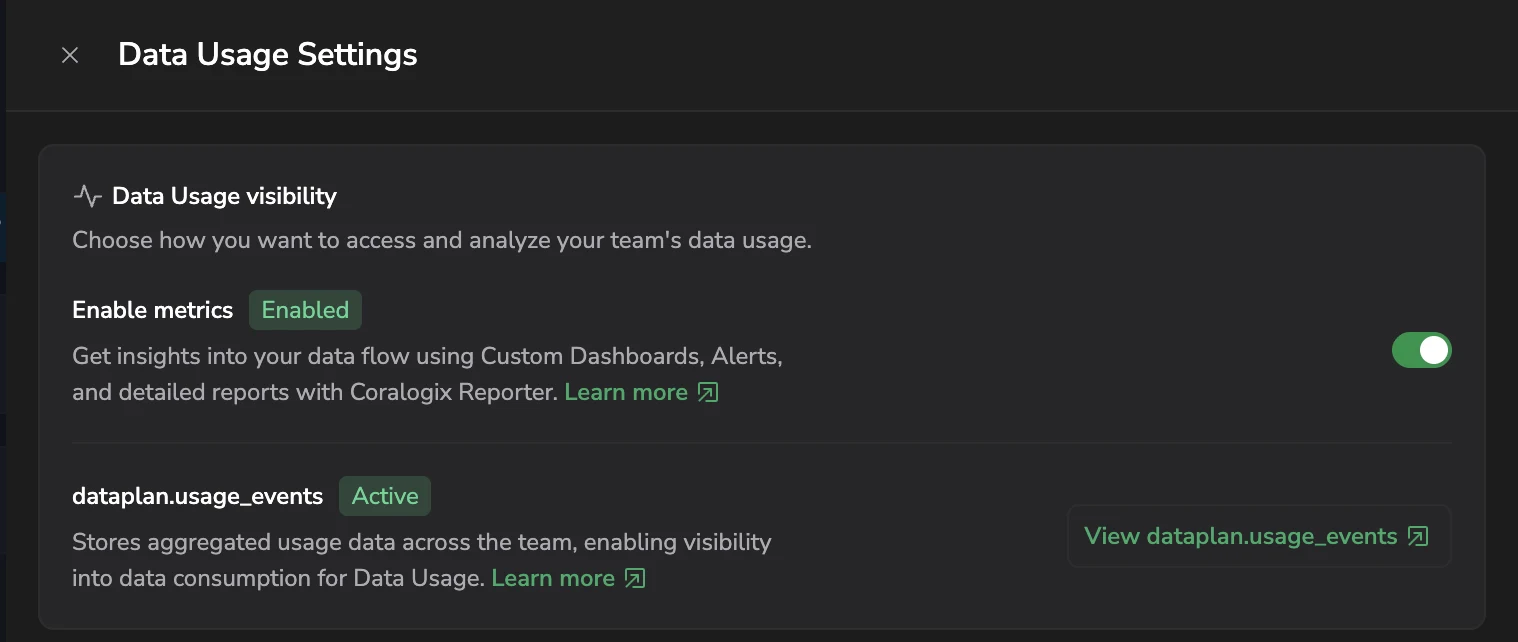
The Data Usage settings panel is a slide-in panel on the Data Usage page that centralizes the settings controlling how you access and analyze your team's data usage. From one place you can:
- Enable or disable the data usage metrics pipeline that powers the Data Usage dashboards.
- Enable and open the
dataplan.usage_eventssystem dataset, which stores aggregated usage events you can query with DataPrime.
Open the panel
- In the navigation bar, select Settings, then Data Usage.
- In the Data Usage header, select Settings. The Data Usage settings panel slides in from the right.
Configure an S3 bucket
Data Usage visibility relies on a configured S3 metrics bucket. If no bucket is configured, the panel shows a Configure S3 bucket warning and the metrics toggle is disabled.
To configure the bucket, select Configure Bucket in the warning. Coralogix takes you to the archiving providers page, where you can set up an S3 archive for metrics.
Enable data usage metrics
The Enable metrics section controls the data usage metrics pipeline that exposes usage as Prometheus metrics. When enabled, Coralogix produces the cx_data_usage_units, cx_data_usage_bytes_total, and cx_data_plan_units_per_day metrics for use in Custom Dashboards, alerts, and reports.
A badge next to the title shows Enabled or Disabled.
To enable metrics:
- Make sure an S3 metrics bucket is configured.
- In the Enable metrics row, toggle the control on.
The toggle is disabled if you lack the data-usage manage permission or no bucket is configured.
Enable the dataplan.usage_events dataset
The dataplan.usage_events section controls ingestion into the dataplan.usage_events system dataset, described in the panel as storing aggregated usage data across the team. A badge shows Active when ingestion is enabled or Disabled otherwise.
The call to action next to the section changes based on the dataset status:
- Enable dataplan.usage_events appears when ingestion is disabled. Selecting it takes you to Dataspace management, where you can enable write access for
dataplan.usage_events. - View dataplan.usage_events appears when ingestion is active. Selecting it opens Explore with a DataPrime query pre-loaded against the dataset.
The dataset CTA is disabled until the S3 bucket is configured and the dataset status has loaded.
Permissions
| Resource | Description | System roles | API presets |
|---|---|---|---|
DATA-USAGE:MANAGE | Enable and disable Data Usage Metrics. | Data Admin, Platform Admin | DataUsage |
DATA-USAGE:READ | View Data Usage Metrics. | Data Admin, Platform Admin | DataUsage |
Write access to the dataplan.usage_events system dataset is controlled separately via dataset access policy, not role-based permissions. See Dataset management for details.