TCO Optimizer
The Total Cost of Ownership (TCO) Optimizer routes logs, traces, and RUM events to the right priority based on their business value. You define policies that match incoming data and route it to an outcome that determines how the data is stored, how it can be queried, and what it costs.
Policies are evaluated in order. The first matching policy applies, and no other policies are evaluated.
Policies are managed per data type, each on its own tab: Logs, Traces, and RUM.
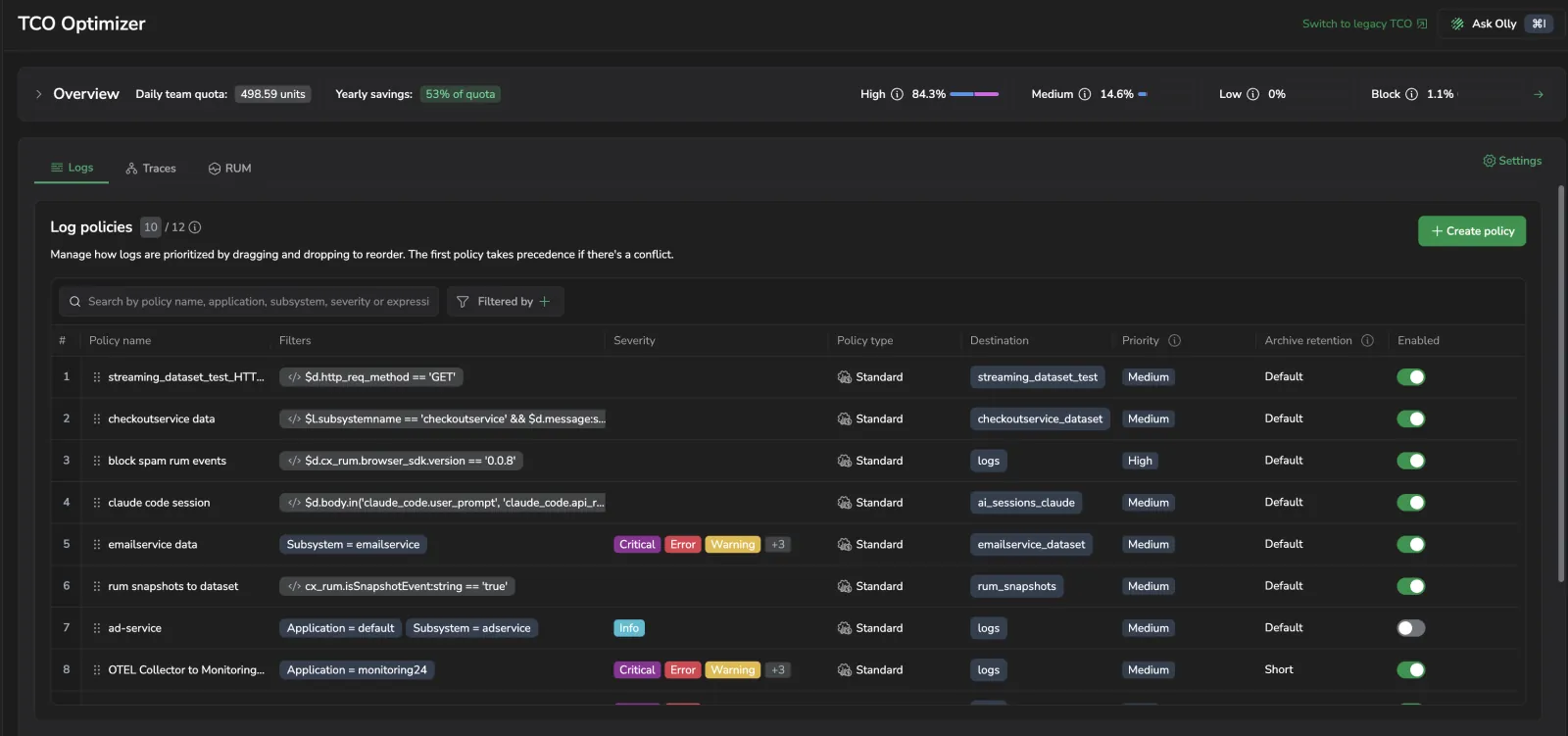
How TCO routing works
When a log, trace, or RUM event is ingested, Coralogix evaluates your enabled policies for that data type from top to bottom:
- Evaluate the first policy.
- If the event matches, route it to the policy's configured priority and stop.
- If it does not match, evaluate the next policy.
- If no policy matches, route the event to High (Frequent Search).
Data that does not match any policy is routed to High (Frequent Search) by default. To change the default, add a catch-all policy at the bottom of your policy list.
Order matters. Place narrow exception policies above broader catch-all policies.
TCO priority levels explained
Each policy routes matching data to one of four priorities. The priority determines where the data is stored, how it can be queried, and which platform features are available.
A priority bundles two independent decisions. Keep them separate when planning policies:
- Storage routing and query performance: High (Frequent Search) keeps data in Coralogix hot storage (OpenSearch), which delivers the fastest queries. Medium (Monitoring) and Low (Compliance) keep raw data in customer-owned storage (your S3 archive); it stays instantly queryable via DataPrime, but queries generally run slower than against Frequent Search.
- Feature access: High and Medium grant the broadest feature set, while Low (Compliance) is limited to a smaller set aimed at long-term retention and compliance. See Features by priority level for the exact matrix.
High (Frequent Search)
Data is retained in Coralogix hot storage (OpenSearch). This priority is designed for business-critical data that requires fast queries, real-time alerting, and immediate investigation. High (Frequent Search) is the default priority for data that does not match any policy.
Medium (Monitoring)
Raw data is retained in customer-owned storage and remains instantly queryable via DataPrime, with added support for alerting and dashboarding. Use this priority for monitoring and ongoing analysis at scale.
Low (Compliance)
Raw data is retained in customer-owned storage and remains instantly queryable via DataPrime. Use this priority for compliance requirements and long-term retention where frequent querying is not required.
Blocked
Blocked data incurs ingestion processing cost only, with no storage or retention charges. The behavior differs by data type:
- Logs: Data is dropped at ingestion and not stored.
- Spans (traces): The span payload is stripped at ingestion. Coralogix retains a minimal trace skeleton (service name, operation name, application, subsystem, span ID, trace ID, start time, and duration), so the trace still assembles in the trace view. The blocked span's data is unavailable for query, but the trace structure and timing remain visible.
Block for trace policies is currently in limited access. Contact your Coralogix account team to enable it for your organization.
Use Blocked to eliminate storage costs for unwanted data. In the policy editor, blocking is set on the Action card rather than chosen as a priority. Block is still available as the fallback priority of a quota-based destination.
Before you route data to Blocked, understand three behaviors that are easy to miss:
- Blocked data still incurs a reduced processing cost. Blocking eliminates storage and retention charges, but not the ingestion cost. Blocked data is billed at 0.08 units per GB. See Data usage for the full unit rate table.
- Blocked data is permanently discarded and is not queryable. Once a log or trace is blocked, it is dropped at ingestion and cannot be retrieved or searched later. Blocked data is not written to your S3 archive, so the archive does not provide a way to recover it. Only data routed to High, Medium, or Low is stored and queryable. If you might need the data later, route it to a lower priority instead of blocking it.
- Policies are not retroactive. A TCO policy applies only to data ingested after the policy is created (or after a change is saved). It does not reclassify, recover, or re-bill data that was already ingested under a different policy or the default priority.
Features by priority level
Each priority level provides different capabilities across the platform:
| Feature | High (Frequent Search) | Medium (Monitoring) | Low (Compliance) |
|---|---|---|---|
| AI Center Application Catalog | ✅ | ||
| AI Evaluators | ✅ | ✅ | |
| Alerts | ✅ | ✅ | |
| APM with Events2Metrics | ✅ | ✅ | |
| APM with Span Metrics | ✅ | ✅ | ✅ |
| Archive | ✅ | ✅ | ✅ |
| Background Queries | ✅ | ✅ | ✅ |
| Custom Dashboards | ✅ | ✅ | |
| Data Enrichment | ✅ | ✅ | |
| Events2Metrics | ✅ | ✅ | |
| Explore | ✅ | ✅ | ✅ |
| Lightning Queries | ✅ | ||
| LiveTail | ✅ | ✅ | ✅ |
| Log Parsing | ✅ | ✅ | ✅ |
| Loggregation | ✅ | ✅ | |
| Product Analytics | ✅ | ✅ | |
| Real User Monitoring | ✅ | ✅ | |
| Session Replay | ✅ | ✅ |
Service Map and Service Catalog for APM are available regardless of priority.
AI Center's views (Application Catalog, Monitoring, and drilldowns) read AI-application spans from your S3 archive, so the priority you route an application's spans to determines what AI Center shows:
- Medium (Monitoring): Fully supported. The application appears in AI Center with cost data, and its spans are evaluated.
- High (Frequent Search): Supported only when the spans also reach your S3 archive. The application then appears with cost data and evaluations. Spans kept solely in Frequent Search aren't read by AI Center.
- Low (Compliance): Limited. An application that already appears in AI Center from higher-priority spans stays listed, but its Low spans show no cost data and aren't evaluated. An application whose spans have only ever been Low doesn't appear in AI Center, which prompts you to set it up.
Route an AI application's spans to Medium (Monitoring) for full AI Center support.
Policies and filters
A TCO policy is defined by:
- A filter that selects which logs, traces, or RUM events the policy applies to
- An action: route and store the matched data, or block it
- One or more destinations, each with its own policy type, priority, and archive retention
Policy list columns
The policy table on the Logs and RUM tabs shows, for each policy: # (evaluation order), Policy name, Filters, Severity, Policy type, Destination, Priority, Archive retention, and Enabled.
- Policy type shows whether each destination routes as Standard or Quota-based.
- Destination shows the dataset each copy of the matched data is routed to.
- Priority shows the priority configured for the policy. For a quota-based destination the active priority changes with the daily quota thresholds, and the highlighted priority is the one currently in effect.
When a policy's destinations don't share the same policy type, the Policy type, Destination, and Priority cells stack one line per destination so the three columns line up.
The Traces tab does not have Policy type or Destination columns, because trace policies don't route to datasets.
Filters and DPXL
Filters are defined using DataPrime Expression Language (DPXL), which matches incoming events on:
- Standard labels such as application and subsystem
- Metadata such as severity and timestamp
- Any field in the event body, including nested fields and custom keys
For common use cases, the policy editor's Builder generates DPXL automatically. To write a filter directly, switch to Expression mode, which provides inline syntax validation, schema-aware autocomplete, and a link to the expression tutorial; invalid expressions are flagged and block saving until resolved.
For the full expression syntax, including keypaths ($m, $l, $d), operators, functions, type casting, and limits, see DataPrime expression language (DPXL).
Both log and trace policies support DPXL expressions. In Expression mode, a trace filter can match on any field, with the span label keypaths $l.serviceName, $l.operationName, $l.applicationName, and $l.subsystemName as common examples, and can be up to 4,096 characters. In both policy types, Builder and Expression are mutually exclusive. A policy is filtered by one or the other, not both.
Evaluation order
Policies are evaluated from top to bottom. The first matching policy applies and no subsequent policies are evaluated. Data that does not match any policy goes to High (Frequent Search) by default. Reorder policies in the UI via drag-and-drop.
Policy evaluation order
The most common reason a TCO policy does not behave as expected is policy order. Keep these rules in mind:
- First match wins. Policies are evaluated top-to-bottom. As soon as a log or trace matches a policy, it is routed to that policy's priority and evaluation stops. No policy below it is considered, even if a lower policy would also match.
- Order, not specificity, decides the winner. When two policies match the same data, the one placed higher in the list wins. A more specific policy placed below a broader one never takes effect for the overlapping data.
- Unmatched data falls through to High (Frequent Search). A log or trace that matches no policy is routed to High (Frequent Search), the most expensive priority. This behavior is silent: there is no policy row representing it.
- Use a catch-all policy to change the default. To send unmatched data somewhere other than High, add a policy with no filter conditions (so it matches everything) at the bottom of the list. Because first match wins, every policy above it still applies first, and the catch-all only captures whatever is left over.
To verify which policy is in effect for a given combination, use the Affecting policy column in Statistics. A combination shown as — or none is falling through to the default High (Frequent Search) priority.
Ordered example
Goal: send payments-service logs to Medium, except errors, which go to High, and block everything else.
| Order | Policy filter | Priority |
|---|---|---|
| 1 | payments-service logs with ERROR or CRITICAL severity | High (Frequent Search) |
| 2 | All payments-service logs | Medium (Monitoring) |
| 3 | No filter (catch-all) | Blocked |
With this order, a payments-service error matches policy 1 and stops. A payments-service info log skips policy 1, matches policy 2, and stops. Any other log skips policies 1 and 2 and is captured by the policy 3 catch-all. If you removed policy 3, that other data would fall through to High (Frequent Search) instead of being blocked.
Blocked is not free. Data routed to the Blocked priority still incurs a residual charge of roughly 8% of the blocked volume for the metadata Coralogix retains. Blocking reduces cost dramatically, but a catch-all → Blocked policy does not bring the cost of unmatched data to zero.
Create a policy
- Navigate to Data Flow, then TCO Optimizer.
- Select Logs, Traces, or RUM.
- Select + New policy.
Then configure each section of the policy.
Details

- Policy name (required)
- Description (optional)
- Policy order: First places the policy at the top of the evaluation list, so it is evaluated before all existing policies. Last places it at the bottom. Policies are evaluated in order from top to bottom; when a log or trace matches a policy, the system stops and does not evaluate any subsequent policies.
Filters

Define which logs, traces, or RUM events the policy applies to:
- Use the Builder to add conditions for application, subsystem, and severity using operators
is,is not,includes, orstarts with. - Or select Expression and enter a DPXL filter directly.
In the Builder, if the value you need isn't in the suggestions list, type it and select + Add <value> to use it. This applies the value to the current policy filter only. It does not add the field to your schema or register it as a reserved field.

Validate your expression from the editor
When a filter is in Expression mode, the editor offers two quick actions:
- A copy icon sits next to the expression field. Select it to copy the full DPXL expression to the clipboard, so you can share the filter or paste it into another tool.
- Go to Explore Logs sits below the editor, next to Expression tutorial. It opens Explore with the expression pre-injected as a DataPrime query, so you can inspect the actual events the expression matches, beyond the aggregate counter estimates and the Limited Preview state that Expression mode shows on the day a policy is created.
Go to Explore Logs appears once the expression is valid and filters something. It's hidden for an empty expression, for the default <v1> true matcher, and while the expression is invalid.
Explore opens on the last 15 minutes of the logs dataset, not the Last 24 hours or Last 7 days range used by the preview panel. Widen the time range in Explore if the filter matches low-volume data.
Action
Choose what happens to the data the filter matches:
- Route & Store: send matched data to one or more destinations with configured storage.
- Block: drop all matched data. Nothing is stored or forwarded.
Selecting Block replaces the Destination & Storage section with a warning that all data matched by the filter is permanently dropped and will not reach any destination or storage system. See Blocked for what blocking still costs and what it retains per data type.
Destination & Storage
Route matched data to one or more destinations, each with its own storage strategy. Every destination is a tab labeled <dataspace>/<dataset>, with a badge showing that destination's policy type, and each destination carries its own dataset, policy type, priority, and archive retention.
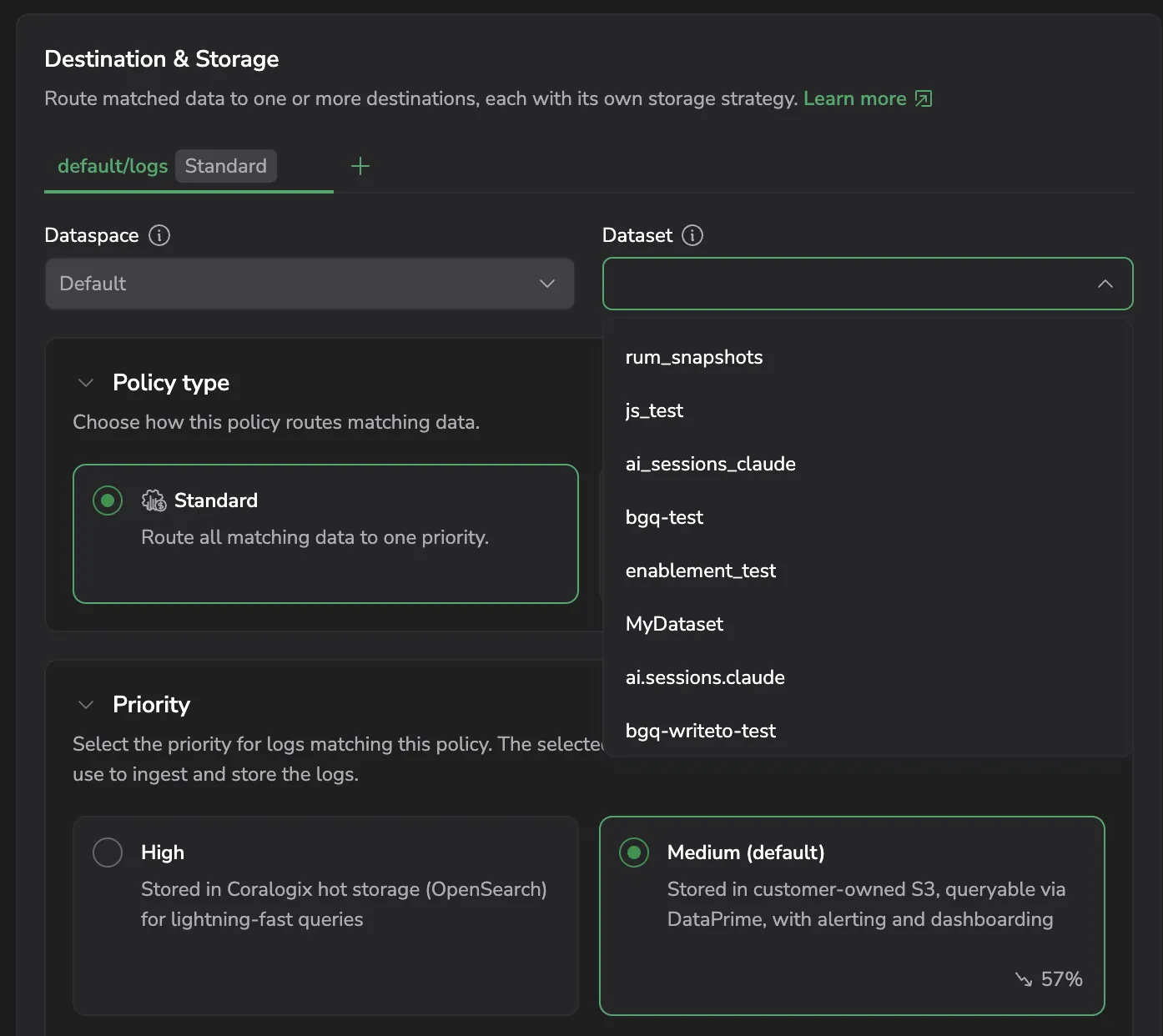
Dataspace and dataset
- Dataspace is fixed to
default, currently the only dataspace available. - From the Dataset dropdown, select the dataset to route matching data into. Datasets are managed in Dataspace Management.
By default, log policies route to default/logs and RUM policies route to default/rum.events.
High (Frequent Search) is supported only for each data type's default dataset: default/logs for logs and default/rum.events for RUM. Select any other dataset and the High option is disabled.
When a TCO policy targets a user-defined dataset, the result is a streaming dataset, meaning data is routed in as it's ingested. The same dataspace can also hold summary datasets, which are populated by Background queries v2 writing query results into a dataset for downstream queries and dashboards.
For information about creating and managing user-defined datasets, see User-defined datasets.
Policy type
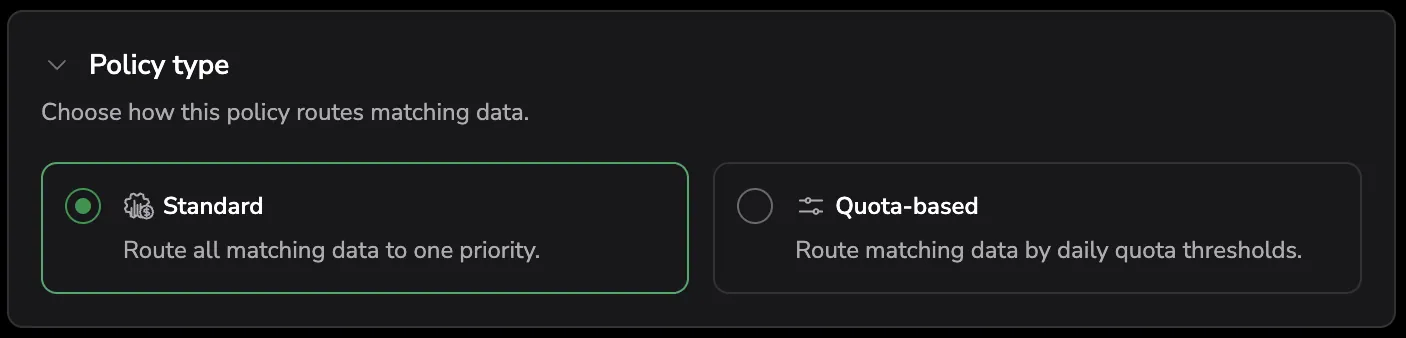
Choose how this destination routes matching data:
- Standard: route all matching data to one priority.
- Quota-based: route matching data by daily quota thresholds.
Policy type is set per destination, so one policy can route Standard to one destination and Quota-based to another. Switching a destination from Quota-based to Standard clears that destination's quota configuration, and the editor asks you to confirm first.
Priority
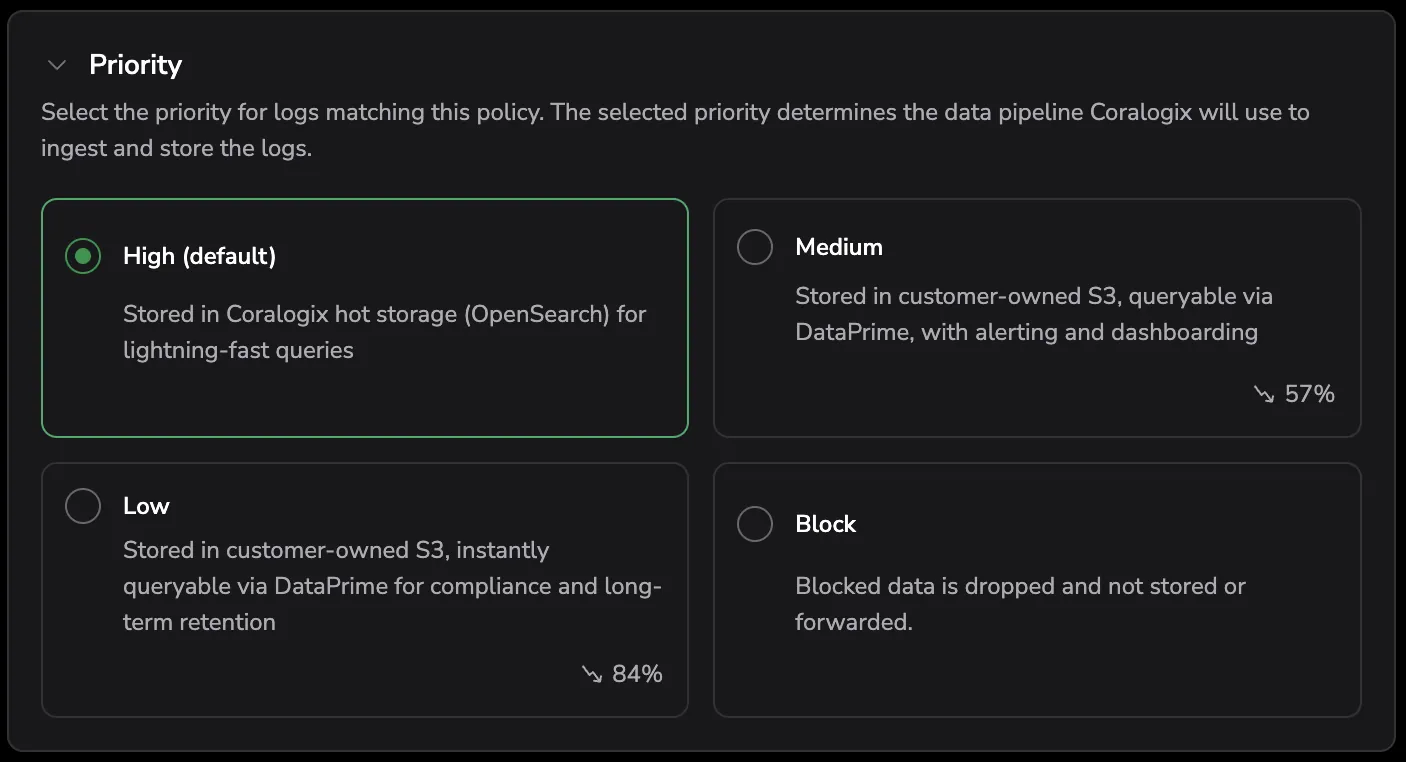
For a Standard destination, select the priority for data matching this policy. The selected priority determines the data pipeline Coralogix uses to ingest and store the data:
- High: stored in Coralogix hot storage (OpenSearch) for lightning-fast queries.
- Medium: stored in customer-owned S3, queryable via DataPrime, with alerting and dashboarding.
- Low: stored in customer-owned S3, instantly queryable via DataPrime for compliance and long-term retention.
Each card shows the estimated saving against High: roughly 57% for Medium and 84% for Low.
For a Quota-based destination, route your daily quota across one or more tiers. Toggle between Percentage and Units, then set each tier as Route <from> to <to> % of daily quota to <priority>. Select Add threshold to add more tiers. For example, route the first 20% of the daily quota to Medium and the next 30% to Low. Route the remaining quota to then sets the fallback priority for everything above the last tier.
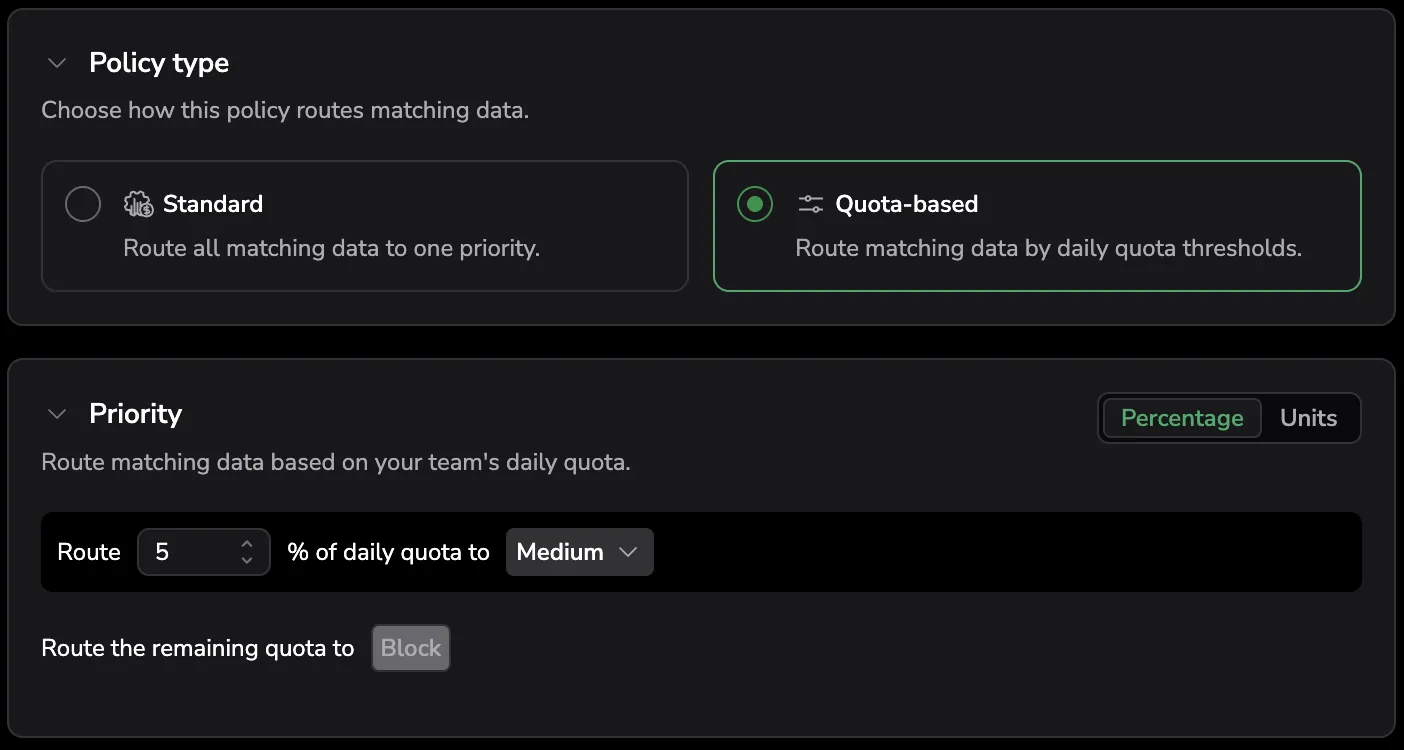
The editor validates the tiers as you configure them:
- Thresholds must be strictly ascending.
- Each tier must be more restrictive than the previous tier.
- The fallback must be more restrictive than the last tier.
- You cannot allocate more than your remaining daily quota.
Values entered in Units mode are stored as a percentage of your daily quota, so the effective allocation moves with your quota. If you have no daily units allocated, the section links you to Quota Rules to set an allocation first.
Archive retention
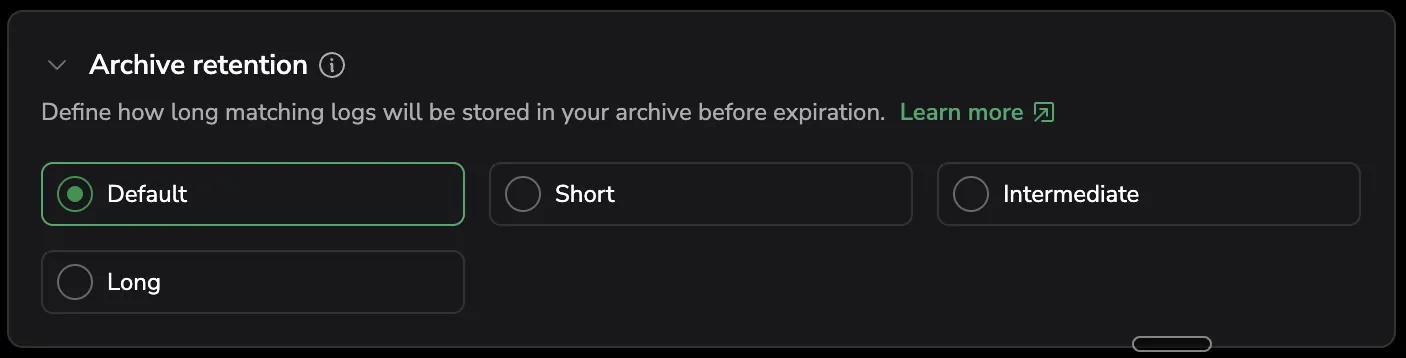
Archive retention assigns a label as a tag on the Parquet files written to your S3 bucket. Use these tags in your cloud storage lifecycle policies to control how long archived data is retained. Coralogix does not manage deletion. Retention duration is controlled by your storage provider.
In Archive retention, choose a label: Default, Short, Intermediate, or Long. Tags apply to Medium and Low priority data only. If retention tags are deactivated, activate them on the Setup archive page first.
When the destination is a user-defined dataset, retention is governed by that dataset's Dataset Definition and cannot be overridden in the policy. The section shows Defined by Dataset Definition. with a link to view the definition.
Route to multiple destinations
Select + next to the destination tabs to add another route, up to two destinations per policy, a limit enforced in both the UI and the backend. Use a tab's menu to rename or remove a route.
Adding a destination duplicates the matched data to every route in the policy, and each copy is billed separately. The editor asks you to confirm, then shows a banner reading Fan-out active, matched data is duplicated across N destinations, noting that the policy is billed at approximately N× the units of matched volume.
Each destination sets its own policy type and priority, so the two copies can land at different priorities.
Fan-out applies to log policies. RUM policies route to the single locked default/rum.events dataset, so they have no + control, and trace policies do not route to datasets at all.
Once every destination is configured, enable the policy to take effect immediately and select Create.
Preview panel
While creating or editing a policy, the Preview panel on the right side of the policy form shows how the current filter and priority match real data. Use it to validate routing decisions before saving.
The panel has two tabs: Overview (summary counters and time-series charts) and Breakdown (the per-combination grid).
The preview panel is available for log policies. The RUM policy editor has no data-usage preview pane.
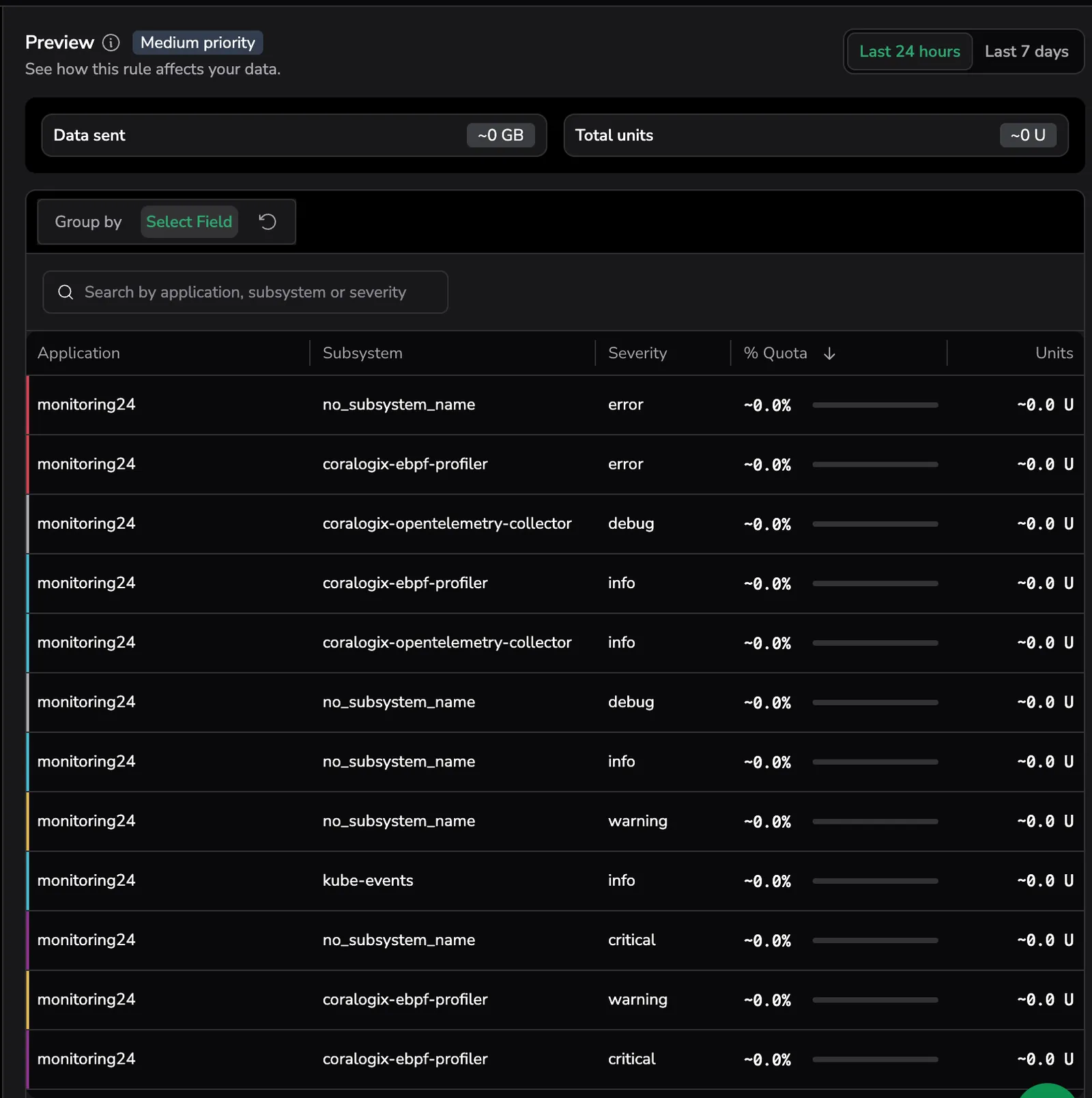
The panel header shows the priority the preview reflects as a pair of chips, the current priority followed by the one the policy would apply, above the prompt See how this rule affects your data., with a time-range toggle:
- Last 24 hours
- Last 7 days
Switching the time range refetches the preview for the new window.
The counters and the time-series charts behave differently in time:
- Summary counters are a live, same-day estimate computed from your current filter and priority, available immediately while you configure the policy.
- The charts show full history in Builder mode, but in Expression (DPXL) mode they show a Limited Preview state until the day after you create the policy. Expression previews are tracked by policy ID, which doesn't exist until the policy is created, so a DPXL filter's historical trends only start to populate the next day, once tracking begins.
Summary counters
Three counter cards on the Overview tab report the aggregate impact of the current filter and priority over the selected window:
- Total data sent: total matched volume, shown in GB.
- % Quota: the matched data's share of your daily quota.
- Total units: total units (U) consumed by the matched data. When the policy action is Block, this is
0. Storage and retention units are eliminated. Blocked data still incurs a reduced ingestion processing cost (0.08 units per GB); that cost is not reflected in this counter.
For a quota-based destination, the panel adds the disclaimer Based on recent traffic patterns. Actual blocking point will vary with daily volume.
Time-series charts
The panel includes two stacked time-series charts for the selected range:
- Data sent over time: a stacked bar chart of volume by priority (High, Medium, Low, and Blocked) across the range.
- Units over time: units consumption across the range, with an average reference line.
When the policy filter is in Expression (DPXL) mode, the two charts show a Limited Preview state instead of historical data:
- Data sent over time: Volume history starts the day after you save. We start tracking volume when you save this policy, and history appears the next day.
- Units over time: Unit history starts the day after you save. We start tracking unit consumption and priority changes when you save this policy, and history appears the next day.
In Builder mode, both charts display the full history for the selected range.
Breakdown grid
The breakdown grid breaks the matched data down by combinations of application, subsystem, and severity, color-coding each row by severity. For each row, the grid shows the Application, Subsystem, Severity, % Quota, and Units columns.
- Use the Group by selector (Select Field) to pick which dimensions to include and in what order.
- Use the search box to filter rows by application, subsystem, or severity name.
- Sort by % Quota or Units to surface the largest contributors.
The Breakdown grid is always present. It is not disabled for Expression (DPXL) filters. Whenever an Expression filter narrows the results, an info banner appears above the grid with the title Partial data. and the message Results filtered by DPXL query., alongside a Learn more link to the DPXL query tutorial. The banner confirms the grid reflects the current expression, not the unfiltered ingest.
The grid shows a temporary state in these cases:
- Preview is loading: Loading data…
- No data for the selected range: No data for the selected range.
- Preview failed to load: Data unavailable: retry preview.
Empty and loading states
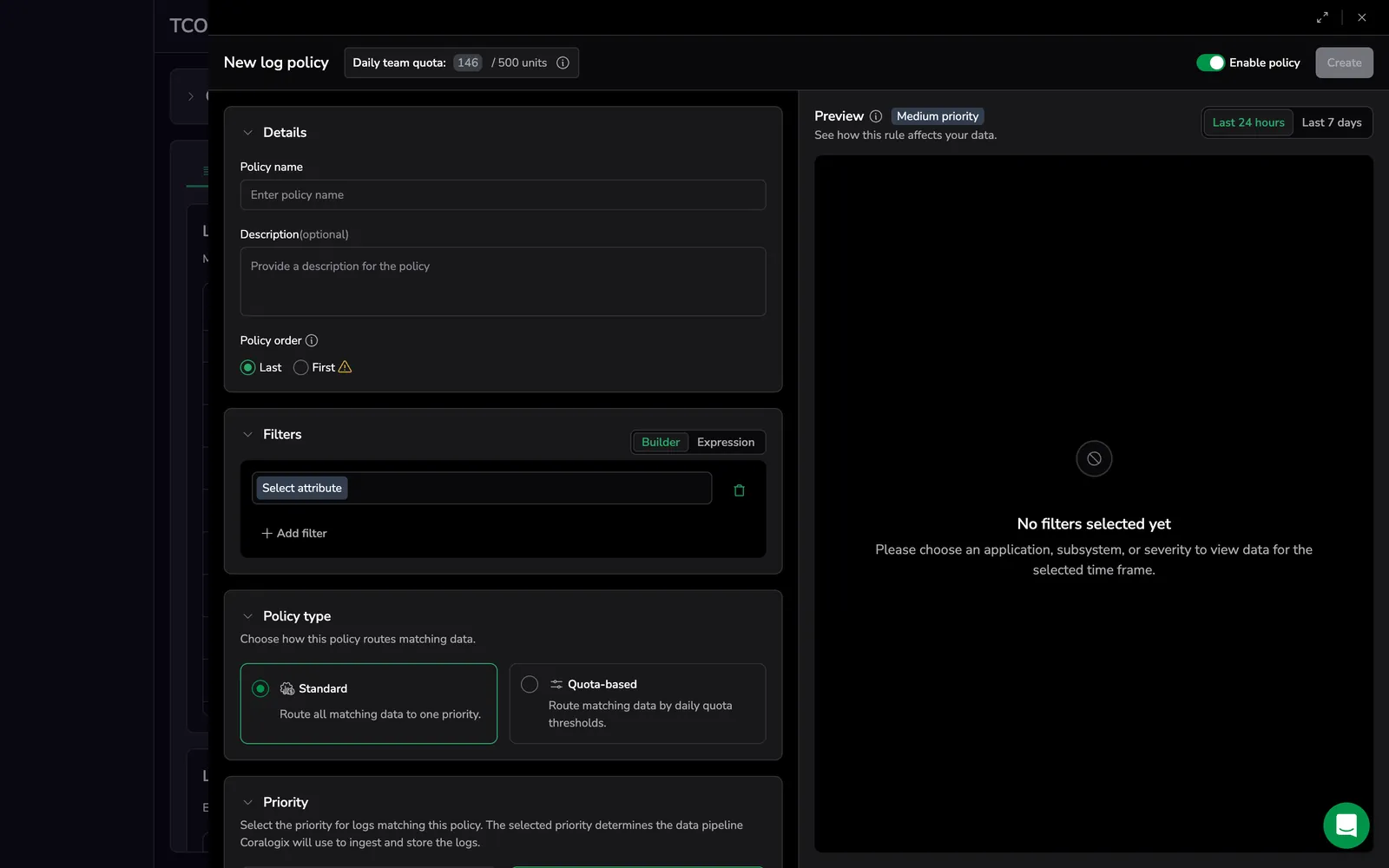
Before you add any filter conditions to the policy, the panel shows the placeholder No filters selected yet and prompts you to add an application, subsystem, or severity filter to populate the preview for the selected time frame.
While the preview is being computed, the panel shows Analyzing query with a description that Coralogix is scanning logs for the selected range. If the preview can't be loaded, the panel shows Preview unavailable with a prompt to retry.
When the filter is active but returns no matching events for the selected time range, the grid shows Nothing to show here with a suggestion to widen the filter, change the time range, or reset the search.
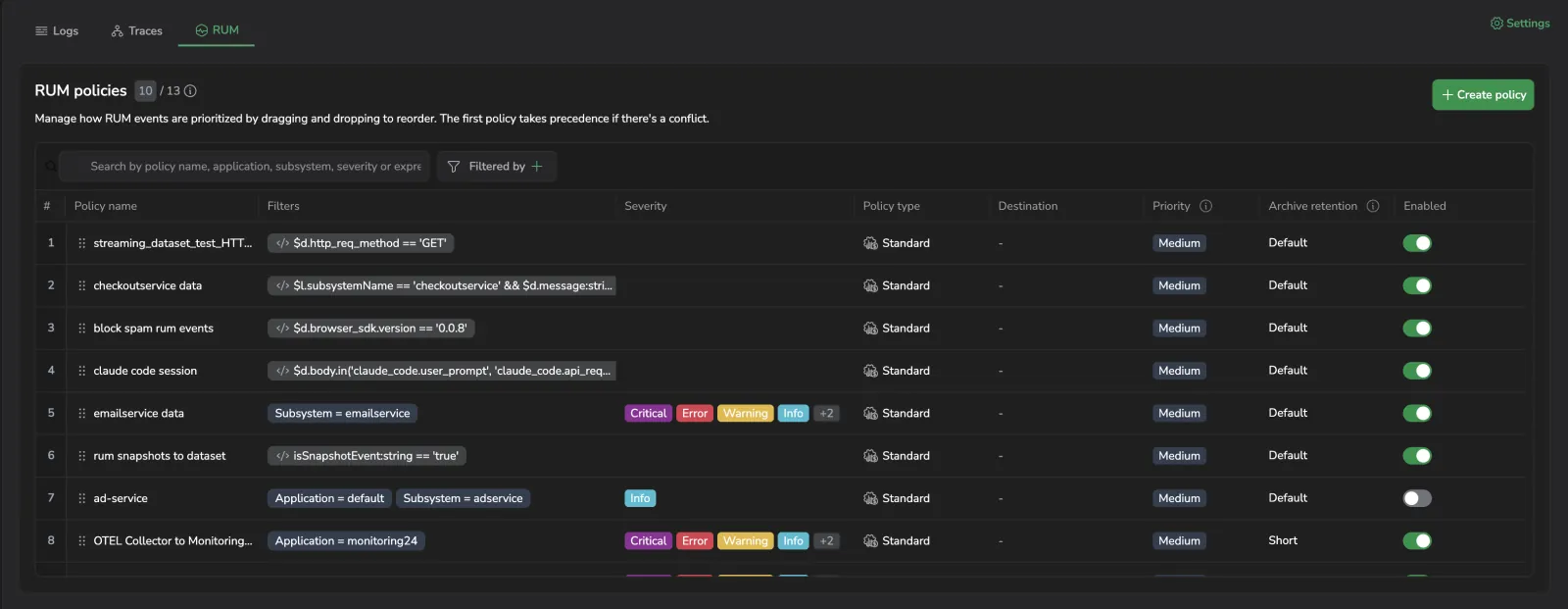
RUM policies
The RUM tab manages TCO policies for RUM events. RUM policies use the same editor as log policies (Details, Filters, Action, Destination & Storage, policy type, priority, and archive retention), with these differences:
- Fixed destination. RUM events route to
default/rum.events, and the dataset is locked. There is no dataset selection and no fan-out to a second destination. - Priority. Medium is the default and High is hidden. High is only meaningful for organizations that also write RUM data to the logs pillar, and Coralogix enables the option for those organizations only. Keep RUM data at Medium or High: events routed to Low (Compliance) are not available to RUM or Product Analytics features such as Heatmaps, Funnels, and Pathways.
- Filters. The Builder offers Application and Subsystem conditions. Expression mode accepts a DPXL filter, validated and autocompleted against the
rum.eventsdataset schema rather than the logs schema. Field casing differs, for example$l.applicationNamefor RUM against$l.applicationnamefor logs.
Quota-based policy types, the Block action, and archive retention all behave the same as they do for logs. The policy table carries the same columns, and the Destination column shows the short name rum.events for every policy. Because that is the only destination a RUM policy can have, the RUM tab does not offer the destinations filter.
Edit, disable, or delete a policy
- To edit a policy, select the policy row and modify its filter, priority, or archive retention.
- To disable a policy, toggle the policy off. Disabled policies are skipped during evaluation.
- To reorder policies, drag the policy to a new position in the list.
- To delete a policy, select the policy and choose Delete.
Changes take effect immediately. If a policy causes unexpected routing, disable it to revert to the previous behavior.
Policy order and exception handling
Because the first matching policy applies, use this pattern:
- Put specific exceptions first.
- Put broad defaults last.
Example
Broad policy: all logs from payments-service go to Medium (Monitoring).
Exception: logs from payments-service with ERROR or CRITICAL severity go to High (Frequent Search).
Exception policy (place first):
<v1> $l.applicationname == 'payments-service' && $m.severity.in(ERROR, CRITICAL)
Broad policy (place below):
<v1> $l.applicationname == 'payments-service'
Usage overview
Use the Usage overview to understand how your daily quota is consumed across priorities and how routing affects cost.
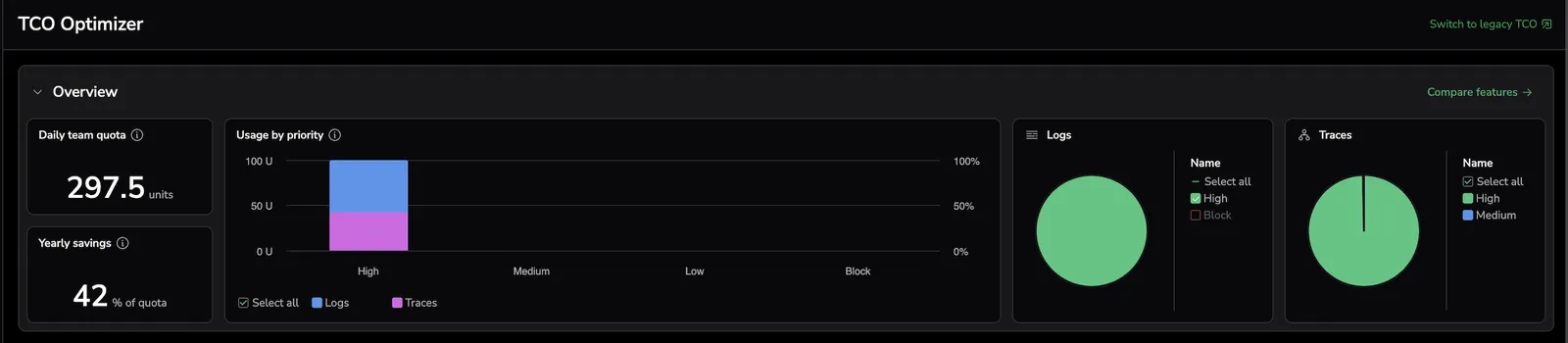
Hover over any priority in the top bar to open the Usage overview panel.
The panel includes:
Daily team quota
Shows your available daily unit quota. Coralogix uses a unit-based pricing model, where a unit is a universal billing metric per observability pillar.
Yearly savings
Shows the estimated percentage saved by routing data to Medium (Monitoring) and Low (Compliance) instead of High (Frequent Search).
Usage by priority
Shows how ingested data is distributed across priorities. For each priority, you can see how many units are consumed by each data type and how this contributes to your total daily quota.
Units per pillar
Shows unit consumption per observability pillar, broken down by priority.
Use the Usage overview to quickly assess quota consumption, validate the impact of your TCO policies, and identify opportunities for further cost optimization.
Statistics
Statistics show ingested logs, traces, or RUM events organized by key dimensions and their contribution to usage. Use this view to identify high-volume data and turn it into policies.
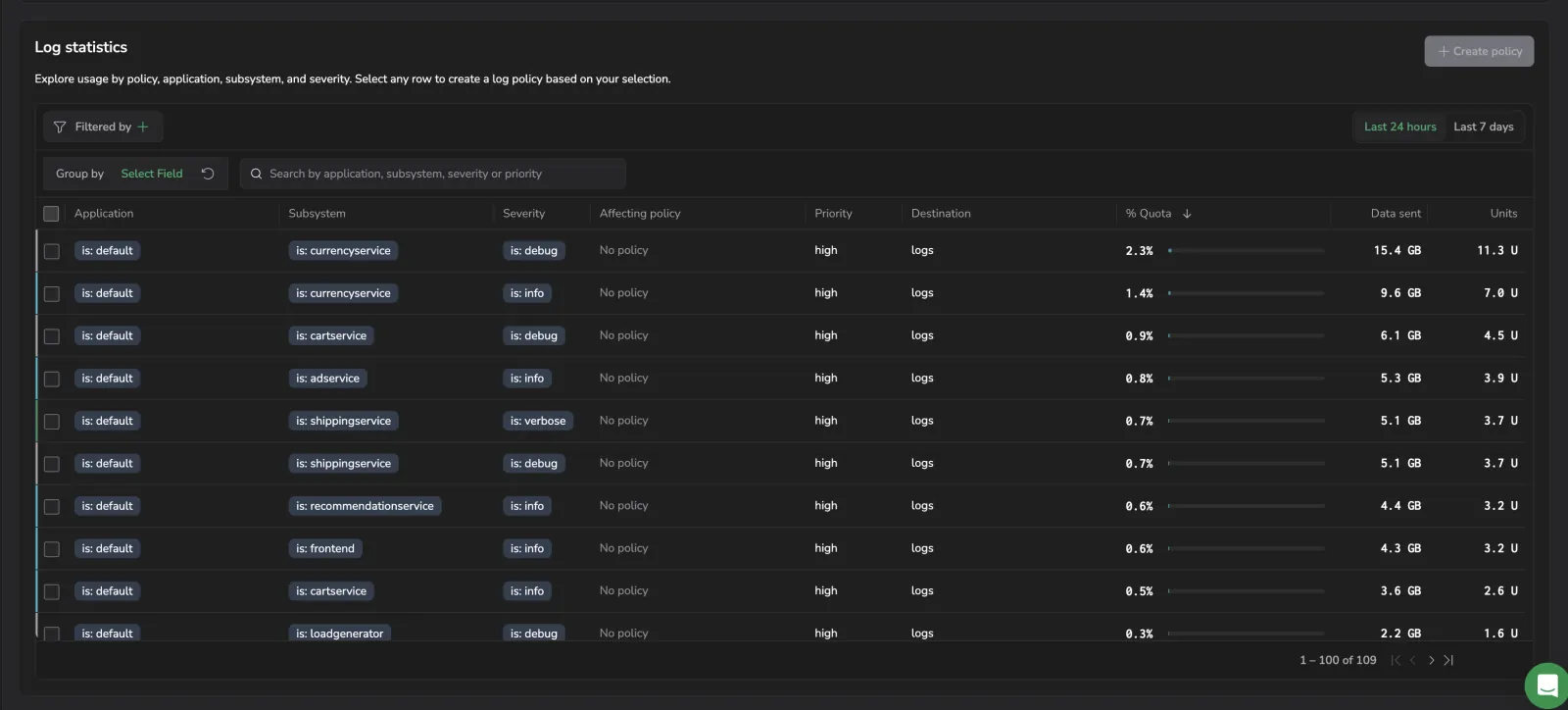
The Destination column is available on the Logs tab. RUM statistics do not include it, because RUM policies always route to default/rum.events.
Use this view to:
- Group by
application,subsystem,severity,affecting policy, andpriority - Expand an application to see its subsystems, then expand a subsystem to see its severity breakdown
- See the Destination each combination is routed to, alongside its Affecting policy and Priority
- See contribution to % Quota, Data sent, and Units (U) for each combination
- Validate expected impact before saving
Row menu actions
- Add rule: Pre-fills the policy form with the row's values
- Drill into logs: Opens a query filtered to the row's values
- Copy as filter: Copies application, subsystem, and severity chips for reuse
Slice and filter the data
- Group by chips: Choose which fields to include in the breakdown. Drag and drop chips to rearrange them.
- Search: Filter rows by name (supports partial matches).
- Include/exclude values: Use chip menus to add or remove specific values.
- Reset: Clear temporary filters and return to the default settings.
Create a policy from statistics
Turn any selection into a policy without leaving the page:
- Select a row.
- Choose Add rule. The Create policy form opens with the Builder pre-filled.
- Choose a priority: High (Frequent Search), Medium (Monitoring), Low (Compliance), or Blocked.
- (Optional) Set archive retention.
- Review the Preview panel for data sent, % quota, and units impact.
- Toggle Enable policy on to activate immediately.
- Select Create.
The new policy appears in the TCO rules table. Order matters. Set Policy order to place it First (highest precedence) or Last.
Understand the "affecting policy" column
When a combination already matches a policy, the Affecting policy column displays the policy currently in effect.
Use it to:
- Avoid creating duplicate policies
- Spot combinations that fall into the default High (Frequent Search) priority (shown as
—ornone) - Decide whether to edit an existing policy or add a higher-precedence one
View as code
View as code shows your TCO policies as infrastructure-as-code, so you can reproduce a policy set you built in the UI in Terraform, the Coralogix Operator, or the API without translating it by hand.
Each policy tab has its own View as code button in the section header, next to Create policy. Select it to open the TCO Optimizer code preview panel for that tab's data type.
The panel renders every policy of that data type as a single document, in three formats:
| Tab | Logs | Traces | RUM |
|---|---|---|---|
| Terraform | coralogix_tco_policies_logs | coralogix_tco_policies_traces | coralogix_tco_policies_rum |
| K8s | TCOLogsPolicies | TCOTracesPolicies | TCORumPolicies |
| OpenAPI | policies JSON array | policies JSON array | policies JSON array |
Because the document covers the whole tab, it contains every policy for that data type in evaluation order rather than one selected row. To capture all three data types, open the panel once per tab.
From the panel you can:
- Switch between the Terraform, K8s, and OpenAPI tabs.
- Search the generated code.
- Copy or download it for use in an automation or infrastructure-as-code workflow.
- Collapse and expand sections to navigate a long policy list.
The panel is read-only and generated from your saved policies, so field names, units, and structure match the Coralogix API exactly. Edit policies on the tab itself, then reopen the panel to see the updated code.
Opening the panel needs only read access to the policies, so a role with LOGS.TCO:READPOLICIES, SPANS.TCO:READPOLICIES, or RUM.TCO:READPOLICIES can view the code without permission to modify policies.
For the same capability in other areas of Coralogix, see View as code for alerts.
API and Terraform
TCO policies can also be managed via the Coralogix API or Terraform provider. See the TCO Optimizer HTTP API and the Terraform documentation for details.
Log overrides: end-of-life and migration
The Overrides table for logs is being retired. During the hybrid phase you can migrate overrides to log policies in bulk, using Convert to policy or Delete from the Overrides table, and after the cutoff any remaining overrides become top-ordered policies automatically, preserving current behavior.
For the full timeline, step-by-step migration, API impact, and FAQs, see Deprecation of TCO overrides.
Permissions
To view and manage TCO policies, your role needs the following permissions. Assign them individually, or use the TCOPolicies permission preset, which bundles them and stays up to date as permissions change.
| Resource | Description | System roles | API presets |
|---|---|---|---|
LOGS.TCO:READPOLICIES | View existing log TCO policies. | Data Admin, Observability Lead, Platform Admin, Security User | TCOPolicies |
LOGS.TCO:UPDATEPOLICIES | View and modify existing log TCO policies and create new ones. | Data Admin, Platform Admin | TCOPolicies |
METRICS.TCO:READPOLICIES | View metrics TCO policies. | Data Admin, Observability Lead, Platform Admin, Read-Only User, Security User, Standard User | TCOPolicies |
METRICS.TCO:UPDATEPOLICIES | Manage metrics TCO policies. | Data Admin, Observability Lead, Platform Admin | TCOPolicies |
RUM.TCO:READPOLICIES | View existing RUM TCO policies. | Data Admin, Observability Lead, Platform Admin | TCOPolicies |
RUM.TCO:UPDATEPOLICIES | View and modify existing RUM TCO policies, and create new ones. | Data Admin, Observability Lead, Platform Admin | TCOPolicies |
SPANS.TCO:READPOLICIES | View existing tracing TCO policies. | Data Admin, Observability Lead, Platform Admin | TCOPolicies |
SPANS.TCO:UPDATEPOLICIES | View and modify existing tracing TCO policies and create new ones. | Data Admin, Platform Admin | TCOPolicies |
RUM policies have their own permissions. A role that grants only the log or trace TCO permissions no longer reaches the RUM tab, and a role with RUM.TCO:READPOLICIES alone opens the TCO Optimizer directly on that tab.
For details on roles, permissions, and presets, see Create roles and permissions.