Code Agents Intelligence
Understand where AI coding agent spend goes, what each agent produces, and whether that usage is aligned with the work the company is paying for. Code Agents Intelligence gives engineering leaders, platform teams, FinOps managers, and AI owners a unified view of every coding agent's activity (token usage, costs, code impact, models, sessions, and user behavior) across every developer and every session.
Code Agents Intelligence is purpose-built for external developer tools, Claude Code, Claude Cowork, Codex CLI, Copilot, and Cursor. The Claude dashboard also covers claude.ai alongside Claude Code and Cowork. For Claude Code, you also see which projects developers worked on and whether those repositories are Managed (owned by Organizations you configure in Settings → AI Center → Code agent) or Unmanaged.
Code Agents Intelligence is how Coralogix does AI impact measurement for coding agents: tokenomics first, then the code that spend produced, then what happened in production once that code shipped.
If you are building and monitoring your own AI applications (AI agents, chatbots, LLM-based applications) see Getting started with AI Observability and the Application Catalog instead.
What you need
- A Coralogix account with a Send-Your-Data API key. In Coralogix, navigate to Settings, then API Keys.
- One or more coding agents installed and connected to Coralogix.
Connect an agent
Each agent has its own setup guide. Complete the setup before opening the dashboard.
Until at least one tool is connected, Code Agents shows a Connect your first AI tool screen listing the same tools, grouped into Code agents and AI chat apps. Select any tool to open its setup guide. Tools marked Coming soon, currently ChatGPT and Claude.ai, are not connectable yet. The screen gives way to the dashboards as soon as Coralogix detects data from a connected tool.
Access Code Agents Intelligence
- In Coralogix, navigate to AI Center, then Code Agents. AI Center has three sections in the navigation sidebar: AI Apps, Code Agents, and AI-SPM.
- Pick an agent from the sidebar on the left of the dashboard. It lists every supported tool under two groups, Code agents and AI chat apps, and each row shows whether that tool is connected. A badge on each group counts how many of its tools are connected. Select the collapse control to narrow the sidebar. Coralogix remembers the setting in your browser.
- Use the time range picker to set the period you want to analyze.
When only one agent is connected, Code Agents opens that agent's dashboard directly and hides the Overview row, since there is nothing to compare against. Connect a second agent and Overview returns.
The Overview dashboard
Overview sits above the individual agents and answers the cross-agent questions: which agent your team actually uses, what the combined bill is, and what all that activity produced. It carries the same three tabs as the agent dashboards, and the same Filter by control.
Activity
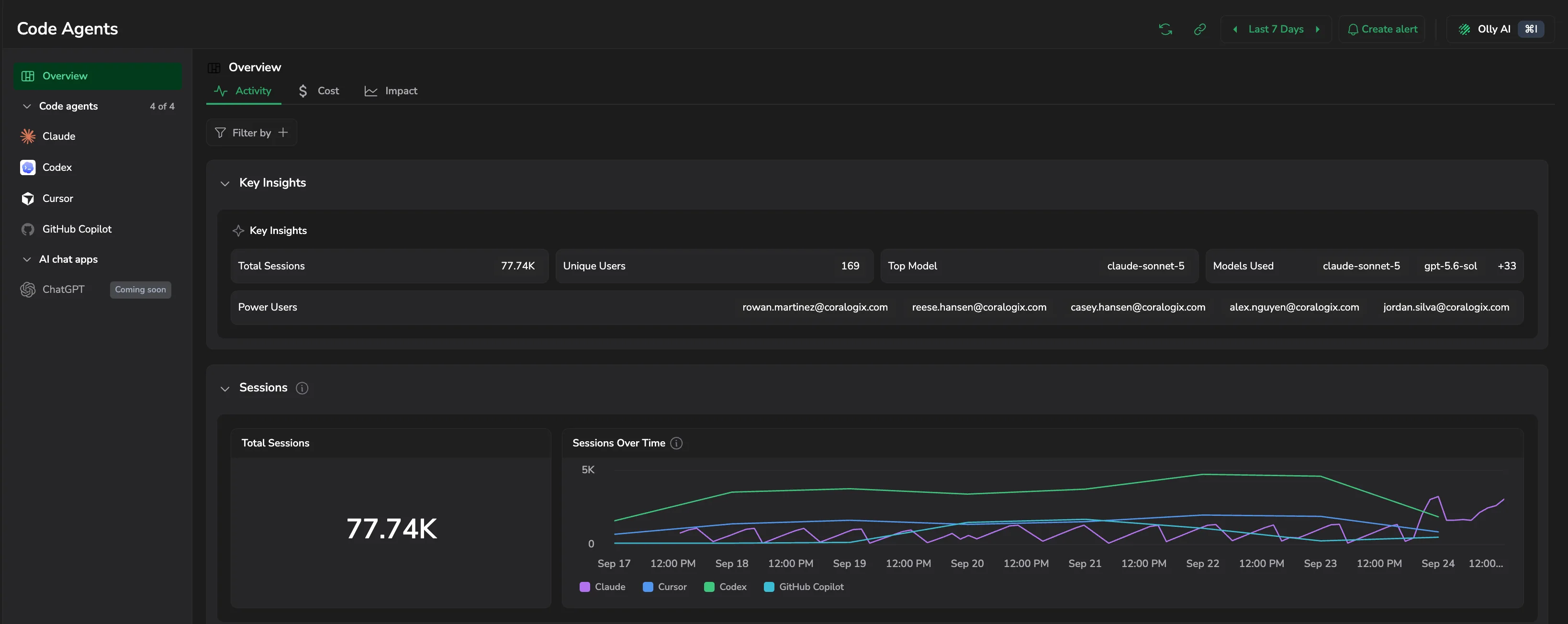
- Key Insights: Total Sessions, Unique Users, Top Model, Models Used, and Power Users, the people driving the most activity.
- Sessions: Total Sessions alongside Sessions Over Time, with one series per agent so you can see which tool grew and which flattened.
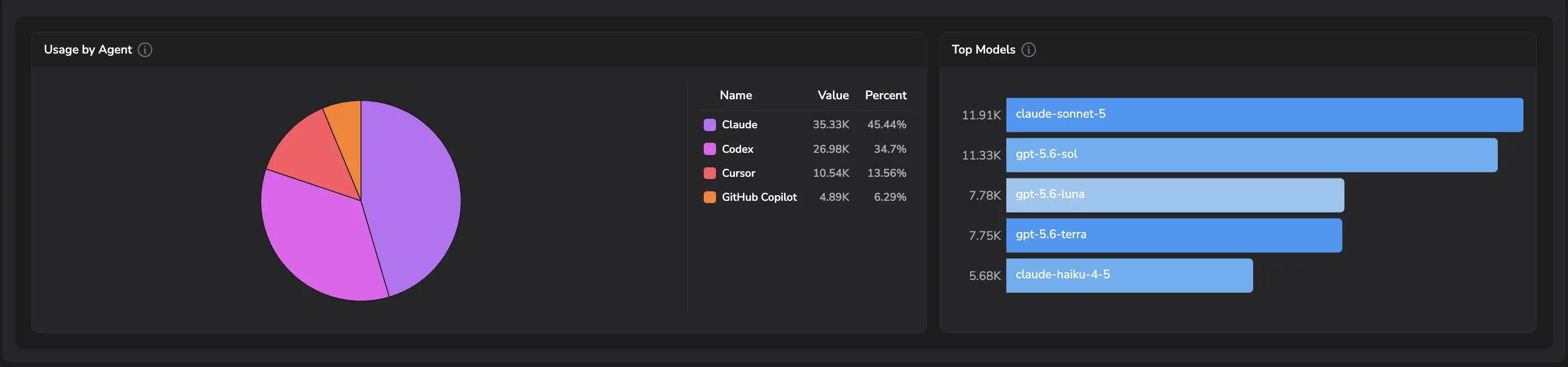
- Usage by Agent: each agent's share of total sessions.
- Top Models: the models your team leans on most, across every agent.
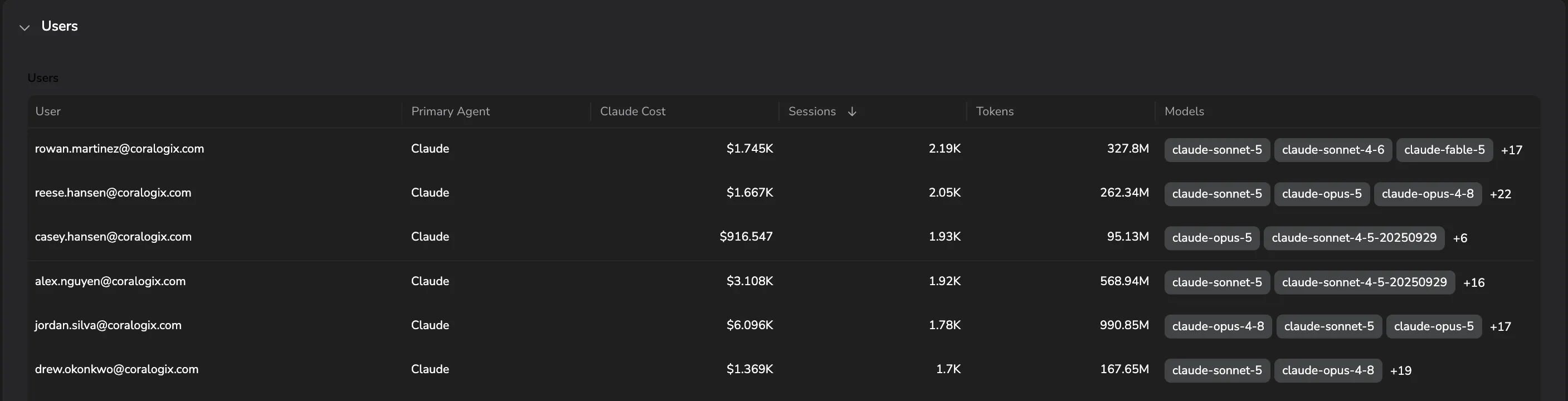
- Users: User, Primary Agent, Claude Cost, Sessions, Tokens, and Models, so you can see which agent a person mainly works in.
Cost
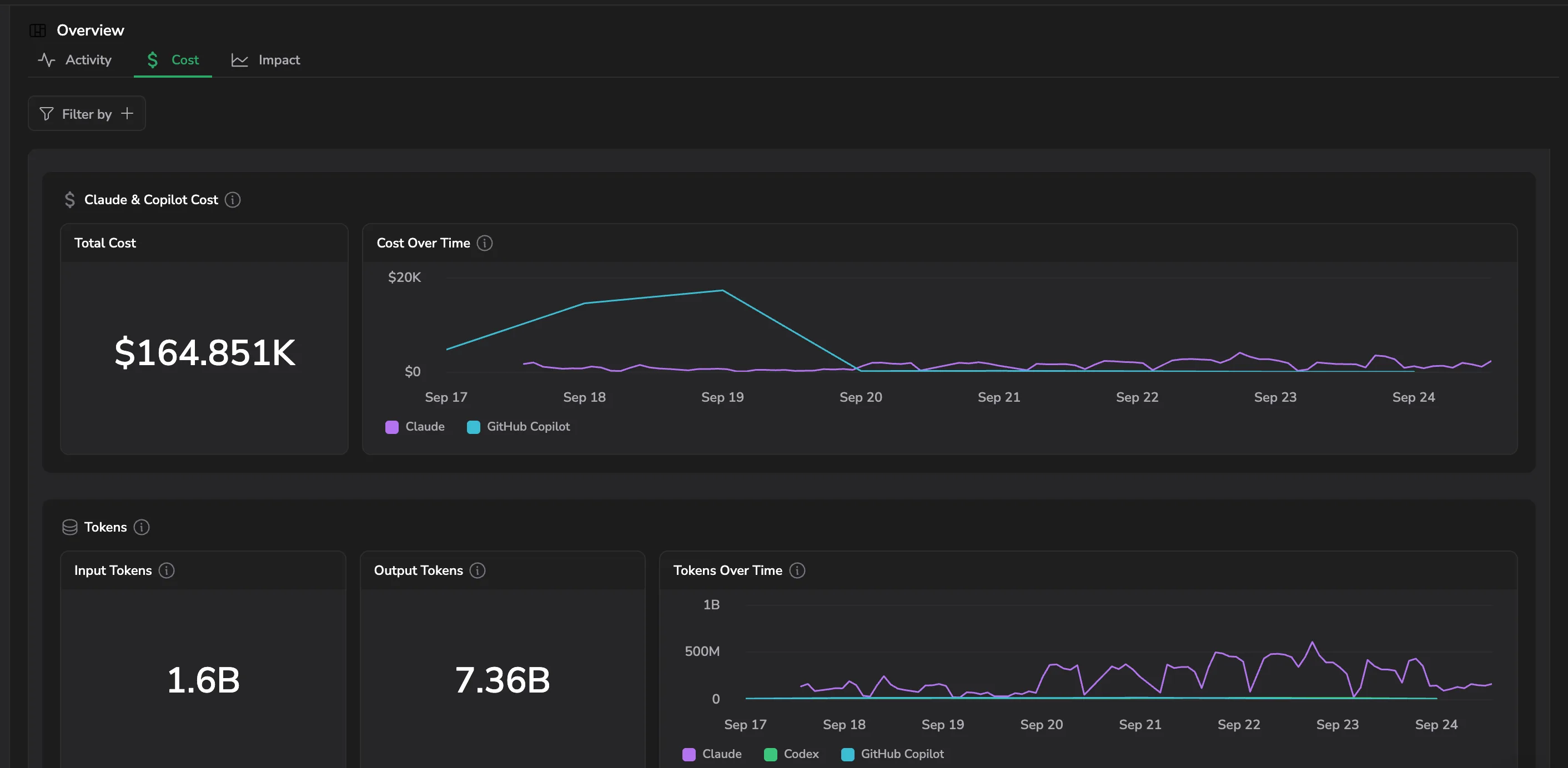
- Claude & Copilot Cost: Total Cost and Cost Over Time, covering the agents that report real spend.
- Tokens: Input Tokens, Output Tokens, and Tokens Over Time, broken out by agent.
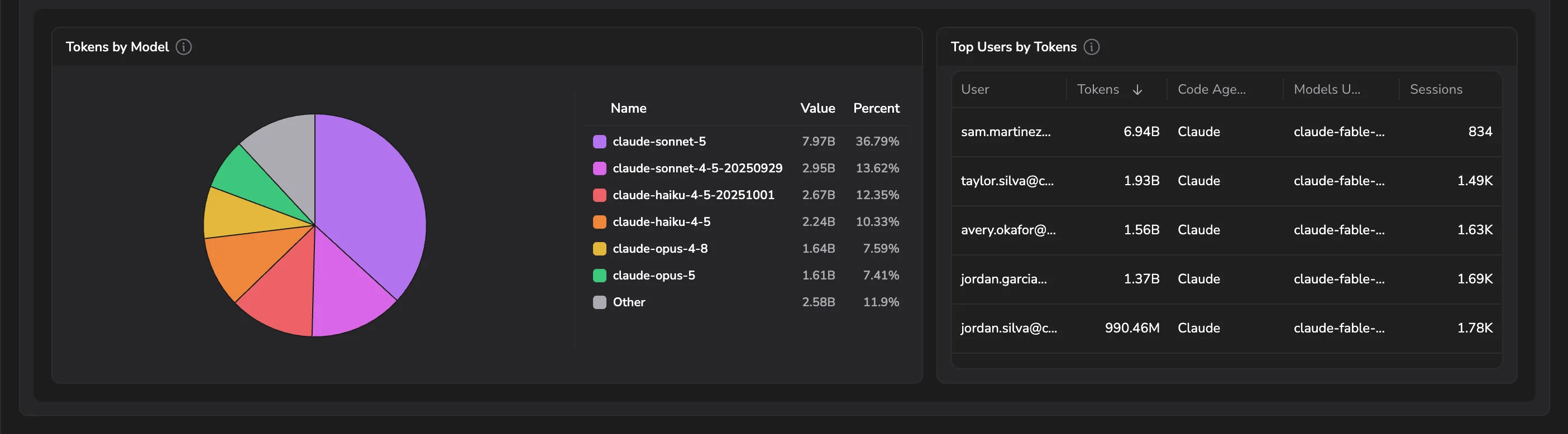
- Tokens by Model: consumption by model, with the smaller models folded into Other.
- Top Users by Tokens: the heaviest consumers, with their primary agent, models, and session count.
Impact
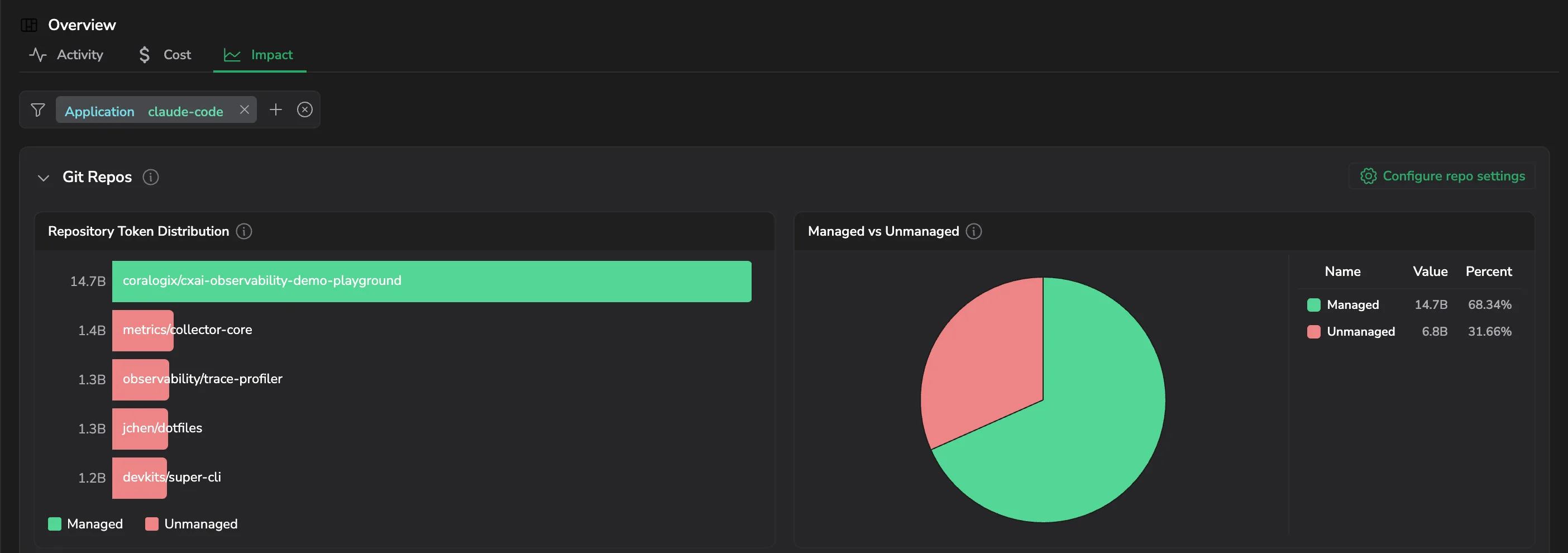
Git Repos attributes token consumption to the repositories your agents touched, split between Managed and Unmanaged. Repository Token Distribution ranks individual repositories, and Managed vs Unmanaged gives the overall split. Select Configure repo settings to set the Organizations that decide it.
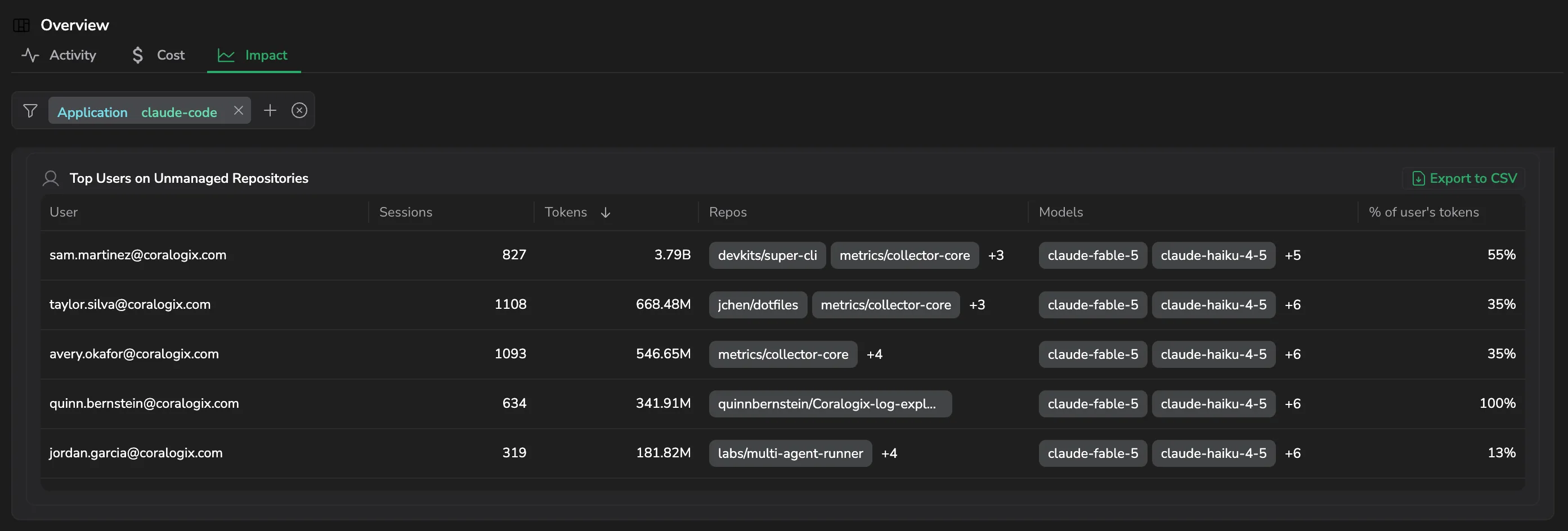
Top Users on Unmanaged Repositories lists who is working outside your Organizations, with Sessions, Tokens, Repos, Models, and % of user's tokens. Select Export to CSV to download it.
See Repository breakdown for how the Managed and Unmanaged split is configured.
Per-agent dashboards
Each agent has its own dashboard, tuned to the signals that matter for that agent. Open the page for any agent to see exactly what its dashboard surfaces:
- Claude, sessions and chats across Claude Code, Cowork, and claude.ai, Enterprise Plan cost, code impact, repositories.
- Cursor, adoption and conversations, pooled budget and per-model cost, code impact, repositories, Bugbot.
- Codex, tokens, latency, cache efficiency, top users.
- Copilot, cost by SKU, feature and IDE usage, code impact, top users.
Every dashboard is organized into the same three tabs. A tab appears only when the agent has sections to put in it, so not every agent shows all three. Each dashboard opens on Activity.
- Activity: Key insights for the period, session or usage volume, and a ranked list of active users you can drill into.
- Cost: where the spend or token consumption is going, by model and by user.
- Impact: what the agent produced, attributed to the repositories each session touched.
| Agent | Activity | Cost | Impact |
|---|---|---|---|
| Claude | Insights, Activity, Tokens, Users | Enterprise Plan Cost | Code Impact, Git Repositories |
| Codex | Key insights, Usage, Users | Tokens | Not available yet |
| Copilot | Key insights, Usage, Users | Cost | Git Repos |
| Cursor | Key insights, Overview, Adoption, Conversations, Invocations, Users | Budget and spend, Models, API Keys | Work Type, Code Impact, Git Repositories, Bugbot |
Copilot shows Impact only when the GitHub Copilot collector is connected.
Use Filter by above the tabs to narrow the dashboard.
The Claude Impact tab ties every session's cost, tokens, and code impact to the repositories it touched, split between Managed repos (owned by Organizations you configure in Settings → AI Center → Code agent) and Unmanaged ones. See Repository breakdown.
Data scopes
Use data scopes to restrict which code agent data each user can see. Scope support depends on the primary signal the dashboard for each agent runs on:
| Agent | Primary signal | Scope support |
|---|---|---|
| Claude Code | Metrics | Forthcoming |
| Claude Cowork | Metrics | Forthcoming |
| Codex CLI | Logs | Available |
| Copilot CLI | Metrics and spans | Metrics forthcoming; spans available (repos and sessions) |
| Cursor | Metrics and logs | Metrics forthcoming; logs available |
Permissions
By default, the Code agents tab in AI Center is restricted to admins. Non-admins do not see it in the navigation. To grant access to additional roles, assign the following permissions.
| Resource | Description | System roles | API presets |
|---|---|---|---|
AI-CODE-AGENTS:MANAGE | Manage Code agents dashboards. | Data Admin, Platform Admin | AiObservability |
AI-CODE-AGENTS:READ | View Code Agents dashboards. | Data Admin, Platform Admin | AiObservability |
For details on roles, permissions, and presets, see Permissions list.
Next steps
Discover every AI model and integration in your codebase with AI Security Posture Management.