Connected dashboards
Connect a Custom Dashboard to APM so it opens from APM in a new tab, carrying the service and environment you opened it from. Choose where each dashboard is available (all of APM, specific teams, or specific services, and specific environments), and optionally pass the service and environment into the dashboard's own variables or filters so it opens already scoped to what you were looking at. Connections are explicit: only the dashboards someone connects appear in APM.
Connected dashboards respect each dashboard's access policy. A user sees and opens a connected dashboard only if the dashboard's access policy grants them access, so connecting a dashboard never widens who can see it.
Use it to:
- Open a dashboard already scoped to a service: Pass the service you came from into the dashboard's variable or filter so it opens on that service, not the whole fleet.
- Put a team's dashboard next to its services: Connect a dashboard to a team so it shows up for every service that team owns.
- Pin an account-wide view to all of APM: Connect a cost or RED-metrics dashboard once and reach it from anywhere in APM.
What you need
- To view connected dashboards, you need
SERVICE-CATALOG:READ(included in all standard roles). - To connect, edit, or disconnect dashboards, you need
SERVICE-CATALOG:UPDATE(Data Admin, Observability Lead, or Platform Admin). - The dashboards you want to connect, already created in Custom Dashboards, and visible to you there. The Dashboards button appears in APM only when your team has at least one custom dashboard.
Where to open connected dashboards
- From the APM page: select Dashboards to open a menu of the connected dashboards. Search by name, and select one to open it in a new tab. The list follows the Team and Environment filters on the rail, and a caption names the current scope. When nothing matches, the menu says so and offers to clear the search or the filters. The menu also holds Connect dashboards and Manage connections.
- From a service: in the service drilldown, select Dashboards to see that service's connected dashboards, or select Connect dashboards to add one scoped to it.
- From the services table: switch the catalog to its Ownership column view, where a sortable Dashboards column shows how many dashboards are connected to each service (counting its own and its team's). Select the count to open them in a menu. Databases and serverless functions read as not applicable; for a service with none, hover the cell and select Connect dashboards.
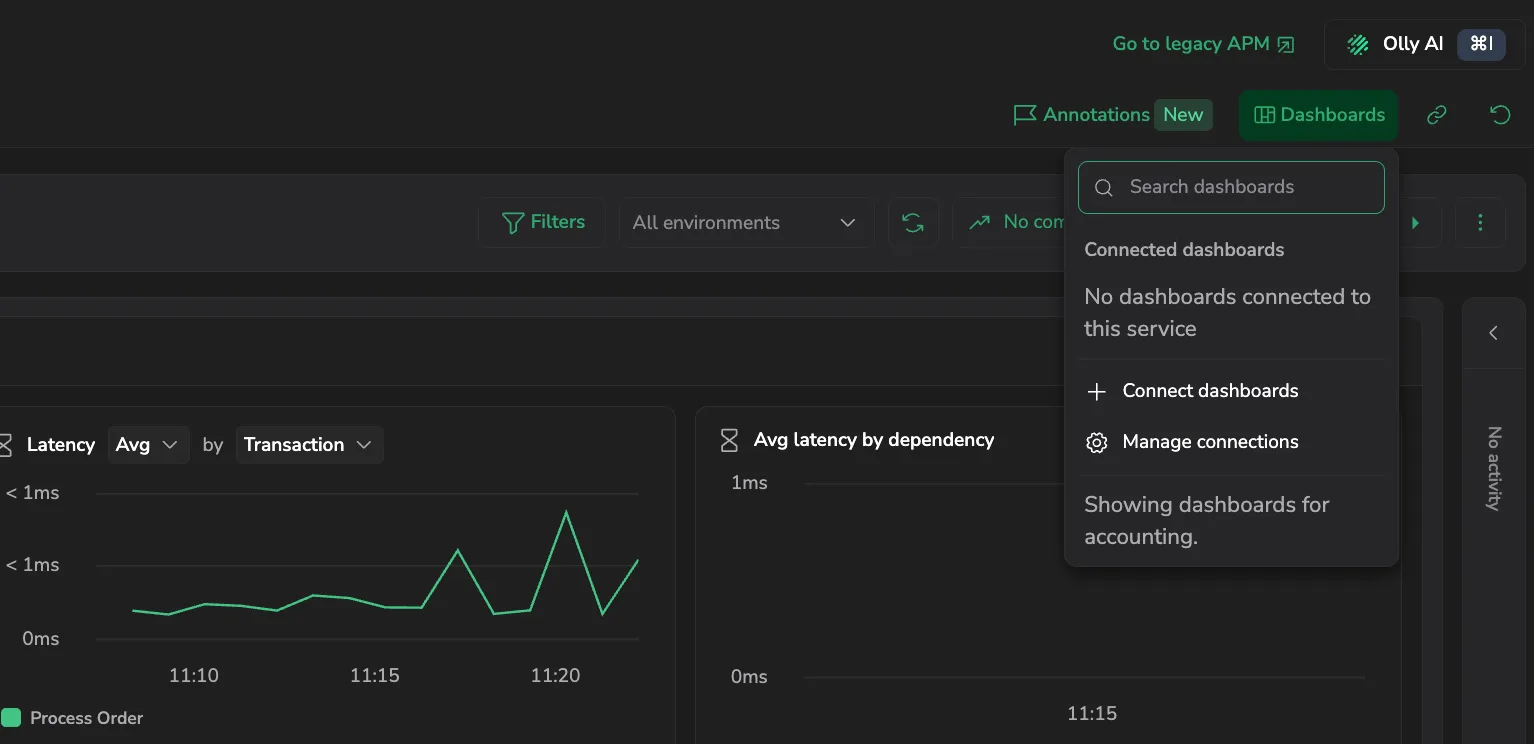
Connect a dashboard
- Select Dashboards, then Connect dashboards.
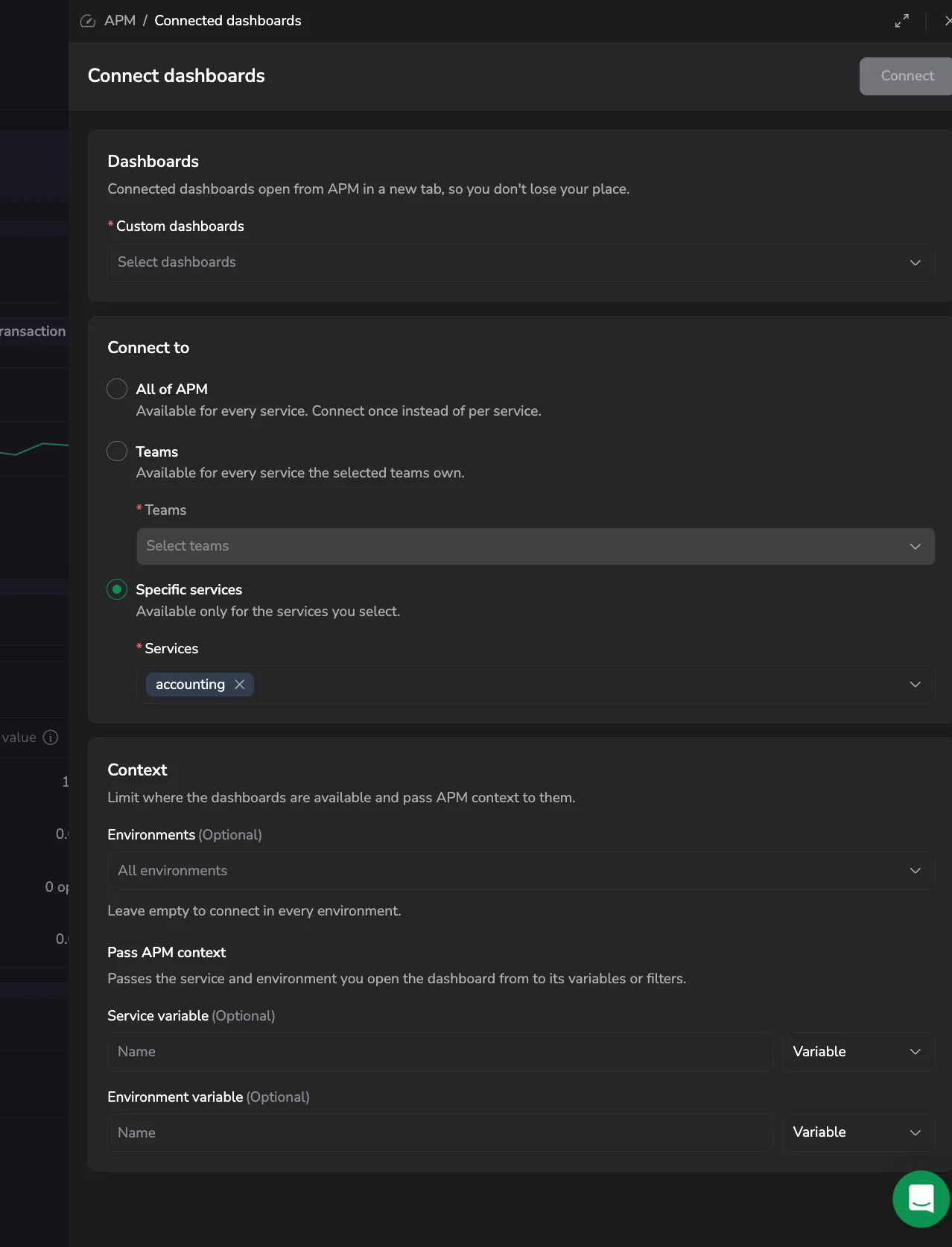
- In Custom dashboards, select one or more dashboards.
- Under Connect to, select a scope (see Connection scopes).
- Under Context, optionally limit the environments and pass APM context to the dashboard (see Pass APM context).
- Select Connect.
The Custom dashboards picker is searchable, and the drawer flags a dashboard that's already connected to all of APM so you don't duplicate it. Connect stays disabled until you make a change, and selecting it validates the required fields. Closing the drawer with unsaved changes prompts you to save or discard. A toast confirms the result and names any dashboards that couldn't be connected.
Connection scopes
Connect to sets which services a dashboard is available for:
| Scope | The dashboard is available for |
|---|---|
| All of APM | Every service. Connect once instead of per service. |
| Teams | Every service owned by the teams you select. |
| Specific services | Only the services you select. |
Under Context, Environments narrows the connection to specific environments. Leave it empty to connect in every environment.
Connected dashboards apply to services. Databases and serverless functions don't show them. When a dashboard reaches a service through more than one connection, the most specific connection wins: a service connection, then a team connection, then all of APM.
Pass APM context
Under Context, Pass APM context sends the service and environment you open the dashboard from into the dashboard's own variables or filters, so it opens already scoped instead of showing the whole fleet.
- Service variable: enter the name of the dashboard variable or filter that receives the service, then set Parameter type to Variable or Filter.
- Environment variable: enter the name of the dashboard variable or filter that receives the environment, then set its Parameter type.
Leave these empty to open the dashboard without passing any context. The environment is passed only when the APM view you open the dashboard from is filtered to a single environment.
Manage connections
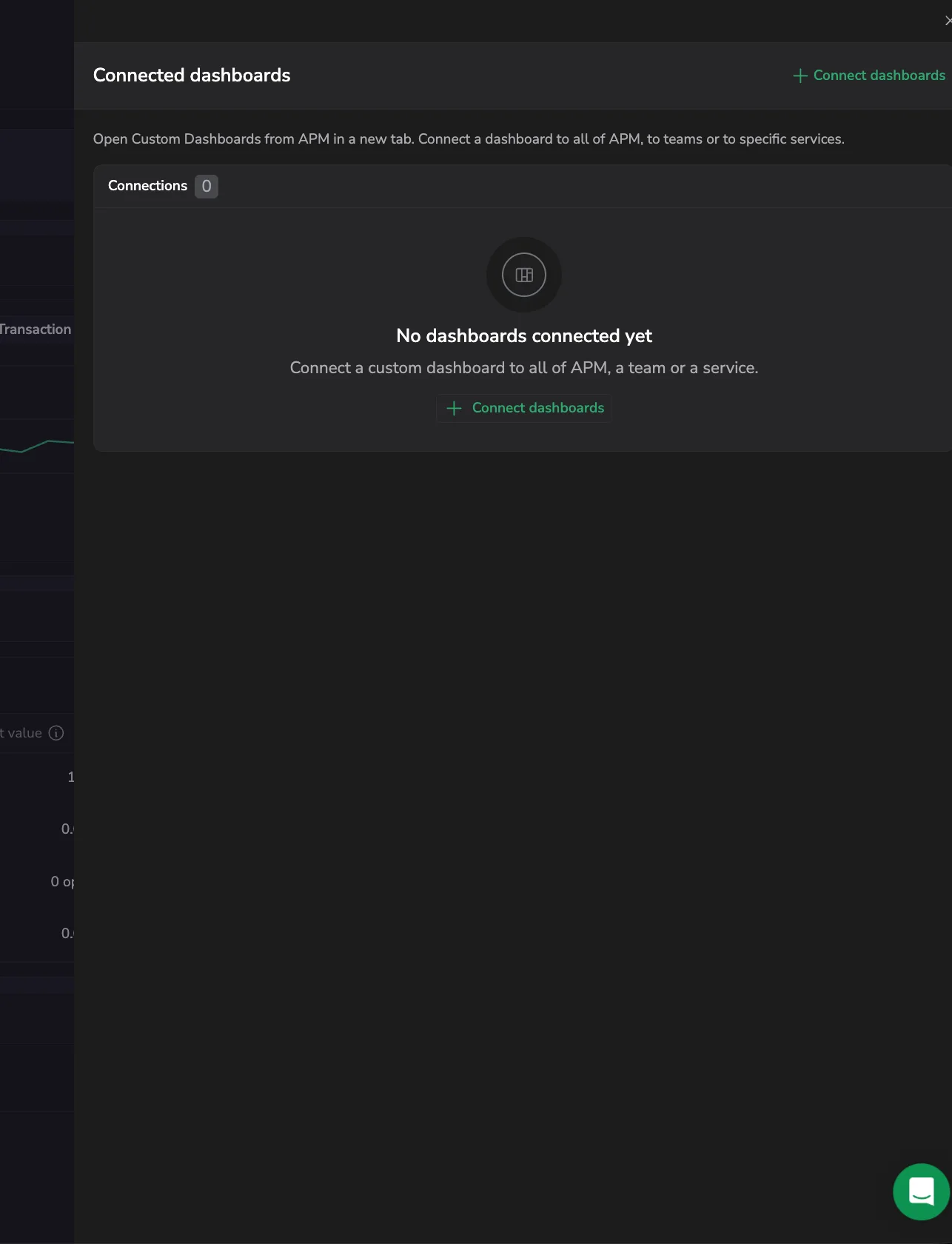
Select Dashboards, then Manage connections. The Connected dashboards dialog lists every connection in one table: the dashboard, what it's connected to (the scope, the environments, and any APM context it passes), when it was added, and who added it. Select a dashboard to open it in a new tab. Users with only SERVICE-CATALOG:READ can open this dialog and view connections, but the connect, edit, and disconnect controls are hidden.
Edit a connection
Change where a connected dashboard is available, or its context, without reconnecting it.
- In the Connected dashboards dialog, select a row, or open its More options menu and select Edit connection.
- Update the scope or context.
- Select Save. It stays disabled until you change something, and a toast confirms the update.
Disconnect a dashboard
In the Connected dashboards dialog, open a row's More options menu and select Disconnect, then confirm. A toast confirms it. The dashboard no longer opens from APM; the dashboard itself stays in Custom Dashboards.
Limitations
- Connected dashboards apply to services. Databases and serverless functions don't show them.
- The environment is passed to the dashboard only when the APM view you open it from is filtered to a single environment.
- Connected dashboards open in a new tab, not inside APM.
Related resources
- Custom Dashboards: create and manage the dashboards you connect to APM.
- Services: the services a dashboard can be connected to.