Insights
Insights surface data-quality and coverage gaps across your APM catalog - services that aren't profiled, services with no owner or SLO, or an account nearing a catalog limit - so you can fix what's holding your observability back before it costs you during an incident. The section sits at the top of the catalog, summarizing the gaps across the services and databases in view, with a drawer that lists every one.
Use it to:
- Close coverage gaps: find services that aren't profiled, have no detected language, or aren't sending spans, and fix them before you need the data.
- Drive ownership and reliability: surface services with no owner or no SLO, so every service has a team accountable for it and a reliability target to meet.
- Stay ahead of catalog limits: catch when your account is near or at an entity, identity, or cardinality limit before entities start to drop.
- Scope the work to your team: filter insights by environment and team to see only what you're responsible for.

What you need
- Coralogix Application Performance Monitoring (APM) installed and configured.
- Compact span metrics for your services - the catalog, and the insights computed from it, read these.
Where Insights appears
Insights appear in two places.
On the catalog, the Insights section sits at the top, between the search bar and the Overview widgets. It shows up to four insight cards (fewer on a narrow screen). Select the section header to collapse the cards into compact pills (up to four), or to expand them again. The expanded or collapsed state travels with the URL, so it's preserved when you copy a link or save a view. View all insights (n) in the header, where n is the total count, opens the All insights drawer.
In an entity drilldown, each service and database drilldown has its own Insights section, opened from the drilldown's left navigation. It lists the insights for that one entity, with titles scoped to it, for example frontend has no transactions in all environments. It uses the same category tabs and type filter as the All insights drawer, and each insight carries the same Fix, Continue with Olly, and more actions.
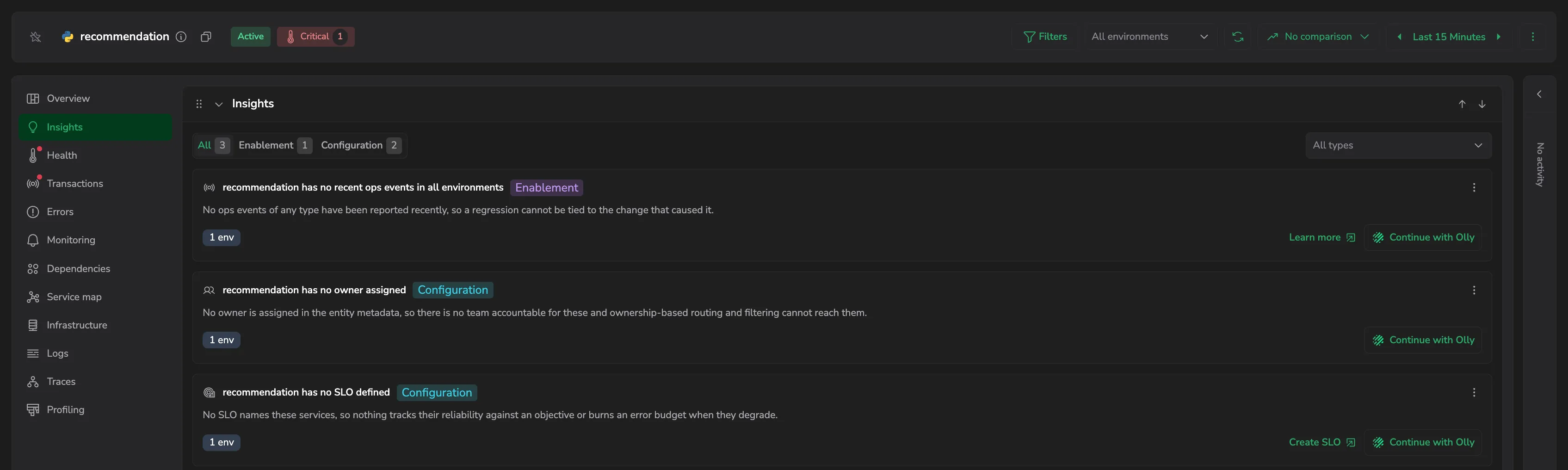
Read an insight
Each insight card shows:
- An icon for the kind of gap.
- A title naming the gap and how many entities it affects, for example 21 services with no CPU profiling.
- A short description of the impact.
- A category badge (see Insight categories).
- Up to three count pills: how many entities are affected (n of m services), n envs, and n teams. Hover the environment or team pill to see the breakdown.
Each card also has actions:
- A Fix action that opens where you resolve the gap: Fix with Fleet for missing spans, compact metrics, profiling, or transactions; Open metrics limits for a cardinality limit; Create SLO for a missing SLO; or Learn more for the rest. A No owner insight has no Fix action; assign an owner on the service itself.
- Continue with Olly to investigate the gap with Olly (see below).
- A more actions menu (the ⋮ on the card) that repeats the Fix action and adds View affected services (or View affected databases) to open the affected entities, and Copy link to copy a link back to the insight. On the narrow overview cards, Continue with Olly moves into this menu.
Continue with Olly opens the Olly AI chat with the insight added to its context - including the affected services and their environments, or the usage and limit for a limit insight - so Olly can reason about the specific entities and suggest next steps without you looking them up.
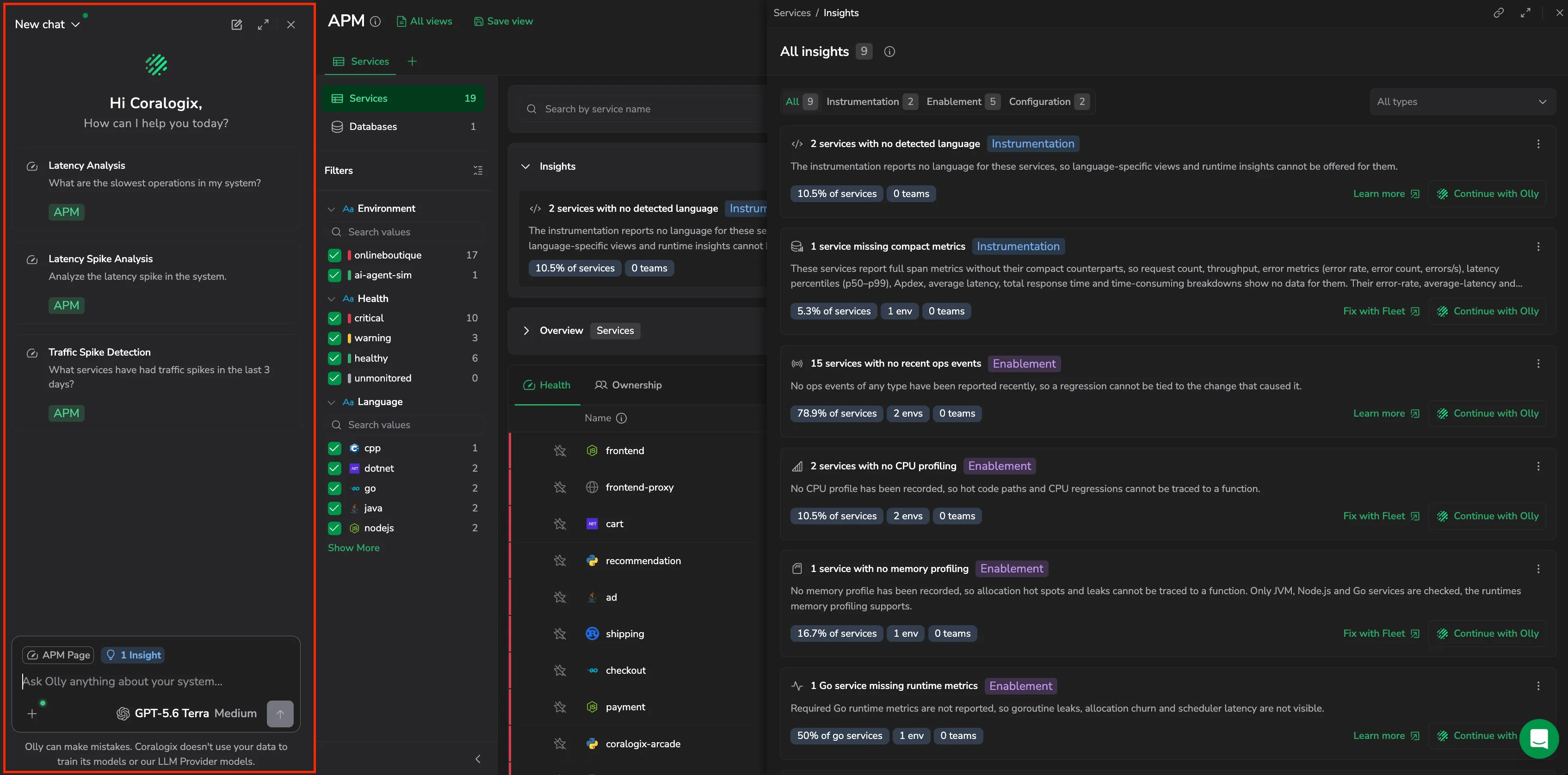
Open an insight
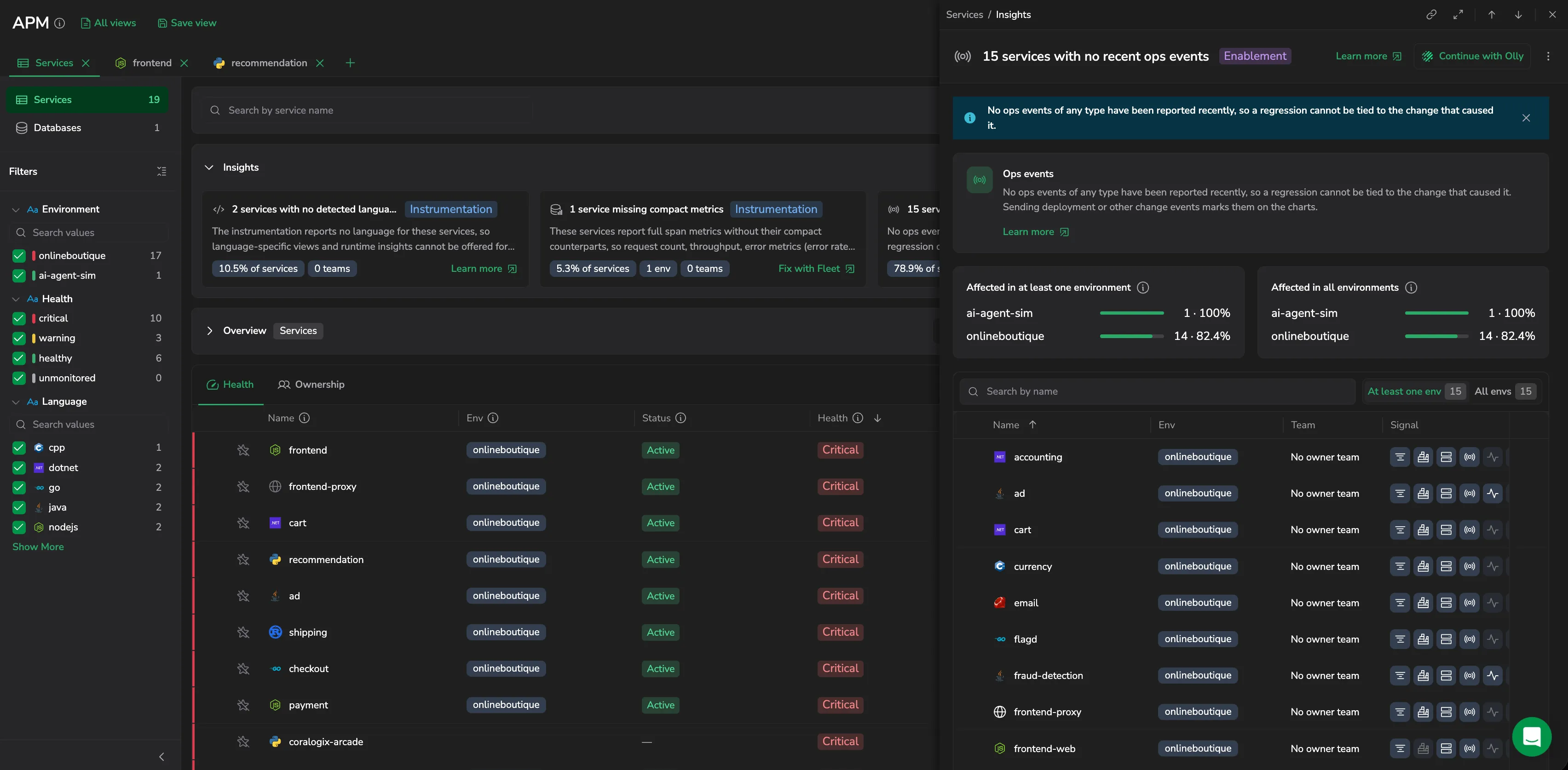
Select a card, or View affected services (or databases) from its menu, to open the insight in a drawer:
- An explainer at the top names the gap, explains why it matters, and links to Learn more.
- Breakdown charts split the affected entities by dimension - language, owner team, database system, or the missing metric. A per-environment insight splits into two readings, Affected in at least one environment and Affected in all environments, since the entities affected everywhere are the real gap.
- The affected entities table lists each affected service or database with its environment, owner team, and signal coverage. Toggle between At least one env and All envs, search by name, and expand a multi-environment row to see each environment's own signals. A row's more actions let you View the entity, View on map, Add SLO, or Create alert.
The drawer header holds Fix, Continue with Olly, Copy link, a fullscreen toggle, Previous and Next to step through the filtered insights, and Close.
Opened from inside a single service or database drilldown, the insight shows per-entity breakdown panels that mark each value Affected or Not affected, instead of an affected-entities table.
Insight categories
Coralogix assigns every insight a category. Filter by category in the All insights drawer to focus on one kind of work:
- Enablement: a capability isn't turned on yet for the entity, such as CPU or memory profiling, runtime metrics, or server spans.
- Configuration: something needs setting up, such as an owner or an SLO.
- Instrumentation: the telemetry itself is incomplete, such as a service with no detected language or one sending full span metrics without their compact counterparts.
- Limits: your account is near or at a catalog limit - entities, identities, or cardinality.
- Other: anything that doesn't fall into the categories above.
Insight types
Each type flags one specific gap. The All insights drawer groups these types into broader kinds for its Type filter: for example, CPU and memory profiling both fall under Profiling, and the entity and identity limits under Catalog capacity.
| Type | What it flags | Resolve with |
|---|---|---|
| No language detected | APM can't determine the service's language, so language-specific views and runtime insights are unavailable. | APM onboarding |
| No server spans | The entity has recorded no server (incoming) spans, so there's nothing to trace. | APM onboarding |
| No transactions | The service isn't producing transaction data. | Enable the transactions processor |
| No CPU profiling | No CPU profile has been recorded for the service. | Profiling |
| No memory profiling | No memory profile has been recorded for the service. | Profiling |
| Missing runtime metrics | The service's runtime metrics aren't being reported. One insight is raised per language. | Runtime metrics |
| No ops events | No ops events (deploys or changes) arrive for the service, so a regression can't be tied to the change that caused it. | Annotations |
| No owner | No owner is set in the entity's metadata, so no team is accountable for it. | Entity Metadata API |
| No SLO | No SLO is defined for the service, so its reliability isn't tracked against a target. | Service SLOs |
| Missing compact metrics | The entity isn't sending the compact span metrics the catalog relies on. | Using compact span metrics |
| Entity limit | Your account is near or at its limit for catalog entities. | Cardinality limits |
| Identity limit | Your account is near or at its limit for entity identities. | Cardinality limits |
| Cardinality limit | Your account is near or at a cardinality limit. | Cardinality limits |
View all insights
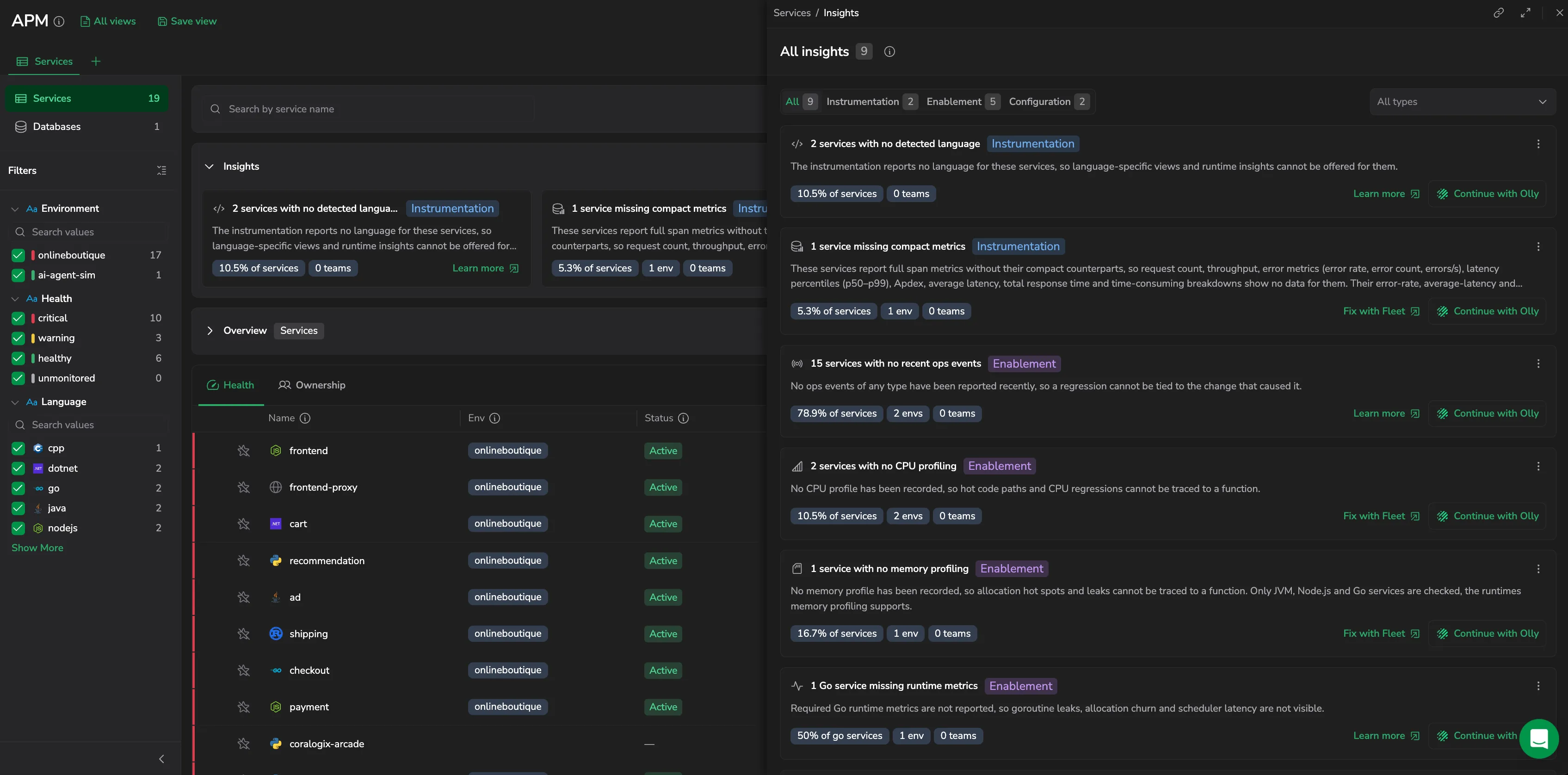
Select View all insights (n) in the section header to open the All insights drawer - the complete list, not just the four cards on the overview. The drawer reads the same insights as the section, so it opens without reloading.
Narrow the list with two filters:
- Category: a single-select button group. Select one category, or All for every category. Each button shows a count.
- Type: a multi-select, searchable dropdown of insight kinds, such as Profiling, Catalog capacity, Metric cardinality, SLOs, Tracing, Transactions, and Ops events. It lists only the kinds present in your data; the placeholder is All types.
Select Copy link to copy a link that reopens APM with the drawer open at the current scope. The in-drawer filters reset when the drawer reopens. The header's info button opens a Categories and types legend that describes each category and the types it covers.
How insights are scoped
- Entity type: the sidebar selection - Services or Databases - determines which entities' insights you see.
- Filters: the catalog's sidebar filters - environment, team, language, database system, and health - also narrow the insights. The service-name search box does not.
- No time range: insights describe the current state of your catalog, not a time window, so the time picker doesn't change them.
- Account-wide insights, such as catalog limits, appear regardless of the entity type in view.
When no gaps are found for the current scope, the section reads Nothing needs attention. If only some insights could be loaded, it shows the ones it has alongside a note that the rest couldn't be loaded.
Permissions
Viewing Insights needs no permission beyond access to APM. The Fix actions route to other areas and require those areas' permissions, so a fix appears disabled when you lack it:
- Create SLO requires
SLO:UPDATECONFIG(Data Admin, Observability Lead, Platform Admin, or Security User). - Open metrics limits requires
METRICS.DATA-ANALYTICS#HIGH:READ(included in all standard roles).
Fix with Fleet and Learn more carry no Insights-level permission; the page or documentation they open enforces its own.
Next steps
Give the services Insights flags a reliability target to meet with Service SLOs.