Monitor memory consumption
Identify memory-intensive functions, detect allocation hotspots, and optimize allocation behavior in your Java, Node.js, and Go services. Memory profiling captures allocation and heap data with minimal overhead, giving you function-level visibility into how your application consumes memory.
Memory profiling complements CPU profiling by revealing a different dimension of performance. While CPU profiles show where processing time is spent, memory profiles show where allocations occur, helping you reduce garbage collection pressure, prevent out-of-memory errors, and lower infrastructure costs.
What you need
- Continuous Profiling set up and installed so the Coralogix collector is reachable from your service. The eBPF profiler used for CPU profiling is not required for memory profiling.
- A supported runtime and build tooling for your language:
- Java: services running on a supported JVM (JDK 7–25); the Coralogix Continuous Profiler SDK requires Java 17 or later, plus Maven or Gradle build access to add it as a dependency.
- Node.js: services running on Node.js 20 or later, plus npm to install the Coralogix OpenTelemetry profiling SDK.
- Go: services that expose Go's standard
net/http/pprofendpoints, reachable by the Coralogix collector. No SDK or build-tooling changes are required.
How memory profiling works
Coralogix memory profiling uses a language-specific profiler that samples memory activity in your running service, then delivers the data to the Coralogix collector for display in the Profiles UI alongside CPU profiles. Unlike the eBPF profiler used for CPU profiling, these profilers run inside your service process:
- Java: integrates with the Async Profiler, a low-overhead sampling profiler for JVM languages. It hooks into the JVM to capture memory allocation events, recording which functions allocate memory, how much they allocate, and the resulting call paths.
- Node.js: uses the Coralogix OpenTelemetry profiling SDK, which samples heap allocations through V8's built-in sampling profiler to attribute retained memory to the functions responsible for it.
- Go: uses the Go runtime's built-in heap profiler, which continuously samples allocations and live-heap objects. Your service exposes this data through the standard
net/http/pprofendpoints, and the Coralogix collector scrapes it on a schedule, so unlike Java and Node.js, Go needs no profiling SDK, only the endpoints enabled.
Set up memory profiling in Java services
Memory profiling is enabled by adding the Coralogix Continuous Profiler SDK to your Java service. The SDK pulls in the Async Profiler native libraries through its tools.profiler:async-profiler dependency and extracts the right one for your platform on first use, then exports allocation samples to the Coralogix collector. No manual native library installation is required.
1. Add the SDK dependency
The SDK is published to the Coralogix Artifactory repository, not to Maven Central, so add the repository alongside the dependency. No credentials are required. Keep Maven Central available as well, since the SDK resolves its Async Profiler dependency from there.
Maven: add to pom.xml:
<repositories>
    <repository>
        <id>coralogix-jfrog</id>
        <url>https://cgx.jfrog.io/artifactory/maven</url>
    </repository>
</repositories>

<dependency>
    <groupId>com.coralogix</groupId>
    <artifactId>continuous-profiler</artifactId>
    <version>1.0.27</version>
</dependency>
Gradle: add to build.gradle:
repositories {
    mavenCentral()
    maven { url = uri("https://cgx.jfrog.io/artifactory/maven") }
}

dependencies {
    implementation 'com.coralogix:continuous-profiler:1.0.27'
}
If you omit the repository, the build fails with Could not find artifact com.coralogix:continuous-profiler because the resolver falls back to Maven Central.
2. Initialize the profiler
Build the profiler with ContinuousProfiler.builder.Memory(), the preset builder for allocation profiling. Note that builder is a field, not a method, so it takes no parentheses. The profiler runs in the background and samples allocation events for the configured interval. Use try-with-resources so the profiler stops cleanly on shutdown.
import coralogix.profiler.sdk.ContinuousProfiler;

public class MyApp {
  public static void main(String[] args) throws Exception {
    try (ContinuousProfiler profiler = ContinuousProfiler.builder.Memory()
            .build()) {

      myApplication.run();
    }
  }
}
To narrow the profile to your own code and skip the JVM standard library, add include/exclude filters:
try (ContinuousProfiler profiler = ContinuousProfiler.builder.Memory()
        .interval(60)
        .include("com\\.mycompany\\..*")
        .exclude("java\\..*|sun\\..*")
        .build()) {

    myApplication.run();
}
| Builder method | Description | Default |
|---|---|---|
interval(int) | Profiling window in seconds. | 30 |
alloc(String) | Allocation sampling interval (512k, 1m, 2g, or plain bytes). Lower values capture more events but increase ingested data and cost; higher values reduce overhead. | Async Profiler default |
outputDir(String) | Directory for profile output files. | java.io.tmpdir |
include(String) | Regex of stack frames to keep. | none |
exclude(String) | Regex of stack frames to drop. | none |
3. Configure with environment variables
All builder options have an environment variable fallback. Programmatic values take precedence. Set these in your container or service definition when you don't want to hardcode configuration.
| Variable | Description | Default |
|---|---|---|
CX_PROFILER_INTERVAL | Profiling interval in seconds. | 30 |
CX_PROFILER_EVENT | Event type: alloc, cpu, lock, wall. Use alloc for memory profiling. | alloc |
CX_PROFILER_ALLOC | Allocation sampling interval (e.g. 512k, 1m). | Async Profiler default |
CX_PROFILER_OUTPUT_DIR | Directory for profile output files. | java.io.tmpdir |
CX_PROFILER_OUTPUT_FORMAT | Output format: OTLP or JFR. Use OTLP to forward through the Coralogix collector. | OTLP |
CX_PROFILER_INCLUDE | Regex to include only matching stacks. | none |
CX_PROFILER_EXCLUDE | Regex to exclude matching stacks. | none |
OTEL_EXPORTER_OTLP_ENDPOINT | OTLP collector gRPC endpoint. Point this at the Coralogix collector deployed during Continuous Profiling setup. | http://localhost:4317 |
4. Verify the setup
- Start your Java service with the SDK on the classpath.
- Confirm allocation samples are reaching the collector (check collector logs or the configured
outputDirif exporting JFR locally). - Open the service in APM → Service Catalog → Profiles.
- Switch the CPU / Memory toggle above the Profile usage card to Memory and confirm the Memory Allocations chart populates.
Supported platforms
- JVM: JDK 7–25 (SDK requires Java 17+ to build and run)
- OS: Linux (x86_64, ARM64), macOS (Intel, Apple Silicon)
- Runtime: bare metal, Docker, Kubernetes
- Overhead: ~5–10% for allocation profiling
Set up memory profiling in Node.js services
Node.js memory profiling is enabled by adding the @coralogix/opentelemetry-profiling SDK to your service. The SDK samples heap allocations in-process and exports them over OTLP to the Coralogix collector. CPU profiling for Node.js is handled separately by the eBPF profiler and needs no code changes. See Supported runtimes.
1. Install the SDK
npm install @coralogix/opentelemetry-profiling
To correlate profiling samples with active OpenTelemetry spans, also install the OpenTelemetry API and tracing SDK:
npm install @opentelemetry/api @opentelemetry/sdk-trace-node
2. Initialize the profiler
Create a ProfilingProvider early in your application's startup, before the code you want to profile runs. Enable heap profiling for memory analysis, and call stop() on shutdown so the final profile is flushed.
import { ProfilingProvider } from '@coralogix/opentelemetry-profiling';

const provider = new ProfilingProvider({
  serviceName: 'my-service',
  heapProfilingEnabled: true,   // memory profiling
  wallProfilingEnabled: false,  // CPU profiling is provided by the eBPF profiler
});

await provider.start();

// Your application code...

// On shutdown
await provider.stop();
The heap profiler reports two dimensions of memory use. Heap bytes and heap objects. Control which are reported with the heapSamplingIntervalBytes option or the OTEL_PROFILING_HEAP_SAMPLE_TYPES environment variable.
The same SDK can also emit wall-clock profiles. A CPU-family profile that surfaces latency CPU profiles miss, such as I/O wait and event-loop idle. It's disabled above because this page covers memory; enable it with wallProfilingEnabled (or OTEL_PROFILING_WALL_ENABLED) and see Monitor CPU consumption.
3. Configure with environment variables
Every constructor option has an environment-variable fallback; programmatic values take precedence. Set these in your container or service definition to avoid hardcoding configuration. The variables most relevant to memory profiling are:
| Variable | Description | Default |
|---|---|---|
OTEL_SERVICE_NAME | Service name reported with the profiles. | - |
OTEL_PROFILING_HEAP_ENABLED | Enable the heap (memory) profiler (true or false). | true |
OTEL_PROFILING_HEAP_SAMPLE_TYPES | Heap sample types to report: bytes, objects, or both. | both |
OTEL_PROFILING_HEAP_SAMPLING_INTERVAL_BYTES | Average number of bytes allocated between heap samples. Lower values capture more detail but increase overhead and ingested data. | profiler default |
OTEL_PROFILING_COLLECTION_INTERVAL_MS | How often profiles are flushed to the collector, in milliseconds. | 10000 |
OTEL_EXPORTER_OTLP_ENDPOINT | OTLP gRPC endpoint. Point this at the Coralogix collector deployed during Continuous Profiling setup. | http://localhost:4317 |
For the complete configuration surface (including wall-clock profiling, trace correlation, span-attribute extraction, and source maps) see the package README.
4. Verify the setup
- Start your Node.js service with the profiler initialized.
- Confirm heap samples are reaching the collector by checking the collector logs.
- Open the service in APM, then Service Catalog, then the Profiles tab.
- From the Profiles view dropdown, select Memory, and confirm the heap profile types populate.
Supported Node.js versions
- Runtime: Node.js 20 or later
- Sampling: heap allocation sampling through V8's built-in sampling profiler, provided by the SDK's native addon
- Deployment: bare metal, Docker, Kubernetes
Set up memory profiling in Go services
Go memory profiling works differently from Java and Node.js: there is no SDK to add and no application code to change beyond exposing Go's standard profiling endpoints. The Go runtime already records heap and allocation profiles continuously. You expose them over HTTP with the standard library's net/http/pprof package, and the Coralogix collector scrapes them on a schedule.
1. Expose the pprof endpoints
Import net/http/pprof for its side effects to register the profiling handlers on the default HTTP mux under /debug/pprof/, and serve them on a port reachable from inside the cluster.
package main

import (
	"net/http"
	_ "net/http/pprof"
)

func main() {
	// Serve the pprof endpoints on the pod network so the collector can reach them.
	go func() {
		http.ListenAndServe(":6060", nil)
	}()

	// Your application code...
}
Memory profiling reads the /debug/pprof/heap endpoint. A single heap scrape carries both allocation totals and live-heap samples, so it populates all four memory profile types.
Keep the pprof endpoints on an internal port that is not exposed to the public internet. They are meant for in-cluster scraping only.
2. Enable the pprof receiver in the collector
Go memory profiles are collected by the Coralogix OpenTelemetry collector, not the eBPF profiler. In the collector's Helm values, enable the profiles pipeline and the pprof-receiver pull preset:
presets:
  profilesCollection:
    enabled: true
  pprofReceiver:
    pull:
      enabled: true
In pull mode the collector discovers pods that opt in through annotations and scrapes their pprof endpoints. By default, each node-local collector scrapes only the pods running on its own node.
3. Annotate your Go workloads
Add annotations to the pod template of each Go workload you want to profile. Only scrape is required; the others fall back to the preset defaults.
metadata:
  annotations:
    pprof.coralogix.com/scrape: "true"
    pprof.coralogix.com/port: "6060"
    pprof.coralogix.com/path: "/debug/pprof"
    pprof.coralogix.com/types: "heap"
Setting types to heap collects every memory profile type from one endpoint. Go's /debug/pprof/heap and /debug/pprof/allocs return the same underlying data, so there is no need to add allocs, doing so ingests the same samples twice.
| Annotation | Description |
|---|---|
pprof.coralogix.com/scrape | Set to "true" to opt the pod in to scraping. Required. |
pprof.coralogix.com/port | Port serving the pprof endpoints. |
pprof.coralogix.com/path | Base path for the pprof endpoints. Defaults to /debug/pprof. |
pprof.coralogix.com/types | Comma-separated profile types to scrape. Use heap for memory profiling. |
4. Verify the setup
- Roll out your Go service with the pprof endpoints exposed and the pod annotations applied.
- Confirm the collector is scraping the pod by checking the collector logs for the pprof receiver.
- Open the service in APM, then Service Catalog, then the Profiles tab.
- From the Profiles view dropdown, select Memory, and confirm the memory profile types populate.
Memory profile types
Memory profiling exposes four profile types, grouped into two families. Allocation profiles record allocation events as they happen; heap profiles sample the live heap to show what is currently retained.
| Profile type | What it measures | Units | When to use it |
|---|---|---|---|
| Allocated bytes | Total bytes allocated by each function over the selected window. | Byte units (KB/MB/GB) | Reduce garbage-collection pressure by finding functions that allocate the most memory. |
| Allocated objects | Number of allocations made by each function over the selected window. | Quantity units (K/M/B) | Find functions that allocate most often, even when each allocation is small. |
| Heap bytes | Live bytes retained on the heap by each function, sampled from the current heap. | Byte units (KB/MB/GB) | Investigate sustained memory growth and the call paths that keep memory alive. |
| Heap objects | Live object count retained on the heap by each function. | Quantity units (K/M/B) | Detect leaks or long-lived objects that accumulate over time. |
Allocation profiles answer "where are allocations happening?"; heap profiles answer "what is still resident in memory now?". Use allocation profiles to reduce garbage-collection overhead and heap profiles to investigate sustained memory growth or leaks.
The profile types available depend on the runtime. Because the Async Profiler samples allocation events rather than the live heap, Java services report only the allocation profile types, Allocated bytes and Allocated objects; Heap bytes and Heap objects are not available for Java. Go services report all four types from the runtime's built-in heap profiler, and Node.js services report the heap profile types, Heap bytes and Heap objects.
Access memory profiles
- Select APM, then Service Catalog.
- Switch to the Profiles tab.
- From the Profiles view dropdown, select Memory.
- Select a service to open its profiling drilldown.
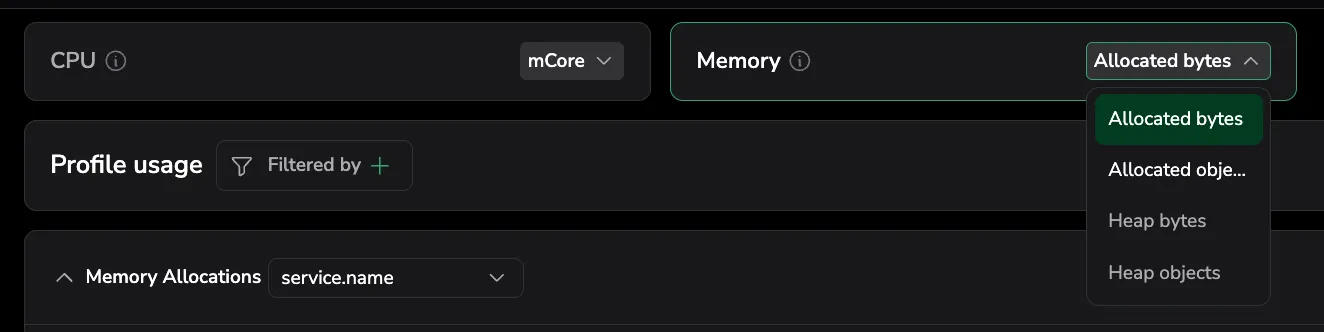
The Memory card above the Profile usage tab exposes the four memory profile types through a variant dropdown: Allocated bytes, Allocated objects, Heap bytes, and Heap objects. Each option is enabled only when that profile type has data; the card is disabled only when no option has data. Selecting a variant loads its flame graph and time series, and the choice is reflected in the profileType URL parameter so it survives reloads and shared links.
If the selected memory type has no data, the view falls back to the first available type in this priority order: Allocated bytes → Allocated objects → Heap bytes → Heap objects.
When an allocation type is selected, the metrics chart is titled Memory Allocations, the unit toggle is Rate / Total, and the flame graph Color by option is Total allocations.
The Profiles catalog memory view exposes the heap data as three extra columns: Avg. heap bytes (sparkline), Heap bytes, and Heap objects. See Profiles catalog.
Visualize memory allocation trends over time
The memory usage chart displays allocation activity or heap size over time for the selected service.
- Y-axis: Measures allocation count, the number of memory allocations made by the service over the selected time range.
- X-axis: Time range, helping you correlate memory trends with deployments, traffic changes, or system events.

Narrow the time range by selecting a region on the chart to focus on allocation spikes or memory growth patterns.
Read per-series stats
The legend table next to the chart shows Sum, Min, Max, and Avg values per series, summarizing each one over the selected timeframe.
Filter from the chart
Open the more actions menu next to a series in the legend table and select Add to filter to filter the profiling view by that value. This lets you quickly isolate a specific service, pod, or label directly from the chart without manually configuring filters.
Group by labels
Group memory metrics by labels such as pod, host_id, or envr to compare allocation behavior across instances. This helps identify whether memory issues are isolated to specific pods or widespread across the service.
Toggle between Rate and Total views
Toggle between Rate and Total views to switch the Y-axis metric. Use Rate to see allocations per second and Total to see the cumulative number of allocations over the selected timeframe.
Pinpoint functions with highest memory consumption
The function table presents a structured breakdown of memory usage at the function level, showing which functions are responsible for the most allocations.
- Self: Allocations made exclusively within that function, not counting calls to other functions. Sort by Self to find the functions generating the most allocation pressure.
- Total: Allocations made within that function and all functions it calls. High Total values indicate functions that trigger expensive allocation chains.
Focus on functions with both high Self and Total values to reduce overall memory pressure and garbage collection overhead.
Drill down with profiled stack traces
Memory flame graphs work the same way as CPU flame graphs, the width of each frame represents its share of the selected memory metric instead of CPU time.
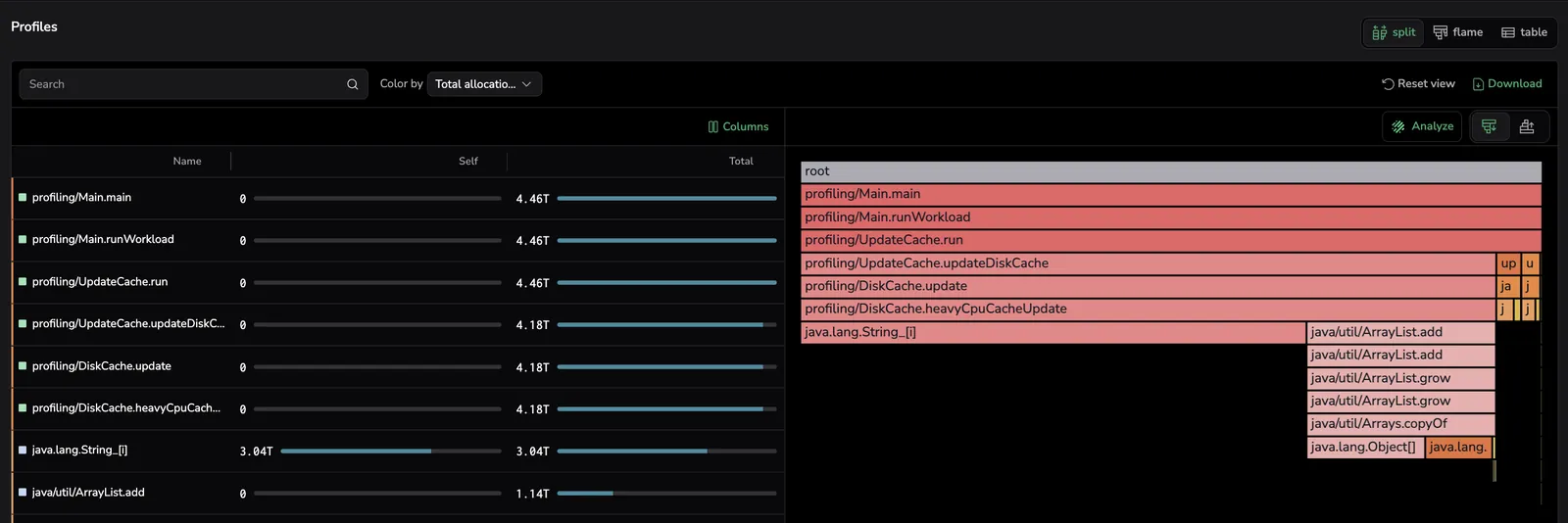
Frame width represents the total number of allocations made by each function. Use the flame graph to trace allocation paths from leaf functions (where allocations happen) up through their callers, identifying which code paths drive the most allocation pressure.
Show only user code
The Show only user code toggle next to the Color by dropdown filters both the flame graph and the allocation table to User code frames, hiding standard library, external library, native, kernel, and unclassified frames. It is off by default. Turn it on to focus on your own application code. For full behavior (including how the toggle promotes User code descendants past intermediate parents and how it composes with search and Color by) see Show only user code.
Right-click actions on the flame graph
Right-click any frame in the memory flame graph to open a context menu with per-frame actions, Focus on this frame, Copy function name, Copy stack trace, and Search for this frame. The menu behaves identically to the CPU flame graph. See Right-click actions on the flame graph for the full reference.
Locate functions in the flame graph
Select a function from the table to narrow the flame graph to stack traces involving that function. This removes unrelated call paths so you can focus on where the function is called from and what it calls.
When multiple matches exist, use the Show matches toggle to cycle through each occurrence individually or view all matches at once. For details, see Locate functions in flame graph.
Common use cases
Detect allocation hotspots
Use the function table to identify functions that allocate disproportionately often. High allocation counts in tight loops or frequently called methods are common sources of garbage collection pressure and latency spikes.
Correlate allocation spikes with deployments
Use the allocations chart to correlate memory spikes with deployment events or traffic changes. A sudden increase in allocations after a release may indicate a memory regression in new code.
Optimize garbage collection
Compare allocation profiles across two time ranges using Compare mode to validate that code changes reduced allocation pressure. Functions with high allocation counts directly increase garbage collection overhead, especially for short-lived objects in the young generation.
Related resources
| Memory profiling walkthrough | Watch on YouTube |
| Monitor CPU consumption | Monitor CPU consumption |
| Compare profiles | Compare profiles |
| Profiles Catalog | Profiles Catalog |
| Supported languages | Supported languages |
| Set up Continuous Profiling | Set up & Install |
| Async Profiler | async-profiler/async-profiler |
| Node.js profiling SDK | @coralogix/opentelemetry-profiling on npm |
| Go net/http/pprof | pkg.go.dev/net/http/pprof |