Manage dashboard version history
Dashboard version history lets you safely review, compare, and restore previously saved dashboard states. Each time you save a dashboard, the system saves a copy of that version. This ensures earlier versions of your dashboard are not lost. Dashboard version history lets you view and restore previously saved dashboard versions.
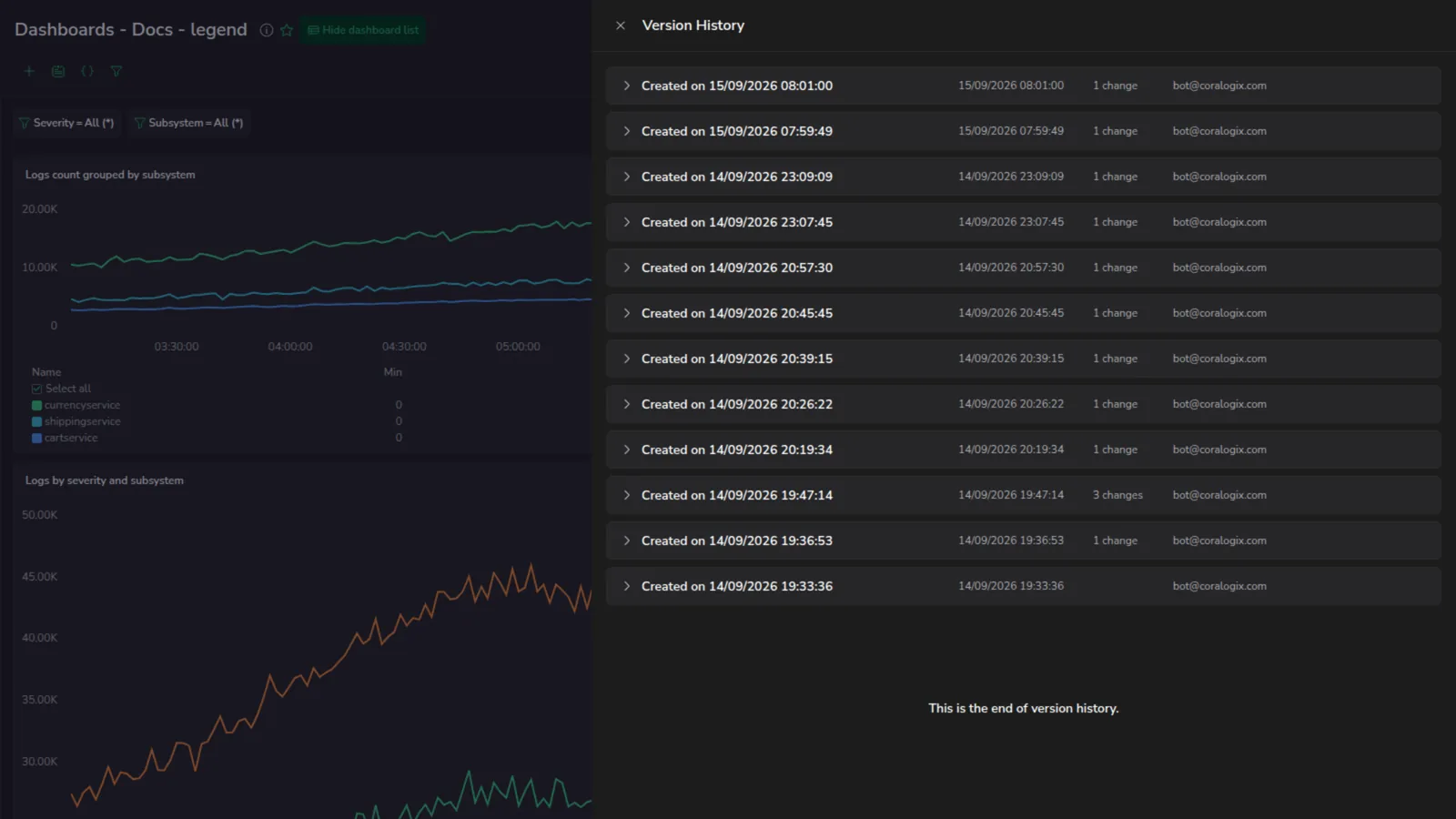
Access your dashboard version history
On the dashboard, open the More actions menu, and then select Version history.
Version metadata
For each dashboard version, the system shows the creation date and time, the number of changes, the user or API key name responsible for the changes, and a summary of changes.
By default, the version name is the creation date and time. To change the version name, hover over the version name and select Created on…. Enter a new name, and then select Enter to save it.
Summary of changes
Expand a version row to view a summary of its changes from the previous version:
- Dashboard metadata, including changes to name, description, time frame, folder path, slug, and lock or unlock status
- Section and widget changes, including additions, removals, and modifications
- Filter changes, including modifications to both a filter definition (for example, logs to spans) and its values
- Variable changes, including modifications to both a variable definition and its values
- Annotation changes, including modifications to both an annotation definition and its on/off status
- Layout changes, including widgets moved and resized
Restore a previous dashboard version
When you select Restore, the selected version is displayed for your session only and is not saved yet. Other users are not affected until you select Save changes.
If you select Save changes, the restored dashboard becomes the current version.
To save the restored version as a new, separate dashboard, open the More actions menu and select Save as.
Undo and redo within an edit session
While editing a dashboard, you can undo and redo individual changes before saving. Undo and Redo appear in the dashboard header as soon as there is something to step through, and each one is disabled when you reach the end of the history.
These actions step backward and forward through recent edits, such as adding or removing widgets, modifying widget settings, adjusting filters, or changing layout. Up to 50 steps are retained.
Undo and redo work only within the current editing session. They track changes from the moment you start editing until you save the dashboard. Once you save, the current state becomes a new dashboard version and the history is cleared, so you can no longer step back past that save.
Resizing a legend is not part of the undo history. To return a legend to automatic sizing, double-click the edge you dragged. See Legend configuration for widgets.
Resolve save conflicts
If the dashboard is saved again after you open it, your copy is no longer the latest version. The newer save can come from a teammate, from you in another browser tab, or from the API or Terraform. Saving your copy as-is would replace those changes, so Coralogix asks you to choose before it saves. The same check runs when you lock or unlock the dashboard.
- To keep your changes and discard the newer ones, select Override.
- To keep both, select Save as new. The Save as form opens with your dashboard's name, folder, and description already filled in. Confirm it to save your changes as a separate dashboard, which then opens. The newer version stays as it is.
- To decide later, close the prompt. Nothing is saved, and your edits stay open in the editor.
Limitations
- By default, the last 20 versions are shown. Select Show more to display additional versions.
- Dashboard versions are retained for up to 6 months, with a maximum of 1,000 versions stored per dashboard. Contact Support to increase this limit.
- A new version is created only when you save a dashboard. Unsaved changes are not stored as versions.
- Undo and redo are available only during the current edit session and are cleared when you select Save changes.
- Restoring a version does not delete existing versions. Saving the restored dashboard creates a new version.
- Access to version history and restore actions depends on your dashboard permissions.
Next steps
Learn how to build a dynamic table widget.