Team highlights
Team highlights surface your team's most important widgets at the top of the Widgets library. Use them to help teammates find standard visualizations quickly and to encourage consistent use of approved widgets across dashboards.
A highlight belongs to your team, not to a dashboard. Saving, reverting, or overwriting a dashboard does not add or remove highlights.
What you need
- The
team-dashboards:Updatepermission, plus update access to the dashboard that contains the widget - A widget that is saved on its dashboard. The option does not appear for a widget you just added or cloned until you save the dashboard.
You can't highlight a linked widget. Highlight the original widget on its source dashboard instead.
Add a widget to team highlights
- On the dashboard, hover over the widget.
- Select the more actions menu.
- Select Add to team highlights.
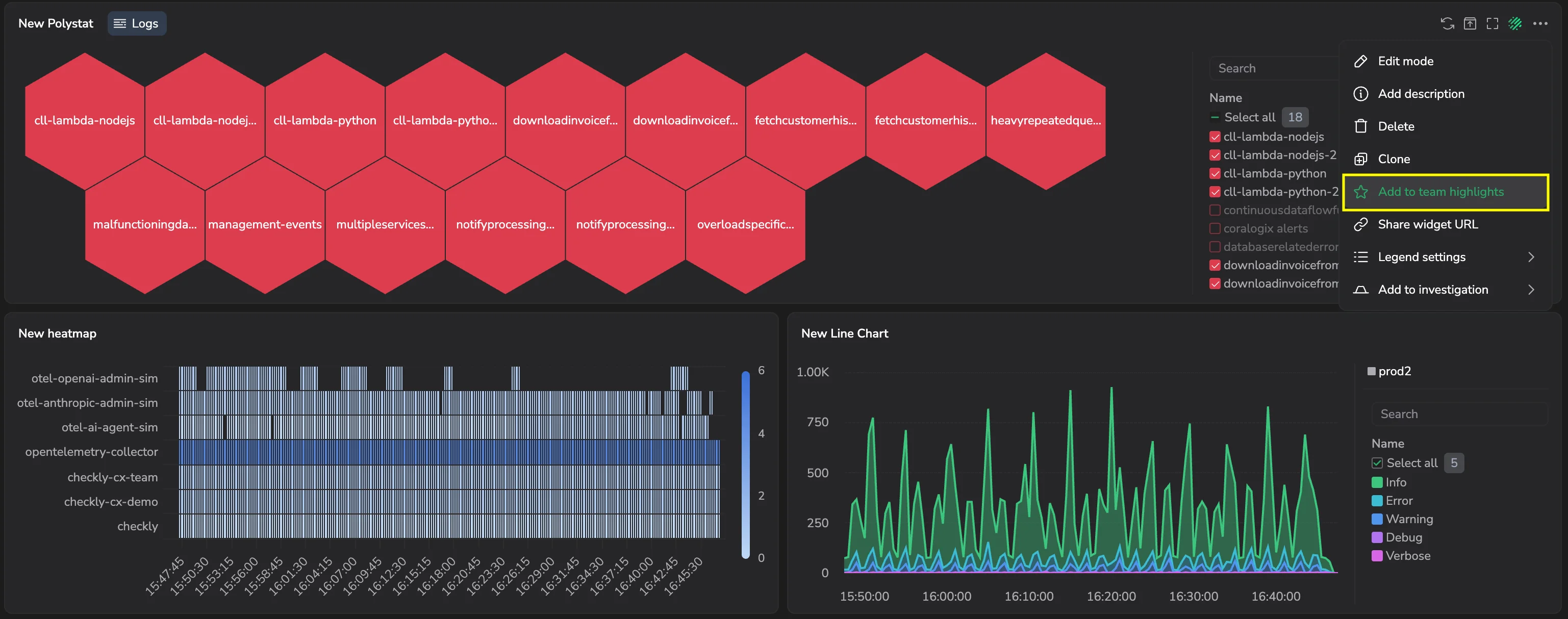
A confirmation appears, and the widget shows a Team highlight chip in its header. The widget appears in the Team highlights section of the Widgets library for everyone on your team.
Remove a widget from team highlights
- On the dashboard, hover over the widget.
- Select the more actions menu.
- Select Remove from team highlights.
The Team highlight chip disappears, and the widget is removed from the Team highlights section of the Widgets library.
Use team highlights in the Widgets library
- Open a Custom Dashboard.
- Select + New in the left-hand panel.
- Select the Widgets library tab.
The Team highlights section appears above the Linked widgets section, with the most-reused widgets first. It shows up to six widgets. If your team has highlighted more, select Show all to see every highlight, and Show less to collapse the list again.
To act on a highlighted widget, hover over its card and select the more actions menu:
- Go to original dashboard opens the dashboard that contains the widget.
- Remove from team highlights removes the highlight. This option appears only if you have update access to the widget's dashboard.
The same menu offers Add to team highlights on cards in the Linked widgets section, so you can highlight a widget without opening its dashboard.
To reuse a highlighted widget on your dashboard, drag its card onto the dashboard. It's added as a linked widget. Highlights from the dashboard you're editing are already on it, so you can't drag them.