Access control for system Datasets
System datasets support fine-grained access control that combines permissions and policies. This lets you manage dataset visibility and edit rights with precision.
Understanding access layers
Permissions define global access per resource type, whereas policies refine access at the resource level. Thus, global permissions may define that a user has read access to datasets generally, but a policy denying read access to a particular dataset may override this. Or, global permissions may define that a user has read and write access to datasets generally, but a specific policy may extend these permissions, granting read, overwrite, and append access to a particular dataset.
What you need
To create or edit a policy for a dataset, you must have all of the necessary permissions.
Open the access policy editor
In the Dataset Management page, select a dataset row, or select and choose Edit dataset. The edit drawer opens with metadata, storage, and access control fields. The Access Policy section is at the bottom of the drawer.
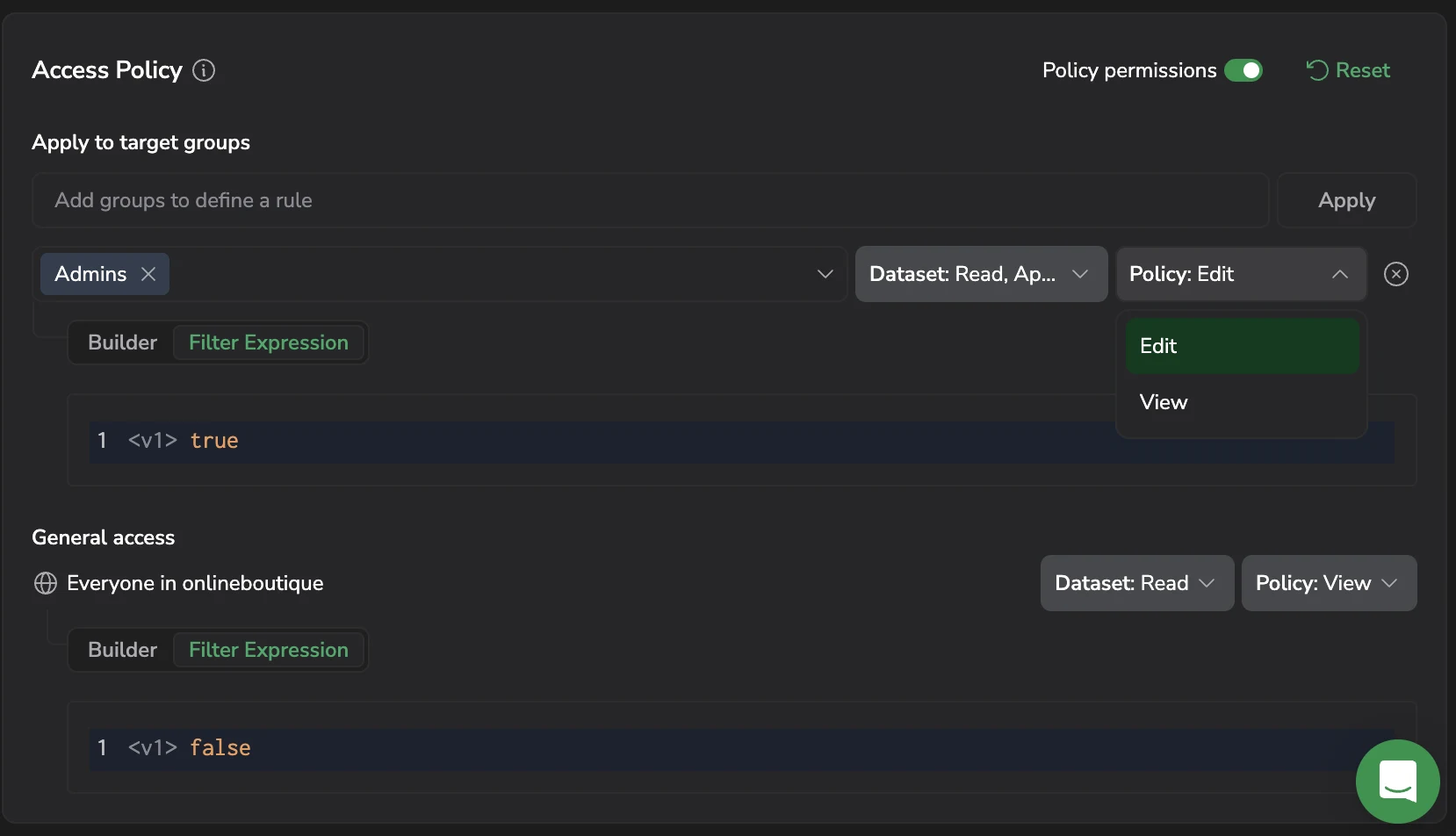
Datasets always open the full policy editor. Unlike resource types that offer a Private or Public shortcut, there is no top-level access mode selector for datasets, and no switch to turn the policy on or off. Every dataset has a policy, and you edit it directly.
Select Save in the drawer to apply your changes. The dataset's access behavior then follows the configured rules.
How a dataset policy is structured
A dataset policy has two parts, evaluated together:
- Apply to target groups holds rules that grant specific groups a level of access. Each group can appear in only one rule.
- General access sets the baseline for everyone in the team who isn't covered by a target group rule.
Each part carries two access levels, and each can be scoped further with a filter expression.
Access levels
Each rule and the General access row expose a Dataset access level. When Policy permissions is on, a Policy access level appears alongside it.
Dataset access
The Dataset dropdown accepts more than one value, so a rule can combine levels, for example Dataset: Read, Append.
| Level | Grants | Underlying permission |
|---|---|---|
| Read | Read data from the dataset. | SYSTEM-DATASETS:READDATA |
| Append | Add new data to the dataset, leaving existing data in place. | SYSTEM-DATASETS:APPENDDATA |
| Overwrite | Replace the dataset's contents. | SYSTEM-DATASETS:OVERWRITEDATA |
| None | No access to the dataset's data. | Not applicable |
The exact set of levels offered for a dataset is supplied by the platform per resource type and can differ between dataset types. The dropdown always shows the levels available for the dataset you're editing.
Policy access
The Policy dropdown controls who can administer the policy itself. It accepts a single value:
- Edit lets the group view the policy and change it, including adding, editing, and removing rules. This shares policy ownership.
- View lets the group see the policy configuration but not save changes to it.
- No Access means the group can neither view nor change the policy.
Add a target group rule
- In Apply to target groups, select the Add groups to define a rule field and choose one or more groups.
- Set the Dataset access level for the rule, and the Policy level if Policy permissions is on.
- Select Apply.
The rule appears in the list below with the groups you selected. To remove a rule, select Remove rule at the end of its row.
A group that already belongs to another rule appears disabled in the picker, annotated with the access it already has, so a group can't end up in two rules at once. If you select Apply without choosing a group, the form reports Select at least one group to define a rule.
General access
General access applies to everyone in the team who isn't matched by a target group rule. The row is labeled Everyone in <team> and carries the same Dataset and Policy dropdowns as a rule.
When you first open the editor for a dataset, general access reflects the platform default for that dataset type, preserving existing behavior. Set Dataset: None to make the dataset reachable only through the target group rules you define.
Scope a rule with a filter expression
Each rule, and the General access row, can narrow which data the granted access covers. Below each row is a filter expression editor holding a DPXL expression that acts as a read scope: only records matching the expression are readable through that rule.
The default expression is <v1> true, which matches every record. Use <v1> false to match none.
Only the Filter Expression editor is available here. The Builder tab is shown for consistency with other scope editors but is disabled for dataset policies, so scopes must be written as DPXL.
For example, to limit a group to two regions:
<v1> region_id:string.in('us-east-1', 'us-west-2')
Delegate policy administration
By default only the policy creator can view or change a dataset's policy. Turn on the Policy permissions toggle in the top-right of the Access Policy section to expose the Policy dropdown on every rule and on General access, then grant Edit or View to the groups that should help administer it.
For the shared behavior across resource types, see Policy permissions.
Reset a policy
Select Reset in the top-right of the Access Policy section to return the policy to its defaults. Coralogix asks you to confirm with Reset access policy? before applying it.
Resetting sets General access back to the default level for the dataset type and removes all target group rules, policy-level overrides, and filter expression scopes.
System dataset defaults
System datasets are predefined by Coralogix and automatically marked as Restricted. Each has a default access policy to prevent accidental exposure of sensitive operational data.
These datasets are readable only by owners and users who are explicitly added through target group rules.
Example: Restrict a dataset to an admin team
- Open the
alerts.historydataset in Dataset Management. - Set General access to Dataset: None.
- In Apply to target groups, select the
platform-admingroup, set Dataset: Read, and select Apply. - In the rule's filter expression editor, enter
<v1> region_id:string.in('us-east-1', 'us-west-2'). - Select Save.
Policy result: the alerts.history dataset is not accessible, with the exception of platform administrators, who can read data from the us-east-1 and us-west-2 regions.
What changed from the previous editor
The dataset access policy editor replaced an earlier layout. If you configured dataset policies before, the mapping is:
| Previously | Now |
|---|---|
| Enable access policy toggle | Removed. Every dataset has a policy, and the editor is always available. |
| Default actions | General access, on the Everyone in <team> row. |
| Exception rules | Target group rules under Apply to target groups. |
| Allowed actions, set to None or Enabled plus a list | The Dataset access level, chosen directly as Read, Append, Overwrite, or None. |
ReadAccessPolicy / UpdateAccessPolicy in the same dropdown as data actions | A separate Policy access level, shown when Policy permissions is on. |
| Add rule, one rule at a time | Select one or more groups, then Apply. |
Existing policies were migrated, so the access they grant is unchanged.
Permissions
To create or edit a policy for an entity, the following requirements must be met cumulatively.
Global resource permissions
You must have permissions that grant you visibility and management of datasets, found in the data engine preset.
| Dataset type | Action | Description | Permission |
|---|---|---|---|
| System | View system datasets configuration | Access the dataspace System screen and view system datasets configuration and status | SYSTEM-DATASETS:READCONFIG |
| System | Manage system datasets | Enable or disable write options for specific system datasets | SYSTEM-DATASETS:MANAGE |
Resource actions
To read, append, or overwrite system datasets, you must have the following permissions. These map to the Dataset access levels described above.
| Dataset type | Action | Description | Permission |
|---|---|---|---|
| System | Read data from system datasets | Read data from any system dataset | SYSTEM-DATASETS:READDATA |
| System | Add new data to system datasets | Append new data to an existing system dataset | SYSTEM-DATASETS:APPENDDATA |
| System | Replace system dataset content | Overwrite data in a specific system dataset | SYSTEM-DATASETS:OVERWRITEDATA |
Policy owner permissions
As a policy creator, you automatically get permissions to view and update a resource’s policy.
| Dataset type | Action | Description | Permission |
|---|---|---|---|
| System | Read system dataset access policy | Open a system dataset modal and view its access policy | SYSTEM-DATASETS:READACCESSPOLICY |
| System | Update system dataset access policy | Open a system dataset modal and manage its access policy | SYSTEM-DATASETS:UPDATEACCESSPOLICY |
As long as your policy is active, users with ACCESS-POLICIES:UPDATEALL and ACCESS-POLICIES:READALL can override resource-specific policy permissions and disable your policy, effectively becoming the new policy owners.
Policy editor permissions
In addition to controlling who can access the dataset, policy owners can define who can view or manage the policy itself, thereby becoming policy editors.
- These actions are set through the Policy access level, which appears once Policy permissions is on.
- If no group is granted a Policy level, only the policy creator can view and update the policy.
- Granting Policy: Edit to a group shares policy ownership with them, so they can update, delete, or add new rules.
Target group permissions
To select and view target groups when building a policy, you need the following permissions:
| Action | Description | Required permission |
|---|---|---|
| View target group config | Select and view target group configuration when building a policy. | TEAM-GROUPS:READCONFIG |
Overriding access policies
Where appropriate, grant wide policy maintenance permissions so designated users can find and fix stale policies:
ACCESS-POLICIES:READALLACCESS-POLICIES:UPDATEALL
These powerful permissions are not included in any out-of-the-box system roles.
What happened to Scopes?
Scopes are a legacy access mechanism still used by some resource types (for example, default /logs and /spans datasets). They continue to work alongside policies in the legacy API.
For legacy Scopes, membership is also additive: the user’s visible data is the union of all group scopes they belong to.
Next steps
Discover the structure of your ingested data and enforce the fields that matter most with Schema management.