Explore keyboard shortcuts
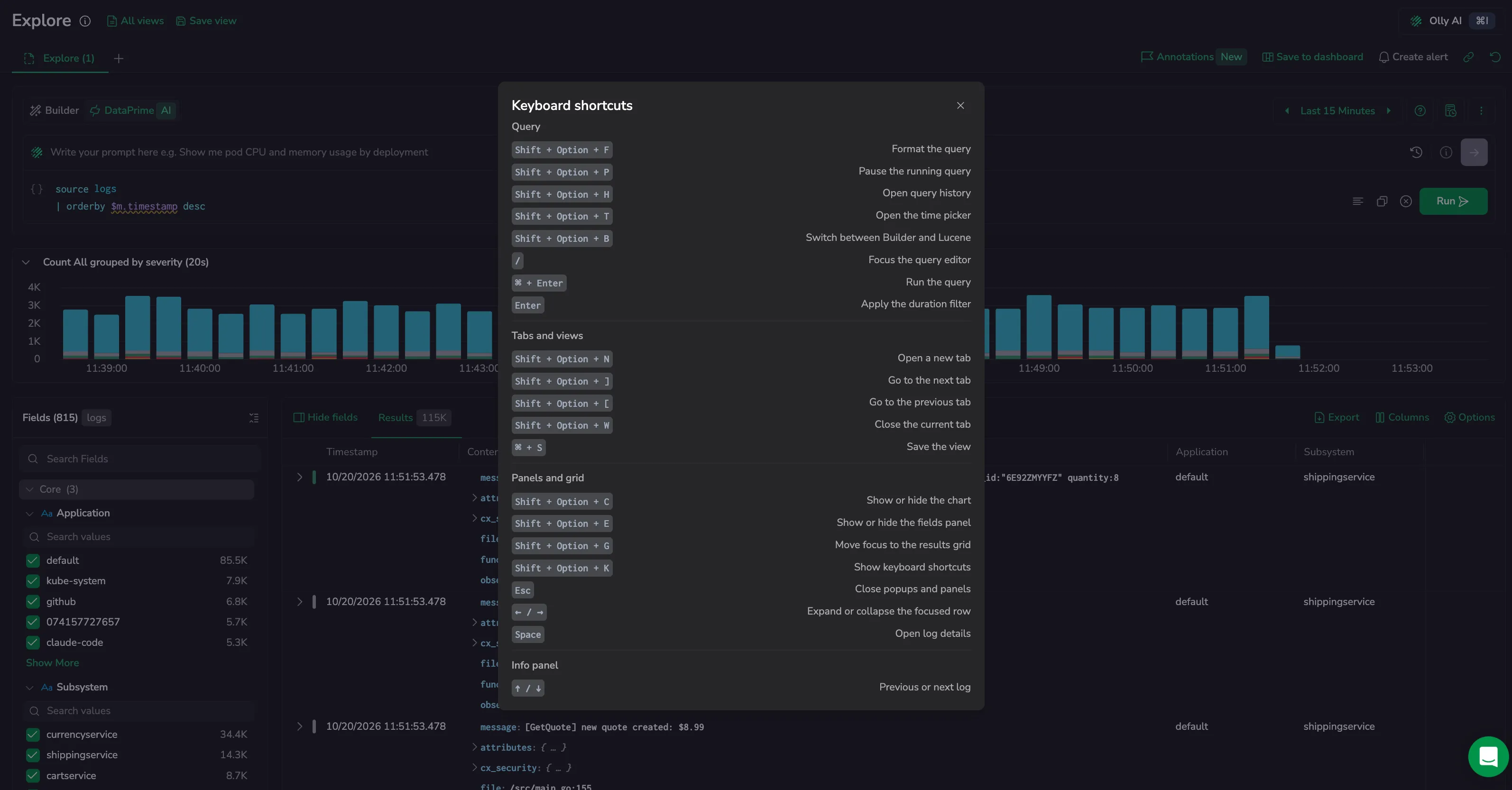
Use keyboard shortcuts to work in Explore without reaching for the mouse: run and pause queries, move between tabs, show or hide the chart and the fields panel, and move through the results grid.
Open the shortcuts list
Explore lists every shortcut in a Keyboard shortcuts popup. To open it, do one of the following:
- Select the more actions menu at the end of the query bar, then select Keyboard shortcuts.
- Press Shift + Option + K (Mac) or Shift + Alt + K (Windows and Linux).
The popup shows the key labels for your operating system: ⌘ and Option on Mac, Ctrl and Alt on Windows and Linux.
How shortcuts behave
- Most Explore shortcuts use Shift + Option (Mac) or Shift + Alt (Windows and Linux), because the browser reserves most ⌘ and Ctrl combinations, such as opening a new window or tab.
- Shortcuts match the physical key, so they work on non-US keyboard layouts.
- Shortcuts don't run while a dialog is open.
- Single-key shortcuts, such as /, don't run while you type in a text field or the query editor.
Query
| Action | Mac | Windows and Linux |
|---|---|---|
| Format the query | Shift + Option + F | Shift + Alt + F |
| Pause the running query | Shift + Option + P | Shift + Alt + P |
| Open query history | Shift + Option + H | Shift + Alt + H |
| Open the time picker | Shift + Option + T | Shift + Alt + T |
| Switch between Builder and Lucene | Shift + Option + B | Shift + Alt + B |
| Focus the query editor | / | / |
| Run the query | ⌘ + Enter | Ctrl + Enter |
| Apply the duration filter | Enter | Enter |
Format the query applies to DataPrime queries. Switch between Builder and Lucene toggles the Builder input style between the chip builder and the Lucene editor. For more on pausing, see Pause a running query. For query history, see Query history.
Tabs and views
| Action | Mac | Windows and Linux |
|---|---|---|
| Open a new tab | Shift + Option + N | Shift + Alt + N |
| Go to the next tab | Shift + Option + ] | Shift + Alt + ] |
| Go to the previous tab | Shift + Option + [ | Shift + Alt + [ |
| Close the current tab | Shift + Option + W | Shift + Alt + W |
| Save the view | ⌘ + S | Ctrl + S |
Moving to the next or previous tab wraps around: from the last tab, Shift + Option + ] or Shift + Alt + ] goes to the first. Close the current tab does nothing when only one tab is open. Save the view follows the same rules as the Save view button. For more on tabs and views, see Tabs, views, and queries.
Panels and grid
| Action | Mac | Windows and Linux |
|---|---|---|
| Show or hide the chart | Shift + Option + C | Shift + Alt + C |
| Show or hide the fields panel | Shift + Option + E | Shift + Alt + E |
| Move focus to the results grid | Shift + Option + G | Shift + Alt + G |
| Show keyboard shortcuts | Shift + Option + K | Shift + Alt + K |
| Close popups and panels | Esc | Esc |
| Expand or collapse the focused row | ← / → | ← / → |
| Open log details | Space | Space |
Move focus to the results grid puts focus on the selected row, or on the first row if none is selected, without changing the selection. From there, use the arrow keys to move between rows and cells, and press Space to open the details panel for the highlighted row. For more on the grid, see Logs table.
Info panel
| Action | Mac | Windows and Linux |
|---|---|---|
| Previous or next log | ↑ / ↓ | ↑ / ↓ |
For more on the details panel, see Log details panel.