Query history and saved queries
Use the Query history drawer in Explore to rerun a query without retyping it. Explore records each query you run, and you can save the ones you reuse with a name. You can then find them by name, mark favorites, and edit a saved query's text without rebuilding it in the query bar.
A saved query stores only the query: its text, syntax (Lucene or DataPrime), datasets, and the Builder options that come with it. It doesn't store the time range, layout, or columns. To keep a full investigation setup, save a view instead. See Explore views, tabs, and queries.
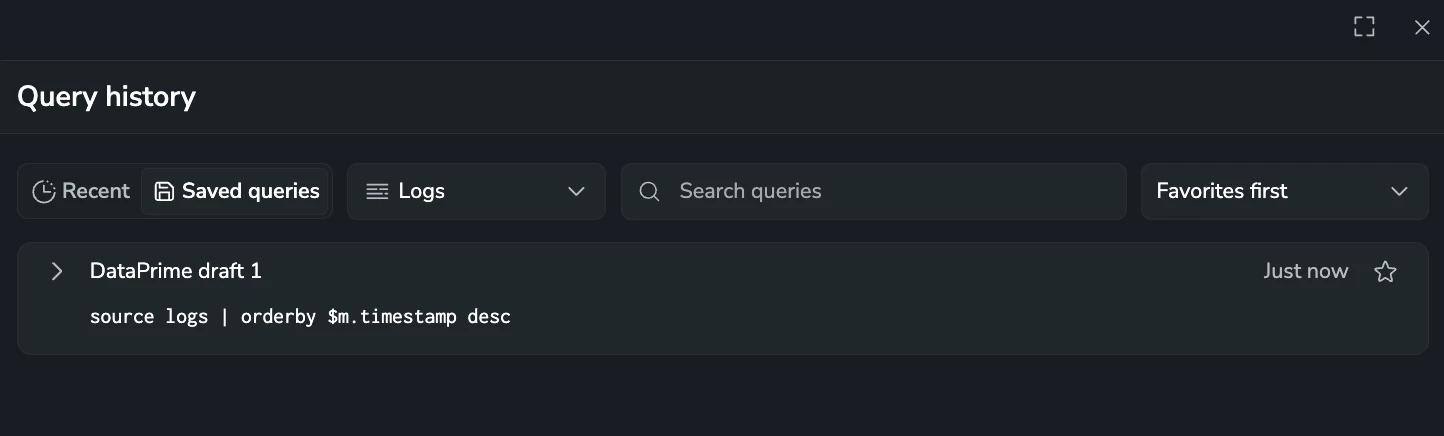
Open query history
Open the drawer in one of these ways:
- Select in the query bar, then select Query history.
- Press ⌘ + Shift + H (Mac) or Ctrl + Shift + H (Windows and Linux).
- In the Lucene editor, open the suggestions list and select the query history button in its footer.
The drawer opens beside your results with the search field in focus. Use the full-view toggle at the top of the drawer to expand it, and select the close button to dismiss it.
Find a query
The drawer has two lists:
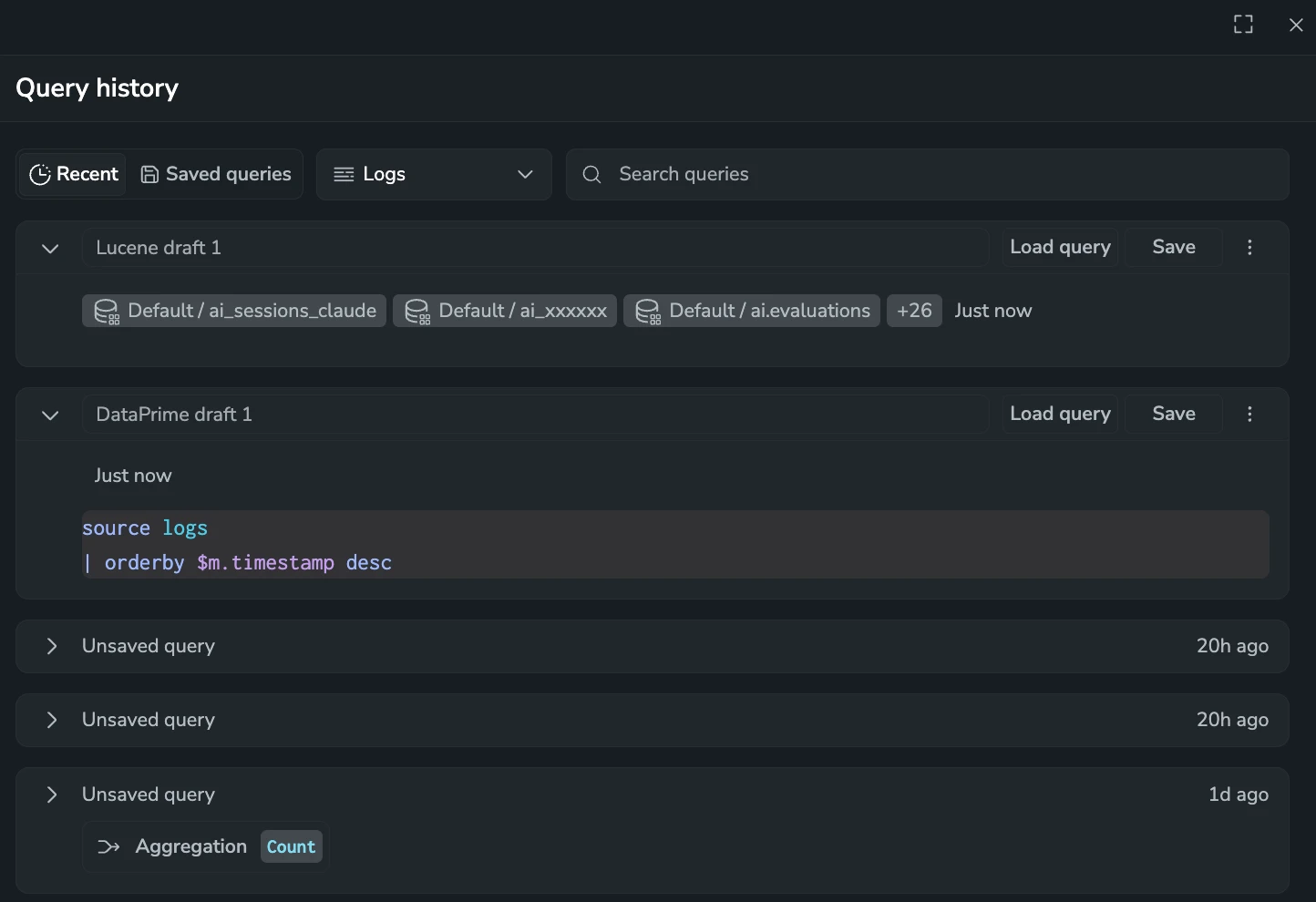
- Recent: queries you ran recently, recorded automatically. Explore keeps up to 50 recent queries per browser, and they aren't shared with other users or devices.
- Saved queries: queries you saved with a name. Saved queries are stored in your Coralogix account, so they're available from any browser or device you sign in on, and they stay until you delete them. Clearing your browser data doesn't remove them.
Queries you saved in a browser before saved queries moved to your account are copied to your account automatically. Recent queries aren't copied.
Above the list, narrow down what you see:
- Logs, Spans, or JSON data: in the data type selector, select the type of dataset whose queries you want to see.
- Search queries: type part of a query name or of the query text.
- Sort (Saved queries only): select Favorites first, Recently used, Recently created, or Name A–Z.
Each card shows the query's name, or Unsaved query for a recent query you haven't saved, and when it was run or saved. On the Recent list, a query you already saved shows a Saved badge. Select a card to expand it and see the full query and its datasets.
A card shows the query the way you wrote it:
- Lucene: the Lucene expression, followed by the Builder options the query carries, each labeled the way the Builder labels it. A collapsed card shows the Aggregation and Group By options, plus the Errors switch for a spans query. An expanded card also shows Order By and Limit.
- DataPrime: the full query.
Run a query from history
Hover over a card and select Load query. Explore applies the query to the active tab and closes the drawer.
To keep your current tab as it is, open the card's menu and select Open in new tab. This option is unavailable when you already have the maximum number of tabs open. Close a tab to open another one.
To copy the query text to your clipboard, select Copy query from the same menu.
Save a query
Saving takes one step. Explore names the query for you if you don't type a name, and you can rename it at any time.
From the Query history drawer
- On the Recent list, hover over the query you want to keep.
- Type a name in the name field, or press Tab to fill in the suggested name.
- Select Save, or press Enter.
If you leave the name field empty, the query is saved as Lucene draft N or DataPrime draft N, using the next free number. The Saved queries button shows a dot until you open that list.
From the query bar
- Build or run the query you want to keep.
- Select in the query bar, then select Save query.
Explore saves the query right away under the next draft name and confirms it in a notification. If the same query on the same datasets is already saved, Explore tells you the name it's saved under instead of saving it again. Rename the query later from the drawer.
From the Lucene editor's recent searches
When you select the Lucene search bar, the suggestions list shows your Recent searches.
- Hover over a recent search, or move to it with the arrow keys. Its time is replaced by Save.
- Select Save.
The query is saved under the next draft name, and the row shows a Saved badge. Saving doesn't run the query or close the list. A recent search that's already saved shows the Saved badge instead of Save.
Name rules
A saved query name:
- Can't be empty.
- Can be up to 50 characters.
- Must be different from your other saved query names.
Explore shows a message under the name field when a name breaks one of these rules, and doesn't save until you fix it.
Manage saved queries
Rename a saved query
- Select the query's name on its card.
- Type the new name.
- Press Enter or select Save. Press Esc to keep the old name.
Mark a favorite
Select the star on a saved query's card, or select Add to favorites from its menu. Select it again to remove the favorite. Sort by Favorites first to keep favorites at the top of Saved queries.
Edit a saved query
Change a saved query's text without loading it into Explore.
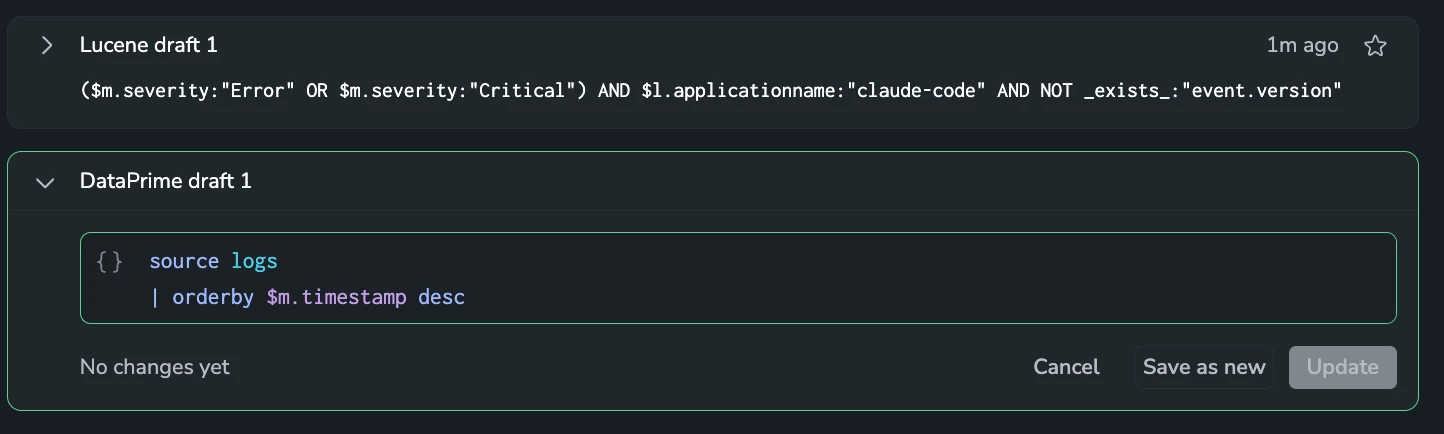
- On the Saved queries list, open the query's menu and select Edit query.
- Edit the query in the editor that opens inside the card. The editor uses the query's own syntax, Lucene or DataPrime, and suggests fields from the query's datasets.
- Select one of these options:
- Update: overwrite the saved query. Its name, description, and favorite status stay the same.
- Save as new: save the edited query as a copy named after the original with a number added, for example Errors (2). The original stays as it was.
- Cancel: stop editing and discard your changes.
Update and Save as new become available only after you change the text and the editor confirms the query is valid.
Keep in mind:
- You can edit only the query text. For a Lucene query, the Builder options, such as group by and aggregation, show read-only under the editor. To change them, load the query, edit it in Explore, and save it again.
- To change the name, finish editing first, then rename the query.
- You can edit one saved query at a time. While you edit one, Edit query is unavailable on the other cards.
- If you press Esc or collapse the card after changing the text, Explore asks whether to discard your changes. Select Keep editing to go back to the editor, or Discard to stop editing. With no changes, the editor closes right away. Closing the drawer discards unsaved changes without asking.
- The other controls in the drawer, such as the lists, filters, and search, are unavailable while you edit.
Duplicate a saved query
- Open the saved query's menu and select Duplicate.
- In the Duplicate query panel, keep the suggested name or enter a different one.
- Optionally, add a Description of up to 150 characters.
- Select Save.
The panel shows a Query preview with the query and its datasets. Expand the preview to see the full query.
Delete a query
Open the query's menu, select Delete query, and confirm. You can delete both saved and recent queries. Deleting a saved query is permanent.