Fields for spans
The Fields side bar on the left of Explore spans lists every field and tag detected on the spans matching your current query, organized by OpenTelemetry semantic convention. Grouping fields into named sections lets you find the right filter without knowing the exact attribute path. With hundreds of fields potentially present in a trace, sections are what make the side bar navigable rather than overwhelming.
The side bar stays in sync with the query builder. When you add a field-value pair from the side bar, it appears in the query bar; when you edit the query bar, the side bar reflects what is applied.
The Fields side bar appears in Builder mode. Filters you apply from it carry over when you switch to DataPrime mode (they appear in the DataPrime query as a lucene clause) so your filtering isn't lost, even though the side bar itself isn't shown in DataPrime mode.
Spans tab vs. Traces tab
- Spans tab: filters apply to span fields. Each value count reflects the number of matching spans.
- Traces tab: filters apply to trace-aggregated attributes (for example, total duration, error count). Each value count reflects the number of matching traces.
Switching tabs preserves the active filters and re-evaluates them against the new aggregation level.
Core filters
Core sits at the top of the side bar with the most common identifiers and selectors. Core filters are always visible, regardless of the data in the current results.
| Filter | Description |
|---|---|
| Service | Filters by the service that produced the span. |
| Application | Filters by the Coralogix application label. |
| Subsystem | Filters by the Coralogix subsystem label. |
| Operation name | Filters by the span operation. |
| Span kind | Restricts to one of Internal, Server, Client, Producer, Consumer. |
| Span type | Restricts to spans of a given type, for example, Web, DB, Cache, Messaging, Job, Spark, Airflow, Dbt, or Custom. In the Traces tab, this is a trace-level filter that returns traces containing at least one span of the selected type. |
Fields by section
Below Core, the side bar lists every other span field and tag, grouped by domain. Within each section, fields are sorted alphabetically by default.
Each section pulls fields whose key matches one of the listed prefixes. Coralogix strips tags. and process.tags. prefixes from incoming field keys before classifying them, so a field named tags.http.status_code is grouped under HTTP, not Other.
| Section | Field prefixes |
|---|---|
| Exceptions | exception.* |
| HTTP | http.* |
| gRPC / RPC | grpc.*, rpc.* |
| GraphQL | graphql.* |
| Messaging | messaging.* |
| Database | db.* |
| Cache | cache.* |
| GenAI / LLM | gen_ai.*, gen.* |
| RUM / Frontend | cx_rum.* |
| Object Storage | objectstore.*, object_storage.* |
| Serverless | faas.*, cloud.* |
| Spark | spark.* |
| Airflow | airflow.* |
| DBT | dbt.* |
| Infrastructure | k8s.*, ecs.*, aws.*, host.*, deployment.*, container.* |
| Network | network.*, net.*, server.* |
| Runtime | process.*, service.*, telemetry.*, thread.*, os.* |
| Checkly | checkly.* |
| OTel | otel.* |
| Events | event.* |
| CloudEvents | cloudevents.* |
| Other | Any field that does not match the prefixes above |
Sections that have no matching fields in the current results are hidden.
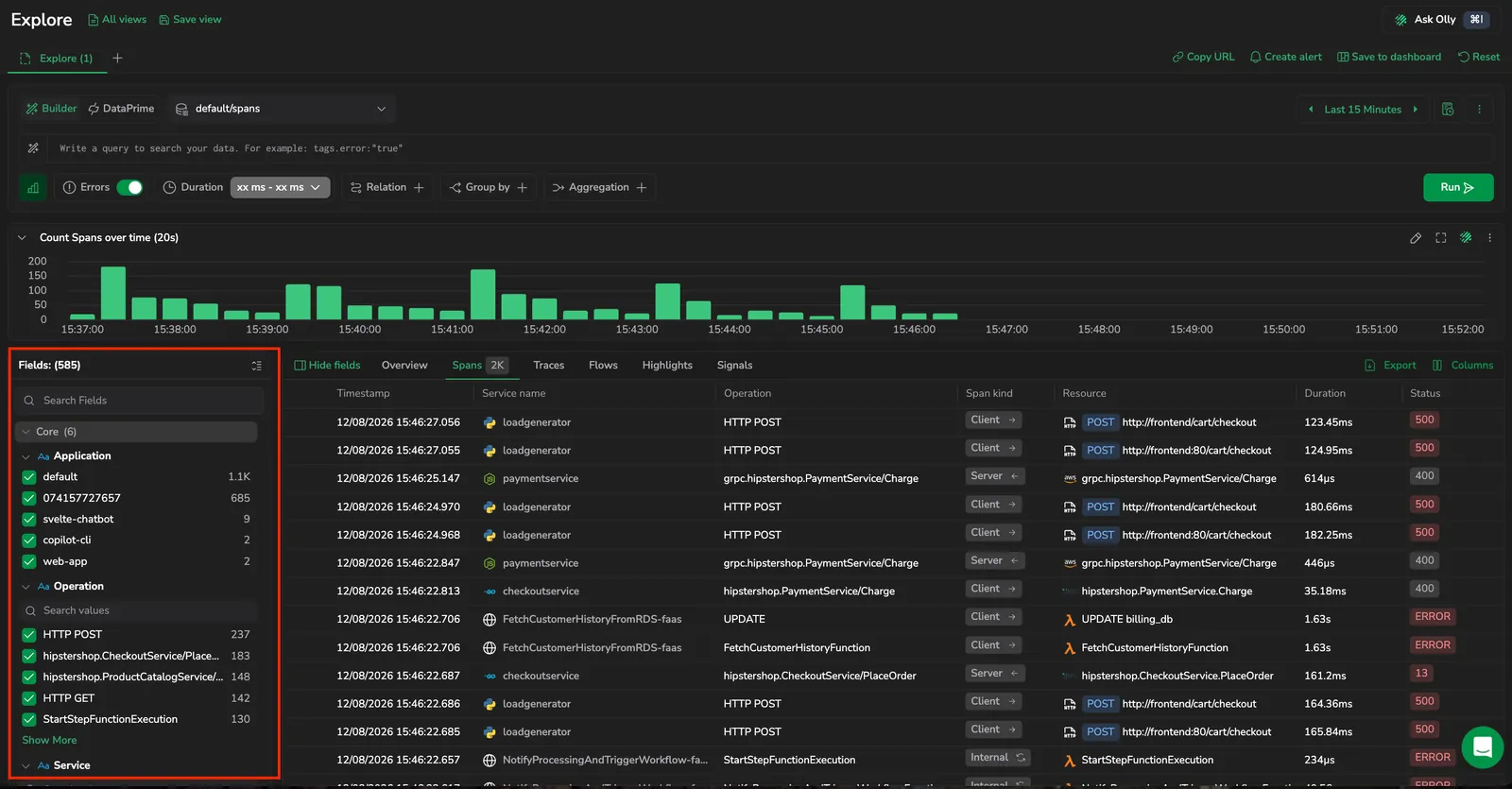
Expand and collapse
Each entry in the side bar supports expand and collapse:
- The whole list, to focus on a single section.
- Each section, to browse its fields.
- Each field, to inspect its values.
Field actions
Expand a field to see its top values with a count beside each. For how those counts respond to your filters, see How value counts work.
Filter on a value
Hover any value to reveal inline filter controls:
- Select + In to add the value to the query as an inclusion filter.
- Select − Out to add it as an exclusion filter.
- For an already-filtered value, hover to reveal Remove from query and select it to clear the filter.
When a value is filtered, an In or Out badge appears next to it so you can spot active filters at a glance. Filter changes stay in sync with the query bar.
.keyword meansSome string filters use a .keyword suffix (for example, service.name.keyword:"checkout-service"). The base field is analyzed (broken into lowercase tokens, so it matches individual words) while the .keyword variant keeps the whole value as a single exact string and matches it verbatim. When you filter on a string value in Builder mode, Explore applies the .keyword match automatically; numeric and boolean values match directly, without it. See Filter chips for more.
Search values within a field
Each expanded field has its own Search values input above the value list. Use it to filter the visible values by substring, useful for fields with long-tail values like operation names or URLs.
Show more, show less
Long value lists are truncated by default. Select Show More at the end of the list to load the rest, and Show Less to collapse it again.
More actions menu
Open the more actions menu on any field for these actions:
| Action | What it does |
|---|---|
| Exists | Filters to spans where the field is present. |
| Not Exists | Filters to spans where the field is absent. |
| Add as a column | Adds the field as a column in the results table. |
| Copy path | Copies the full field path (for example, tags.http.status_code), including parent keys, to the clipboard. |
| Group by | Adds the field to the Group by clause in the query builder. The table transforms from individual span rows into aggregated groups. |
Each field also has a Show distribution icon and a favorite (star) icon on its row, separate from the more actions menu.
How value counts work
Each value's count reflects the current result set, and the list follows a few rules that keep the counts meaningful as you filter:
- Self-exclusion: a field's own filters don't affect its own value counts; every other active filter does.
- Zero-count values are hidden: values that no longer match drop out of the list and return when a filter change brings them back.
- Conflicting filters stay visible: a value you've filtered in or out stays visible even when the rest of your query drops its count to
0. - Stable order: values are sorted by count, highest first, and stay put while you work; the list re-sorts only when the results change (new query, filter change, or time range).
- No values found: a field with no matching values shows this placeholder.
Search the side bar
Use the search box at the top of the side bar to find a field by name when many attributes are present. Search matches against the field key. Matched fields appear under their section, and sections without any match are hidden.
Next steps
Investigate a span or trace in depth in Tracing drilldown.