Explore views, tabs, and queries
Save views in Explore to capture and restore complete investigation setups. Open multiple views in tabs to run parallel queries, and save queries separately to reuse expressions across different views.
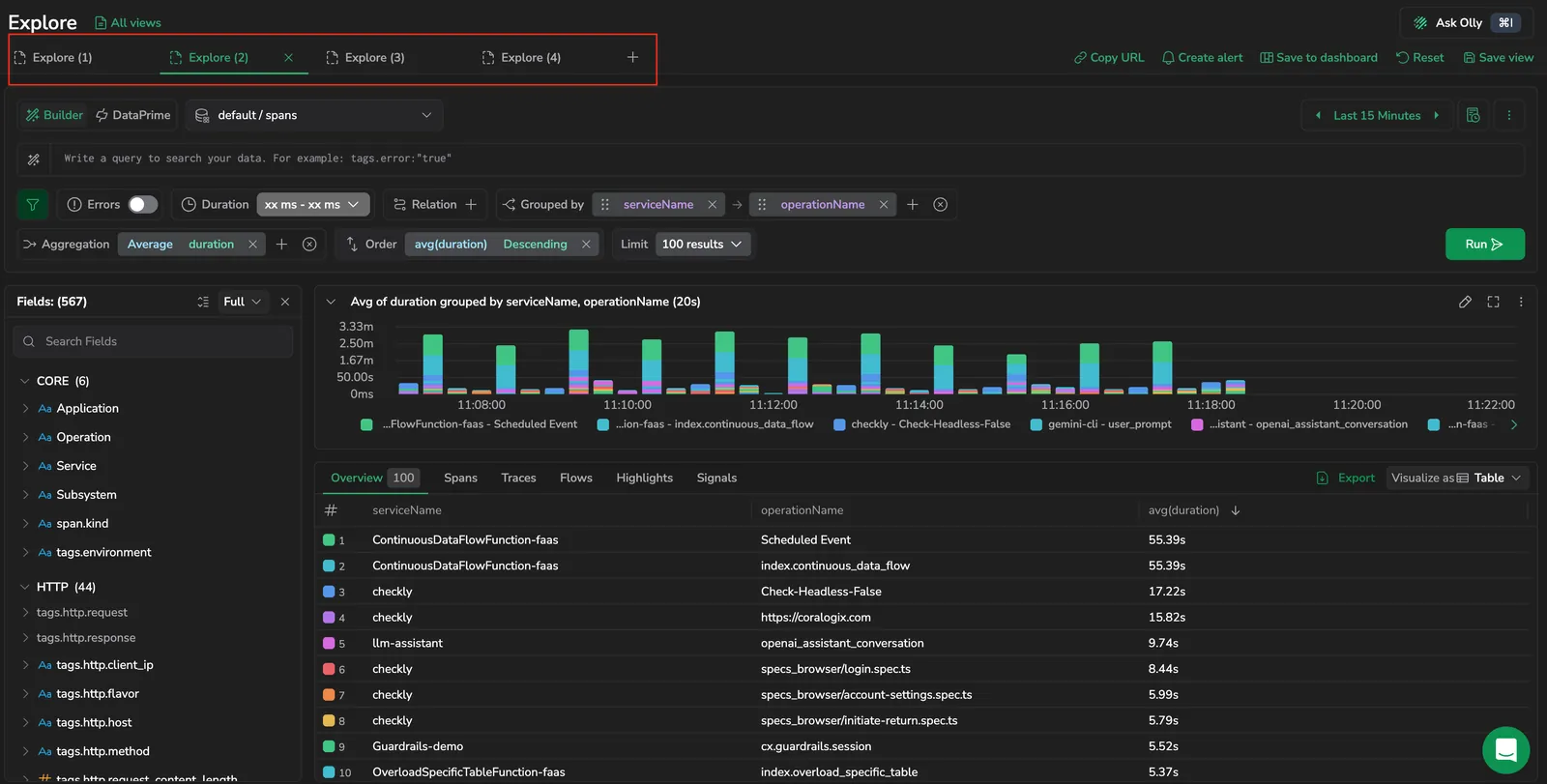
Saved views
A saved view captures the complete configuration of an Explore investigation so you can return to it later without rebuilding from scratch.
Saved views from legacy (v1) Explore aren't carried over automatically. To migrate yours to the new Explore, contact Coralogix Support or your account manager for help with the transition.
When you save a view, Explore preserves everything about your current setup:
| Configuration element | Saved |
|---|---|
| Query (Lucene or DataPrime) | Yes |
| Filters | Yes |
| Grouped by fields | Yes |
| Aggregations | Yes |
| Time range | Yes |
| Visualization type | Yes |
| Column layout | Yes |
| Selected datasets and teams | Yes |
Each saved view opens in its own tab. When you load a saved view, Explore restores the exact tab configuration, query, filters, time range, layout, visualization, and the datasets and teams you had selected when you saved it.
Create a saved view
- Configure Explore with the query, filters, time range, and layout you want to preserve.
- Select Save view in the top-right action bar.
- Enter a name for the view.
- Select Save.
The saved view appears in the All views panel. Select it at any time to restore the full configuration in a new tab.
When you have a saved view loaded in the active tab and make changes, the top-bar button label switches from Save view to Save changes, selecting it overwrites the view in place. To fork the changes into a separate view instead, use Save as from the tab's menu.
Manage saved views
- Rename: Open the saved views list, find the view, and select rename. Enter the new name and confirm.
- Delete: Open the saved views list, find the view, and select delete. Confirm deletion in the prompt. Deletion is permanent.
- Update: Load the view, make changes to the Explore configuration, then save again under the same name to overwrite the existing view.
Share a saved view
To share a saved view with a teammate, select Copy URL in the top-right action bar after loading the view. The URL encodes the current configuration, including the saved view state.
The URL uses human-readable query parameters, so you can also build a link by hand or pass viewId=<id> to open a specific view. See Deep links and URL parameters for the full parameter reference.
For the full saved-views walk-through (including how to set a team default view, configure access policies, and the permissions model) see Saved views in Explore.
Tabs
Every view opens in a tab. Tabs are the working surface for your investigations, each one holds a single view with its own query, filters, and layout.
When you save a view, you save the state of the current tab. When you load a saved view, it opens in a tab with the full configuration restored.
Open and manage tabs
- Open a new tab from either the + icon next to the tab bar or the New view button in the All views panel header.
- Each new tab starts with the default Explore state (empty query, default time range) unless you have a default saved view set. With a default saved view, new tabs are seeded with its query, dataset, and configuration. Your personal default takes precedence over the team default.
- Switch between tabs by selecting the tab label.
- Reorder tabs by dragging a tab along the tab bar to a new position.
- Close a tab by selecting the x on the tab. Closing a tab discards its state unless you save it as a view first.
- You can't close the last remaining tab. Explore always keeps one tab open.
- You can have up to 10 tabs open at once. At the limit, the + button is disabled with a tooltip. Close one to open another.
When the open tabs don't all fit across the tab bar, the extra tabs collapse into an overflow menu at the end of the bar, labeled N more (for example, 3 more). Select it to see the hidden tabs and switch to one. Each tab label is width-capped, so a long view name is truncated in the bar. Hover the tab to see the full name in a tooltip.
Tabs labeled Explore (N) are unsaved. Tabs opened from a saved view use the view's name as the label.
Tab actions menu
Open the menu on any tab to access these actions. Some actions only appear on saved-view-linked tabs (marked saved-view only):
| Action | Description |
|---|---|
| Save view | Save the current unsaved tab as a new view. (Unsaved tabs only.) |
| Save as | Fork a saved-view-linked tab into a new view. (Saved-view only.) |
| Edit | Open the view-settings dialog to update the view's name, description, or access policy. (Saved-view only.) |
| Rename | Rename the tab label. On saved-view-linked tabs, this updates the saved view's name. |
| Duplicate | Open a second tab with the same configuration. Disabled at the 10-tab limit. |
| Copy view ID | Copy the saved view's ID for use in URLs or APIs. (Saved-view only.) |
Compare investigations with tabs
- Compare log volume across two different services during the same time window.
- Run a query on
logsin one tab andspansin another to correlate events. - Build and test a new query in one tab while keeping your reference query open in another.
Tab persistence
Tabs persist across page reloads. Explore keeps the tab state in session storage, including any unsaved edits to a saved view. Closing the browser tab clears the working tabs. Save a tab as a view before closing if you want to preserve it long-term.
Which setting wins
Explore reads each setting from the first source that has it, in this order: the URL, then the saved view, then this browser tab, then your lasting preference, then the built-in default.
That order is what makes a link predictable. Opening a saved view's own URL shows the view as it was saved, not the unsaved edits you happen to have open in another tab. Opening a shared link shows what the sender saw, for the settings the link carries - query, time range, dataset, result tab, visualization, sort, columns, row size, and log format.
Settings divide by how long they last:
- This browser tab: the query and its time range, dataset, group-by and aggregations, the result tab and visualization, grid sort, and which columns show, in what order and at what width. A reload keeps them, and so does leaving Explore and coming back. Closing the tab clears them.
- Lasting, across sessions: row size and log format, chart type, stacking, Y scale and interval, whether the graph and the Fields panel are shown, and your favorite fields and pinned keys.
- Per dataset: the Content column's mode and prioritized keys, and the spans Resource column keys. Each dataset keeps its own, so switching between, say, your logs and
rum.eventsdoesn't carry one dataset's column layout onto the other.
Saved queries
A saved query stores only the query logic (search expression, group by fields, and aggregations) without capturing the visual layout, time range, or column configuration.
Use saved queries when you want to reuse a specific query expression across different views, sessions, and time ranges.
Save a query
- Build a query in the search bar or Query Builder.
- Select Save query from the query bar kebab menu.
- Enter a Query name and an optional Description (up to 150 characters). A query-preview card shows the entity and dataset chips that will be captured.
- Select Save.
The query is saved and available in the Query history drawer.
Query history
The Query history drawer has two tabs that share the same entry point:
- Recents: queries you have run recently, recorded automatically. Use it to revisit a query without retyping it.
- My saved queries: queries you have explicitly saved with a name and description. Save a query from Recents to keep it here and re-run it later.
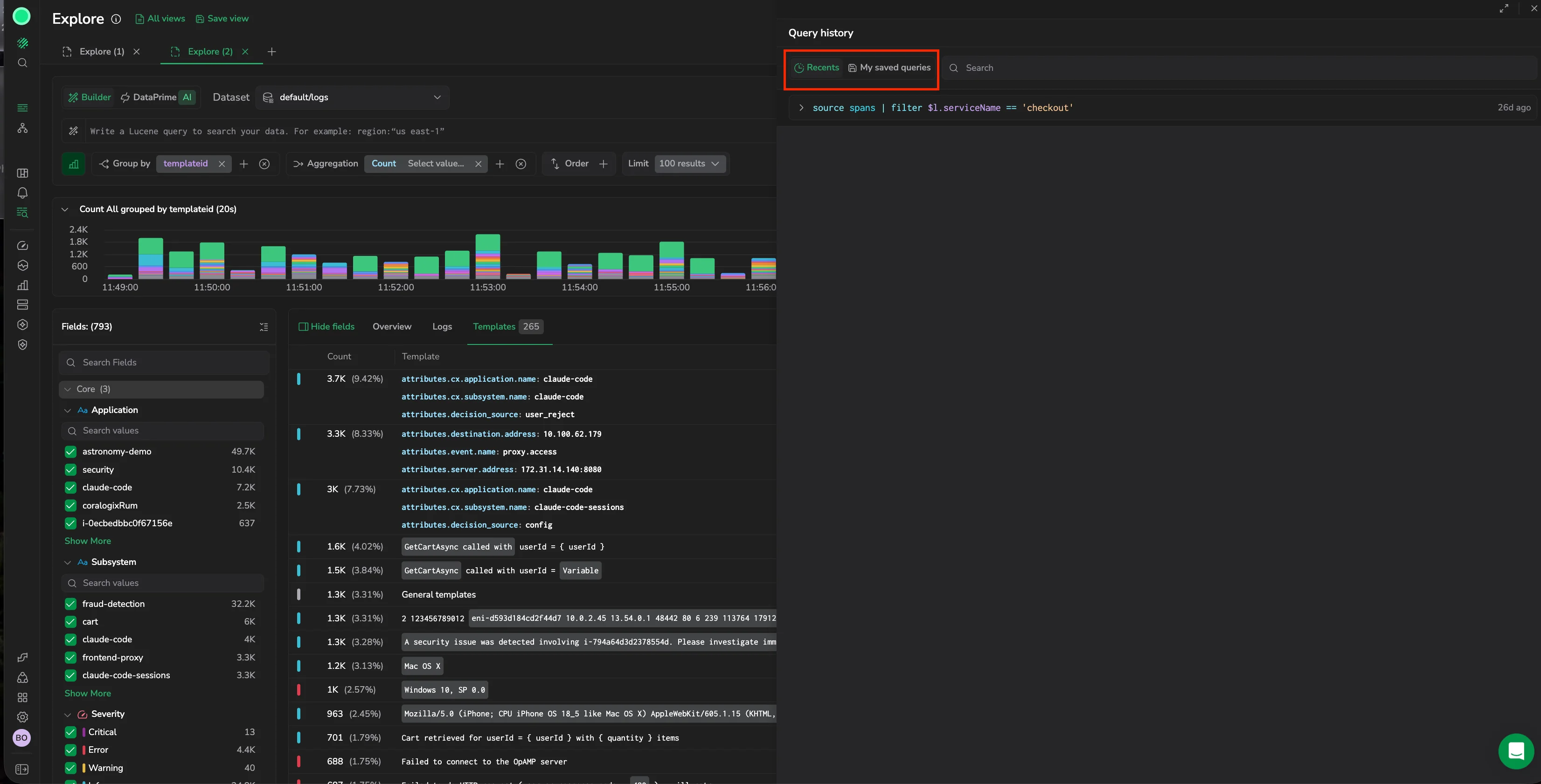
From either tab you can:
- Sort by Favorites, Recently created, Oldest, or A–Z.
- Mark queries as favorites for quick access.
- Apply a query to the active tab, copy it, or open it in a new tab.
- Edit details or delete an entry from its row menu.
Recents are stored locally per browser and are not shared with other users.
Related resources
Use them together
Views, tabs, and saved queries work best in combination:
- Use saved views to preserve complete investigation setups and return to them later.
- Use tabs to run parallel investigations within an active session.
- Use saved queries to build a library of reusable query expressions you apply across different views and time ranges.
- Use Recents in Query history to quickly revisit queries you ran recently without saving them explicitly.
Example workflow
- Open Explore and start investigating an incident.
- Open a second tab to compare a related service without losing the first query.
- Save the first tab as a view named "Incident 2026-04-14, service-a" so you can return to it later.
- Save the core query as a saved query named "Error rate by severity" for reuse in future sessions.
- Share the view URL with a teammate so they can load the same investigation.
Next steps
Configure access policies and team default views in Saved views in Explore.