Automate configuration changes across your fleet
Automations let you roll out a configuration change to many agents at once. Instead of editing each configuration group by hand, you define one reusable rule that overlays your change onto every group you target, and you can turn it on or off across your whole fleet from a single place. Use it to apply a shared change, such as reducing log verbosity in production or adjusting sampling per environment, in seconds and keep large fleets consistent.
Automations is available to early-access customers. To request access, contact your account representative or Coralogix Support.
What you need
- The Fleet Management manage permission (
REMOTE-CONFIGURATION:MANAGE). See Permissions. - Access to Fleet Management in Coralogix.
- At least one configuration group to target. See Configuration management.
- For a preset-based automation, the target groups must also be preset-based. See Limitations.
How automations work
An automation is a reusable rule that holds a small piece of configuration, called an overlay. When the automation is active, Coralogix deep-merges that overlay onto the current configuration of every group you target. Nothing is copied into each group by hand: the overlay is layered on top of the existing configuration, and you can toggle it on or off at any time.
Each automation has:
- A Name and a Description.
- A Type: Kubernetes or Custom.
- One or more Target groups: the configuration groups the overlay applies to.
- A Configuration: the overlay itself, authored with Presets or as Code (YAML).
- A Status: Active (applied) or Inactive (not applied).
How the overlay merges
- Objects merge key by key. Existing keys are updated and new keys are added. Set a key to
nullto remove it. - Lists merge with type-aware logic, not a blind append. Processor order is preserved where it matters, and tail-sampling policies are matched by
nameand updated in place rather than duplicated. - When several automations target the same group, the highest-priority automation wins for each setting. You set the order in the Automations table.
The Automations tab
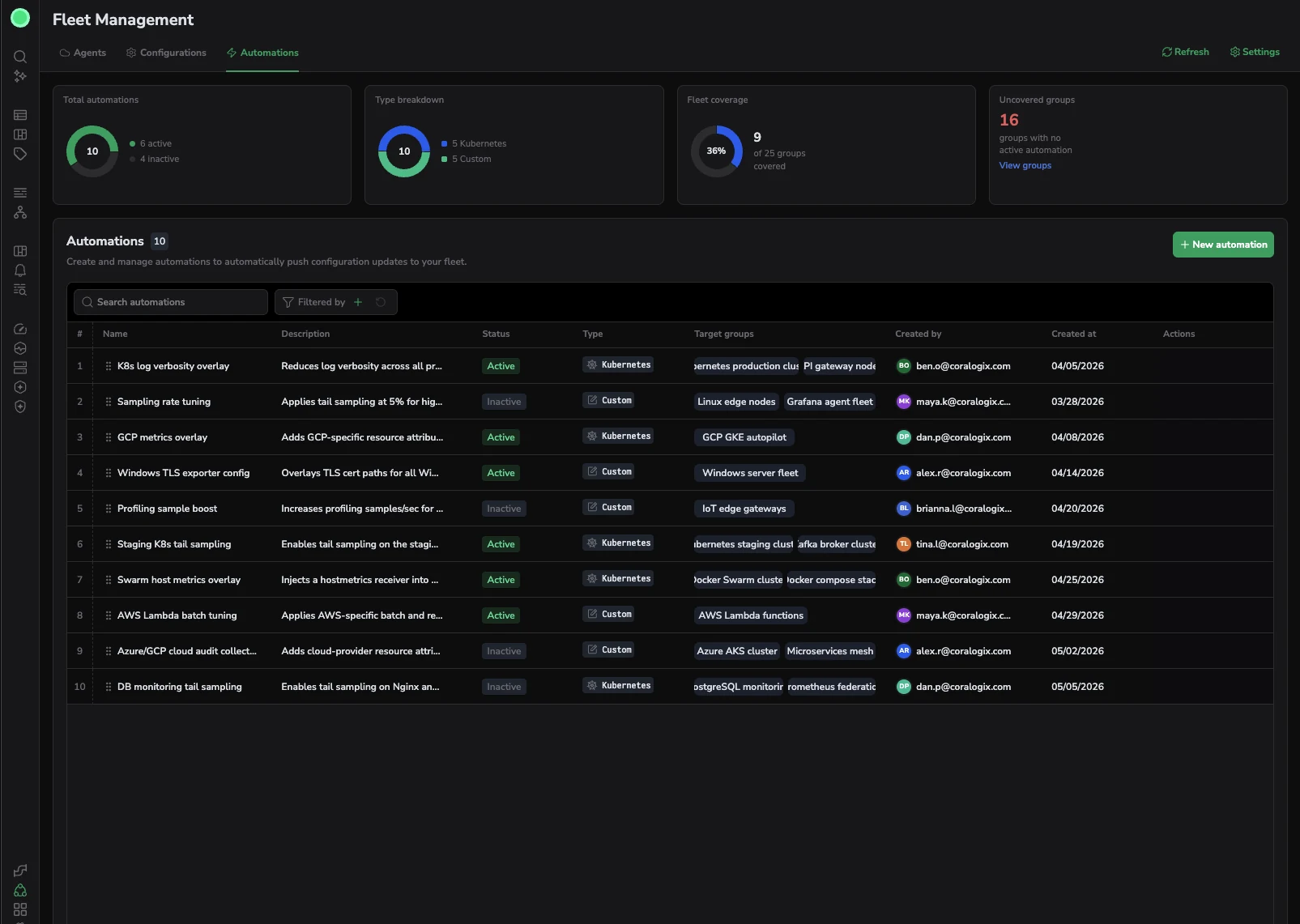
Open Fleet Management, then select the Automations tab. The cards at the top summarize your fleet:
- Total automations: how many automations exist, split into active and inactive.
- Type breakdown: how many are Kubernetes and how many are Custom.
- Fleet coverage: how many configuration groups have at least one active automation, out of your total groups.
- Uncovered groups: groups with no active automation. Select View groups to list them.
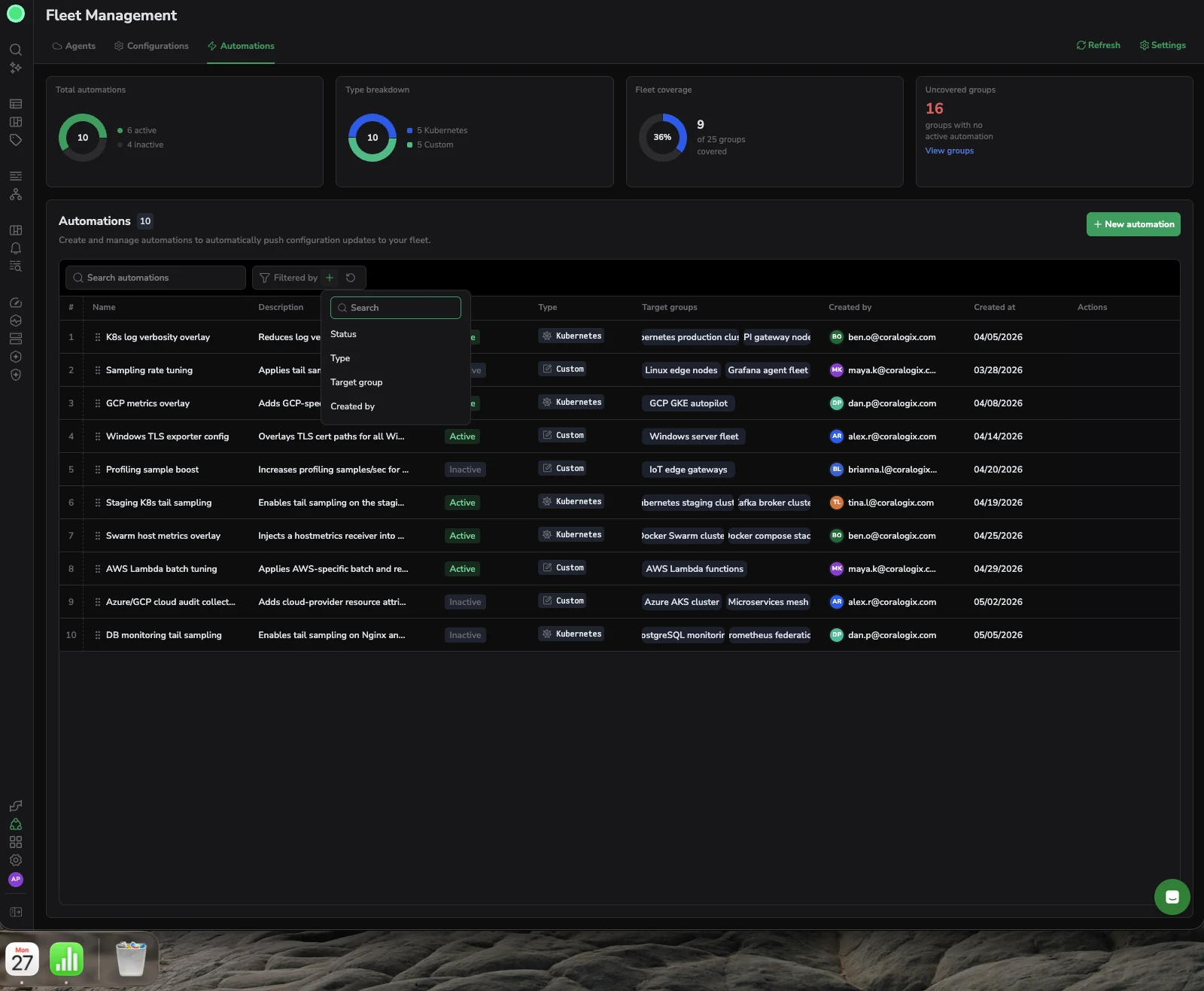
The table lists every automation with its Status, Type, Target groups, Created by, and Created at. Use Search automations or Filtered by to narrow the list by Status, Type, Target group, or Created by.
Create an automation
- On the Automations tab, select New automation.
- Under Details, enter a Name and a Description that explains what the automation changes.
- Under Type, choose Kubernetes or Custom.
- Under Target, select the target groups the overlay applies to. Each group shows how many configs it contains.
- Under Configuration, define the overlay:
- Select Presets to build it from predefined options, or
- Select Code to write the overlay directly in YAML.
- Use the Preview panel to confirm the result before you save. See Preview the impact.
- Select Save changes.
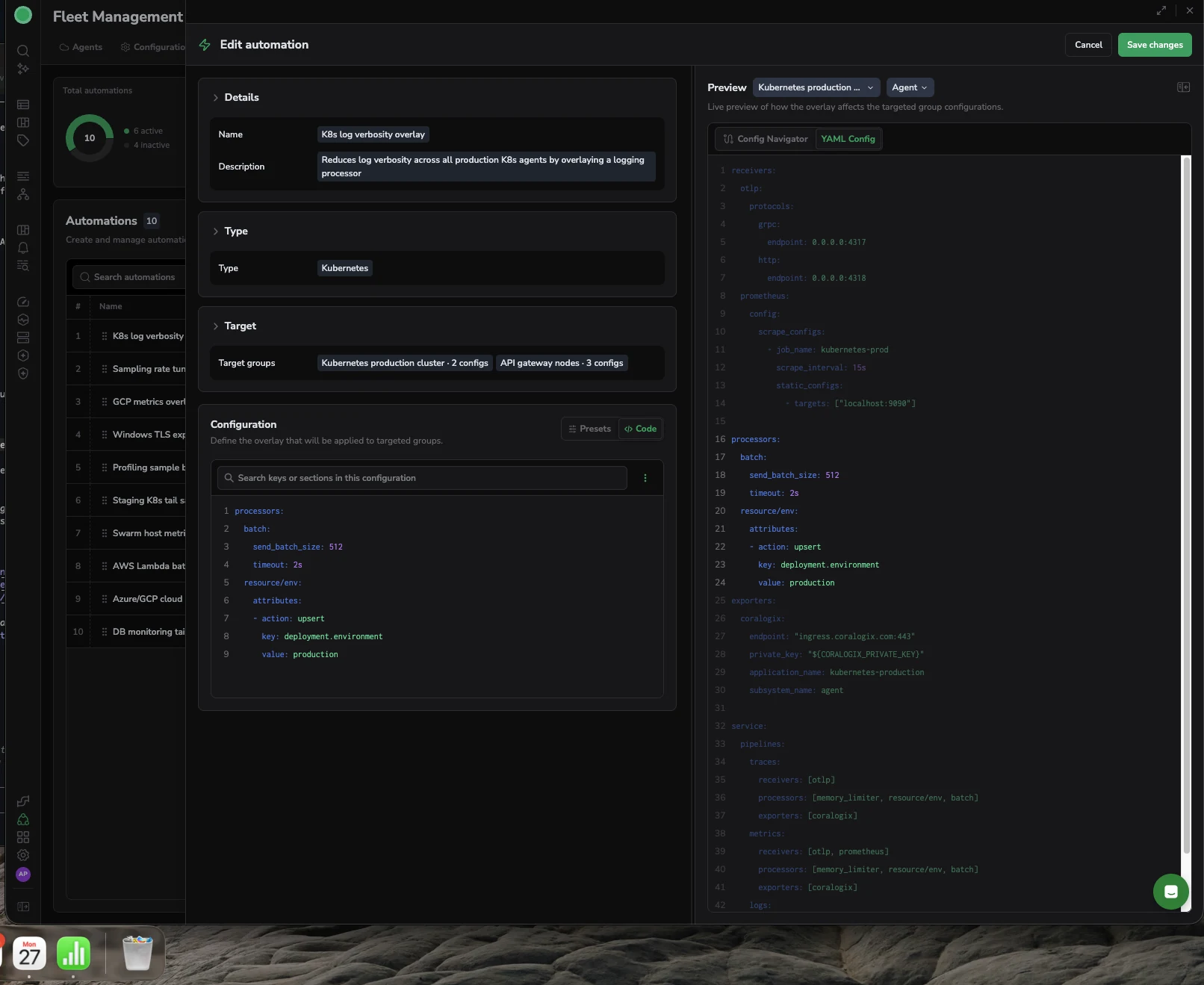
The example above overlays a batch processor and a resource/env attribute onto the targeted Kubernetes groups. The Preview shows the full configuration each group receives once the overlay is merged.
Preview the impact
The Preview panel shows a live preview of how the overlay changes the targeted group configurations before you save. Switch between three views:
- Config Navigator: a structured, navigable view of the merged configuration.
- YAML Config: the full merged YAML.
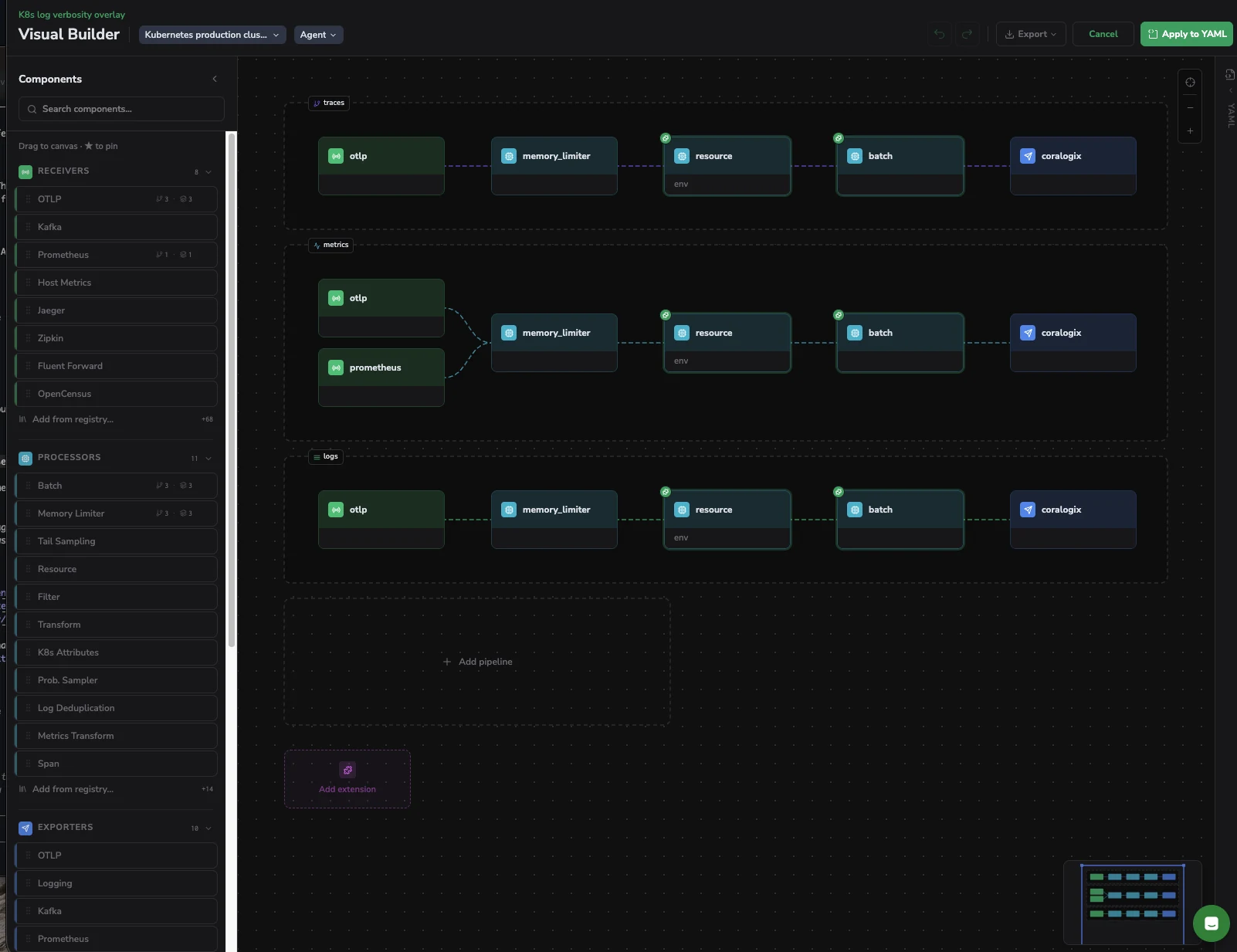
- Visual Builder: a visual pipeline view of the merged configuration, with the automation's changes highlighted.
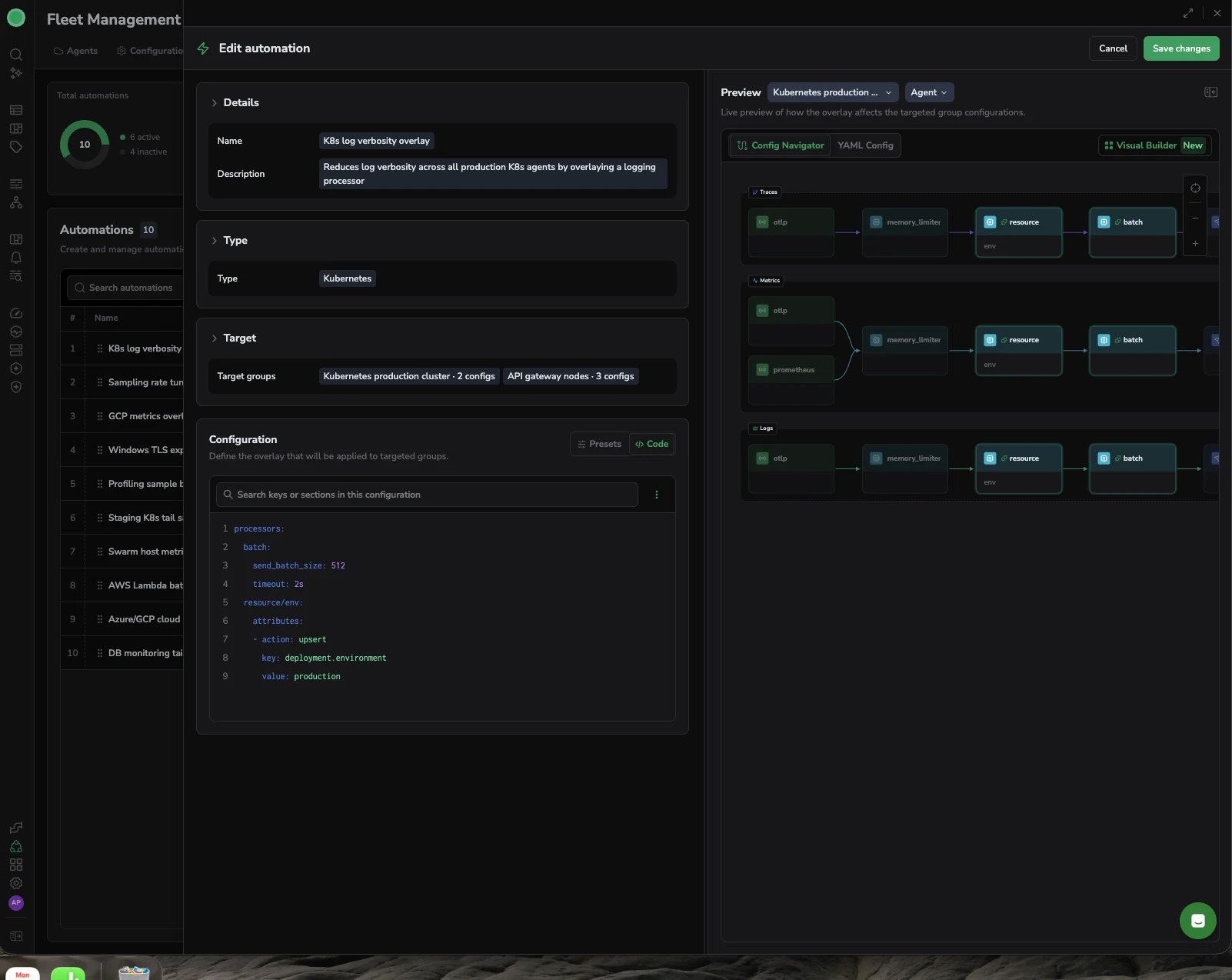
The Visual Builder renders each telemetry pipeline (traces, metrics, and logs) as a flow of receivers, processors, and exporters, so you can see exactly where the overlay inserts or changes a component. Drag components from the left panel to build or adjust the pipeline, then select Apply to YAML.
Activate or deactivate an automation
An automation applies to its target groups only while it is Active.
- Activate an automation to merge its overlay into every target group. The affected configuration version is marked as sourced from the automation.
- Deactivate it to remove the overlay and restore the previous configuration.
Because activation and deactivation apply to every target group at once, you can roll a change out, or roll it back, for your whole fleet in a single action.
Limitations
- The OpAMP extension cannot be defined or removed through an automation.
- A preset-based automation can only merge onto preset-based configurations. Preset values carry agent identity, such as the cluster name, so a preset overlay cannot render against a non-preset configuration.
- The Visual Builder is not available in Safari. Use Chrome, the Config Navigator, or the YAML editor.
- Scheduled, time-based automations are not available in the first release.
Troubleshooting
A configuration shows it was changed by an automation, but no one edited it. An active automation is overlaying that group. Open the automation from the group's source link and deactivate it to restore the previous configuration.
My sampling rate is much lower than expected after adding a sampling automation. Tail-sampling policies merge by name, and stacking probabilistic policies multiplies their rates (10% of 10% is 1%). Review the merged result in the Preview panel.
My preset-based automation produced an empty or invalid configuration. The target configuration is not preset-based. Target only preset-based configuration groups.
The Visual Builder button is missing or disabled. You are in Safari, or the configuration is in Presets mode. Use Chrome, and switch the configuration to Code mode to use the Visual Builder.