Configuration management
The Configurations tab displays all configuration groups, where each group represents a configuration and its complete version history. For every group, you can view its status, description, last activation time, and who modified it. You can also review the agents affected by the configuration and control whether a version is active and applied. Select a configuration group to expand it and view all of its versions and their status.
Configuration group
A configuration group contains all versions of a configuration and shows the overall state of those versions.
- Group status reflects the strongest status among all versions. Status priority is: active → inactive → draft.
- A group becomes active as soon as any agent reports an active status for one of its versions.
- Active (!) indicates failures on one or more agents.
- Active (yellow) indicates pending updates: some agents have not yet applied the configuration.
- A group remains pending until at least one agent reports a final status.
If you deactivate a configuration while it is still pending, some agents may receive the configuration and others may not. To avoid inconsistent states, do not deactivate during rollout. Instead, roll back to another version so all agents align on the same configuration.
View agents by configuration status
Each configuration row displays three status counts: applied (green), pending (yellow), and failed (red). Select a status count to open the Agents tab filtered to the agents reporting that status for the configuration.
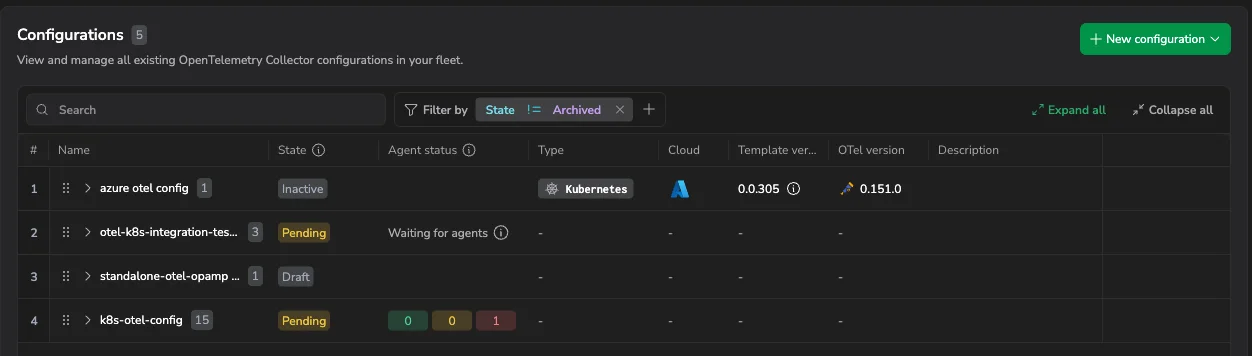
The filter target depends on the row type:
- On a configuration group row, the filter targets the group's active family.
- On a family row, the filter targets that family directly.
The Agents tab opens with the filter builder pre-populated to match the configuration version and the selected status. In Lucene mode, the equivalent query looks like this:
cx.otel.agent.matched_configuration:"k8s-otel-config:13" AND cx.otel.agent.matched_configuration_status:"failed"
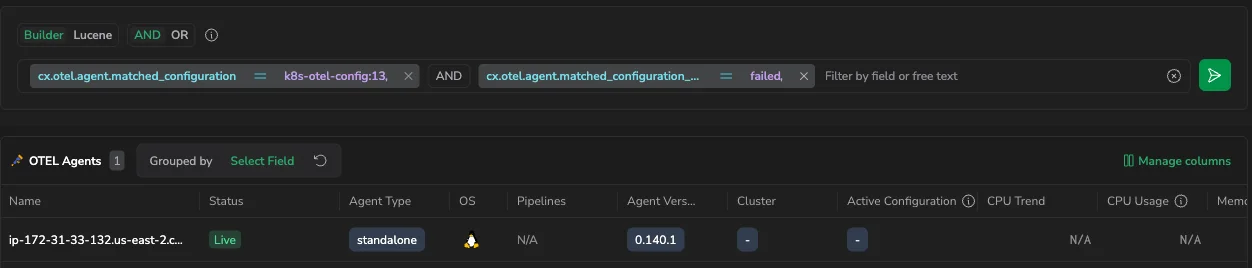
Edit the filter to broaden or refine the results, for example, remove the status clause to see all agents that received the configuration.
Agents that have not received a configuration since June 5, 2026 do not yet carry the metadata used by this filter and do not appear in the filtered results. To populate the metadata for these agents, deactivate and then reactivate the configuration. Agents that connected after this date are unaffected.
Configuration family
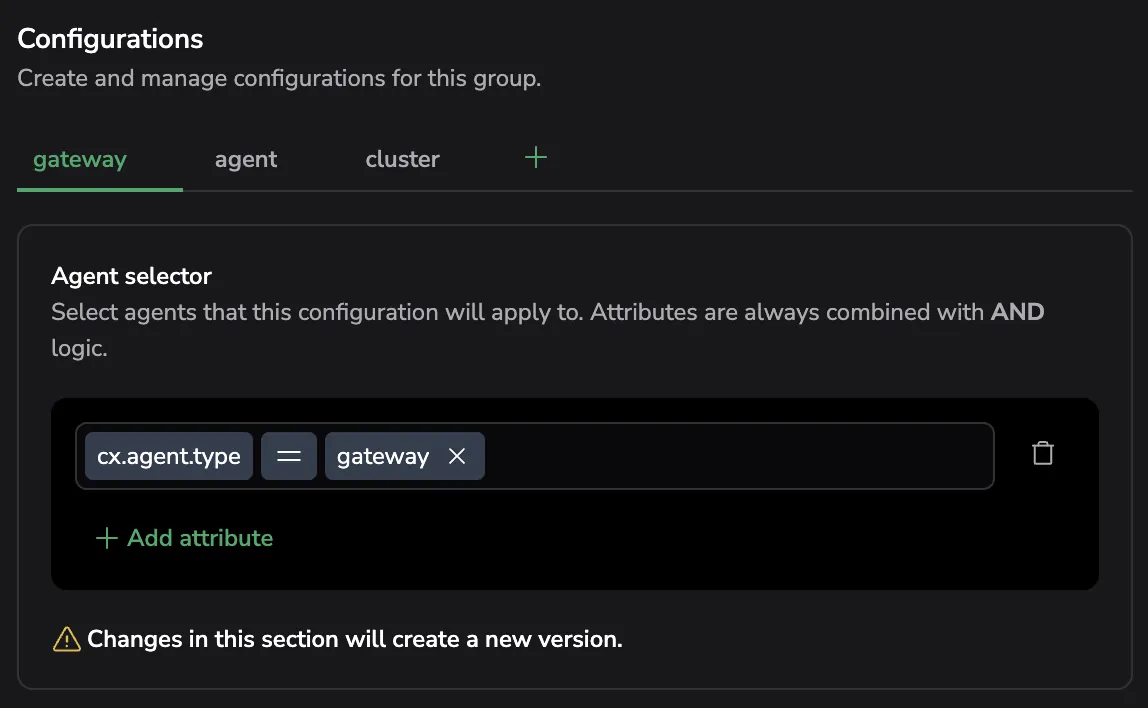
A configuration family contains several interdependent configurations that must be deployed together. Use configuration families when changes to one component also require updates to other components, like gateways or agents, to keep the system in sync. Learn more about configuration behavior in our Configuration deep dive guide.
Manage configuration versions
Each configuration group contains one or more versions. Versions are immutable snapshots of both the configuration YAML and the agent selector. A new version is created whenever either of these changes.
When a new version is created
A new version is created only when you perform one of the following actions:
- You edit the configuration YAML.
- You modify the agent selector.
- You clone an existing version, which always creates a new configuration group.
- You reactivate a version. Reactivating creates a new clone of the currently active version and sets it as the active version.
- You activate an inactive version. Activating an inactive version creates a new version and makes it active.
Group actions
- Group actions are available only for the active version in the configuration group.
- If there is no active version, group actions apply to the latest version in the group.
Available version actions
| Action | Description |
|---|---|
| Edit | Opens the version for modification. Saving changes creates a new version. |
| Clone | Creates a new version based on the selected one, duplicating both its YAML and agent selector. |
| Activate | Makes the selected version active for all agents matching its selector. Only one version per group can be active at a time. Does not create a new version unless changes were made. |
| Deactivate | Marks the version as inactive. Agents previously using it receive a no-operation configuration and fall back to a minimal supervisor-managed configuration. |
| Reactivate | Available for active versions. Creates a new version and immediately activates it. |
| Archive | Removes the configuration from the default view. Only available for inactive configurations. Archiving is irreversible. See Archive configurations. |
Edit a configuration description
Use the Edit description action in the more actions menu to change a configuration group's description. If the group has no description yet, the action is labeled Add description.
The description applies to the configuration group, not to an individual version. Editing it does not create a new version. The group description appears in the Group details section and in the Description column of the Configurations table.

Copy a configuration URL
Select Copy URL in the more actions menu to copy a direct link to the configuration to your clipboard. Share the link to open the configuration directly.
View configuration commands
Select View commands in the more actions menu to open the Configuration commands dialog. The dialog shows the configuration's Deployment code and Values.yaml, each with Copy and Download actions. Use these to deploy or redeploy the integration with the same configuration.
Priority across configuration groups
The order of configuration groups determines version precedence. If multiple configuration groups apply to the same agent, the active version of the highest-ranked group in the list takes priority. You can reorder configuration groups to adjust their priority.
Create a new configuration
Select + New configuration to create a configuration, using one of two methods:
Create from a template
Select a template from the dropdown to open the template editor. Templates provide a toggle-based interface for generating production-ready configurations without writing YAML. See Configuration templates for the full workflow.
Create a custom configuration
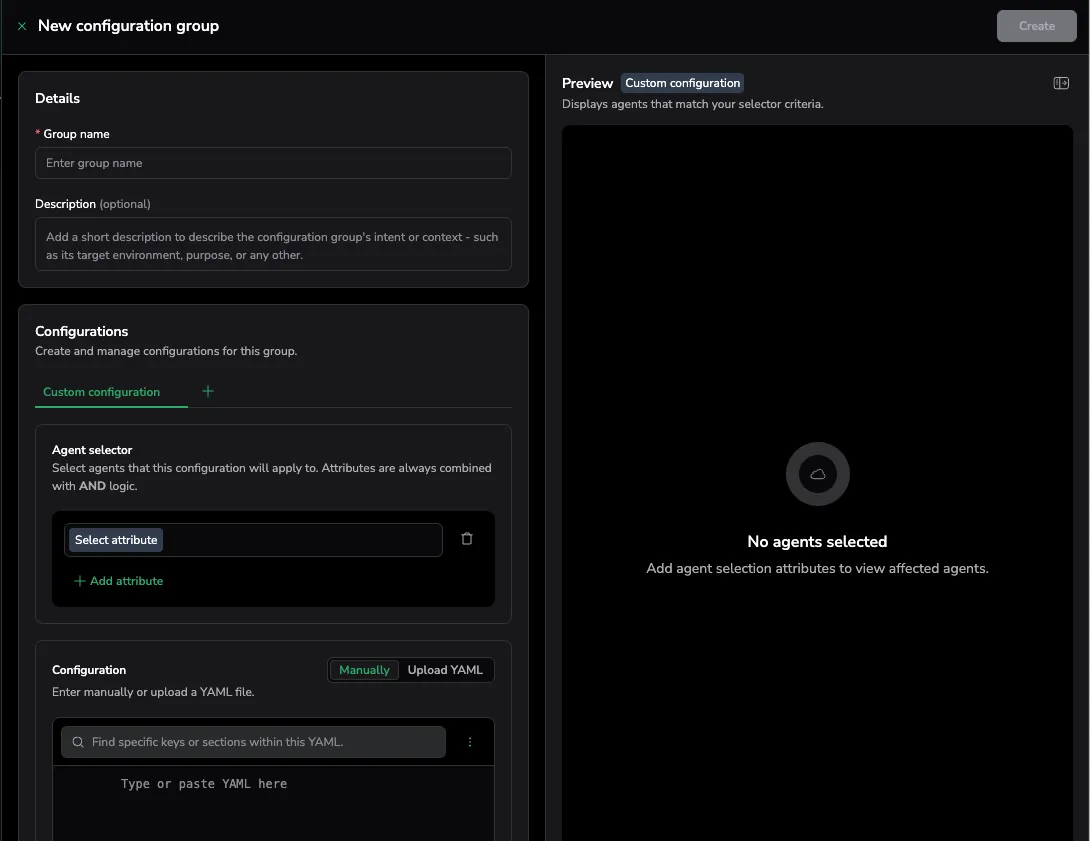
Select Custom from the dropdown to open the custom configuration modal.
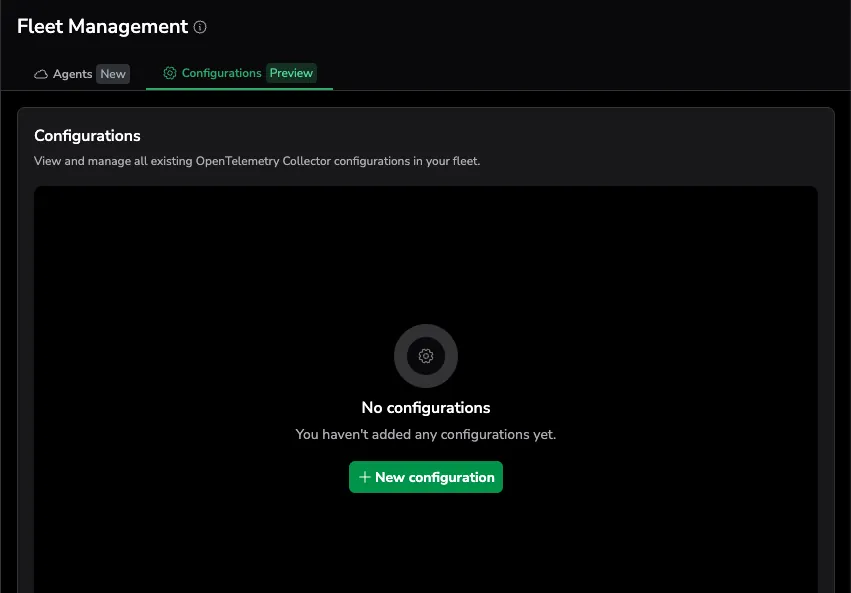
- Enter a name and, optionally, a description for your configuration.
- Use the Agent selector interactive builder to select agents that will be affected by this configuration using specific attributes.
- In the Configuration field, enter configuration content or upload a YAML file.
- The Preview section displays a list of all agents that match the selection and a summary of their health and status.
- Review the configuration and agent list, then select Create.
The Name, Agent selector, and Configuration fields are required.
Template-based and custom configurations appear together in the Configurations table. Template-based configurations display their template type, template version, OTel version, and cloud provider in dedicated columns.
Edit an existing configuration
-

Hover over a configuration row and select the edit icon .
-
In the configuration modal, make any required changes. The Preview panel updates automatically to show which agents are affected.
- To edit the pipeline visually instead of by hand in YAML, switch the configuration family to Code mode and select Visual builder in the preview panel. See Visual builder.
-
You can also select a different configuration version to edit.
Review configuration changes

When you save changes to an existing configuration, a diff view appears so you can review the modifications before applying them. The diff highlights added, removed, and modified lines, allowing you to verify exactly what will change in the new configuration.
Saving changes creates a new configuration version. Existing versions remain available for comparison and rollback. You can compare versions, search within them, and decide whether to activate a new version immediately or keep it in a draft state.
Compare configuration versions
Use View difference to compare two versions of a configuration group.
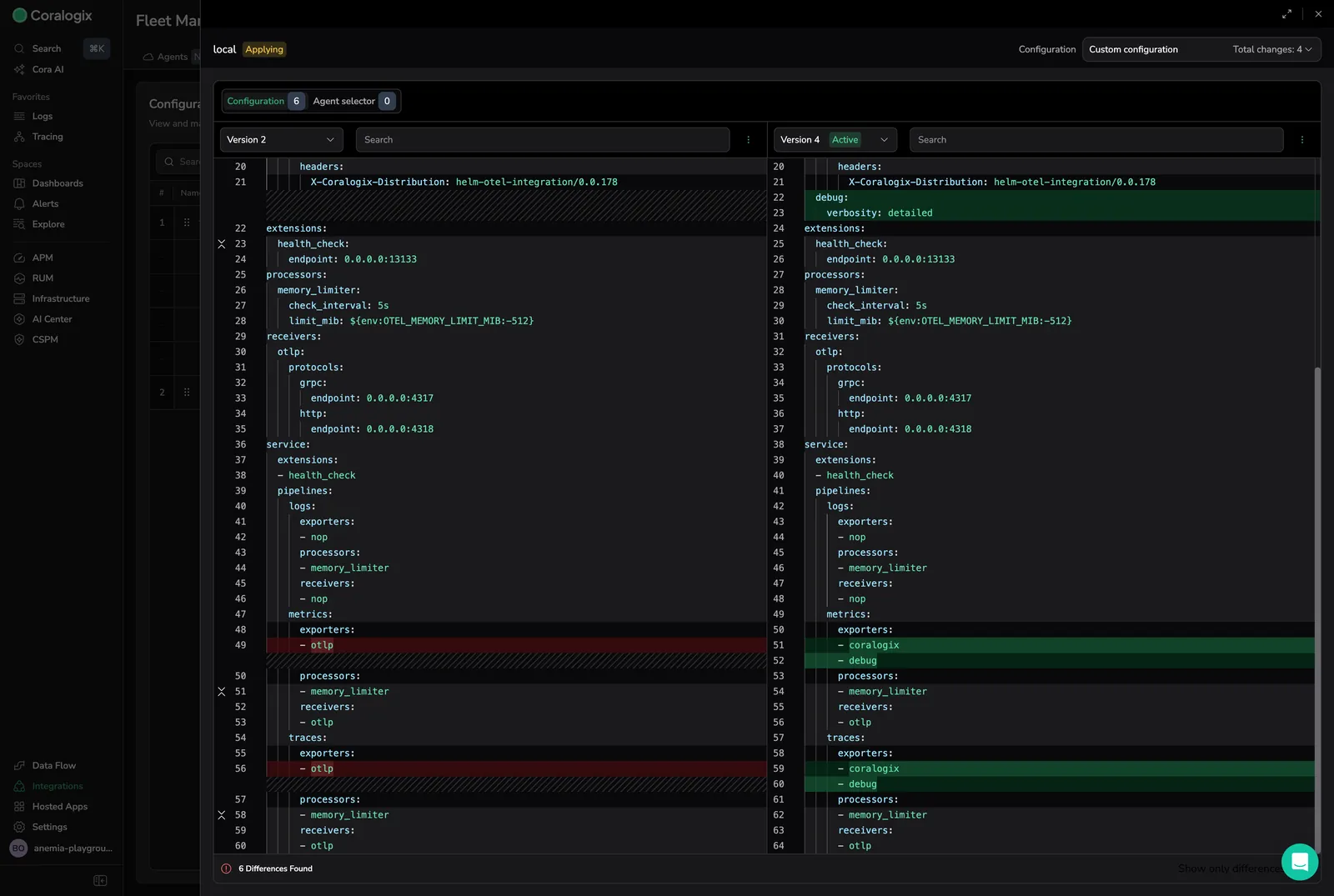
To access Compare mode, hover over a configuration group, select , and select View difference.
You can open View difference from these locations:
- From the configurations tab: open the group version actions menu, then select View difference.
- From an expanded configuration group: select View difference.
- From the YAML editor: open the actions menu, then select View difference.
In the diff drawer:
- Use the version selectors to select the base version on the left and the comparison version on the right.
- Switch between Configuration and Agent selector to compare different content.
- If the configuration includes multiple configuration types, select the type you want to compare, such as Agent, Cluster, or Gateway.
- Optional: Select Show only differences to hide unchanged lines.
- Use search to find keys or sections in either version.
Merge and revert changes in the diff
When you compare two versions, you can move changes between them directly in the diff editor instead of editing the YAML by hand:
- Select the merge arrow next to an individual change to apply that change to the editable version.
- Select Merge all changes to apply every change from the compared version at once.
- Select Undo to revert the last merge.
Merging updates the editable version in the diff editor. Save to create a new version that contains the merged result.
Archive configurations
Archive configuration groups and families you no longer need to keep your workspace clean and reduce the risk of selecting the wrong configuration. Archiving hides items from the default view while preserving their full history for audit and compliance purposes.
The default view hides archived configurations using a State != Archived filter. The actions menu on each configuration group provides the Archive option.
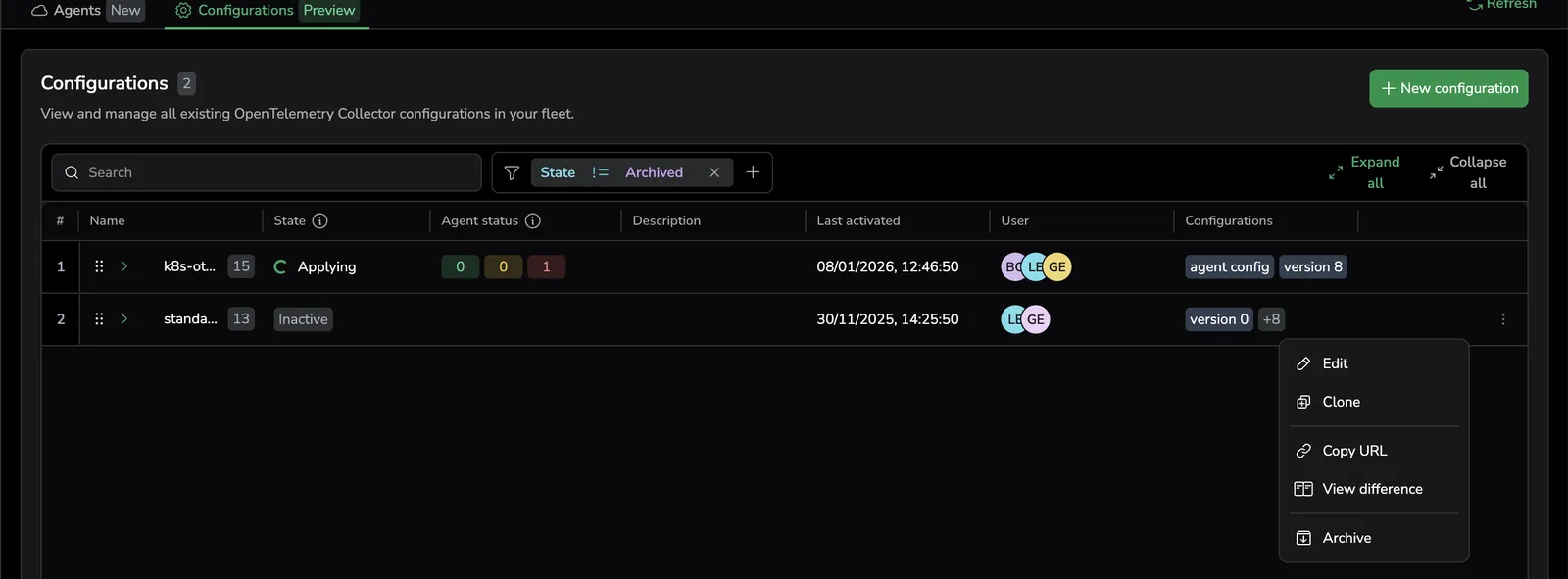
Archive a configuration family
- In Coralogix, navigate to Integrations, then Fleet Management, then Configurations.
- Expand the configuration group containing the family you want to archive.
- Deactivate the family if it is currently active. Active families cannot be archived.
- Select the actions menu (⋮) on the family row, then select Archive.
- Confirm the archive action in the dialog.
The family is removed from the default view. It cannot be reactivated after archiving.
Archive a configuration group
- Navigate to the Configurations tab.
- Deactivate all families in the group. A group can only be archived when none of its families are active.
- Select the actions menu (⋮) on the group row, then select Archive.
- Confirm the archive action in the dialog.
Archiving a group also archives all families within it. Archived groups appear at the bottom of the configuration list.
View archived configurations
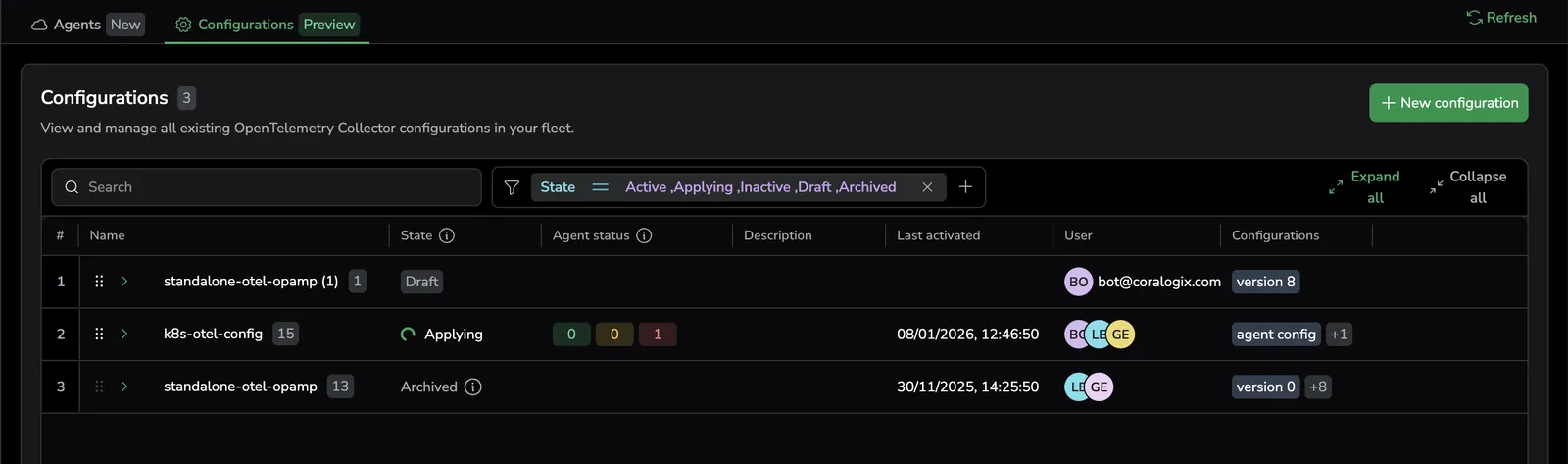
Archived groups and families are hidden from the default view by a State != Archived filter. To view them:
- Remove the State != Archived filter chip from the filter bar, or
- Replace the filter with a state selector that explicitly includes Archived.
With either option, archived items appear alongside active ones, with the State column showing Archived.
Reuse an archived configuration
Archived configurations cannot be reactivated, but you can clone them to create a new configuration based on the archived version. Select the actions menu (⋮) on the archived configuration, then select Clone. This creates a new configuration with the same YAML and agent selector.
Archive rules and constraints
| Rule | Details |
|---|---|
| Families must be inactive | Deactivate a family before archiving it. Active families cannot be archived. |
| Groups require all families inactive | All families in a group must be deactivated before the group can be archived. |
| Archive cascades to families | Archiving a group archives all families in that group. |
| No reactivation | Archived families and groups cannot be reactivated. Clone them instead. |
| No new families in archived groups | You cannot create new families (standard or custom) within an archived group. |
| Irreversible | Archiving is a one-way operation. Remove the State != Archived filter to view archived items for audit purposes. |
Permissions
To manage remote configurations in Fleet Management, you must have the proper permissions. Access can be granted in two ways:
-
Assign an admin role (Legacy Admin, Organization Admin, or Data Admin), which automatically provides full Fleet Management permissions.
-
Grant explicit remote configuration permissions using the FleetManagement permission preset or an individual permission.
Preset Action Description FleetManagement REMOTE-CONFIGURATION:MANAGEManage remote configurations (create, edit, activate, deactivate, archive)
See Permissions for details.
Limitations
- Each configuration group supports up to 10 configurations. Contact Support if your environment requires a higher limit.
- Archiving is irreversible, archived configurations cannot be restored or reactivated. Clone an archived configuration to reuse it.
- Status-based agent filtering relies on metadata recorded when an agent receives a configuration. Agents that have not received a configuration since June 5, 2026 do not appear in status-filtered results until you deactivate and reactivate the configuration.
Next steps
Generate production-ready configurations without writing YAML from scratch in Generate configurations from templates.