Push configuration changes across your fleet with overlays
Configuration overlays are in public beta.
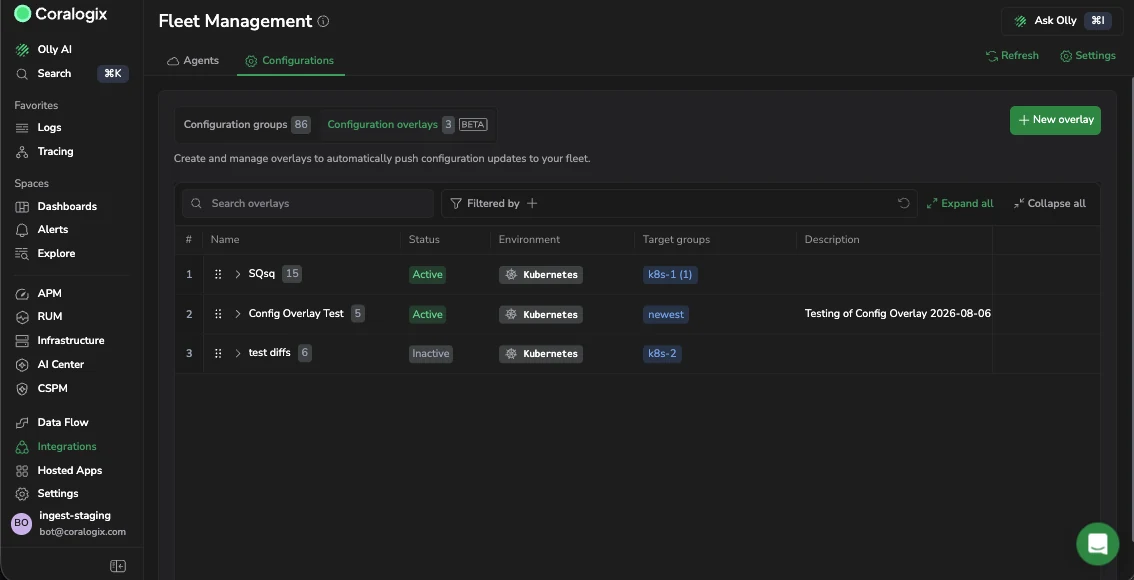
A configuration overlay applies a set of setting changes on top of the configuration your groups already run. Define the change once, select the groups it targets, and activate it. Your base configurations stay as they are, so you can lift the change back off by deactivating the overlay instead of editing every group back.
Why use an overlay
Changing one setting across twenty groups means twenty edits, twenty reviews, and twenty chances to leave one behind. An overlay turns that into one object you can reason about.
- Change once: one overlay covers every group you target.
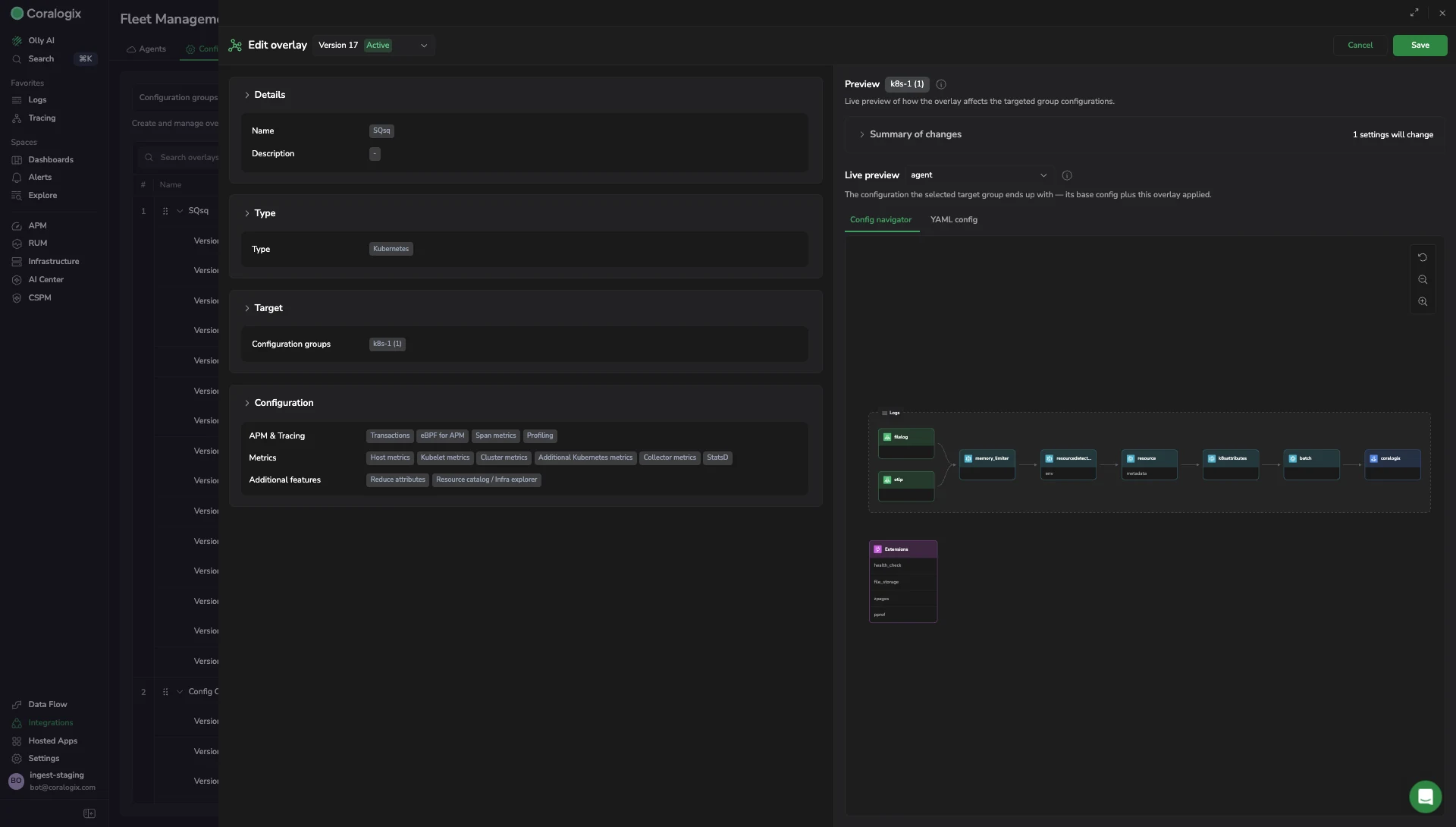
- Preview: the editor compares the overlay against a chosen group and shows the resulting configuration.
- Undo: deactivating an overlay returns its targets to their base configuration.
- History: overlays are versioned, so you can compare two versions and see exactly which targets and settings differ.
What you need
- An agent fleet reporting to Fleet Management, organized into configuration groups.
- Permission to manage remote configurations. See Fleet Management permissions.
- A configuration group in an active state. A group becomes active once at least one agent has applied its configuration; this is not a manual step. Activating a configuration by hand leaves the group Waiting for agents, and it cannot be targeted until an agent reports.
Create an overlay
-
Go to Fleet Management, then Configurations, then Configuration overlays.
-
Select New overlay.
-
Under Details, enter a name and an optional description.
-
Under Type, select the agent type this overlay targets. See Overlay types.
Type cannot be changed after you create the overlay.
-
Under Target, select the configuration groups this overlay applies to, then select Add. Only groups matching the type you chose are listed, and only groups in an active state can be targeted. Who will be affected by this overlay lists what you have added so far, and stays empty until you select a group and then select Add.
-
Under Configuration, select the fields to override on those targets and set their values.
-
Optionally, under Schedule, set the window during which the overlay applies. See Apply an overlay on a schedule.
-
To turn the overlay on the moment it is saved, select Activate overlay. An overlay with a schedule still only applies during its windows. Leave it clear to save the overlay switched off.
-
Check the preview panel, then select Create.
Overlay types
An overlay targets one agent type, chosen when you create it.
| Type | Use it for |
|---|---|
| Kubernetes | Kubernetes agent fleets. Supports guided presets for common configurations. |
| Host | Agents running on hosts. |
| ECS | Agents running on Amazon ECS. |
| Custom | Any agent type. Define the overlay directly in YAML or with the Visual Builder. |
The type decides which configuration groups you can target, so an ECS overlay lists only ECS groups. It also decides how you author the change: the first three present the fields of their agent type, while Custom gives you a YAML editor instead.
Type cannot be changed after creation. To move a change to a different agent type, create a second overlay.
What an overlay can change
An overlay authors the same settings a configuration group of that type exposes. Select only the fields you want to override; everything you leave alone keeps the value the base configuration gave it.
A Custom overlay works differently. Selecting it replaces the field picker under Configuration with a YAML editor, where you write the configuration to apply on top of the targeted one. That is what lets it cover any agent type.
The blocks below are what a Kubernetes overlay exposes.
| Block | Fields you can override |
|---|---|
| APM & Tracing | Environment, Transactions, eBPF for APM, Span metrics, Sampling, Profiling |
| Logs & Events | Logs, Kubernetes events |
| Metrics | Host metrics, Kubelet metrics, Cluster metrics, Additional Kubernetes metrics, Collector metrics, StatsD |
| Additional | Reduce attributes, Resource catalog / Infra explorer |
Preview before you activate
The editor's preview panel answers two different questions, so use both.
Summary of changes compares the overlay against one target group and lists the settings that differ, with a count of how many will change. Use it to confirm you are changing what you meant to change, and nothing else.
Live preview shows what that group ends up with: its base configuration plus this overlay applied. Use it to sanity-check the final result rather than the delta. Pick which agent to preview against, then read the result either as Config navigator, a diagram of the resulting pipeline, or as YAML config, the file itself.
Both need a target group selected before they show anything.
Activate, deactivate, and archive
Overlays are inert until you activate them.
Applying an overlay creates a new version of the target's configuration, and every activate, deactivate, and edit creates another one. A group with overlays on it accumulates versions, which is expected rather than a sign that something went wrong.
Only one version of an overlay can be active at a time. Activating a version deactivates whichever version was active before it, along with that version's schedules.
Reactivating a configuration re-applies the overlays that target it. This happens automatically, with nothing to set up.
| Action | What it does |
|---|---|
| Activate | Applies the overlay to its target groups. |
| Deactivate | Lifts the overlay off its targets, which return to their base configuration. |
| Edit | Changes the overlay. Changing the configuration creates a new version; changing only the schedules saves them onto the current one. |
| Duplicate | Copies the overlay so you can adapt it without touching the original. |
| View difference | Compares two versions and reports which targets and settings differ. Needs at least two versions. |
| Archive | Hides an overlay, or a single version, from the list. You can still find archived items using filters. Archiving cannot be undone. |
View difference opens a version comparison. Pick the two versions in Compare from and Compare to, and the panel reports how many of the settings differ, for example 0 of 14 settings differ. Turn on Show only differences to hide the settings that match. The header also carries the current version and when it was last activated.
A configuration group can have more than one active overlay. Overlays are merged in the order they appear in the list, from top to bottom, so an overlay lower in the list is applied last. If two active overlays change the same setting, the value from the lower overlay is the one that ends up in the configuration.
Deactivating an overlay asks you to confirm, and names the groups it stops applying to. An overlay with schedules has those schedules paused rather than removed, so reactivating it puts them back in play.
Deactivate before archiving. An overlay with an active version, or a version that is itself active, cannot be archived. Archiving the last remaining version of an overlay archives the overlay itself.
Apply an overlay on a schedule
An active overlay applies from the moment you activate it until you deactivate it. A schedule narrows that to a window. Outside the window the targeted groups run their base configuration, and you do not have to remember to switch anything back.
A common case
Your nightly billing job runs at 02:00 and takes about three hours. While it runs you want full debug logging from the services involved, because that is when the failures you care about happen. The rest of the day that volume is noise you pay to store.
Without a schedule you have two bad options: leave the detail on all day, or turn the overlay on and off by hand every night.
With a schedule you build the overlay once, raising the log level on the billing group, and give it a window:
| Field | Value |
|---|---|
| Date | the first night you want it |
| At | 02:00 |
| Duration | 3 |
| Timeframe | Hours |
| Recurring | selected, Every 1 Days |
| Reason | Planned maintenance |
| Time zone | the zone your batch window runs in |
Every night at 02:00 the overlay applies, and at 05:00 the group returns to its base configuration on its own.
Build a schedule
- In the overlay editor, open Schedule and select Add schedule.
- Under Starting, set the Date and the time under At. The starting date cannot be in the past.
- Set the Duration and its Timeframe. This is how long the window stays open. The minimum is 1.
- To repeat the window, select Recurring, then set Every and its Timeframe. Add a Termination Date to stop repeating on a given day; leave it empty to repeat indefinitely.
- Optionally set a Reason: Planned maintenance, Deployment, Migration, Incident response, or Other.
- Set the Time zone. The window opens and closes in this zone, so a batch window set in your team's local time keeps its place when the clocks change.
The card summarizes the schedule in plain language as you fill it in, for example Every 1 days at 02:00 for 3 hours Europe/London. Until it has enough to work with, it tells you what is still missing.
Both Duration and Every accept minutes, hours, days, weeks, or months.
Select Add schedule again to add another window. An overlay can carry as many schedules as needed, each with its own timing, reason, and time zone, so a nightly batch window and a one-off migration window can sit on the same overlay. Two windows on the same overlay cannot overlap.
What the editor rejects
| Message | Why |
|---|---|
| Starting date cannot be in the past | A window can only open going forward. |
| Termination date must be on or after the starting date | The repeat cannot end before it begins. |
| Duration must be shorter than how often it repeats | A four-hour window repeating every two hours would never close. |
| Overlaps with another window. Change the time or remove one | Two windows on the same overlay would be open at the same time. The check accounts for repeats, so two recurring windows that only meet weeks from now are caught too. |
Manage a schedule
Schedules are all or nothing. There is no switch on an individual window: the overlay's own Activate and Deactivate turn every schedule on it on or off together. Remove schedule on a card takes that window off the overlay, and saving archives it.
Collapsing the Schedule card leaves Next window on show, with the date, time, zone, and how long until it opens, for example in 2d 3h 14m.
How a save is recorded depends on what you changed:
| What you changed | What the save does |
|---|---|
| Only the schedules | Saves them onto the version you are editing. No new version. |
| The configuration | Creates a new version, and the schedules carry over to it. You are not asked where they should go. |
| Nothing | Writes nothing. |
A schedule window opening or closing does not create a version either. The occurrence applies the version the schedule belongs to and then lifts it again.
An overlay with no schedule applies continuously once activated, which is the behavior described in the previous section. Adding a schedule is optional.
Editing a targeted configuration unlinks it
Editing a configuration group that an overlay targets breaks the link between them. When you activate the edited version, that group stops being maintained by the overlay, and re-linking it is a manual step.
The save dialog warns you before this happens and names the overlays the group is currently getting its active version from.
Order overlays in the list
Each overlay in the list carries a count of its versions, and Expand all and Collapse all open or close every overlay at once. The list records who created each version and when.
Drag a row to move an overlay up or down. The order is not cosmetic: it is the merge order. When two active overlays change the same setting on the same group, the one lower in the list is applied last and its value wins. Configuration management describes the same model for configuration groups.
Because reordering changes what gets delivered, the order is stored with the overlay and applies to everyone in your organization. It is not a personal view preference.
Agent version requirements
An overlay can depend on settings that only newer agents understand. When a target is behind the version an overlay needs, the editor blocks the save and offers to upgrade those targets, telling you which version they are on and which they need. Activation is unaffected: the block applies when you save the overlay.
Upgrading moves the targets to the required version, and agents pick it up as the change rolls out. If you skip the upgrade, the target stays where it is and the overlay cannot be saved against it.
Offline agents
An agent that is offline when you activate an overlay is not skipped. When it reconnects, it receives the configuration that is active at that moment, including any overlays that apply to its group. Nothing is queued per overlay, so an agent that misses several changes comes back to the current state rather than replaying each one.
Best practices
- One overlay, one concern: a narrow overlay is easier to reason about, and easier to deactivate when it turns out to be the cause.
- Preview against your least typical group, not your most typical one. The group where an override behaves unexpectedly is the one worth checking.
- Prefer deactivating over editing when you need to undo something quickly. Deactivation is one action and needs no review of what the previous values were.
- Leave the base configuration as the baseline: put the exception in the overlay, so the base stays readable as the thing most agents run.
Limitations
- Several overlays can be active on the same configuration group. They are merged in list order, and the lower one wins.
- Type is fixed once the overlay is created.
- Only groups in an active state, with at least one agent reporting, can be targeted.
- An overlay cannot be archived while it, or one of its versions, is active.
- A scheduled window cannot be longer than the interval it repeats on.
- An overlay can carry as many schedules as needed, and two of its windows cannot overlap.
- A schedule cannot start in the past.
- Only one version of an overlay can be active at a time.