Health policy
Health policies give you a quick way to see whether a resource is operating normally. Infrastructure Explorer evaluates each resource against a set of best-practice checks and shows the result in the Health column. This lets you spot issues immediately, then drill down to see what caused them.
What you need
INFRASTRUCTURE-EXPLORER:READ: view health status in the resource list (included in all standard roles).INFRASTRUCTURE-HEALTH-RULES:READ: view health policy details and drill-down results.INFRASTRUCTURE-HEALTH-RULES:MANAGE: enable or disable policies and customize thresholds (Data Admin, Observability Lead, Platform Admin, Standard User).
Why health policies matter
The Health column helps you quickly identify where problems are developing. The detailed view in the Health tab helps you understand the cause. Together, they provide a clear and consistent way to assess resource stability across clusters, namespaces, workloads, and pods.
What policies check
Each policy monitors a specific condition or best practice. Examples include:
- Detecting pods that restart too often
- Identifying namespaces with too many failing pods
- Checking whether workloads are available
Policies run continuously. When a condition changes, health updates automatically.
Viewing health at a glance
When you open Infrastructure, then Infrastructure Explorer, every resource includes a Health column. This column provides a fast, high-level view of the resource’s condition:
Healthy: All applied checks passed.
Critical: One or more checks failed and the resource needs attention.
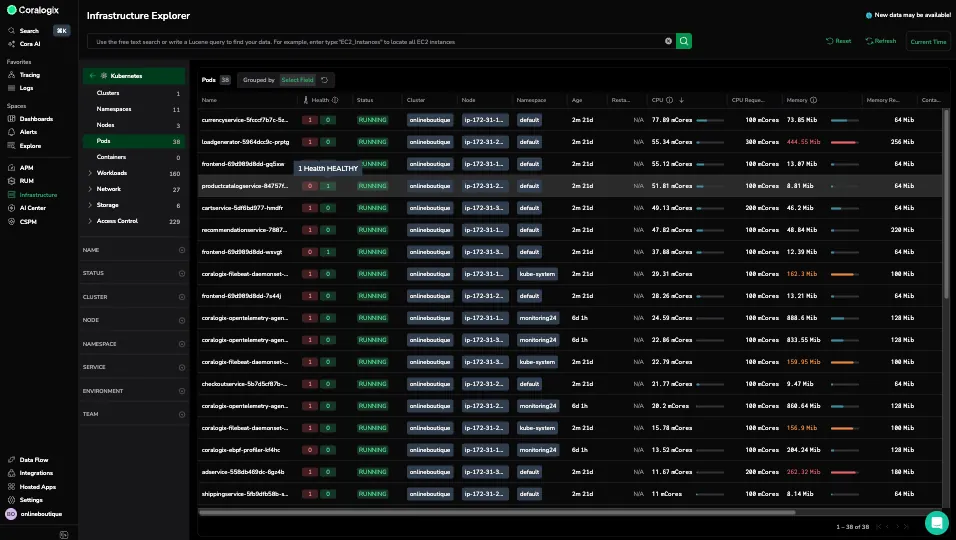
This view is intended to help you scan for problem areas without opening each resource.
Viewing detailed policy results
To see which checks were applied and why the resource is healthy or critical:
-
Select a resource in Infrastructure Explorer
-
Open the Health tab
The Health tab shows:
- All policies attached to the resource
- Whether each policy is healthy or critical
- A short explanation of what the policy checks
This view explains exactly what triggered the result shown in the Health column.
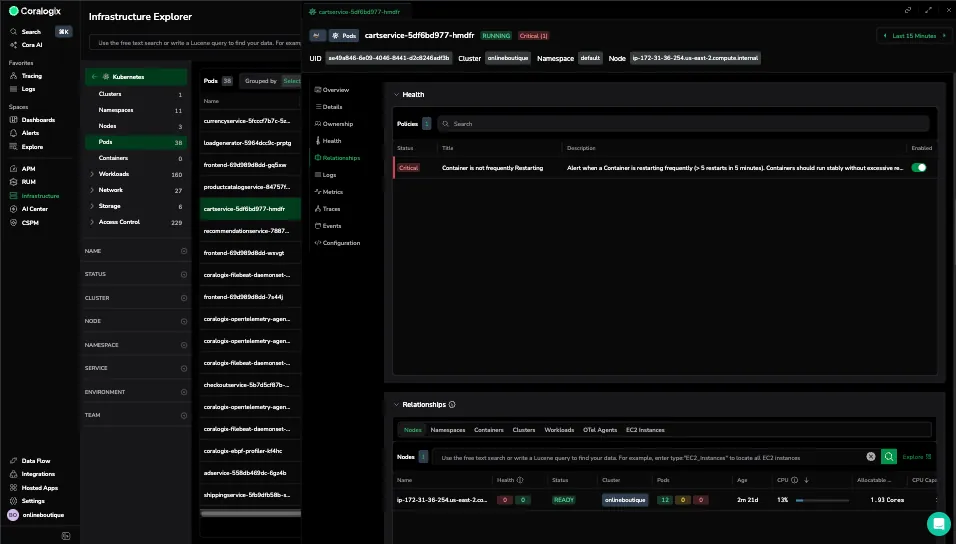
Select a specific policy to open its detailed drill down view.
What you see in the drill down view
The policy drill down page provides a full explanation of the evaluation:
- Policy status: Healthy, Critical, or Unmonitored
- Description: What the policy checks and the threshold it enforces
- Failure reasons: If the policy is failing, it shows the conditions and values evaluated that caused the policy to fail.
- Impact analysis: A summary of affected environment, service, and team based on ownership tags.
Ownership values appear as clickable chips. This helps you quickly identify related resources or service in APM service catalog within the same ownership scope and continue investigating in a focused view.
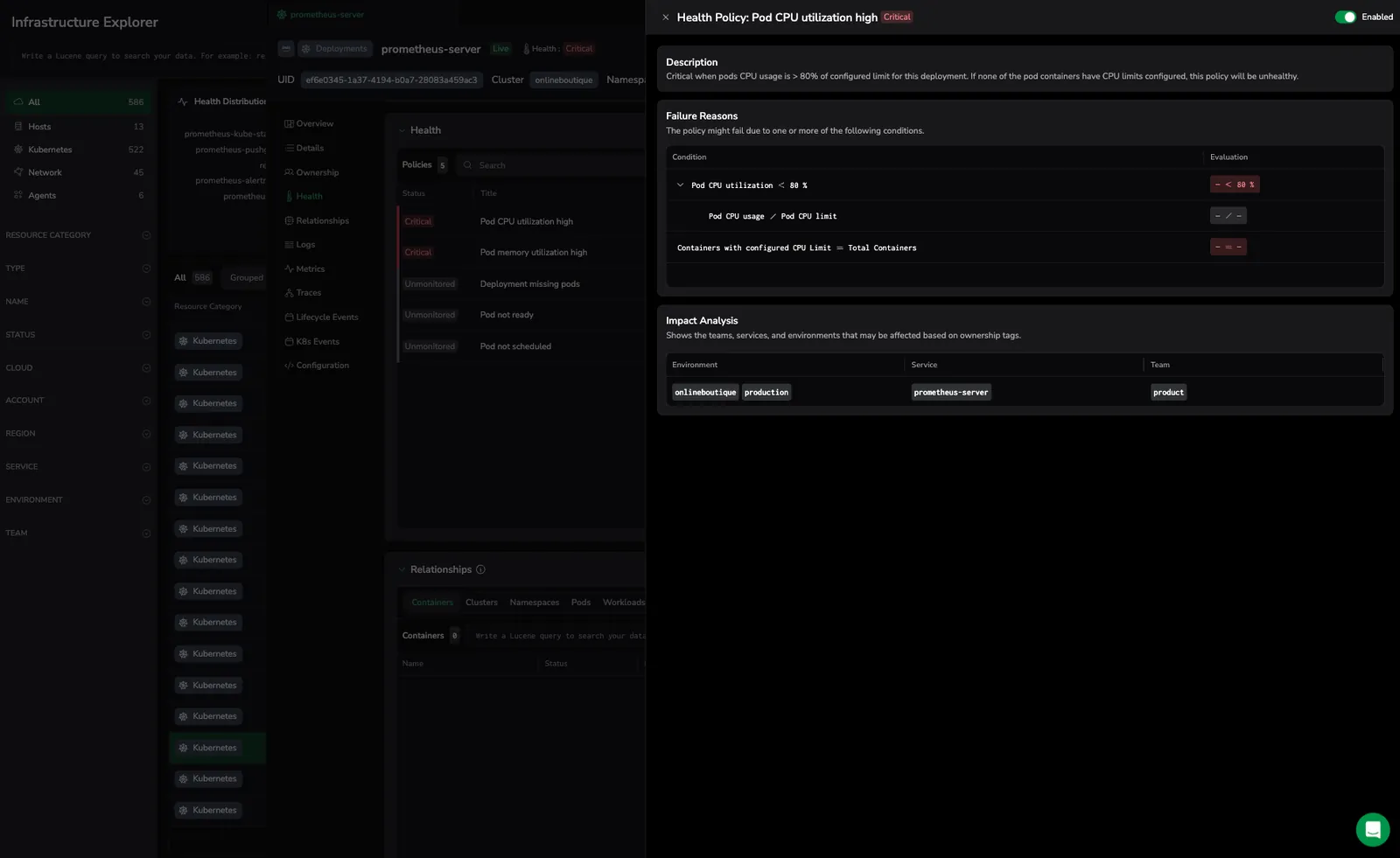
Use this view to answer key questions:
- What threshold was breached
- Which metric triggered the failure
- Whether the policy is currently enabled
- Which teams or services might be affected
Customize policy thresholds
Some health policies expose a customizable threshold, such as a utilization percentage, that decides when a resource becomes critical. These policies ship with a system default threshold. Other policies evaluate a fixed condition and have no customizable threshold.
To change a policy's threshold, set it in the health rule that enables the policy. The threshold then applies to every resource in that rule's scope, so you can give different classes of resources different sensitivity levels. In a resource's Health policies tab, each policy shows its current threshold and the rule that applied it.
When more than one rule applies the same policy to a resource, Coralogix evaluates the resource against the strictest threshold, the most conservative value. Which value is strictest depends on the policy: when a policy becomes critical above a value, the lower threshold is stricter; when it becomes critical below a value, the higher threshold is stricter. The Health policies tab shows the effective threshold and the rule that set it.
Tuning thresholds this way keeps health signals meaningful for each workload: a stricter limit on sensitive resources surfaces problems sooner, while a looser limit on tolerant resources avoids alert noise from expected fluctuations.
See Manage infrastructure health rules to enable policies and set their thresholds.
Turning policies on or off
To start evaluating a resource:
- Open the resource
- Go to the Health tab
- Enable a policy and confirm the prompt
Evaluation starts as soon as you apply the policy.
To stop evaluation, turn the policy off. If all policies are disabled, the resource will no longer display a health state in the list.
Next steps
Assign teams and track accountability for infrastructure resources by setting up Ownership.