Annotations
Annotations mark deployments, alerts, feature-flag changes, campaigns, and configuration changes on your charts, so you can line a latency spike, error surge, or throughput drop up with the change that caused it. Every dated event sits on the same time axis as your data, so you can answer "what changed?" on the chart itself, without switching tools.
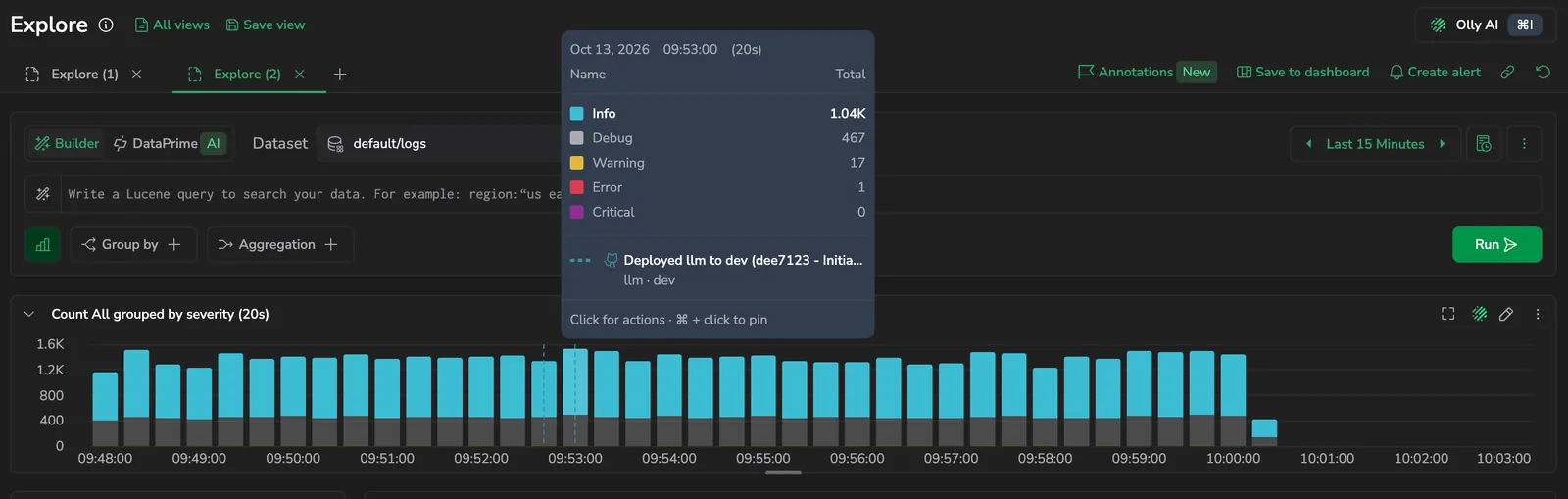
The same events show up wherever you analyze your data:
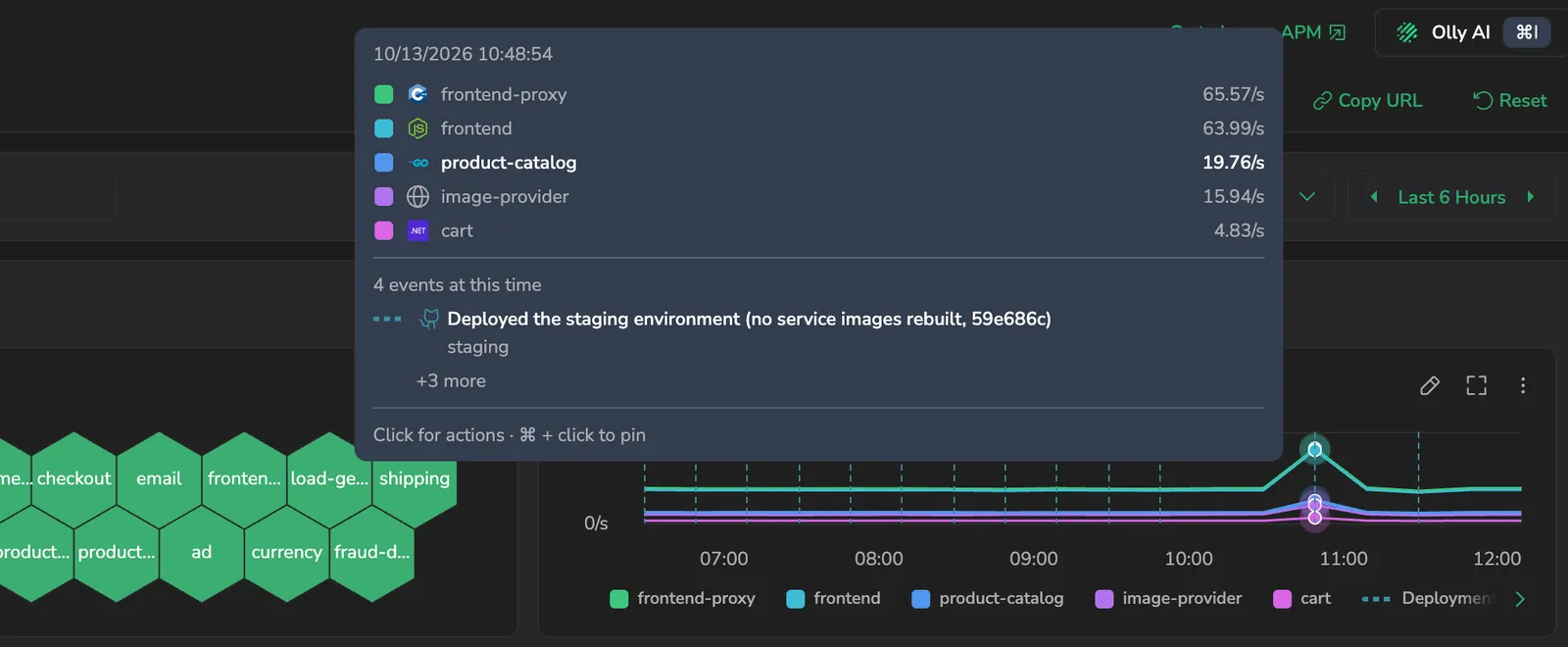
- APM: deployment and custom-event annotations overlay on the catalog charts and on the charts in a service or database drilldown. See Annotations in APM.
- Explore: the same annotations overlay on the time-series chart above your logs and spans results, alongside version benchmark markers. See Annotations in Explore.
What you need
- Access to the surface you want to analyze: APM or Explore.
- Events sent to Coralogix. Deployment and custom annotations come from the ops-events ingest API (see Send events to Coralogix); version benchmark markers come from the version-tags API (see Version benchmark annotations).
Annotation types
Coralogix draws each type in its own color, with a matching entry in the chart legend. Only types that have events in the current time range appear.
- Deployments: deployments and releases from your CD pipeline, sent as a
cdEventthrough the ops-events ingest API. These annotations carry pipeline and version-control metadata: the pipeline run, repository, branch or tag, and commit. - Custom events: alerts, feature flags, campaigns, and configuration changes, sent as a
customEventthrough the ops-events ingest API. - Version benchmark: in Explore, each released version measured against the one before it, sourced from the version-tags API. This is a legacy type that Coralogix is phasing out in favor of deployment annotations. See Version benchmark annotations.
Turn on annotations
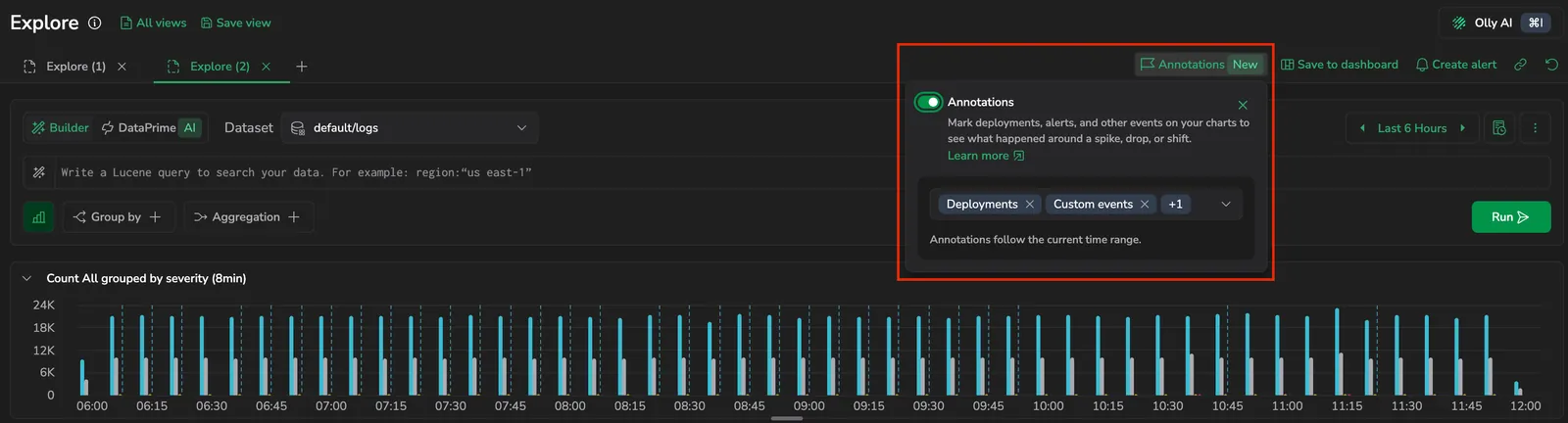
Open the Annotations control, turn annotations on, and select which event types to show. Select at least one type, or no annotations draw. Your selections persist across sessions. One control covers every chart on the screen.
Annotations draw as vertical markers across the chart, aligned to event timestamps, and follow the current time range. Hover a marker to read the event's description, service, and environment. When several events share a time bucket, the tooltip shows the first with a count of how many landed there; Cmd or Ctrl-click to pin it and read the full list. Select an event for its actions: view the event's details, copy its description, service, or environment, open it in its CD system, and, when the event carries them, open the pipeline run or repository.
Event details
Select Open event info on an event, from the chart tooltip or its actions menu, to open its details drawer. The drawer shows the event's attributes in Table, JSON, and Raw views, each with search and copy, and a link you can copy to share the event. Step through the events in the current range with the next and previous controls.
For an event tied to a service, the drawer also charts the event's impact: the service's requests, errors, and latency for an equal span before and after the event. Choose the impact window (1, 3, 6, or 12 hours, centered on the event) and switch the chart scale between linear and logarithmic.
Annotations in Explore
In Explore, annotations overlay on the time-series chart above your results, on both the logs and spans datasets. Open the Annotations control in the Explore header to turn them on and select which types to show; the setting is shared across every query tab on the page.
What annotations match depends on the dataset:
- Logs: annotations follow the current time range. Logs carry no service for an event to match, so every event in the range appears.
- Spans: annotations follow the current time range and the service and environment your query filters to.
Annotations in APM
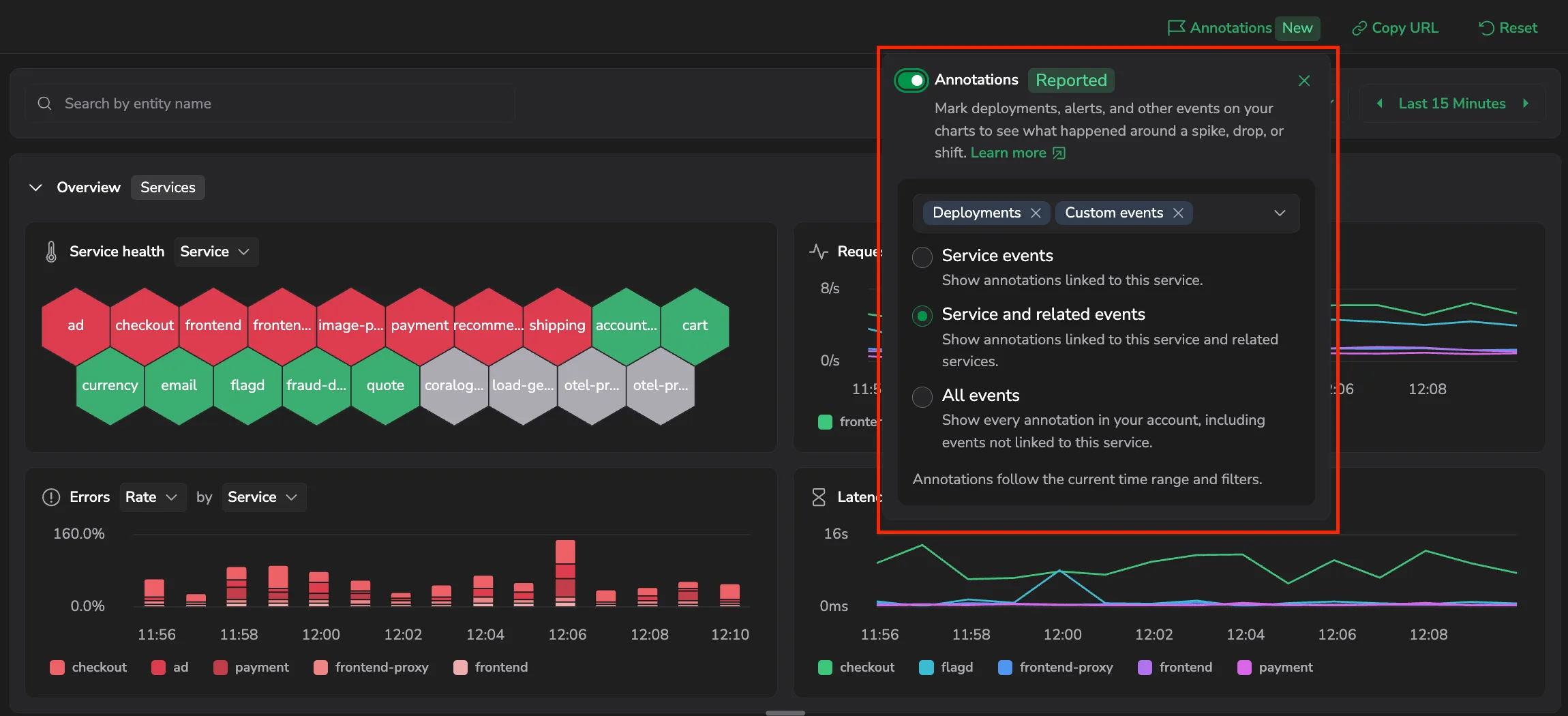
In APM, annotations overlay on the catalog overview charts and on the charts in a service or database drilldown. There you can scope them to the service you're analyzing, to that service and its related services, or to every event in your account. For the full APM workflow, see Annotations.
Send events to Coralogix
Deployment and custom annotations come from the Coralogix ops-events ingest API. Send an event once and it appears as an annotation in APM and Explore, scoped by the attributes you include. Coralogix also stores each event in the default/ops.events dataset, so you can query your events in Explore with DataPrime.
The API is available as REST and gRPC:
- REST: send a
POSTrequest to https://api./v1/ops-events. - gRPC: call
com.coralogixapis.opsevents.v1.OpsEventsIngestService/CreateOpsEvent.
Authenticate with a Send Your Data Key in the Authorization header: Authorization: Bearer <api-key>. The key must be allowed to send ops events: when you create the key, select the OpsEvents role preset. A key created with a different preset (for example, SendData) is rejected with 403 Forbidden.
Each event is one of two kinds:
cdEvent: a CI/CD deploy, with pipeline and version-control metadata. Draws as a Deployments annotation.customEvent: a generic event such as an alert, feature flag, campaign, or configuration change. Draws as a Custom events annotation.
Minimum required fields
timestamp: an RFC 3339 timestamp for when the event happened. It must be within 24 hours of the current server time.description: a short, human-readable summary, shown on hover. Must not be empty.- One event object: either
cdEventorcustomEvent.
Fields that unlock filtering and correlation
attributes.service.name: links the event to a service. An event without it appears only in the account-wide scope.attributes.environment: scopes the event to an environment (for example,production,staging).cdEvent.system: the CI/CD system. One ofCD_SYSTEM_GITHUB,CD_SYSTEM_ARGOCD,CD_SYSTEM_JENKINS,CD_SYSTEM_GITLAB,CD_SYSTEM_BITBUCKET,CD_SYSTEM_AZURE_DEVOPS,CD_SYSTEM_SPINNAKER.cdEvent.pipeline.name,cdEvent.pipeline.run.id,cdEvent.pipeline.run.url,cdEvent.pipeline.run.durationSeconds: pipeline run details and a deep link.cdEvent.pipeline.result.status: one ofPIPELINE_RESULT_STATUS_SUCCESS,_FAILURE,_TIMEOUT,_CANCELLATION,_ERROR,_SKIP.cdEvent.pipeline.task.name,cdEvent.pipeline.task.type: task identifier and kind (PIPELINE_TASK_TYPE_BUILD,_TEST,_DEPLOY).cdEvent.vcs.system,cdEvent.vcs.type: version-control provider (VCS_SYSTEM_GITHUB,_GITLAB,_BITBUCKET) and reference kind (VCS_REF_TYPE_BRANCH,_TAG).cdEvent.vcs.repository.name,cdEvent.vcs.repository.url,cdEvent.vcs.ref.head.name,cdEvent.vcs.ref.head.revision: repository and branch, tag, or commit.
Stored events strip the enum prefix (CD_SYSTEM_ARGOCD becomes argocd, and so on), so DataPrime queries against default/ops.events filter on the lowercase form.
Example: send a deployment event
Set $CX_API_KEY to a Send Your Data Key that has the OpsEvents role preset, and send with a current timestamp:
curl -X POST https://api.eu2.coralogix.com/v1/ops-events \
  -H "Authorization: Bearer $CX_API_KEY" \
  -H "Content-Type: application/json" \
  -d '{
    "opsEvent": {
      "timestamp": "2026-07-13T10:15:00Z",
      "description": "payments-api v2.14.0 deployed to production",
      "attributes": {
        "service": { "name": "payments-api" },
        "environment": "production"
      },
      "cdEvent": {
        "system": "CD_SYSTEM_GITHUB",
        "pipeline": {
          "name": "deploy-production",
          "run": { "id": "9753949763", "url": "https://github.com/org/payments/actions/runs/9753949763" },
          "result": { "status": "PIPELINE_RESULT_STATUS_SUCCESS" }
        }
      }
    }
  }'
Example: send a custom event
A custom event needs only a current timestamp, a description, and an empty customEvent object. Attach any structured data under attributes.additional:
curl -X POST https://api.eu2.coralogix.com/v1/ops-events \
  -H "Authorization: Bearer $CX_API_KEY" \
  -H "Content-Type: application/json" \
  -d '{
    "opsEvent": {
      "timestamp": "2026-07-13T13:45:00Z",
      "description": "quarterly feature flag rollout started",
      "attributes": {
        "environment": "production",
        "additional": { "flag": "new-billing-ui", "rolloutPercent": 25 }
      },
      "customEvent": {}
    }
  }'
Send events from your CI/CD pipeline
Each of these guides has a ready-to-use step or configuration that sends a deployment event on every run:
Version benchmark annotations (legacy)
Version benchmark markers come from the Version Benchmarks version-tags API rather than the ops-events API. In Explore, they mark each released version so you can line a shift in your data up with the version that preceded it.
Version Benchmarks is a legacy capability. Annotations are replacing it as the way to mark deployments and events on your charts, and Version Benchmarks will be deprecated in a future release.
Version Benchmarks stays available in the meantime. Annotations don't yet cover every Version Benchmarks capability, so you can keep using it where you rely on those. For deployments, send events through the ops-events ingest API so they appear as Deployments annotations, and see Version Benchmarks for what the feature offers today.
Permissions
- View annotations: requires access to the surface you're viewing (APM or Explore).
- View version benchmark markers: requires permission to view Version Benchmark tags (
VERSION-BENCHMARK-TAGS:READ). - Send events: use a Send Your Data Key with the OpsEvents role preset (see Send events to Coralogix).
Related resources
- Annotations in APM: scope annotations to a service and its related services.
- Time-series chart: the Explore chart that annotations overlay.
- Version Benchmarks: the version-tags feature that version benchmark markers come from.