Templating connector fields
Dynamic fields let a single connector deliver to different channels, email addresses, or services based on the alert or case that triggered the notification. Define the routing once and reuse the connector across many routers, instead of creating a separate connector for each team, channel, or recipient.
A dynamic field supports two editing modes:
Builder : Set match conditions and values with form controls, without writing templating syntax.
Query : Write the Tera expression directly for full control. See Templating for dynamic routing.
Use the dynamic field builder
The builder routes a notification using alert or case attributes such as priority, name, and labels. It resolves each dynamic field, the Slack channel, the email recipients, or the PagerDuty service key, at send time. Because the routing lives on the connector, one connector can serve many teams across multiple routers, which keeps the number of connectors and routers you maintain small.
Switch a field to dynamic
- Open the connector configuration and locate a field that supports templating, such as Channel, Email addresses, or Service key.
- Select Dynamic, then select Builder.
Define conditions and values
- Each condition pairs a Conditions (IF) row with the value to use when it matches, such as Channel or Email addresses.
- Match on Priority, Name, or a Label key, using the equals or exists operator. Terms within one condition combine with AND.
- Select Add condition to add more conditions. Conditions combine with OR, and Coralogix applies the first one that matches.
- A value can mix static text with placeholders such as
{{priority}}or{{ _context.entityLabels["channel"][0] }}.
Set a fallback value
Fallback value is required. Coralogix sends the notification to this value when no condition matches, or when a resolved value is empty or fails to render. Every builder field supports a fallback value.
Apply different logic per entity
By default, the builder applies the same conditions to all entities, both Alerts and Cases. To define separate values per entity, switch the field to Query and turn off All entities. Coralogix then shows a separate expression for Cases and Alerts.
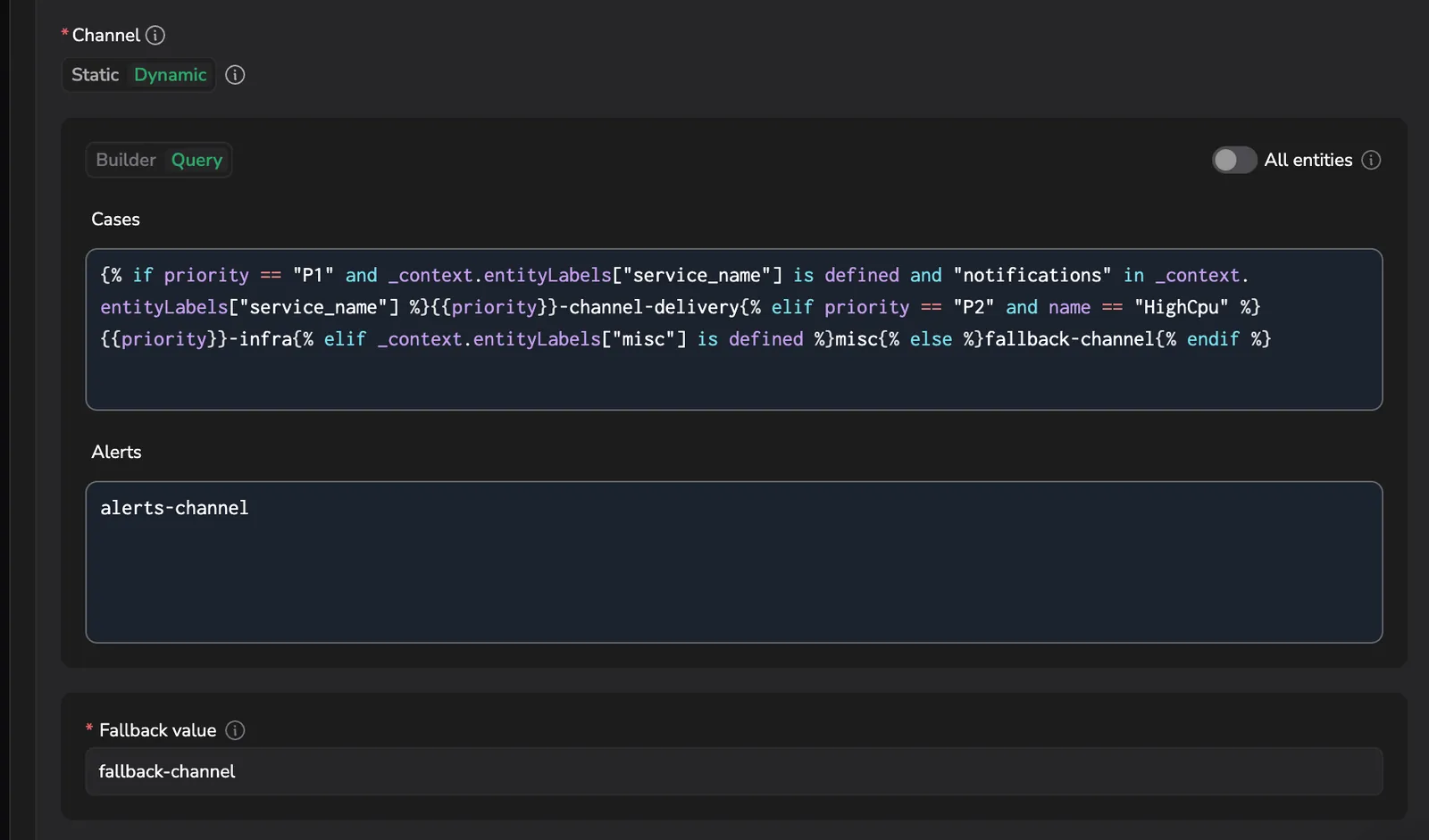
Displays the per-entity Query view, where Cases and Alerts each take their own expression.
Examples
- Route a Slack channel by priority and label
- Route to a channel named in a label
- Send email to addresses from a label
Routes P1 service notifications to a priority-named delivery channel, P2 high-CPU alerts to an infrastructure channel, and anything labeled misc to a catch-all channel. Notifications that match no condition go to the fallback channel.
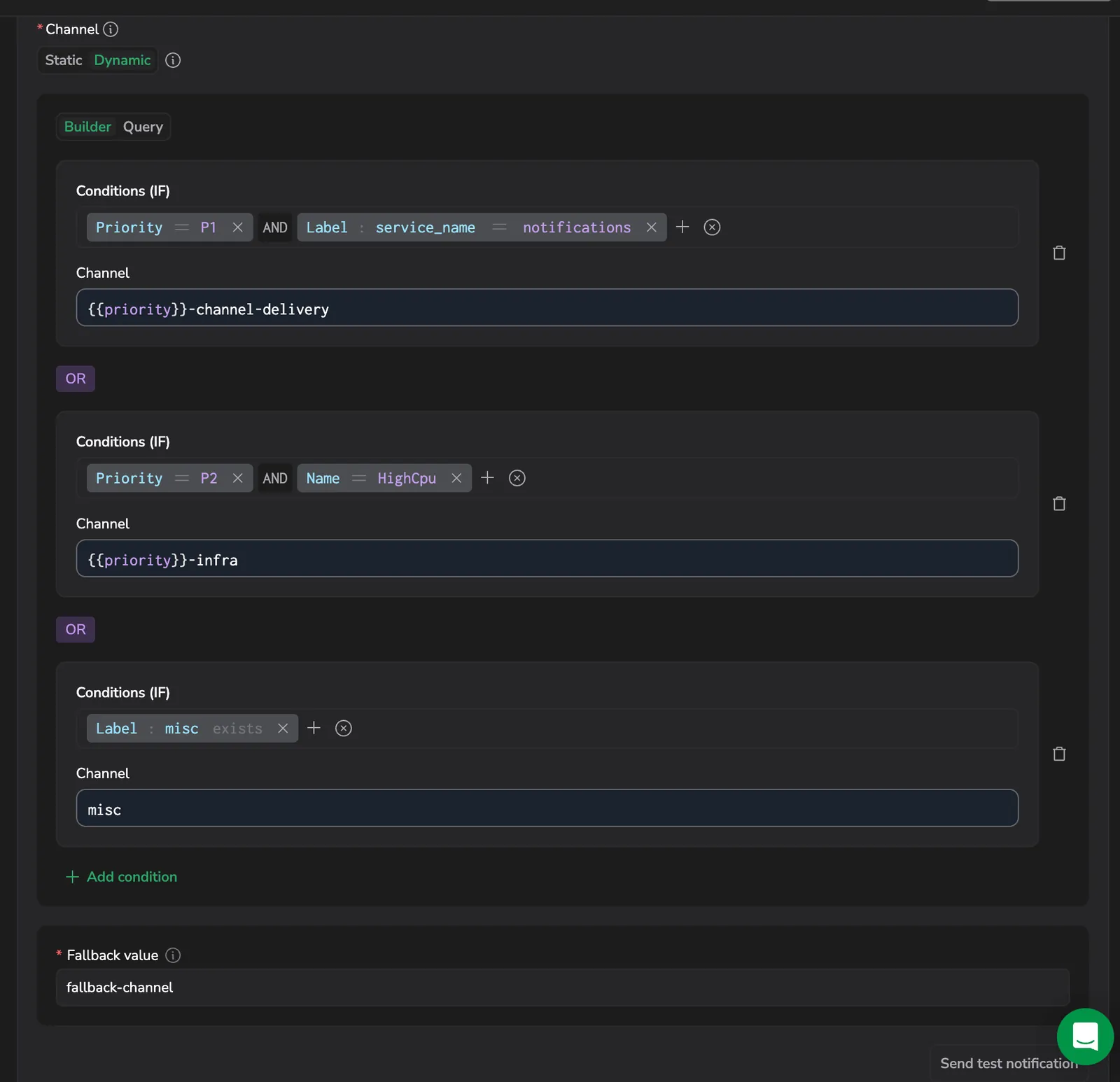
Shows three conditions combined with OR and a fallback value of fallback-channel.
Reads the channel name from a channel label on the alert or case. When the label exists, Coralogix routes to its first value; otherwise it uses the fallback channel.
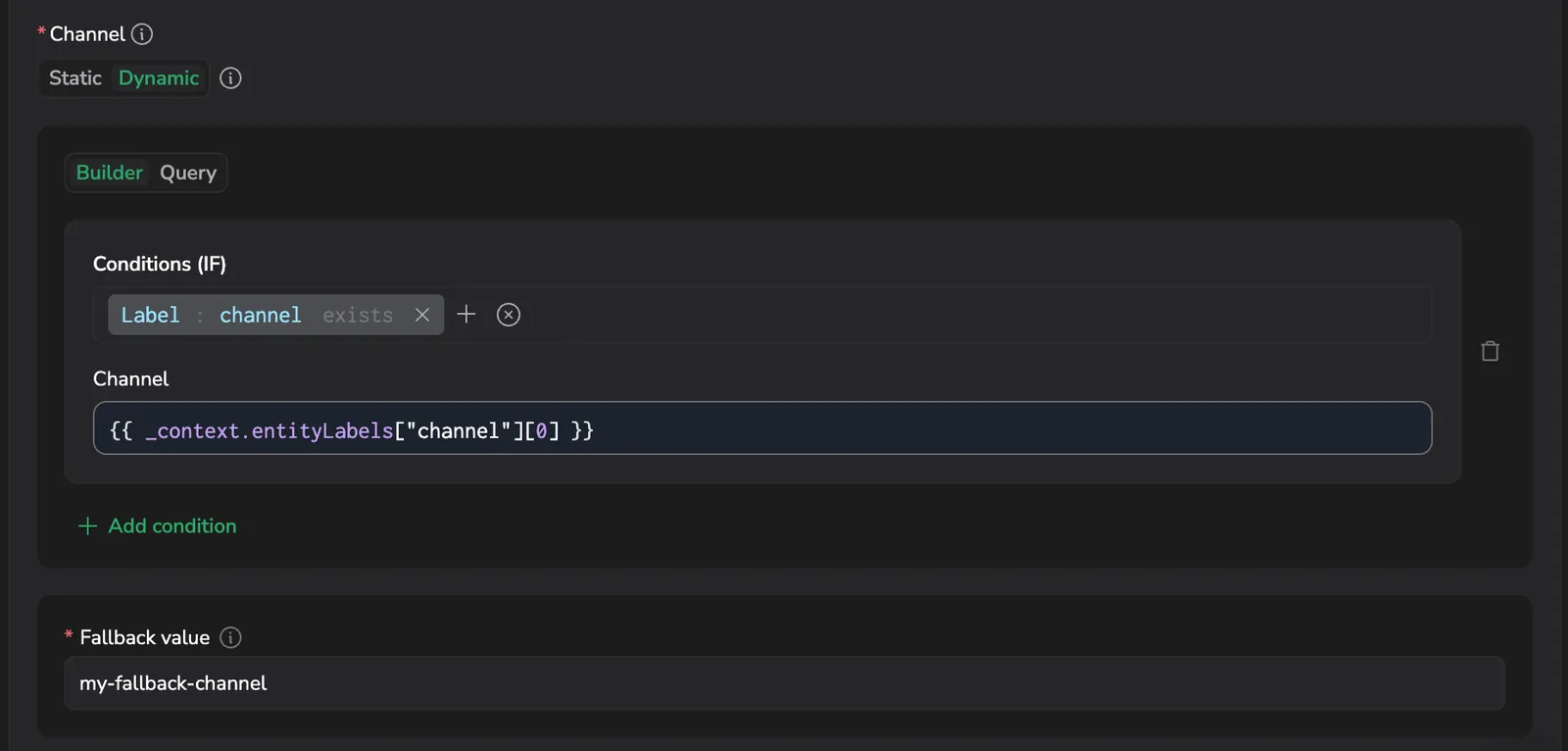
Shows a single condition that resolves the channel to {{ _context.entityLabels["channel"][0] }}.
Reads recipients from an emails label. Define the label on the alert or case, wrap each value in quotes, and separate multiple addresses with commas.

Shows label values single_email:"[email protected]" and many_emails:"[email protected]","[email protected]".
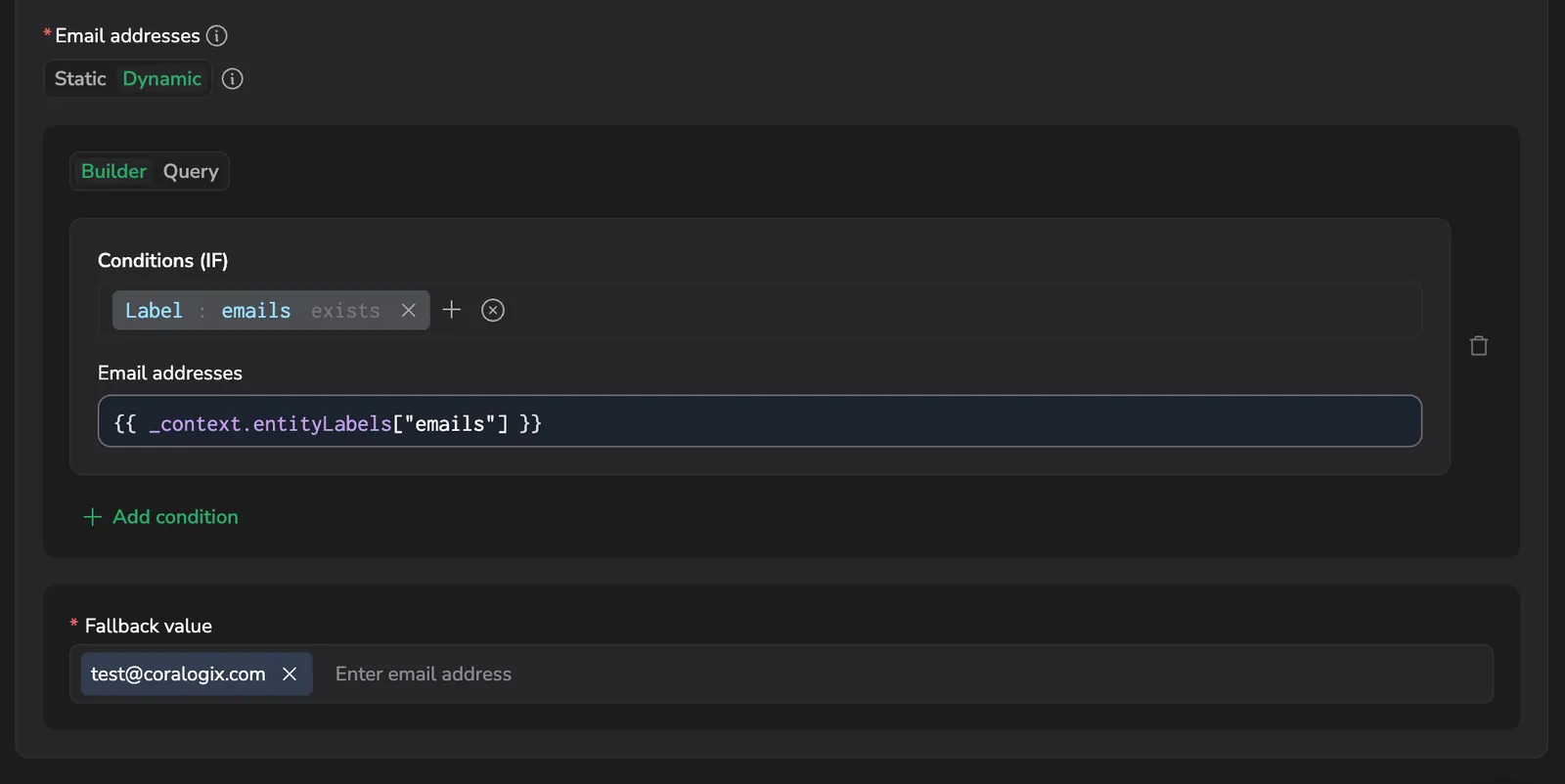
Shows a condition that resolves recipients to {{ _context.entityLabels["emails"] }} with a fallback of [email protected].
Templating for dynamic routing
For full control, switch a dynamic field to Query and write a Tera expression. The Channel and Service key fields support Tera templating, which routes notifications to different Slack channels or PagerDuty services based on alert attributes.
Customization examples:
- Using alert priority
- Routing based on the first group's team ID
- Using team name when a naming standard exists
- Using team name when no naming standard exists
{{alert.highestPriority}}-interface
-
This configuration dynamically inserts the priority of an alert into the channel name.
-
The
{{alert.highestPriority}}placeholder retrieves the priority level from the alert (alert). -
The notification is sent to a channel with the format
priority-interface(for example,high-interface,medium-interface).
{{alert.groups[0].keyValues.teamId}}-interface
-
This configuration dynamically routes notifications based on the team ID found in the first alert group.
-
The placeholder
{{alert.groups[0].keyValues.teamId}}retrieves theteamIdvalue from the first group in the alert. -
The resulting notification channel follows the format
teamId-interface(for example,engineering-interface,security-interface).
[{{...teamName | lower | replace(from=' ', '')}}-interface]
This ensures the team name is formatted correctly by:
-
Converting it to lowercase (
lower). -
Replacing spaces with an empty string (
replace(from=' ', '')).
The resulting notification channel follows the format teamname-interface (for example, devops-interface).
{% set first_group = alert.groups | first %}
{% if first_group is object %}
    {% set team_name = first_group.keyValues | get(key='Team', default='-') %}
{% else %}
    {% set team_name = "-" %}
{% endif %}
{% if team_name == "Supply" %}
    supply-alerts
{% elif team_name == "Billing" %}
    billing-alerts
{% else %}
    techsupport_alerts
{% endif %}
This script determines the notification channel based on the team name in the alert metadata.
If a recognized team name is found, the alert is sent to a predefined channel:
-
"Supply"sends tosupply-alerts -
"Billing"sends tobilling-alerts
If no matching team name exists, the alert defaults to techsupport_alerts.