Notification Deliveries
Notification Deliveries is the history of every notification Notification Center attempted to send. Each row is a single delivery attempt, carrying its status alongside the alert or Case that triggered it and the connector, preset, and router that handled it.
Notification Deliveries is an Early Access feature and may not be enabled on your account yet.
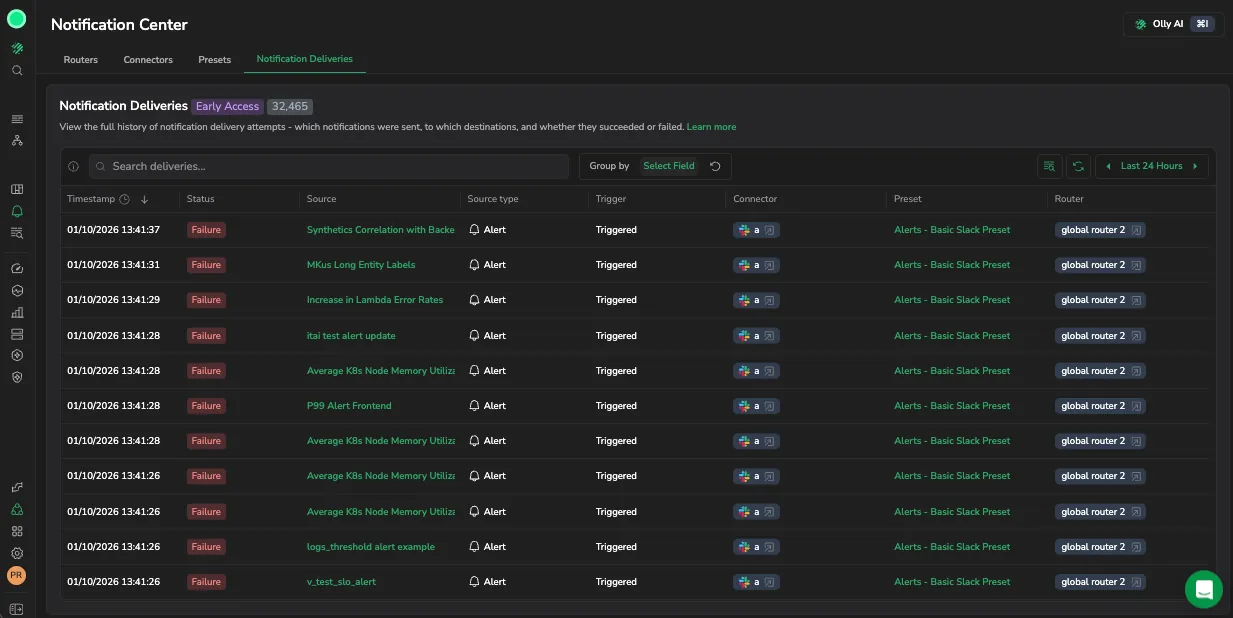
Shows one row per delivery attempt, with the connector, preset, and router that handled it.
Why it matters
When someone says a notification never arrived, the question underneath is always the same: did Coralogix fail to send it, or did the destination fail to accept it? Those are different problems with different owners, and without delivery history you cannot tell them apart. Notification Deliveries settles it in one place.
Take a page that nobody acted on overnight. Open the tab, set the range to cover the incident, and look at the row for that alert:
- It is not there at all. Nothing was sent, so the problem is upstream of delivery. The alert did not fire, or no router matched its labels. Check the routing labels on the alert against the rules in Define a routing rule.
- It is there and marked Success. Coralogix handed the notification over and the destination accepted it. The investigation moves to the destination: a muted channel, a filtered inbox, an on-call schedule with nobody on it.
- It is there and marked Failure. Open the row. The drawer names the failure category, the error the destination returned, and the HTTP status, so you can tell an expired Slack token from a rate limit from a payload the destination rejected.
The same view answers the broader question of whether this is one notification or a pattern. Group by connector and a single failing destination stands out from thousands of healthy deliveries. Group by status and you can see whether failures started at a particular time, which usually points at a credential that expired or a destination that changed.
Because every row links back to the connector, preset, and router that produced it, you can go straight from a failed delivery to the configuration that caused it, instead of working backwards from the alert.
Open Notification Deliveries
In Coralogix, go to Notification Center, then select the Notification Deliveries tab (alongside Routers, Connectors, and Presets).
Read the deliveries grid
The grid lists delivery attempts over the selected time range, newest first. Each row has the following columns:
| Column | Description |
|---|---|
| Timestamp | When the delivery was attempted. |
| Status | Whether the attempt was a Success or a Failure. |
| Source | The alert or Case that triggered the notification. Select it to open the alert definition or the Case in a new tab. |
| Source type | Whether the source is an Alert or a Case. |
| Trigger | The event that sent the notification, such as Triggered or Resolved. |
| Connector | The connector that delivered the notification, with a link to open it. |
| Preset | The preset used to format the payload. |
| Router | The router whose rule matched and routed the notification. |
Filter and group deliveries
- Search deliveries: filter the rows by text.
- Group by: select a field to group the rows.
- Time range: adjust the range (for example, Last 24 hours) to widen or narrow the history shown.
Inspect a delivery
Select a row to open its detail drawer. The drawer includes a routing card that shows the matched routing rule as a chip; select the chip to open the router that owns the rule.
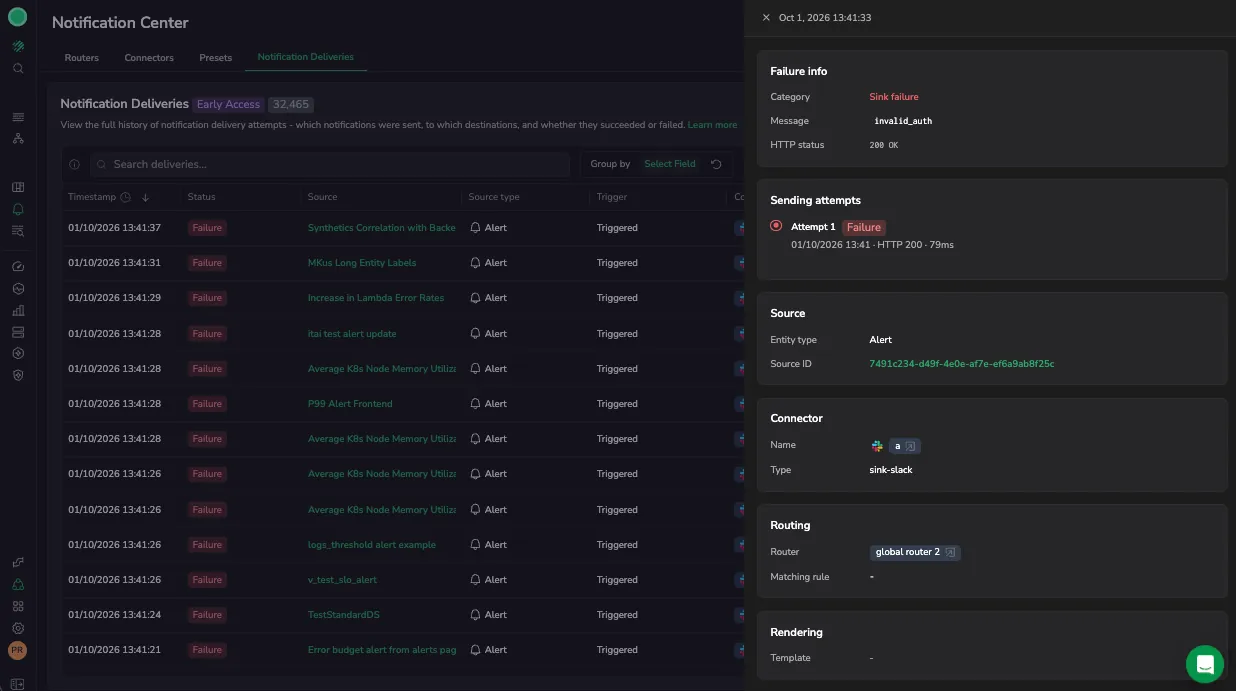
Displays the failure category, the message the destination returned, and every send attempt with its latency.
The drawer is organized into the following sections:
| Section | Description |
|---|---|
| Failure info | For failed deliveries, the failure Category (such as Sink failure), the error Message returned by the destination, and the HTTP status. |
| Sending attempts | Each attempt with its status, timestamp, HTTP status, and latency. |
| Source | The Entity type (Alert or Case) and the Source ID of the entity that produced the notification. |
| Connector | The connector Name and Type used for the delivery, such as sink-slack. |
| Routing | The Router that matched the notification and the Matching rule that applied. |
| Rendering | The Template used to render the message. |
Where the data comes from
Notification Deliveries reads from the notification.deliveries dataset. For the underlying schema and how to query it directly, see notification.deliveries.
Permissions
Opening Notification Deliveries needs all of the following. The tab reads connector, preset, and router configuration to resolve each delivery back to what produced it, so a missing permission hides the tab rather than showing it partly filled.
NOTIFICATION-CENTER-CONNECTORS:READSUMMARYNOTIFICATION-CENTER-CONNECTORS:READCONFIGNOTIFICATION-CENTER-ROUTERS:READCONFIGNOTIFICATION-CENTER-PRESETS:READSUMMARYNOTIFICATION-CENTER-PRESETS:READCONFIGCASES:READ