Ask Olly
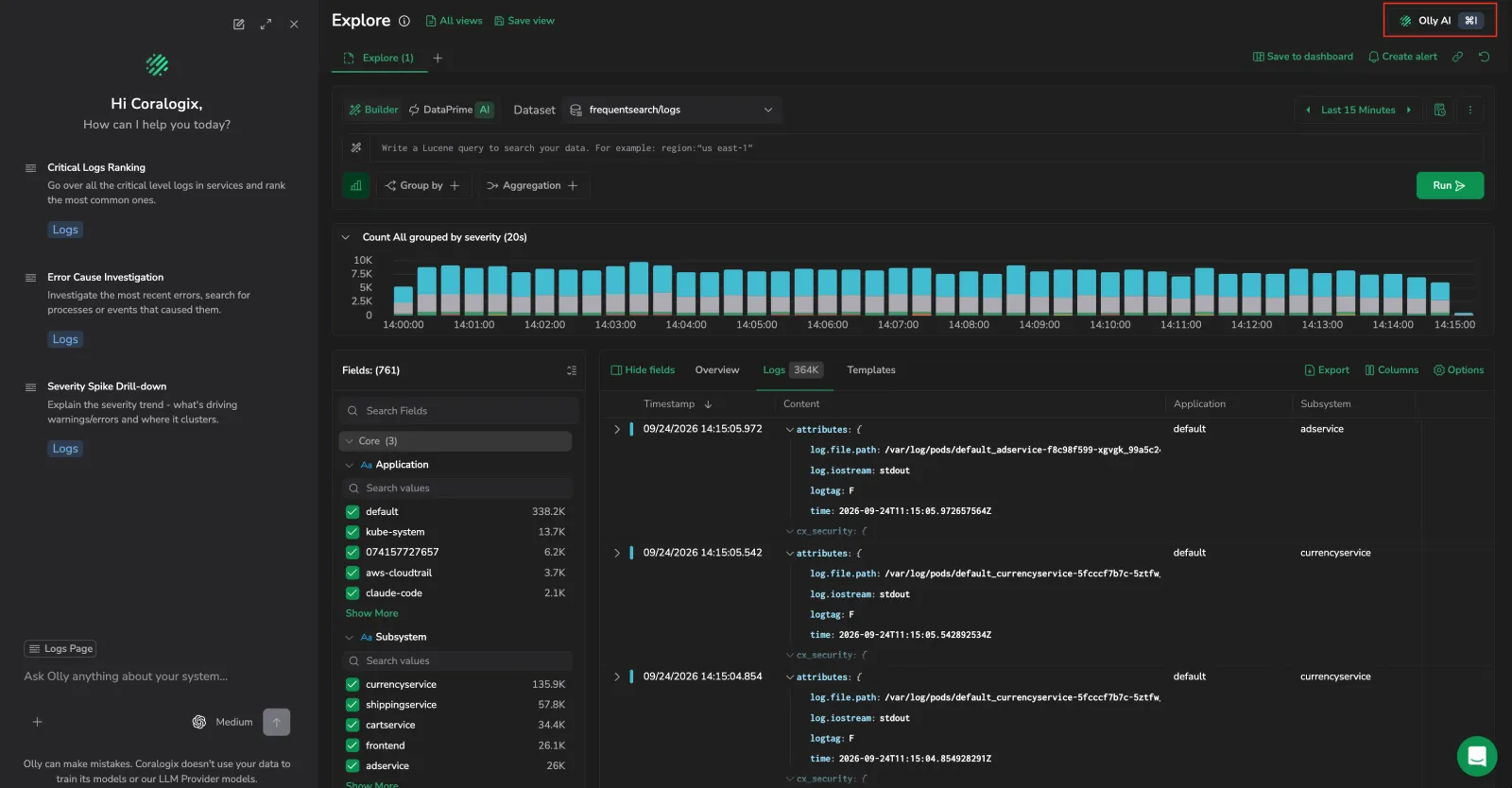
Ask Olly opens the Olly side drawer already scoped to the screen you're on, so you can investigate what you're looking at without describing it first. It's available across Coralogix, from the Olly AI button in the page header, or with the Cmd+I / Ctrl+I keyboard shortcut.
When you open Ask Olly on a supported screen, Olly automatically picks up that screen as context (its query, time range, and filters) and shows it as a chip above the prompt. You can also pin specific records yourself. Both kinds of context are covered in Page and data context.
What you need
- Olly turned on for your account. If the Olly AI button shows a lock icon, contact your team admin or see Enable Olly.
Open Ask Olly
You can open Ask Olly from anywhere in Coralogix:
- Page header: Select the Olly AI button. It carries the Olly logo and the
Cmd+I/Ctrl+Ishortcut, and opens or closes the drawer. - Keyboard shortcut: Press
Cmd+I(macOS) orCtrl+I(Windows/Linux) from any page.
If your team admin hasn't turned on AI for the account, the Olly AI button shows a lock icon and stays inactive until AI is enabled. See Enable Olly.
How Olly knows what you're looking at
Olly answers in the context of where you opened the chat. Two kinds of context appear as removable chips above the prompt:
- Page context (automatic): Olly picks this up from the screen you're on, its query, time range, and filters. The chip is labelled with the screen name and the suffix Page (for example, Logs Page).
- Data context (manual): specific objects you pin yourself with Add to Olly context, a log, a span, a metric chart, or a dashboard widget.
For how chips group, update, and clear, see Page and data context.
Where Ask Olly uses page context
On the screens below, opening Ask Olly attaches a page-context chip automatically. Everywhere else in Coralogix, the Olly AI button still opens the drawer, you'll see a Page context not yet supported here note, and Olly answers from across your whole environment instead of the current screen.
| Area | Screens with page context | What the chip carries |
|---|---|---|
| Explore | Logs, Spans, and the Highlights tab | The current query, time range, and filters |
| Visual Explorer | The Visual Explorer query builder | That you're building an ad-hoc, no-code visualization across logs, spans, and metrics |
| Custom Dashboards | Any dashboard | The dashboard you're viewing |
| Home dashboard | The Home landing page | That you're on the landing overview, with global search and the APM service-health chart |
| Tracing | The trace drilldown, opened from Explore Spans, APM, or RUM | The trace ID and the selected span's fields, plus suggested queries |
| APM | The Service Catalog, Databases, Service Map, and Serverless Catalog, and their drilldowns | The current filters and time range, plus the services, databases, or functions in view (or the one you've drilled into), and the Service Map's node count and state |
| RUM | Every RUM screen and drilldown, overview, sessions, errors, web vitals, network and mobile performance, measurements, versions, and releases | The screen's filters and time range |
| Product analytics | Overview, Heatmaps, Funnels, and Pathways | The selected app, view, and time range on Overview; the selected view and mode on Heatmaps; the funnel, its steps, app, and count mode on Funnels; the pathway, its direction, steps, and starting view on Pathways |
| Infrastructure | The catalog view in Infrastructure Explorer | The resource category and type, view, time range, and search in your current catalog view |
| Cases | A single case, or the cases list | The case you're viewing, or the list |
| AI Center | Overview, application and policy catalogs, AI-SPM, code agents, AI Explorer, applications, and policy configuration | The AI Center view and your current selections |
| Account management | Usage & Quota, and Data Usage, Org Quota Manager, and Quota Rules | Your usage or quota view, tab, timeframe, aggregation, group-by, and filters; on Usage & Quota, also whether you're viewing the organization or your team |
The page-context chip updates as you work: change a filter, the timeframe, or the view, and your next question uses the updated context. You don't need to reopen the drawer.
Add an object as data context
Select Add to Olly context to pin the object you're looking at; Olly opens with it attached. Selecting the control again on the same object reads Remove from Olly context and unpins it. The control is available on these surfaces:
- Logs table: hover any row and select Add to Olly context in the right-pinned column. See Add a log to Olly context.
- Log details panel: select Add to Olly context in the panel header, next to Explain log. See Send the log to Olly as data context.
- Templates grid: hover any row and select Add to Olly context in the right-pinned column. See Add a template to Olly context.
- Spans table: hover any row and select Add to Olly context in the right-pinned column. See Add a span to Olly context.
- Tracing drilldown, span summary: select Add to Olly context in the span summary. See Send a span to Olly as data context.
- Explore time-series chart: select Add to Olly context in the chart toolbar to pin the chart. See Ask Olly about the chart.
- Dashboard widget: hover a widget on a custom dashboard and select Add to Olly context in the widget toolbar, next to the more-actions menu. See Ask Olly about a widget.
- AI Center widget: hover a widget across AI Center (the AI Apps Overview and Application Drilldown, Code Agents, and AI-SPM) and select Add to Olly context in the widget toolbar.
- Infrastructure Explorer catalog: hover a resource row and select Add to Olly context to pin the resource. See Infrastructure Explorer.
You can pin objects of different types and from different surfaces in the same chat. When you send the prompt, Olly attaches every pinned object to the message so it can reason about the exact records, charts, and widgets you picked.
For how pinned objects group, update, and clear, see Page and data context.
Detailed guides
Two screens pair Ask Olly with curated suggested queries for a specific investigation:
- Ask Olly about a span or trace: investigate a trace from the trace drilldown, with five trace-scoped suggested queries: root cause, highest latency, downstream failure, deployment correlation, and next debug step.
- Ask Olly on data pipeline screens: investigate usage, quota, and cost on the Usage & Quota, Data Usage, Org Quota Manager, and Quota Rules screens, with quick-query prompts matched to each screen.
Related resources
- Olly overview, how Olly works across logs, metrics, traces, and alerts.
- Olly chat, the chat interface, prompt templates, and context chips.
- Enable Olly, turn on AI for your account.