Olly best practices
You have more control over the quality of Olly's answers than it might seem, most of it comes down to how you ask, plus a little one-time setup. None of it needs anything beyond the features you already have.
Use this page as a companion to the reference docs, each section links to the feature it builds on.
Before you start
A few one-time settings decide how much Olly can do before anyone asks it a question:
- Turn on the capabilities you need: Olly and its side drawer appear only after AI-Powered Capabilities is on. Turning on any AI capability also covers your team under Coralogix's AI terms. See Enable Olly.
- Confirm your archive is connected: Olly answers from your team's archive rather than from frequent search, so a connected archive is what makes your telemetry queryable in the first place. Set one up with Amazon S3 or Google Cloud Storage.
- Set AI Units caps before you need them: decide per-user and per-group limits while nothing is on fire, so no single person or automation can exhaust the team's shared quota mid-incident. See Usage Management.
Olly always works within the permissions of the person asking, so each user reaches only the data their Coralogix account already allows.
Ask better questions
Olly is conversational by design, so how you open and follow up on a question matters more than any query syntax.
Lead with everything you know
Load your first question with the full picture, the symptom, when it started, what you've already ruled out, and any identifiers such as a service, an account, or a deploy. Detail is context, not noise: every fact you supply is one Olly doesn't have to go and find.
Then follow one investigation through instead of restarting. Everything you've said stays in context, so each follow-up can be a short clause:
- Start broad: "Checkout is failing for some users since 14:22, what's happening?"
- Narrow it: "Is it only the payment service?"
- Widen when the trail leads elsewhere: "Does cart-api show the same pattern?"
- Ask what changed: "What changed in the last deploy?"
Questions about change (deploys, config, alert history) often land faster than questions about current state. For an investigation where the answer isn't a single query result, Olly can drive the whole loop itself; see Autonomous agent.
Ask in plain language
You don't need query syntax. Describe the outcome you want, let Olly translate it, then add what you know.
| Instead of a query | Ask this, then add what you know |
|---|---|
status:502 AND service:payment-api | Why is checkout failing for some users? |
error logs last 1h | What changed in the last hour that could break checkout? |
p99 payment-api | Is payment-api slower than usual, and since when? |
list alerts firing | Which alerts fired during the checkout incident, and do they share a cause? |
For the chat interface, prompt templates, and how conversations are saved and shared, see Olly chat.
Put Olly to work on a schedule
You don't have to be the one asking. Any prompt you'd type in chat can run on a schedule, so Olly investigates on its own and hands you the result, a daily error summary, a weekly capacity review, a health check timed to a release, or a standing watch for a condition that keeps slipping through.
What makes this more than a saved search: each run is a full Olly investigation, not a static query. Olly applies the same agentic reasoning it would in a live chat (gathering evidence, correlating across logs, metrics, and traces, and writing up what it found) on every run, on its own.
- Set the cadence: one-off, hourly, daily, weekly, or monthly.
- Read the reasoning, not just a verdict: every run opens its own chat and lands in the task's run history, so you can open any past run and see exactly how Olly reached its conclusion.
- Hear about it when it matters: a run can notify you by email or in a Slack channel when it finishes, so you only look when there's something to see.
- Start from what already works: turn a chat prompt (or one of your skills) into a scheduled task. Create and manage tasks from the Scheduled tasks page, or straight from chat by typing
/scheduled-tasks.
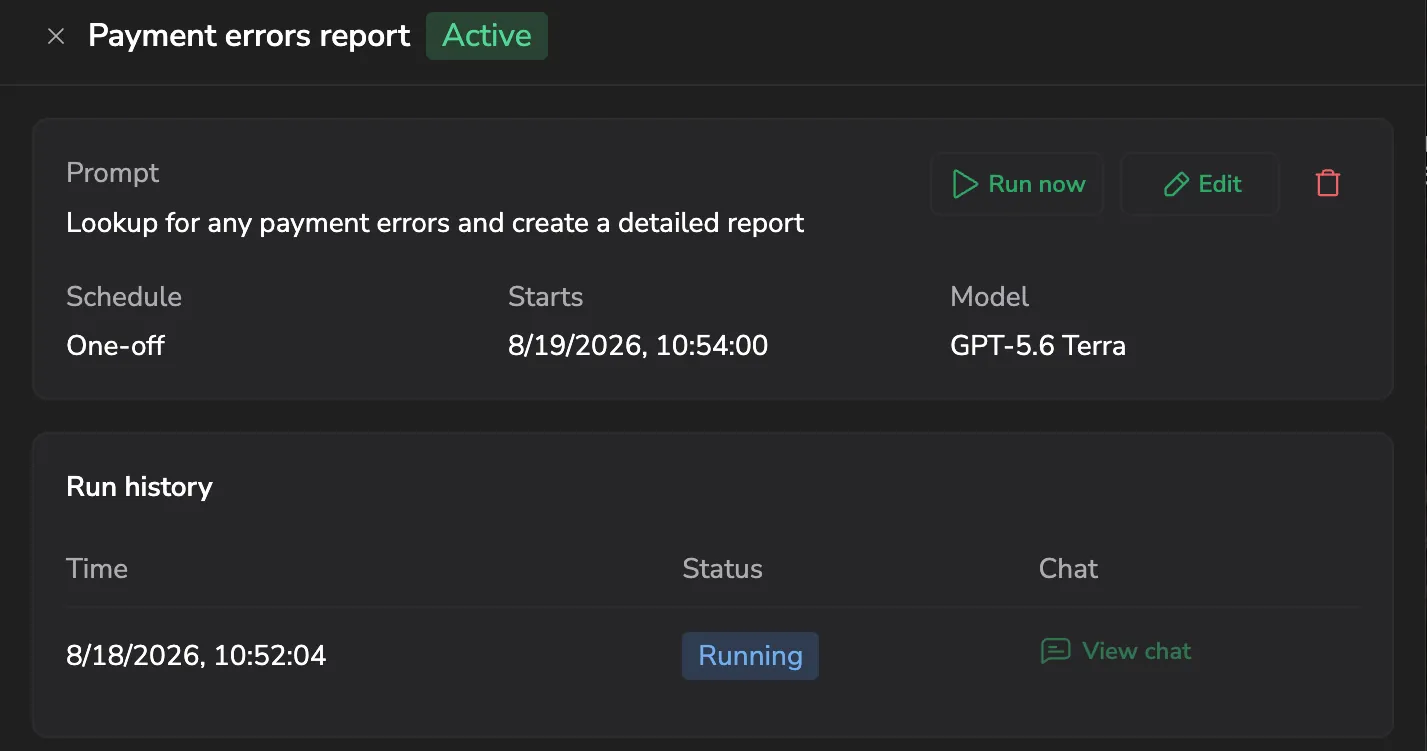
This is what turns Olly from something you ask into something that watches for you. See Scheduled tasks for the full setup.
Ask from where you're working
Where you open Olly tells it what you're looking at. Open the alert, dashboard, or case you're worried about and ask from there, Olly picks up that screen's query, time range, and filters as context, so your question speaks to the decision in front of you instead of starting from an empty chat.
- Press
Cmd+I(macOS) orCtrl+I(Windows/Linux), or select Olly AI in the page header, to open the drawer scoped to the current screen. See Ask Olly for where page context is supported. - Pin specific records (a log, a span, a metric chart, or a dashboard widget) with Add to Olly context, so Olly reasons about the exact objects you picked. See Page and data context.
A click-driven investigation becomes an agentic one without you describing anything twice.
Check the evidence before you act
Olly supports your decisions rather than replacing them, and like any AI system it can be wrong or incomplete. Before you act on an answer (especially an irreversible one) open what it cites:
- The chart it drew, and whether its window matches your incident.
- The rows behind a number, not only the number.
- The query it ran, so you know what it didn't look at.
- The time range, and whether it covers the change you suspect.
Rate the answers that mattered with the thumbs-up or thumbs-down control, feedback tunes answer quality over time. When an answer is wrong, say so, rephrase, and keep going rather than starting over. See Chat actions.
Match the effort to the question
Every model that supports reasoning starts at Medium, which fits most questions. Raise the effort when the question is genuinely harder, and lower it for quick lookups, Olly remembers the level you chose for each model.
- Medium (default): Is this service healthy right now? What does this error mean? What changed in the last hour? Summarize what this dashboard shows.
- High or X-High: Why did checkout break, end to end? Correlate one spike across three services. Work through an ambiguous symptom. Compare this incident with the last one.
The input bar also picks the model. GPT, Claude, or Gemini. See Effort and Model selection.
Teach Olly your environment
Stop repeating yourself. Three tools capture context so Olly reuses it, each suited to a different kind of thing:
- Rules: a standing preference or fact that should apply to every question, prioritizing production over staging, or what a field name means. Always on.
- Memories: facts Olly picks up from your chats and carries forward. You can also ask it to remember something outright. Personal to you.
- Skills: a reusable playbook for one kind of investigation (a triage runbook, a report format) loaded automatically when it fits, or invoked with
/.
A simple test: if you want it applied to every question, make it a rule; if it only matters for one kind of investigation, make it a skill. You don't have to author skills from scratch. Run the investigation in chat, get it right, then ask Olly to save the conversation as a skill. Admins can share team rules and team skills so everyone inherits them.
A first-week checklist
Each of these is something you or an admin can finish without a project or a ticket:
- Turn on the AI capabilities your team needs, and clear the AI terms with legal.
- Confirm your archive is connected, without it, there's nothing for Olly to query.
- Set per-user and per-group AI Units limits before anyone needs them.
- Ask one real question from a recent incident, and follow it up three or four times.
- Schedule one recurring check that keeps getting missed.
- Turn your best investigation into a skill so the next person inherits it.
- Set one team rule everyone benefits from.
Next steps
- New to Olly? Start with Olly chat.
- Ready to scope questions to what you're viewing? See Ask Olly.
- Setting Olly up for a team? See Enable Olly and Usage Management.