Connectors
Connect Olly to the tools your team already works in, so it can pull context from them during an investigation. Olly reaches each tool through that tool's Model Context Protocol (MCP) server.
Every connection is personal. Olly acts with your credentials and reaches only what your own account in that tool can reach, so connecting a tool does not expose it to your teammates. You decide which of the tool's capabilities Olly may call.
Connectors are in public beta and not yet available to every team. To request access, contact your account representative or Support.
What you need
- Connectors turned on for your team. They are off until an admin turns them on. See Turn connectors on for your team.
- An account in the tool you want to connect, with access to the projects or repositories you expect Olly to read.
- For a tool that signs in with an API key, a token you generate in that tool.
Available connectors
| Connector | Sign-in | What Olly uses it for |
|---|---|---|
| GitLab | OAuth 2.0 | Issues, merge requests, and projects, cited in Olly's answers |
| Jira & Confluence | OAuth 2.0 | Issues, sprints, and Confluence runbooks, to correlate production signals with tickets |
| PagerDuty | API key | Incidents, on-call schedules, and services, to enrich an alert investigation |
| Sentry | OAuth 2.0 | Stack traces, releases, and suspect commits behind an error spike |
| Linear | OAuth 2.0 | Issues, projects, and cycles, cited in Olly's answers |
| Notion | OAuth 2.0 | Runbooks, postmortems, and design docs, so Olly can cite your team's written procedure |
Coming soon
Connectors for JFrog and Wiz are on the way. You cannot connect them yet.
Connect a tool
- In Coralogix, select Olly AI in the navigation bar, then Connectors.
- Find the tool you want and select Connect.
- Complete the sign-in for that tool:
- OAuth 2.0: Coralogix sends you to the tool's sign-in page. Approve the request and you return to the connectors page.
- API key: generate a token in the tool, then paste it into the dialog box and confirm. Each connector links to the page in its own documentation that explains where to generate the token.
- Review the tools Olly may call, then select Save.
Olly starts using the connection on your next message.
Choose which tools Olly can call
Each connected tool exposes its own set of tools, and you control which ones Olly is allowed to call. Select Manage tools on a connection to open the list. The card shows how many of the available tools you have authorized.
Tools are grouped by what they can do:
- Read-only: tools that only read data. These are authorized automatically when you connect.
- Write / delete: tools that create, change, or delete data in the connected system. These stay off until you turn them on.
A tool counts as read-only only when its server explicitly declares it as such. Anything the server leaves unlabeled is grouped with write and delete tools, so a tool whose effect Coralogix cannot confirm stays off until you authorize it deliberately.
Authorizing a write or delete tool lets Olly change data in that system using your credentials. Turn on only the tools you want Olly to act with.
Check a connection's status
Each connector shows one of three states:
- Connected: Olly can use the tool. The card also shows when the connection was last validated.
- Not connected: no connection exists yet.
- Reconnect needed: Olly can no longer authenticate with the tool, so it cannot use the connection until you reconnect.
Connections whose connector is no longer offered appear separately under Other connections, where you can still review their tools or disconnect them.
Reconnect a tool
Select Reconnect on a connection that needs it, then confirm. Reconnecting removes the current connection along with your tool selection, then takes you through the sign-in again, so review the tools afterward.
Disconnect a tool
Select Disconnect on the connection and confirm. Olly loses access to the tool and the stored credential is deleted. To use the tool again, connect it again from the connectors page.
Turn connectors on for your team
Connectors are off for every team until an admin turns them on. Until then the connectors page shows a banner explaining that an admin turned connectors off, and Connect and Reconnect are unavailable.
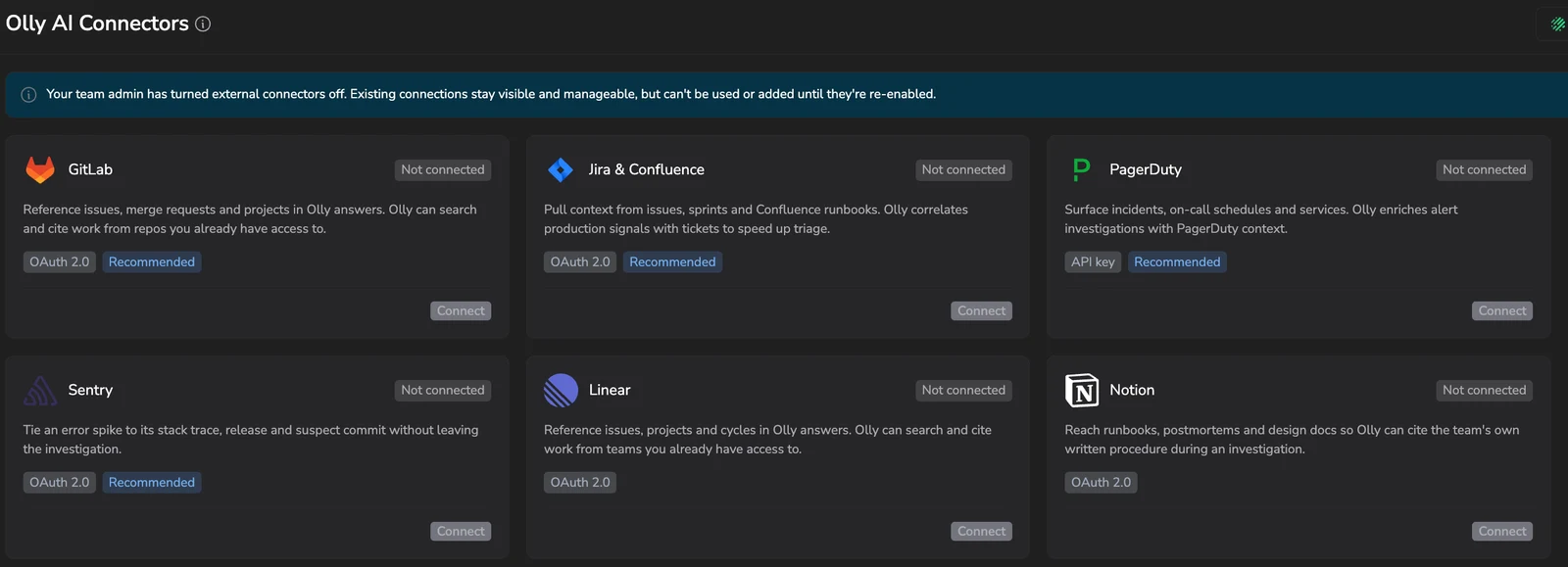
Shows what members see while connectors are off, with each connector's sign-in method and its connection status.
The setting lives on the AI settings page, alongside the one that controls whether Olly can reach the public internet. See AI settings.
- Select Olly AI in the navigation bar, then AI Settings.
- Turn Enable Connectors on or off.
While the setting is off, members cannot add a connection and Olly cannot use the ones they already made. Those connections stay listed, and members can still review their tools or disconnect them, so turning the setting back on restores what your team already configured.
Each connection belongs to the member who created it, and Olly acts with that member's credentials in the connected tool. Turning the setting on lets members connect their own tools, it does not give Olly access to anything on its own. Members then decide which of a tool's capabilities Olly may call, as described in Choose which tools Olly can call.
Permissions
| Permission | What it allows |
|---|---|
OLLY:SENDMESSAGE | Open the connectors page and manage your own connections |
TEAM-AI-SETTINGS:MANAGE | Turn connectors on or off for the whole team |
See the full list in Permissions list.
Next steps
Review how Olly processes and protects your data in Data processing, privacy, and compliance.