Create and edit alerts
Ask Olly to set up monitoring in plain language, and it builds the alert for you, no need to know the alerts UI or get every condition right by hand. Describe what you want to catch ("tell me when checkout errors spike"), and Olly drafts the alert definition, shows you exactly what it will create, and makes the change only after you approve it.
Olly can create new alerts, edit existing ones, and enable or disable them. Every change runs through a confirmation step, so an alert never fires (or stops firing) without your go-ahead.
What you need
- Olly enabled for your team. See Enable Olly.
- Permission to create and edit alerts. Olly inherits your account's permissions, so it can only make changes you are allowed to make. See Permissions.
- A Coralogix chat with Olly. Alert creation and editing run in the Olly chat in the web app, the Olly tab or the side drawer.
Ask Olly to create an alert
- Open Olly and describe the alert you want in natural language. For example:
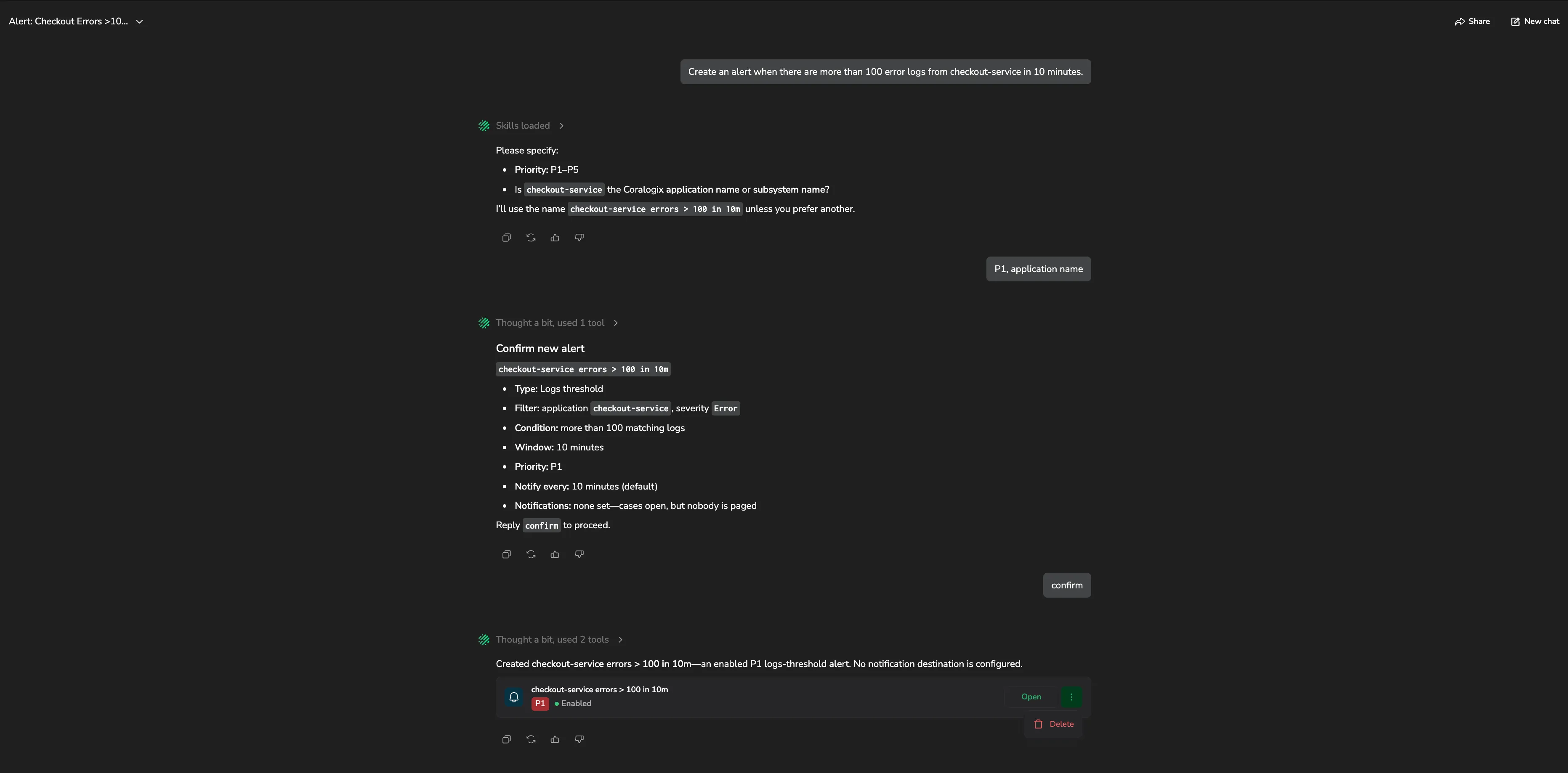
- "Create an alert when there are more than 100 error logs from checkout-service in 10 minutes."
- "Alert me if RDS CPU goes above 90%."
- "Set up a P1 alert for failed logins spiking."
- If Olly needs more detail (the condition, threshold, time window, or priority) it asks a short follow-up. Answer in the chat.
- Olly posts a summary of the alert it is about to create: the type, condition, time window, and priority. Review it.
- Reply to approve (Olly prompts you to reply
confirm) or keep chatting to adjust the details. Olly creates the alert only after you approve; asking for the alert is not itself the confirmation. - Olly creates the alert in Coralogix and shows an alert card in the chat.
Olly can also suggest an alert on its own while investigating an issue. The same review-and-approve flow applies.
What Olly can create
Olly builds the same alert definitions you can create in the alerts UI, including:
- Logs alerts, threshold (count), ratio, unique count, and relative-time
- Metric alerts on a PromQL query
- Tracing alerts on span data
It sets the priority (P1 through P5) and, when you ask, groups the alert by one or more fields so each value combination opens its own case. Time windows come from the set Coralogix supports; if you ask for a window that isn't available, Olly rounds to the nearest supported one and shows the substitution in its summary before you approve.
For the full alert data model (conditions, aggregations, and notification routing) see Introduction to alerts.
Edit an existing alert
- Tell Olly what to change, for example, "change the threshold on the payment errors alert to 200," or "rename it to Checkout 5xx spike."
- If more than one alert matches the name, Olly asks which one you mean, using the priority, type, or query to tell them apart.
- Olly shows the change as a
current → newsummary of only the fields that change. - Reply to approve. Olly applies the change and shows the updated alert card.
Enable or disable an alert
Ask Olly to enable or disable an alert to start or stop it firing. Disabling stops the alert from firing and opening cases, and it is reversible. Enable it again at any time. Enable and disable go through the same confirmation step as create and edit, because they change live monitoring.
Delete an alert
Olly does not delete existing alerts from chat, because deletion is the one alert change with no undo. If you ask Olly to delete an alert, it offers to disable it instead, or points you to the alerts UI to remove it. See Alert definition management.
The one exception is an alert Olly just created in the current conversation: its alert card includes a delete action so you can undo a fresh mistake right away.
The alert card
After Olly creates or edits an alert, it shows an alert card in the chat with:
- The alert name and its priority badge.
- The status. Enabled or Disabled.
- Open: opens the alert in Coralogix in a new tab, where you can review or fine-tune it.
For an alert created earlier in the same conversation, the card's more actions menu () also offers Delete, which removes the alert after you confirm.
Limitations
- Alert creation and editing are available in the Olly chat in the web app. They are not available from Slack, Microsoft Teams, the Olly API, or the Coralogix MCP server.
- Olly cannot delete an existing alert from chat. Disable it, or delete it in the alerts UI.
Permissions
Olly runs with your account's permissions and can only create or edit the alert types your role allows. Alert changes require the relevant per-type permission:
| Permission | Alert type |
|---|---|
ALERTS:LOGSUPDATECONFIG | Logs alerts |
ALERTS:METRICSUPDATECONFIG | Metric alerts |
ALERTS:SPANSUPDATECONFIG | Tracing alerts |
Related resources
- Olly chat. The chat interface where you create and edit alerts.
- Introduction to alerts, the full alert types, conditions, and configuration.
- Alert definition management, manage alerts directly in the alerts UI.