---
title: HTML reports
description: Ask Olly to turn an investigation into an HTML report you can read in the chat, download, and share with teammates without sharing the conversation.
url: https://coralogix.com/docs/user-guides/olly/html-reports/
product: ai
feature: Olly
feature_id: olly
feature_identifier: ai/olly
last_updated: '2026-11-23'
---
# HTML reports
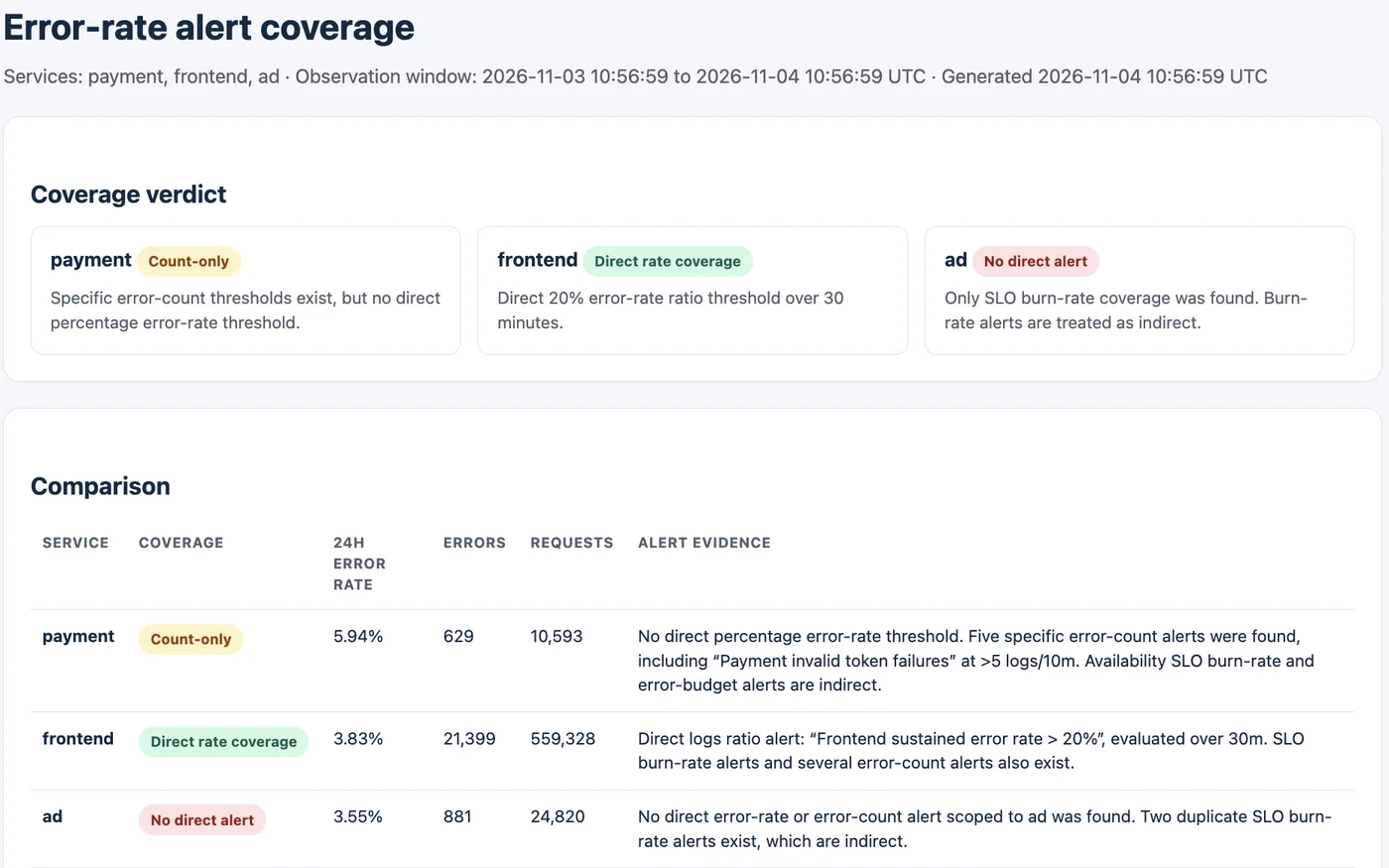
Turn an investigation into a report you can hand on. Ask Olly for a report and it writes a single HTML page with the key numbers, charts, tables, and findings, opens it next to the conversation, and lets you download it or share it with teammates. Use it for the write-up you owe someone after an incident, a weekly reliability digest, or a coverage review for your team.
A report travels better than a chat transcript. The person reading it does not need access to the conversation, or to Olly, to follow what the numbers are and where they came from.
[](https://coralogix.com/docs/assets/images/olly-html-report-a4cd88d28d1ea086958aa69324634dc8.webp)
## What you need
* Olly [enabled](https://coralogix.com/docs/user-guides/olly/enable.md) for your team.
* The Olly web chat, either on the Olly page or in the Olly side drawer. Reports are not built in Slack, Microsoft Teams, [scheduled tasks](https://coralogix.com/docs/user-guides/olly/scheduled-tasks.md), or the [Olly API](https://coralogix.com/docs/developer-portal/apis/olly.md). Ask for a report there and Olly answers in the conversation instead.
* A region with Olly's [conversation workspace](https://coralogix.com/docs/user-guides/olly/data-privacy.md#conversation-workspace), where Olly writes the report. Workspaces are available in all regions except US3, and are not available in BYOC environments.
## Ask for a report
Ask for a report, a summary page, or a shareable write-up, and say what it should contain. For example:
* "Build me an HTML report of error logs over the last 24 hours: top subsystems, top error messages, and errors per hour."
* "Create a report on the health of the checkout service over the last 6 hours: request volume, error rate, and latency."
* "Which services have no error-rate alert, cross-checked against their actual error rate? Make it an HTML report with a table and a short summary."
Olly runs the investigation first, with its usual tools, and then writes the report from the results. It builds a report only when you ask for one. "Report" can also mean "tell me": a request such as "give me a quick report on errors in the last hour" or "report back what you find" gets an answer in the chat. When Olly can't tell which you mean, it answers in the chat.
After a longer investigation answered in the chat, Olly ends its reply with a one-line offer, such as "Want this as a shareable report?" Reply yes and it builds the report from that answer.
A request for a CSV or another data export gets that file, not a report. See [Files you can download](https://coralogix.com/docs/user-guides/olly/olly-chat.md#files-you-can-download).
## What a report contains
Each report opens with what the reader needs first:
1. A title naming the subject.
2. The exact time range, with its timezone, and when the report was generated, so the report still makes sense when someone reads it days later.
3. Key numbers, as cards.
4. The main finding, followed by one section per finding with its evidence, then supporting details and next steps.
Charts are drawn into the page: columns for counts over time, and lines for rates and latencies. Rankings, such as the noisiest services or the most frequent error messages, appear as tables sorted by value. Olly colors a number or section as good, a warning, or bad only when the data supports that verdict, for example against a threshold, an SLO, or the data's own normal level. Everything else stays neutral.
Olly names people, services, and teams explicitly, so the report reads correctly for someone who was not part of the conversation. For large result sets, it aggregates and shows the top rows instead of embedding thousands of raw records.
Each report is one self-contained, static page. It loads nothing from outside the file, runs no scripts, and has no links to other pages. Olly does not use chart libraries such as Chart.js or D3, even when you name one. If you ask for one, Olly draws the charts without it and says so in its reply.
When Olly saves a report, the report is checked against these rules. If something would break the page, Olly fixes it and saves again. If it still can't save the report after three attempts, Olly answers in the chat with its findings and tells you which problem it couldn't fix.
## Read a report in the chat
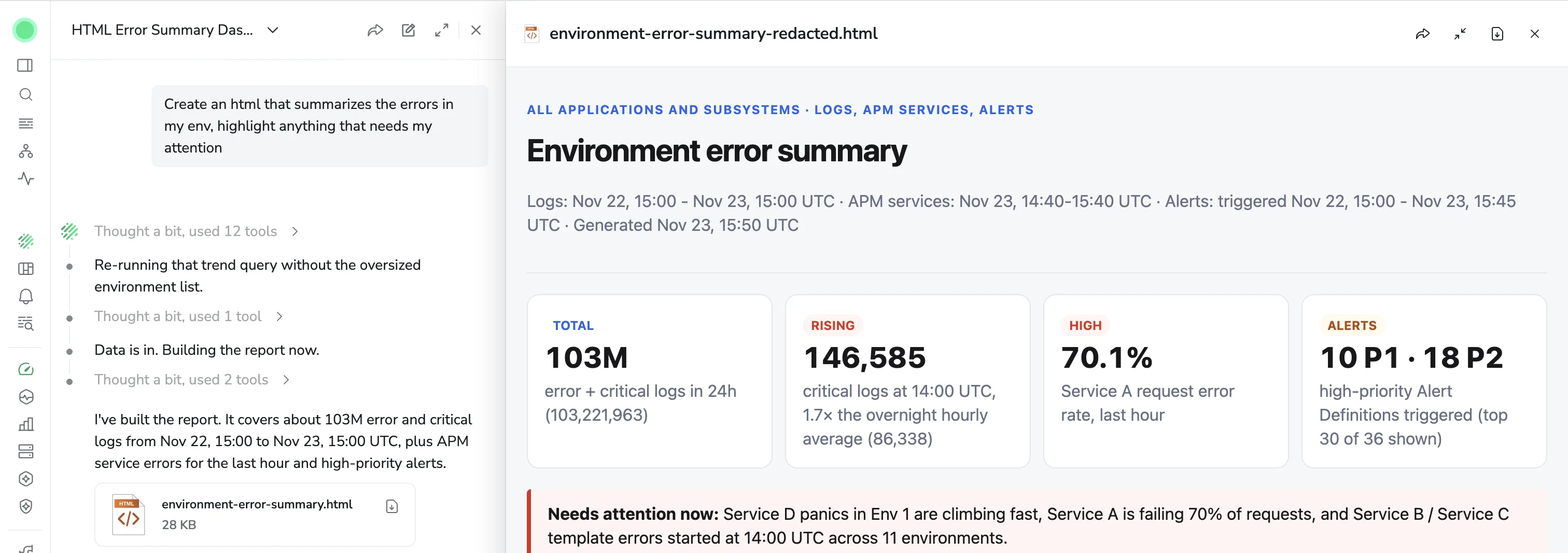
When the report is ready, Olly attaches it to its reply as a file card with the report's name and size, together with a few bullets summarizing the main findings and one preview of the most important result. The report holds the rest of the detail.
Select the card to open the report in a drawer next to the conversation. The drawer header shows the file name and these controls:
[](https://coralogix.com/docs/assets/images/report-drawer-0498bb652301de018bc1149e75227f6b.webp)
* **Share**: Share the report on its own. See [Share a report](#share-a-report). Shown only to the owner of the conversation.
* **Expand view**: Widen the drawer to the full width of the page. Select **Collapse view** to return to the side-by-side layout. You can also drag the edge of the drawer to resize it.
* **Download**: Save the HTML file to your device.
* **X**: Close the drawer.
The report opens in the same light or dark theme as Coralogix. If you switch the Coralogix theme while a report is open, reopen the report to see it in the new theme. A downloaded report opens in any browser and follows your operating system's light or dark setting.
The drawer also previews PDF files, whether Olly generated them or you [attached them](https://coralogix.com/docs/user-guides/olly/file-attachments.md). Selecting the card of any other file type, such as a CSV or JSON file, downloads it.
## Change a report
Ask for a section to be added, reworded, or dropped, and Olly edits the report and saves the result as a new file in its reply, with one line describing what changed. The earlier version stays attached to the earlier message, so you can compare the two.
Olly edits the report from the copy in its conversation workspace. If that copy is no longer available, Olly says so and offers to rebuild the report for the same time range. The numbers in a rebuilt report can differ from the original, because the data is queried again.
## Share a report
Share a report with teammates without sharing the conversation it came from. Only the owner of the conversation can share a report, and only HTML reports that Olly generated can be shared on their own.
1. Open the report in the drawer.
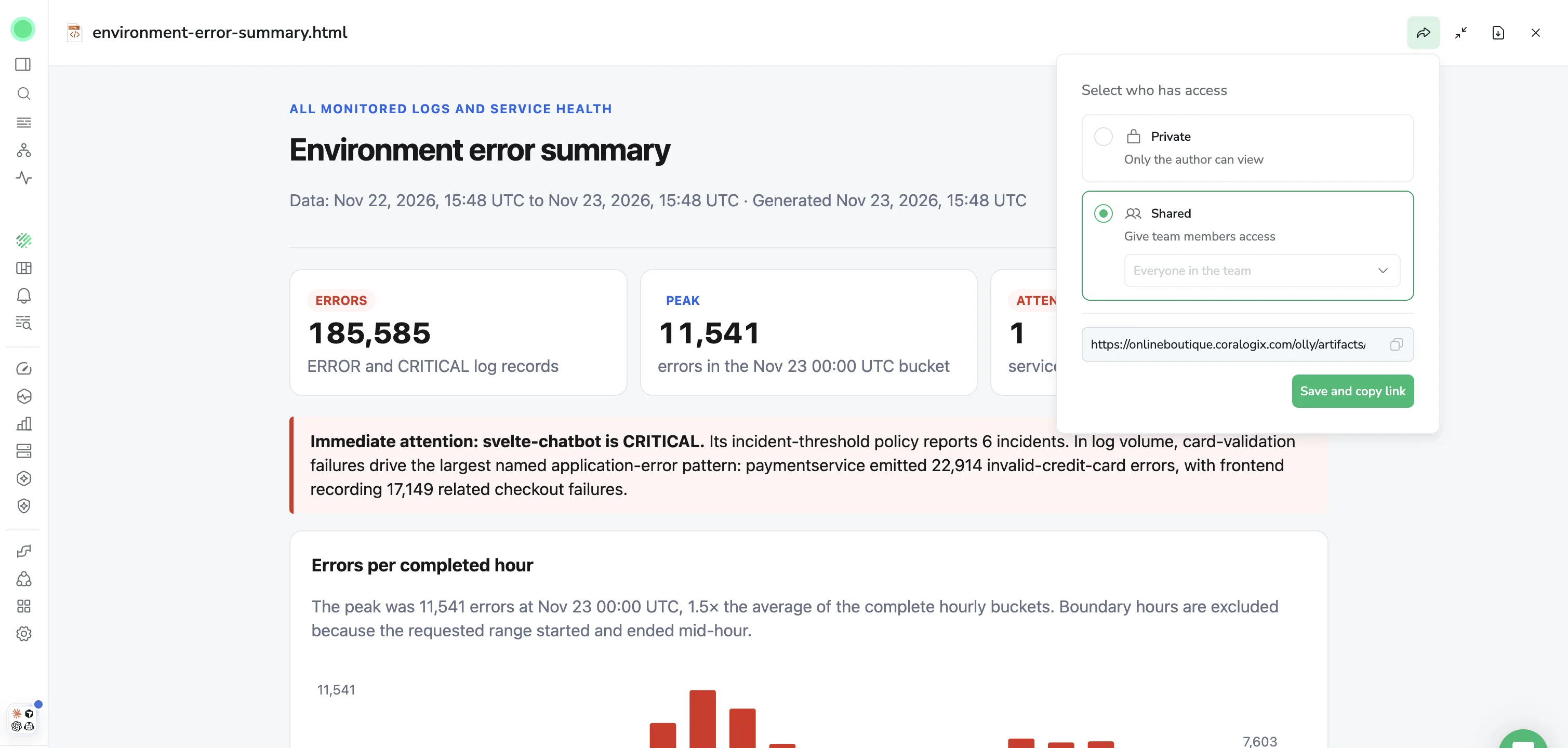
2. Select **Share**. The **Select who has access** panel opens.
3. Select who can open the report:
* **Private**: The report is not shared on its own. Only you, and anyone the conversation is shared with, can open it.
* **Shared**: Team members can view the report. Leave the member picker empty (**Everyone in the team**) to share with anyone on your team who has the link, or search for and select specific teammates.
4. Select **Save and copy link** to apply your choice and copy the report's link. For a **Private** report, the button reads **Save**. To copy the link again later, select the copy icon next to the link in the same panel.
[](https://coralogix.com/docs/assets/images/share-report-bd90b6db4bfeaf9da26be25cd3d29641.webp)
Sharing a report does not share the conversation. Teammates who open the link see the report, not the chat.
## Open a shared report
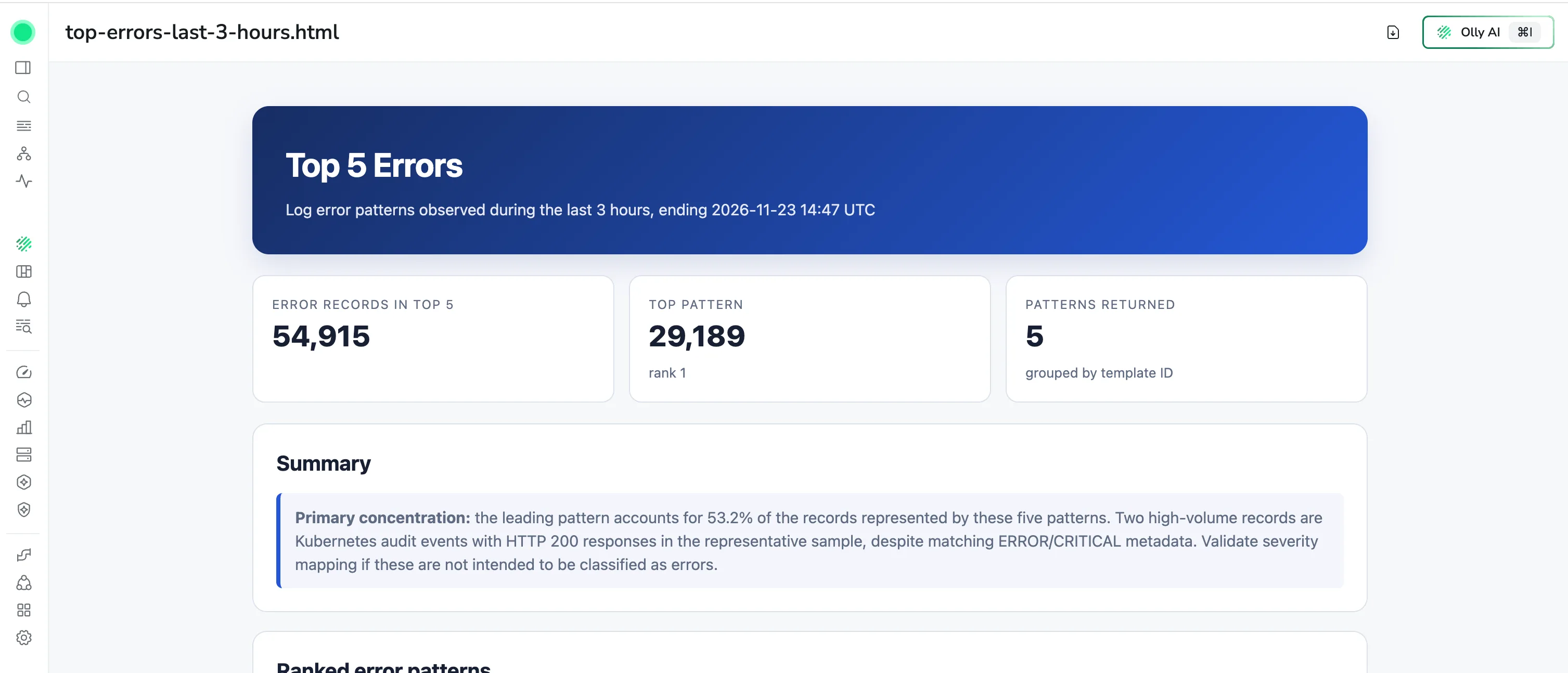
A shared report's link opens the report full screen on its own page in Coralogix. The page header shows the report's name and these controls:
* **Share**: Change who can open the report. Shown only to the owner.
* **Download**: Save the HTML file to your device.
* **Olly AI**: Open Olly to ask questions while you read the report.
[](https://coralogix.com/docs/assets/images/shared-report-page-e75f1f5327dd798f23f23234cfe59af4.webp)
## Who can open a report
Access to a report follows its conversation, plus any sharing set on the report itself. You can open a report if any of these is true:
* You own the conversation the report came from.
* The conversation is [shared](https://coralogix.com/docs/user-guides/olly/olly-chat.md#share-a-conversation) with you. You can read the reports in it, but only the owner can share them on their own.
* The report itself is shared with you.
Anyone else who opens the link sees **File not found**, with the message *This file doesn't exist, or you don't have permission to view it.* Select **Back to Olly** to return to the Olly chat.
A report also stops opening if it is removed from its conversation. If the owner edits an earlier message in the conversation, Olly regenerates the replies after it, and reports attached to those replies are removed, including shared ones. Deleting the conversation also removes its reports.
## Next steps
Learn how Olly works through large result sets before it writes a report in [Working with large result sets](https://coralogix.com/docs/user-guides/olly/olly-chat.md#working-with-large-result-sets).