Preview and validate SLOs

The Preview panel appears in the SLO creation drawer alongside the configuration form. It validates your queries in real time, ranks the permutations that would consume the most error budget, and surfaces AI-generated suggestions, so you can catch problems and tune the target before saving.
The Preview panel is available for all SLO types (APM, Custom, and Dashboard) and updates automatically as you fill in the form.
When the Preview appears
The Preview is empty until the required fields are filled in. Once you have selected a query or an SLO time frame and target, the panel populates automatically. Subsequent edits re-run the validations and refresh the suggestions.
Query validation
The Query validation section runs real-time checks on your SLO configuration to make sure your data is accurate and reliable. Each check is listed individually with a pass, warn, or fail status.
Query validation is advisory: warnings never stop you from saving. The only things that block creation are a missing required field or a query that can't parse or run. A query that returns no data raises a warning, and you can still save the SLO.
| Status | Icon | Meaning |
|---|---|---|
| Pass | ✅ | The check ran successfully and the data looks healthy. |
| Warning | ⚠️ | The check flagged something that may produce unreliable results, for example, a query that returns no data, sparse data, or fewer label filters than expected. You can still save the SLO. |
| Fail | ❌ | The check could not run, for example, the query has a syntax error or can't execute. Fix it before the SLO can be created. |
The header shows a summary count of passing checks (for example, 17/17 pass).
Fix all
When the Preview can suggest corrections, Fix all appears at the top of the Query validation section. Select it to apply every suggested correction at once. The button is disabled when there is nothing to fix.
After applying the fixes, the validations re-run automatically. In most cases, Fix all resolves the flagged issues without any manual query edits.
Validation reference
The Preview runs the following checks on every form change. A check can pass, warn, or fail; some checks also show a short secondary caption describing why they passed trivially (for example, No range vectors means the check was not applicable because the query contains no range vectors).
| Check | What it validates |
|---|---|
| Valid PromQL syntax | The query parses as valid PromQL. |
| Label alignment | Grouping labels align across the queries that make up the SLO (for example, between good and total queries in Event-based SLOs) and across subqueries within a single query. |
| Counter needs rate() | Counter metrics are wrapped in rate() or increase() so they produce per-second values. |
| Gauge aggregation | Gauge metrics are aggregated with an appropriate function (for example, avg, max, sum). |
| Lookback bounds | Range-vector lookback windows fall within the expected bounds for the SLO time frame. |
| irate() discouraged | Warns when the query uses irate(), which is volatile and not recommended for SLO calculations. Prefer rate(). |
| Subquery step alignment | Subquery step sizes align with the evaluation interval. |
| Consistent range vectors | All range vectors in the query use the same lookback. |
| Binary op guard | Binary operations in the query are safe for SLO calculations (for example, no subtraction that could produce negative values). |
| Same metric family | Queries use metrics from the same family when they need to combine. |
| Same aggregation | Aggregation functions match across the queries that make up the SLO. |
| Good <= All check | The good-events query never returns more events than the total-events query. |
| Histogram le consistency | le labels in histogram queries are consistent across the SLO. |
| No absent()/vector() | Warns when the query uses absent() or vector(), which can produce misleading SLO results. |
| avg_over_time discouraged | Warns when the query uses avg_over_time, which is not recommended for SLOs. |
| Complexity warning | Warns when the query complexity (cardinality, nested operations) exceeds recommended limits. |
| Dashboard template variables | Dashboard template variables in the query are handled correctly for SLO evaluation. |
Not every check applies to every SLO. A check that cannot run against your configuration is marked as a trivial pass with a secondary caption (for example, No subqueries, No template variables).
SLO smart-tip
The SLO smart-tip is an AI-generated suggestion that uses your SLO's historical data to help you ship a better SLO. A tip can cover any combination of:
| Suggestion | What it tells you |
|---|---|
| Suggested target | A realistic target that your SLO would have met over the historical window, so you can set an ambitious but achievable objective without breaching on day one. |
| Metric fit analysis | Whether the selected metric is a good fit for an SLO (for example, whether it has the right shape, density, and cardinality). |
| Query guidance | Improvements to the query itself, for example, a proper rate()/increase() form, missing aggregation, or redundant filters. |
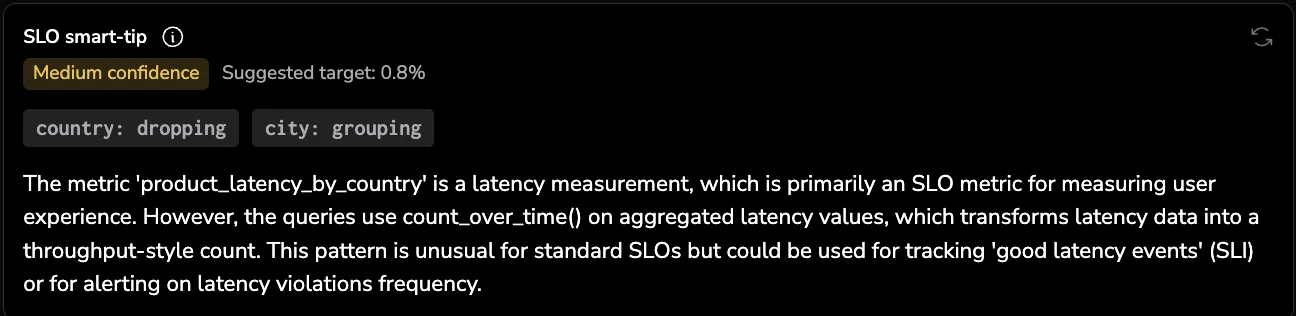
Each tip carries a confidence tag that reflects how much historical data was available for the analysis:
| Tag | Meaning |
|---|---|
High confidence | Based on enough historical data to trust the suggestion. |
Medium confidence | Based on partial history. The suggestion is useful as a starting point but worth validating before applying. |
Low confidence | Based on limited historical data. Treat the suggestion as directional only. |
If the tip includes a Suggested target, select it to apply that target to the Target field. Use the refresh icon to re-run the analysis after changing the query or grouping.
The pills under the confidence tag show how the AI interpreted each label, grouping keys split the SLO into permutations, while filtering keys narrow the data without creating new permutations.
Example
Here is a real Medium confidence tip for a latency SLO where the AI pushed back on the metric choice:
Medium confidence · Suggested target: 0.8%
city: groupingcountry: filteringThe metric name
product_latency_by_countrysuggests application-level latency measurements, which are strongly associated with SLOs. However, the queries are usingcount_over_timeon aggregated latency values rather than measuring request rates, success rates, or latency distributions directly. This pattern is unconventional for SLOs, typically you'd use histogram quantiles or a ratio of fast requests. The metric could serve SLO purposes if properly structured, but these specific aggregations seem more aligned with monitoring trends or alerting on latency patterns across cities.
The tip here combines all three suggestion types: a suggested target (0.8%), a metric fit analysis (the metric name fits, but the aggregation does not), and query guidance (use histogram quantiles or a ratio of fast requests instead).
Status: top permutations
The Status section ranks the permutations of your SLO by compliance, so you can see exactly where the SLO is failing before you save it.
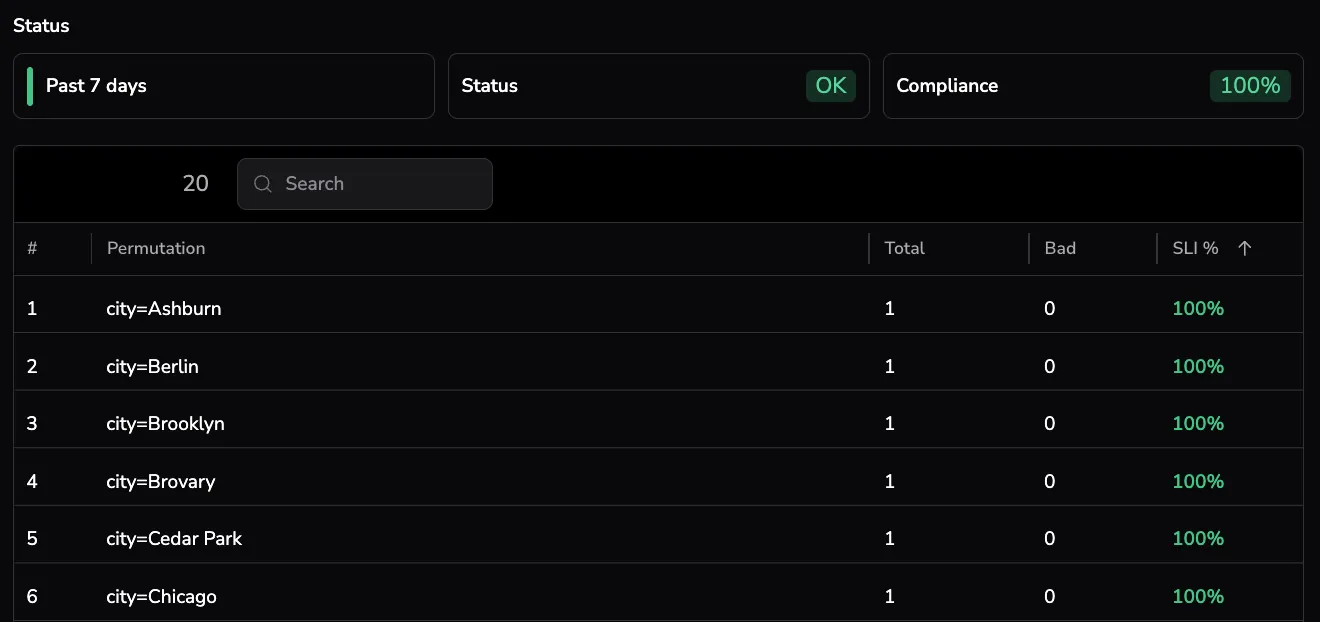
A permutation is a single combination of grouping labels evaluated against the SLO. For example, an SLO grouped by service and region produces one permutation per service/region pair.
The header shows the selected time range, the overall Status (OK, WARN, or BREACHED), and the current State (compliance percentage).
| Column | What it shows |
|---|---|
# | Rank by compliance, worst-performing permutation first. |
| Permutation | The grouping label values for this permutation. |
| Total | Total events (Event-based SLOs) or total windows (Time window-based SLOs) in the selected time range. |
| Bad | Events or windows that failed the SLO criteria. |
SLI % | Compliance percentage for this permutation, color-coded against the target. |
Use the search box to filter the list by permutation name. The panel paginates the results, adjust the page size at the bottom to see more rows.