Saved views
Save and reuse filtered SLO Center views to stay focused on the SLOs that matter. An SLO saved view preserves the current list configuration so you can return to common monitoring workflows without reapplying settings each time.
SLO saved views are part of the Saved Views shared component used across Coralogix products. The core experience is the same in each product; the options that get saved differ. Because the SLO list has no search query or time picker, an SLO saved view does not capture those options.
What an SLO saved view captures
| Option | Description |
|---|---|
| Filters | The applied SLO list filters, including SLO type, status, remaining budget, and entity labels |
| Pivot | The active Pivot by grouping: the flat SLO list, or a grouping key such as region |
| Table settings | The SLO groups grid layout (column order, column widths, and sort order), saved separately for each pivot |
| Overview | Whether the status overview above the list is expanded or collapsed |
| Set as default view | Makes this the default landing view in the SLO Center |
The free-text search box and the grid column visibility are not saved. The Query, Time range, and Widget state options available in other products do not apply to the SLO list.
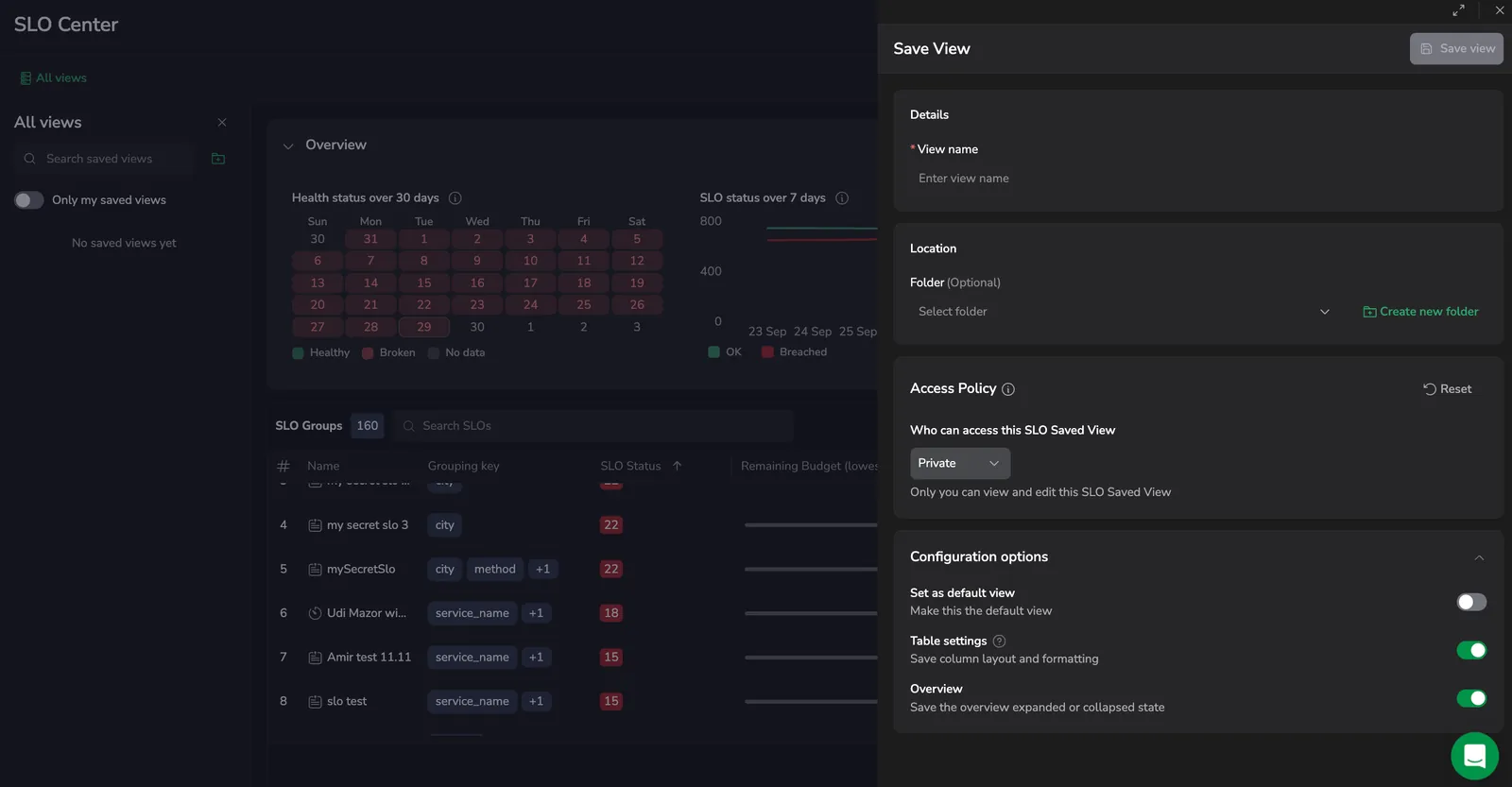
Create a saved view
- Configure the SLO list: apply the sidebar filters and arrange the SLO groups grid.
- Select Save view.
- In View name, enter a descriptive name.
- (Optional) Under Location, select a Folder for the view, or select Create new folder.
- (Optional) Set the Access Policy to control who can see and edit the view. See Access policy.
- Under Configuration options, choose what the view saves:
- Set as default view: make this your landing view in the SLO Center.
- Table settings: save the SLO groups column layout and formatting.
- Overview: save whether the status overview is expanded or collapsed.
- Select Save view.
The filters you applied and the current Pivot by grouping are always saved with the view.
Use saved views
- Select All views to open the saved views panel.
- Find views under Recent or All views.
- Use Search saved views to locate a view by name.
- Select a saved view to apply it.
The saved-views panel opens in place of the filters sidebar, so the SLO groups grid keeps its full width. You can also deep-link to a view: opening the SLO Center with a savedViewId query parameter applies that view on load.
Update or save as new view
When a loaded view has unsaved changes, the Save view menu provides:
- Update current view: Save the changes to the loaded view.
- Save as new view: Save the changes as a new view, leaving the original unchanged.
Edit, clone, or delete a saved view
Share a saved view
To share a saved view with a teammate, copy the page URL after the saved view is loaded. Opening the URL applies the same query, filters, table settings, and time range.
Access policy
By default, a new saved view is Private (only you can view and edit it). To share it with everyone on your team, switch the mode to Public. To configure per-group access rules, switch to Advanced. The access levels available in Advanced mode are:
- No Access: team members cannot see the view unless they have an explicit group rule.
- Read: everyone on your team can see and load the view.
- Manage: everyone on your team can see, load, and modify the view.
For the cross-product model, examples, and FAQs, see the access policies overview.
Permissions
Saved views in the SLO Center are governed by dedicated SLO saved-view permissions: loading shared views, creating and editing them, viewing and updating their access policies, and a team-default-view pair for setting a team-wide default. The exact permission keys and their default role assignments are finalized when the feature is released; see the SLO section of the permissions list.