Zscaler Internet Access (ZIA)
Zscaler Internet Access (ZIA) is a cloud security service that brokers internet access for an organization from anywhere, on any device. Pairing it with Coralogix through Zscaler's Nanolog Streaming Service (NSS) gives you real-time visibility into internet traffic and user activity, so network behavior can be monitored and analyzed for security threats and compliance alongside the rest of your telemetry.
What you need
- An administrative login to the ZIA admin portal.
- An administrative login to your Coralogix account.
- A Coralogix Send-Your-Data API key.
- The logs endpoint for your Coralogix domain.
Confirm NSS is healthy
The NSS server is what streams the logs, so check it is running before you add a feed to it.
Select Administration, then Cloud Configuration, then Nanolog Streaming Service, and confirm the State column reads Healthy.

Shows the server list you add a feed to, with each server's health state.
Add an NSS feed
On the Nanolog Streaming Service page, select Add NSS Feed.

Shows the entry point for a new feed, on the NSS servers tab.
Set the connectivity and formatting parameters.
| Field | Value |
|---|---|
| Feed Name | A meaningful name for the feed. |
| NSS Type | The NSS server type. NSS for Web or NSS for Firewall. |
| Status | Enabled |
| SIEM Rate | Unlimited |
| SIEM Type | Other |
| Max Batch Size | 512 KB |
| API URL | The logs endpoint for your Coralogix domain. |
| HTTP Headers | Two headers, each entered as a key and value pair: Content-Type set to application/json, and Authorization set to your Send-Your-Data API key. |
| Log Type | The log type you want to stream. |
| Feed Output Type | JSON |
| Feed Escape Character | Leave empty for Web, Firewall, and Tunnel. For DNS, enter ,\", a comma, a backslash, and a quotation mark. |
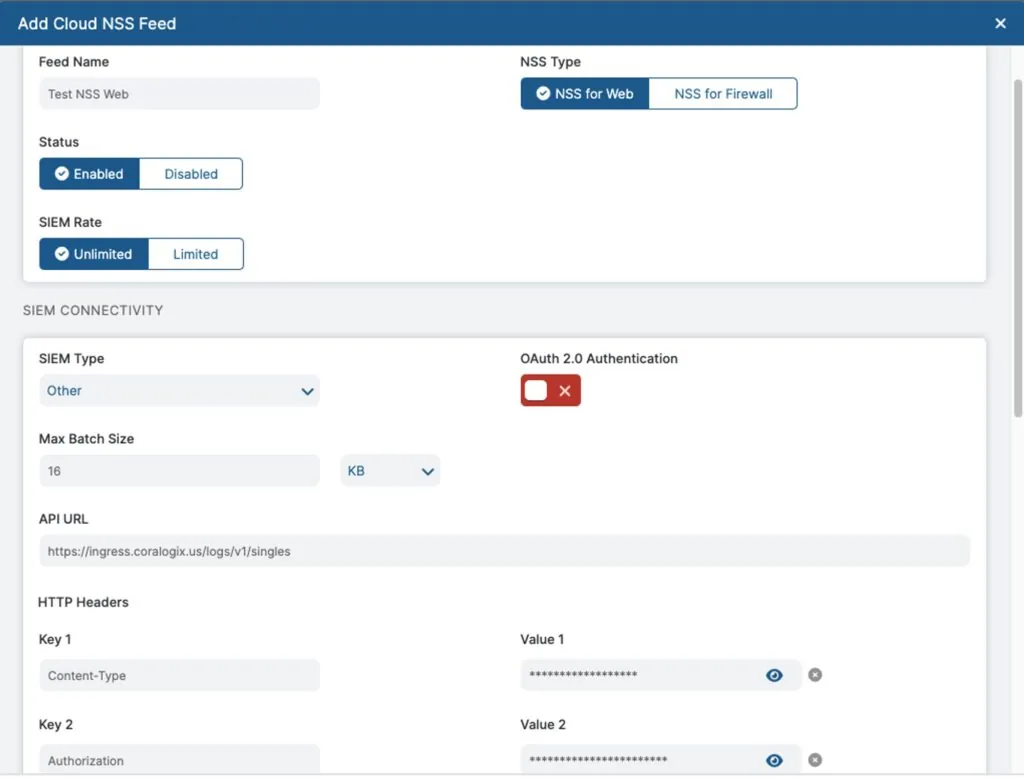
Shows the connectivity half of the feed form, where the Coralogix endpoint and API key are set.
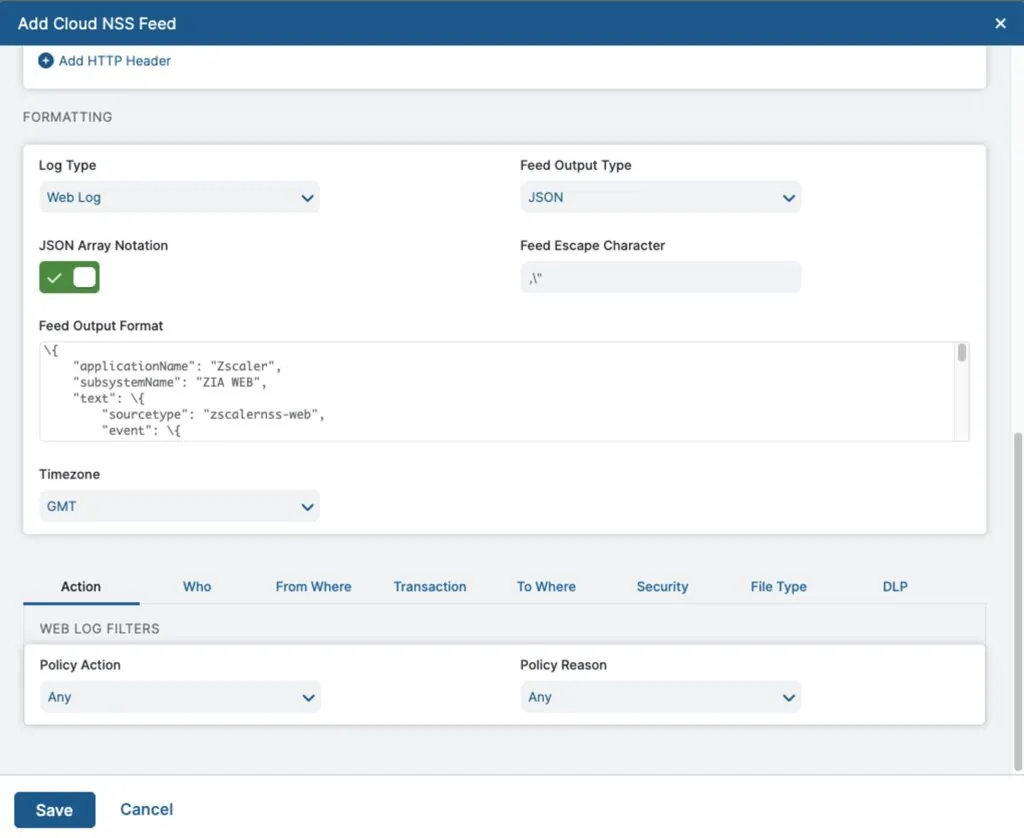
Shows the formatting half, where the output template below is pasted.
Set Feed Output Format to Custom and paste the template for your log type. Adjust applicationName and subsystemName to the values you want the events filed under in Coralogix.
- Web
- SaaS security activity
- Admin audit
- Firewall
- DNS
- SaaS security
- ITSM
- Public cloud storage
- Collaboration
- CRM
- Repository
\{
"applicationName": "Zscaler",
"subsystemName": "ZIA WEB",
"text": \{
"sourcetype": "zscalernss-web",
"event": \{
"datetime": "%d{yy}-%02d{mth}-%02d{dd} %02d{hh}:%02d{mm}:%02d{ss}",
"reason": "%s{reason}",
"event_id": "%d{recordid}",
"protocol": "%s{proto}",
"action": "%s{action}",
"transactionsize": "%d{totalsize}",
"responsesize": "%d{respsize}",
"requestsize": "%d{reqsize}",
"urlcategory": "%s{urlcat}",
"serverip": "%s{sip}",
"requestmethod": "%s{reqmethod}",
"refererURL": "%s{ereferer}",
"useragent": "%s{eua}",
"product": "NSS",
"location": "%s{elocation}",
"ClientIP": "%s{cip}",
"status": "%s{respcode}",
"user": "%s{elogin}",
"url": "%s{eurl}",
"vendor": "Zscaler",
"hostname": "%s{ehost}",
"clientpublicIP": "%s{cintip}",
"threatcategory": "%s{malwarecat}",
"threatname": "%s{threatname}",
"filetype": "%s{filetype}",
"appname": "%s{appname}",
"pagerisk": "%d{riskscore}",
"department": "%s{edepartment}",
"urlsupercategory": "%s{urlsupercat}",
"appclass": "%s{appclass}",
"dlpengine": "%s{dlpeng}",
"urlclass": "%s{urlclass}",
"threatclass": "%s{malwareclass}",
"dlpdictionaries": "%s{dlpdict}",
"fileclass": "%s{fileclass}",
"bwthrottle": "%s{bwthrottle}",
"contenttype": "%s{contenttype}",
"unscannabletype": "%s{unscannabletype}",
"deviceowner": "%s{deviceowner}",
"devicehostname": "%s{devicehostname}",
"keyprotectiontype": "%s{keyprotectiontype}",
"datacenter": "%s{datacenter}",
"datacentercity": "%s{datacentercity}",
"datacentercountry": "%s{datacentercountry}",
"dlpdicthitcount": "%s{dlpdicthitcount}",
"dlpidentifier": "%d{dlpidentifier}",
"dlpmd5": "%s{dlpmd5}",
"dlprulename": "%s{dlprulename}",
"filename": "%s{filename}",
"upload_filetype": "%s{upload_filetype}",
"upload_filename": "%s{upload_filename}",
"rulelabel": "%s{rulelabel}",
"ruletype": "%s{ruletype}",
"apprulelabel": "%s{apprulelabel}",
"host": "%s{host}",
"referer": "%s{referer}"
\}
\}
\}
\{
"applicationName": "Zscaler",
"subsystemName": "ZIA SaaS Activity",
"text": \{
"sourcetype": "zscalernss-casb",
"event": \{
"login": "%s{username}",
"tenant": "%s{tenant}",
"object_type": "%d{objtype1}",
"applicationname": "%s{appname}",
"object_name_1": "%s{objnames1}",
"object_name_2": "%s{objnames2}"
\}\}\}
\{
"applicationName": "Zscaler",
"subsystemName": "ZIA Audit",
"text": \{
"sourcetype": "zscalernss-audit",
"event": \{
"time": "%s{time}",
"recordid": "%d{recordid}",
"action": "%s{action}",
"category": "%s{category}",
"subcategory": "%s{subcategory}",
"resource": "%s{resource}",
"interface": "%s{interface}",
"adminid": "%s{adminid}",
"clientip": "%s{clientip}",
"result": "%s{result}",
"errorcode": "%s{errorcode}",
"auditlogtype": "%s{auditlogtype}",
"preaction": "%s{epreaction}",
"postaction": "%s{epostaction}"
\}\}\}
\{
"applicationName": "Zscaler",
"subsystemName": "ZIA FW",
"text": \{
"sourcetype": "zscalernss-fw",
"event": \{
"datetime": "%s{time}",
"user": "%s{elogin}",
"department": "%s{edepartment}",
"locationname": "%s{elocation}",
"cdport": "%d{cdport}",
"csport": "%d{csport}",
"sdport": "%d{sdport}",
"ssport": "%d{ssport}",
"csip": "%s{csip}",
"cdip": "%s{cdip}",
"ssip": "%s{ssip}",
"sdip": "%s{sdip}",
"tsip": "%s{tsip}",
"tunsport": "%d{tsport}",
"tuntype": "%s{ttype}",
"action": "%s{action}",
"dnat": "%s{dnat}",
"stateful": "%s{stateful}",
"aggregate": "%s{aggregate}",
"nwsvc": "%s{nwsvc}",
"nwapp": "%s{nwapp}",
"proto": "%s{ipproto}",
"ipcat": "%s{ipcat}",
"destcountry": "%s{destcountry}",
"avgduration": "%d{avgduration}",
"rulelabel": "%s{erulelabel}",
"inbytes": "%ld{inbytes}",
"outbytes": "%ld{outbytes}",
"duration": "%d{duration}",
"durationms": "%d{durationms}",
"numsessions": "%d{numsessions}",
"ipsrulelabel": "%s{ipsrulelabel}",
"threatcat": "%s{threatcat}",
"threatname": "%s{ethreatname}",
"deviceowner": "%s{deviceowner}",
"devicehostname": "%s{devicehostname}"
\}\}\}
\{
"applicationName": "Zscaler",
"subsystemName": "ZIA DNS",
"text": \{
"sourcetype": "zscalernss-dns",
"event": \{
"datetime": "%s{time}",
"user": "%s{elogin}",
"department": "%s{edepartment}",
"location": "%s{elocation}",
"reqaction": "%s{reqaction}",
"resaction": "%s{resaction}",
"reqrulelabel": "%s{reqrulelabel}",
"resrulelabel": "%s{resrulelabel}",
"dns_reqtype": "%s{reqtype}",
"dns_req": "%s{req}",
"dns_resp": "%s{res}",
"srv_dport": "%d{sport}",
"durationms": "%d{durationms}",
"clt_sip": "%s{cip}",
"srv_dip": "%s{sip}",
"category": "%s{domcat}",
"respipcategory": "%s{respipcat}",
"deviceowner": "%s{deviceowner}",
"devicehostname": "%s{devicehostname}"
\}\}\}
\{
"applicationName": "Zscaler",
"subsystemName": "ZIA SAAS",
"text": \{
"sourcetype": "zscalernss-casb",
"event": \{
"datetime": "%s{time}",
"recordid": "%d{recordid}",
"company": "%s{company}",
"tenant": "%s{tenant}",
"login": "%s{user}",
"dept": "%s{department}",
"applicationname": "%s{applicationname}",
"filename": "%s{filename}",
"filesource": "%s{filesource}",
"filemd5": "%s{filemd5}",
"threatname": "%s{threatname}",
"policy": "%s{policy}",
"dlpdictnames": "%s{dlpdictnames}",
"dlpdictcount": "%s{dlpdictcount}",
"dlpenginenames": "%s{dlpenginenames}",
"fullurl": "%s{fullurl}",
"lastmodtime": "%s{lastmodtime}",
"filescantimems": "%d{filescantimems}",
"filedownloadtimems": "%d{filedownloadtimems}"
\}\}\}
\{
"applicationName": "Zscaler",
"subsystemName": "ZIA ITSM",
"text": \{
"sourcetype": "zscalernss-casb",
"event": \{
"datetime": "%s{time}",
"company": "%s{company}",
"login": "%s{owner}",
"tenant": "%s{tenant}",
"dept": "%s{department}",
"applicationname": "%s{applicationname}",
"threatname": "%s{threatname}",
"policy": "%s{policy}",
"dlpdictnames": "%s{dlpdictnames}",
"dlpdictcount": "%s{dlpdictcount}",
"dlpenginenames": "%s{dlpenginenames}"
\}\}\}
\{
"applicationName": "Zscaler",
"subsystemName": "ZIA Storage",
"text": \{
"sourcetype": "zscalernss-casb",
"event": \{
"datetime": "%s{time}",
"recordid": "%d{recordid}",
"company": "%s{company}",
"tenant": "%s{tenant}",
"owner": "%s{owner}",
"dept": "%s{department}",
"applicationname": "%s{applicationname}",
"filename": "%s{filename}",
"filesource": "%s{filesource}",
"filemd5": "%s{filemd5}",
"threatname": "%s{threatname}",
"policy": "%s{policy}",
"dlpdictnames": "%s{dlpdictnames}",
"dlpdictcount": "%s{dlpdictcount}",
"dlpenginenames": "%s{dlpenginenames}",
"fullurl": "%s{fullurl}",
"lastmodtime": "%s{lastmodtime}",
"bucket_name": "%s{bucketname}"
\}\}\}
\{
"applicationName": "Zscaler",
"subsystemName": "ZIA Collaboration",
"text": \{
"sourcetype": "zscalernss-casb",
"event": \{
"datetime": "%s{time}",
"company": "%s{company}",
"login": "%s{owner}",
"tenant": "%s{tenant}",
"dept": "%s{department}",
"applicationname": "%s{applicationname}",
"threatname": "%s{threatname}",
"policy": "%s{policy}",
"dlpdictnames": "%s{dlpdictnames}",
"dlpdictcount": "%s{dlpdictcount}",
"dlpenginenames": "%s{dlpenginenames}"
\}\}\}
\{
"applicationName": "Zscaler",
"subsystemName": "ZIA CRM",
"text": \{
"sourcetype": "zscalernss-casb",
"event": \{
"datetime": "%s{time}",
"company": "%s{company}",
"login": "%s{owner}",
"tenant": "%s{tenant}",
"dept": "%s{department}",
"applicationname": "%s{applicationname}",
"threatname": "%s{threatname}",
"policy": "%s{policy}",
"dlpdictnames": "%s{dlpdictnames}",
"dlpdictcount": "%s{dlpdictcount}",
"dlpenginenames": "%s{dlpenginenames}"
\}\}\}
\{
"applicationName": "Zscaler",
"subsystemName": "ZIA Email",
"text": \{
"sourcetype": "zscalernss-casb",
"event": \{
"datetime": "%s{time}",
"recordid": "%d{recordid}",
"company": "%s{company}",
"tenant": "%s{tenant}",
"login": "%s{owner}",
"dept": "%s{department}",
"applicationname": "%s{applicationname}",
"threatname": "%s{threatname}",
"policy": "%s{policy}",
"message": "%s{messageid}",
"dlpdictnames": "%s{dlpdictnames}",
"dlpdictcount": "%s{dlpdictcount}",
"dlpenginenames": "%s{dlpenginenames}"
\}\}\}
\{
"applicationName": "Zscaler",
"subsystemName": "ZIA Repository",
"text": \{
"sourcetype": "zscalernss-casb",
"event": \{
"datetime": "%s{time}",
"company": "%s{company}",
"login": "%s{owner}",
"tenant": "%s{tenant}",
"dept": "%s{department}",
"applicationname": "%s{applicationname}",
"threatname": "%s{threatname}",
"policy": "%s{policy}",
"dlpdictnames": "%s{dlpdictnames}",
"dlpdictcount": "%s{dlpdictcount}",
"dlpenginenames": "%s{dlpenginenames}"
\}\}\}
Select Save, then run a connectivity test against the remote server.

Shows the confirmation that Zscaler reached your Coralogix endpoint. ZIA traffic starts arriving in Coralogix once it passes.
Tag the logs with a parsing rule
A Replace rule marks the incoming events as originating from Zscaler, which is what lets the matching alerts and dashboards find them.
Select Data Flow, then Parsing Rules, and add a new Replace rule.
On the New rule group page, set both Source Field and Destination Field to Text, set Regular Expression to (.*), and set Replacement String to {"zscaler":$1}.

Shows the rule that nests each incoming event under a zscaler key.