

Test before you roll out: canary configuration changes with OpenTelemetry Fleet Management
Send a Collector configuration change or upgrade to one node with Fleet Management, check the result, then roll it out to the whole fleet or roll it back.
Douglas Oliveira Camata6 min read

How do you change thousands of Collectors without risking all of them at once?
Your observability team runs thousands of OpenTelemetry Collectors, and everything works. Now the team wants to add each pod's team and cost-center labels to all the telemetry it collects. Good practice says to try the change on a small part of the fleet first. Coralogix Fleet Management lets you send the change to a few Collectors, check the result, and then roll it out to everyone or roll it back.
How Fleet Management decides what each Collector runs
Fleet Management manages OpenTelemetry Collectors remotely using the Open Agent Management Protocol (OpAMP). A Supervisor runs next to each Collector and reports its attributes by default to Fleet Management. One of these attributes is k8s.node.name, which is added by default in the Fleet Management setup guide.
A configuration group holds a Collector configuration. Its agent selector lists the attributes a Collector must report to receive that configuration. When you change a group, every matching Collector gets the new configuration version.
That is the risk: one edit reaches the whole fleet. To avoid it, we will create a second group that matches only one node.
For our example, the team wants to add two Kubernetes pod labels, "team" and "cost-center", to all telemetry.
| Group | Agent selector | Configuration | Collectors |
|---|---|---|---|
otel-fleet [use your group's real name] | All agents from the integration | Current configuration | Whole fleet |
otel-fleet-canary | k8s.node.name = fleet-demo-worker | Current configuration + pod labels | One node |
Start from an onboarded fleet
This guide assumes your Collectors already report to Fleet Management with remote configuration turned on. If they don't, follow the Fleet Management setup guide. It works for both Kubernetes and Linux hosts. In the wizard, select Enable remote configuration.
When onboarding finishes, Fleet Management creates a configuration group for your Collectors. That group is the starting point for this guide.
Clone the group for one node
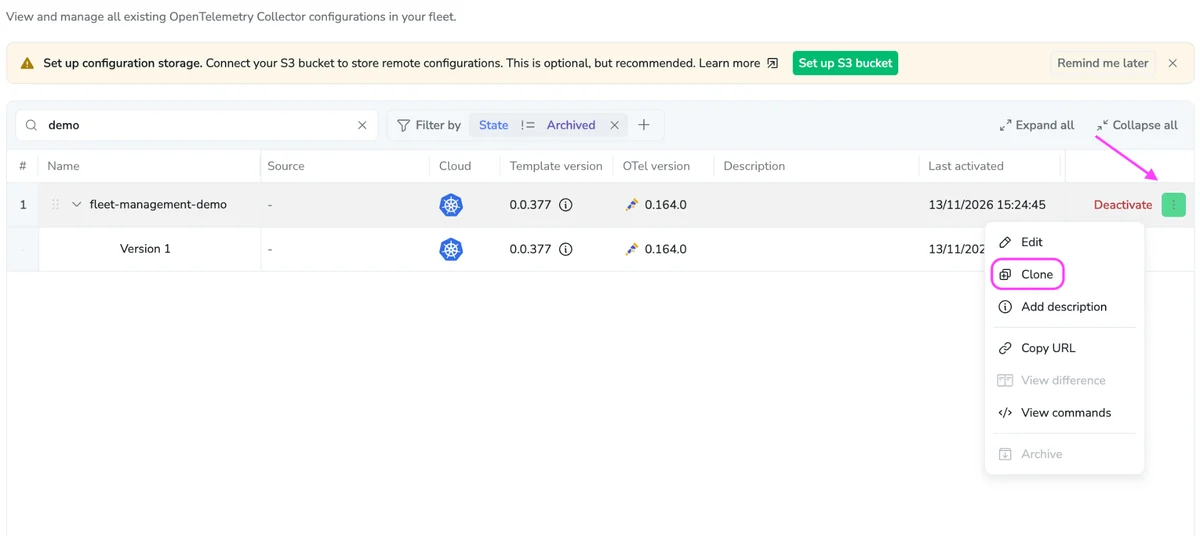
Navigate to Fleet Management → Configurations and select the main configuration group. Click on the three dots menu near the "Deactivate" button and choose "Clone". Enter otel-fleet-canary as the name for the new cloned group.
Head down to Agent selector and click Add attribute. Pick a specific key-value pair that identifies only the targeted agents for your trial. For instance, set k8s.node.name to fleet-demo-worker to isolate a single host.
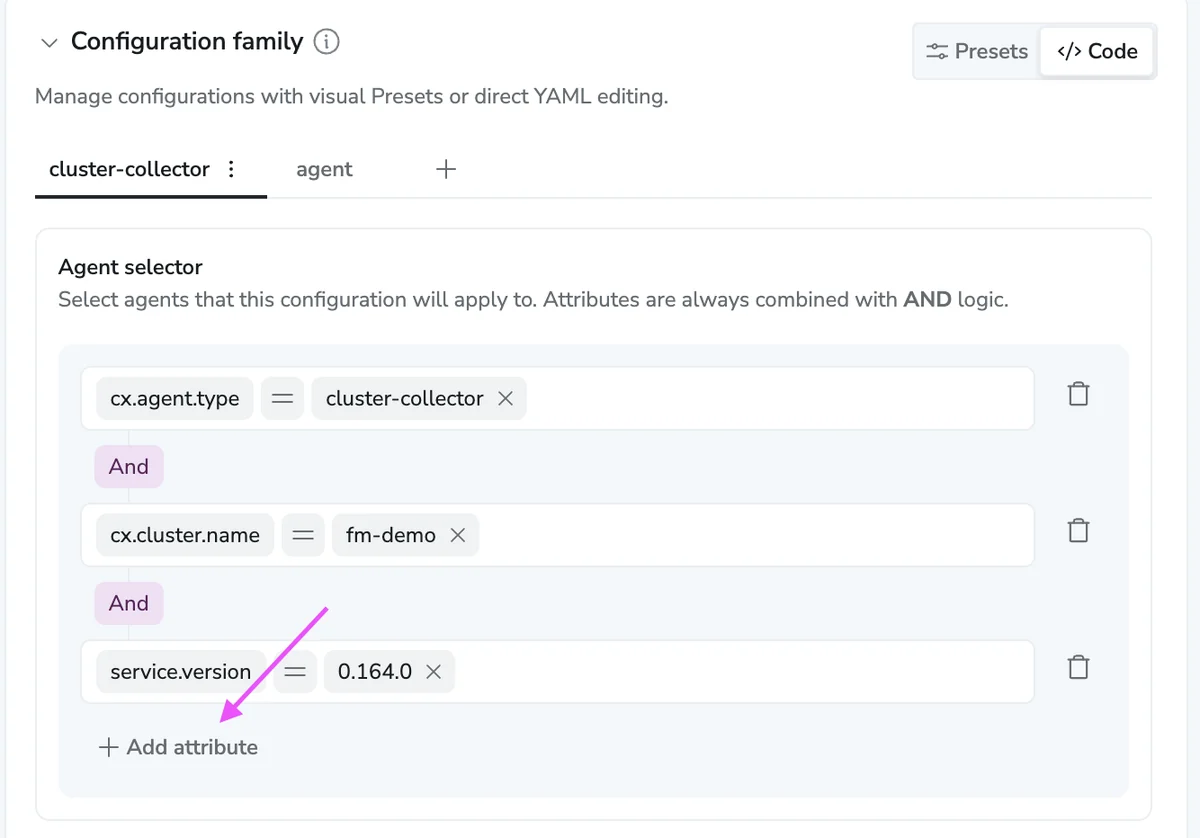
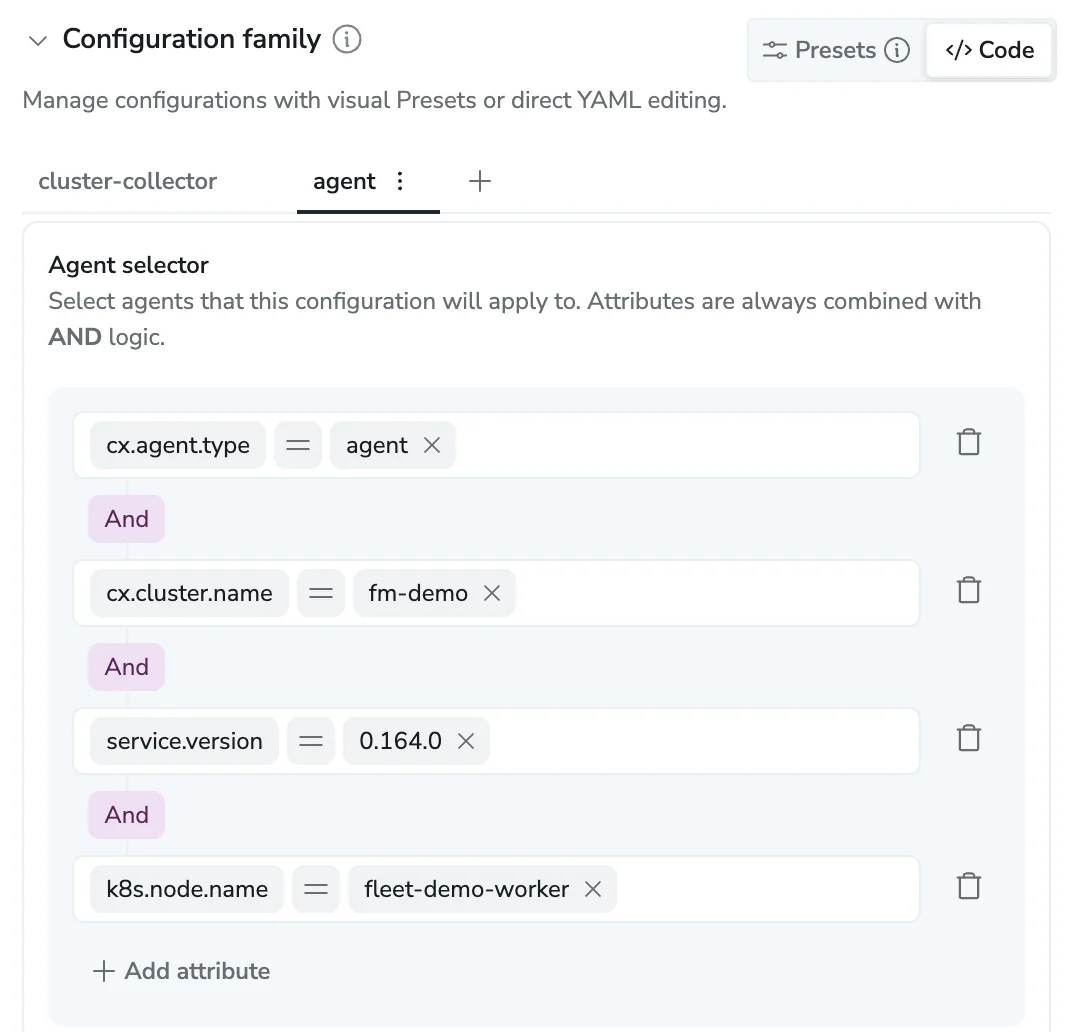
Within Kubernetes environments, the setup provisions two distinct Collector types: agent, which scales across all nodes, and cluster-collector, deployed as a single instance per cluster. Both can be configured independently inside the group. In our scenario we will modify the configuration of the agent deployment.
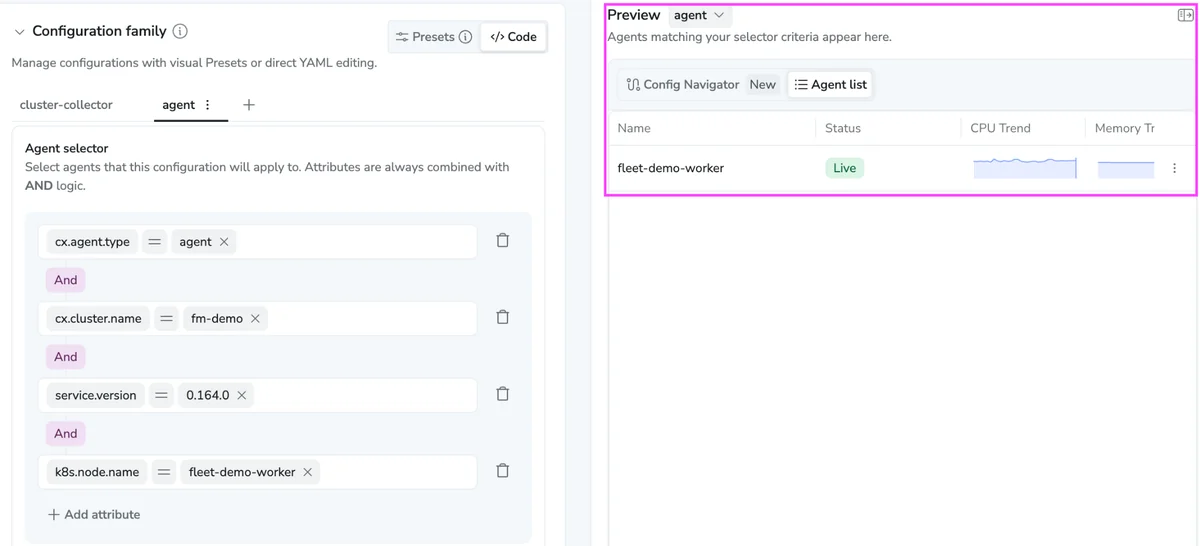
Prior to saving, review the live matching agents list. It should display solely the agents located on your chosen host. Consult the configuration management guide for deeper insights into agent selectors.
Add the pod labels
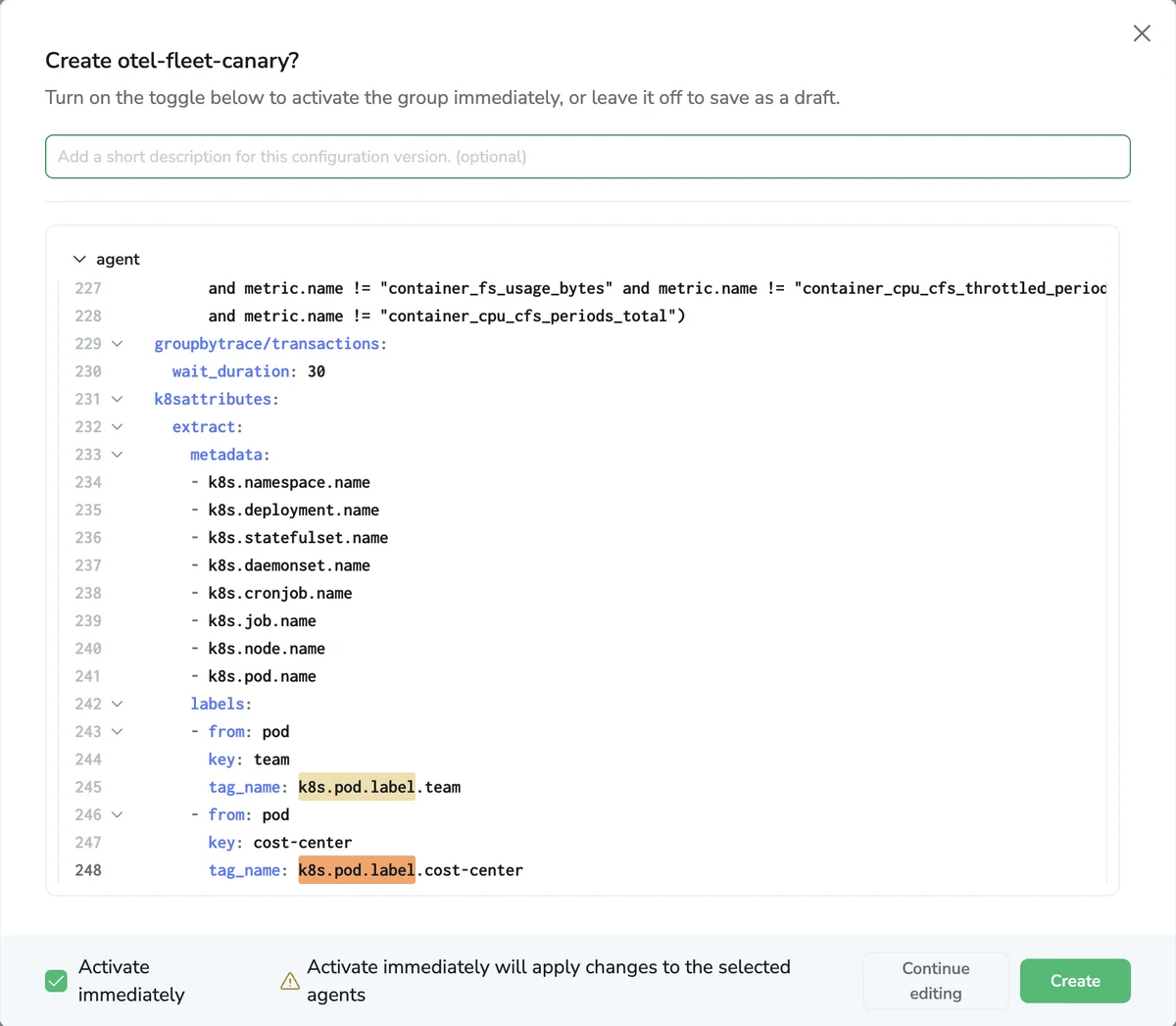
Locate the k8sattributes processor within your cloned setup. Include the pod labels you want to copy by updating its configuration:
processors:
  k8sattributes:   # [use the processor name in your configuration]
    extract:
      labels:
        - from: pod
          key: team
          tag_name: k8s.pod.label.team
        - from: pod
          key: cost-center
          tag_name: k8s.pod.label.cost-center
The processor finds the pod that sent each log, metric or span, and copies these labels onto it as resource attributes, such as k8s.pod.label.team. Setting tag_name keeps the attribute names the same across Collector versions.
Click Create. Review the resulting payload inside the summary dialog, mark Activate immediately, and confirm by clicking Create.
Check that it reached the agents
The clone has a higher priority than the original group, so the Collectors on the selected node switch to it.
Validate the deployment across three key areas:
- The group. In Configurations,
otel-fleet-canaryshows one applied agent, with no pending agents and no failures.
- The Collector. Open Fleet Management → Agents, find the Collector on your test node, and open its Configuration tab. This tab shows the configuration the agent reports it is running. Search for
k8sattributesand confirm the newlabelsentries are there. See the agent management guide.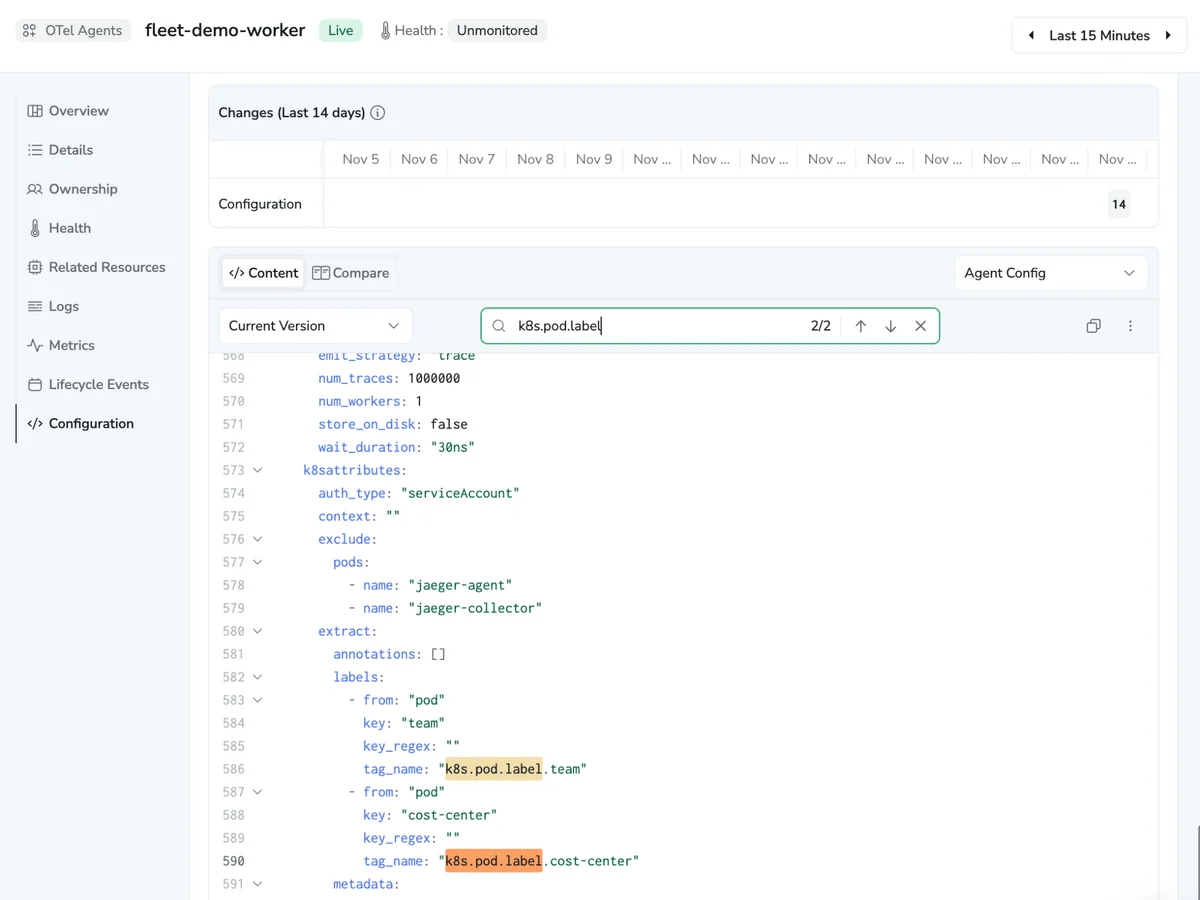
- The data. In Coralogix, search for logs from the test node that arrived after activation. Confirm they include
k8s.pod.label.teamandk8s.pod.label.cost-center. Logs from pods on other nodes don't have them, which shows the change reached only the test node.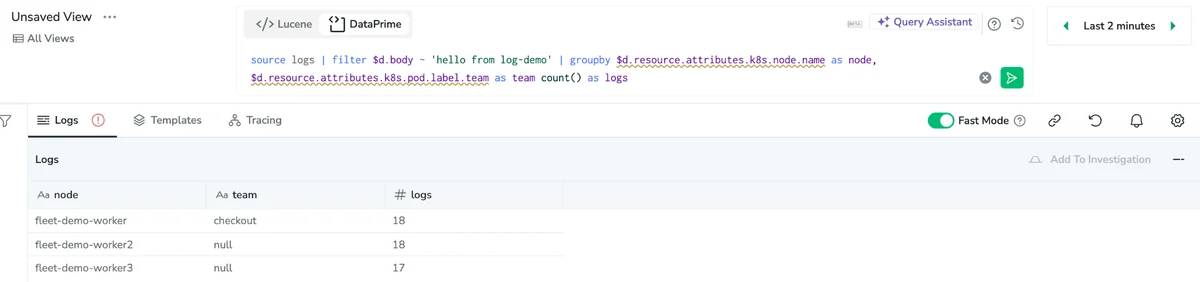
Should the target agent remain in a pending state or report an error, inspect its health metrics within the Agents dashboard prior to proceeding.
Rollout or rollback
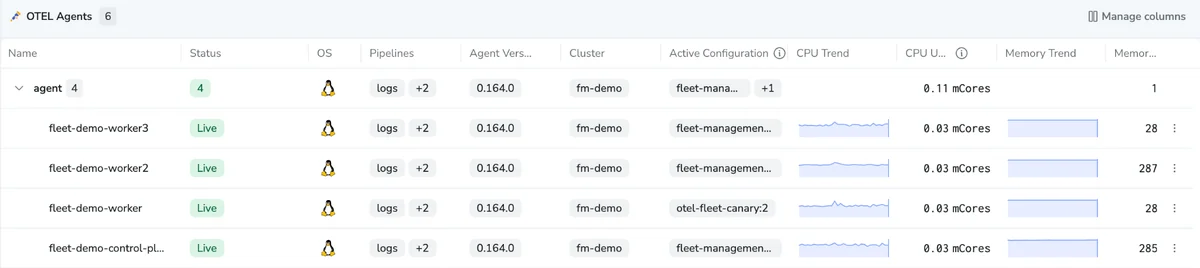
To roll back, deactivate otel-fleet-canary. The affected agents will return to the original group's configuration.
To roll out, add the same change to the original group and save it. Fleet Management creates a new version and keeps the old one in its history. Then deactivate or delete the clone, so the two groups don't drift apart.
Use the same canary for Collector upgrades
Fleet Management can also upgrade Collectors. When you create or edit a custom configuration group, you can choose a Collector version. The list marks the newest version as Latest and the version your Collectors run now as Running now. Every agent that matches the group's selector moves to that version.
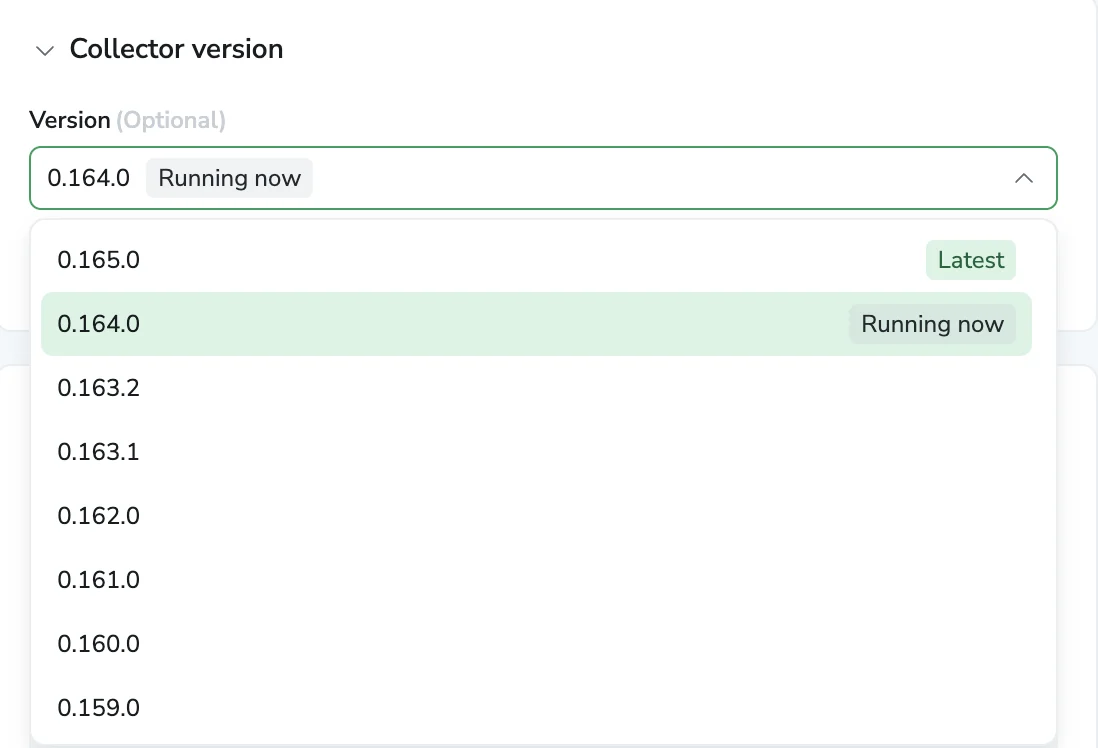
So an upgrade has the same risk as a configuration change: one edit reaches every matching Collector. Test it the same way:
- Clone the group and narrow the agent selector to one node, as described above. If the selector includes
service.version, remove that condition. The upgrade changes the Collector's version, so a selector that checks the version can miss your Collectors.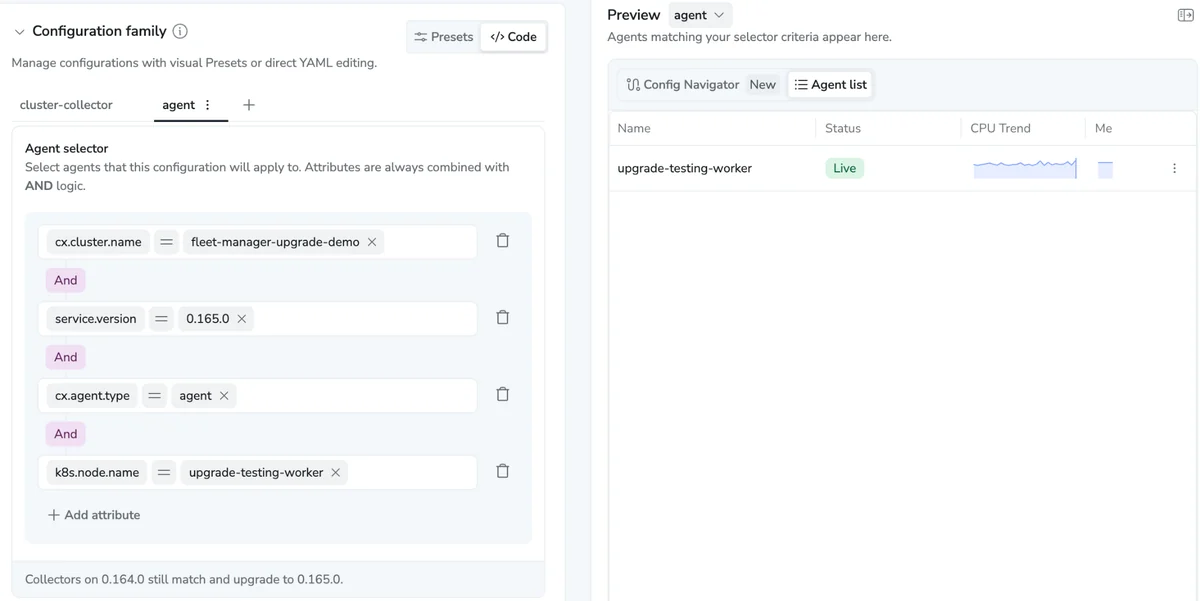
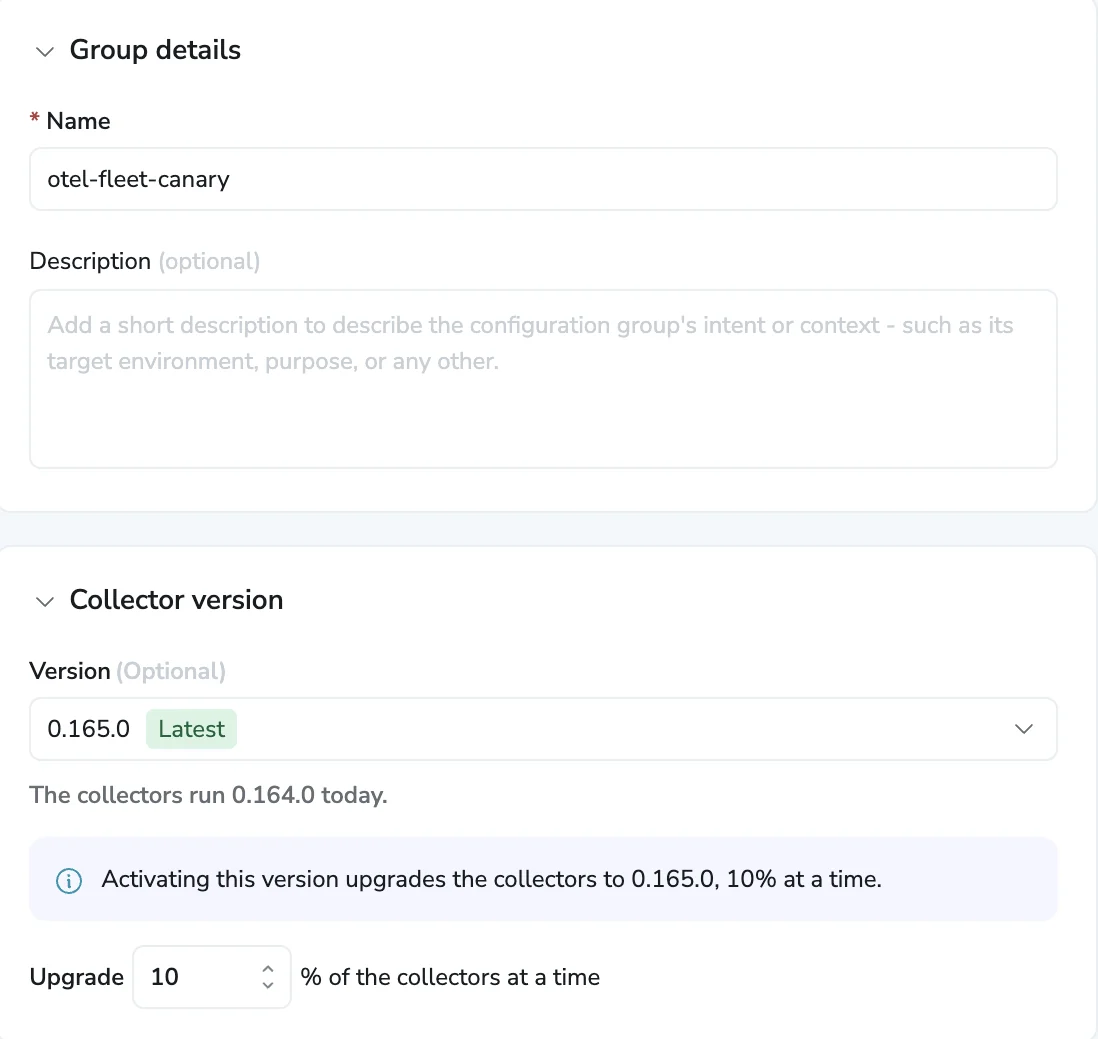
- In the clone, choose the new Collector version. Leave the configuration unchanged, so you test one change at a time. You can also set the percentage of Collectors that upgrade at a time. For one node, this has no effect. When you roll out to the main group, a small percentage upgrades the fleet in small batches.
- Activate the clone.
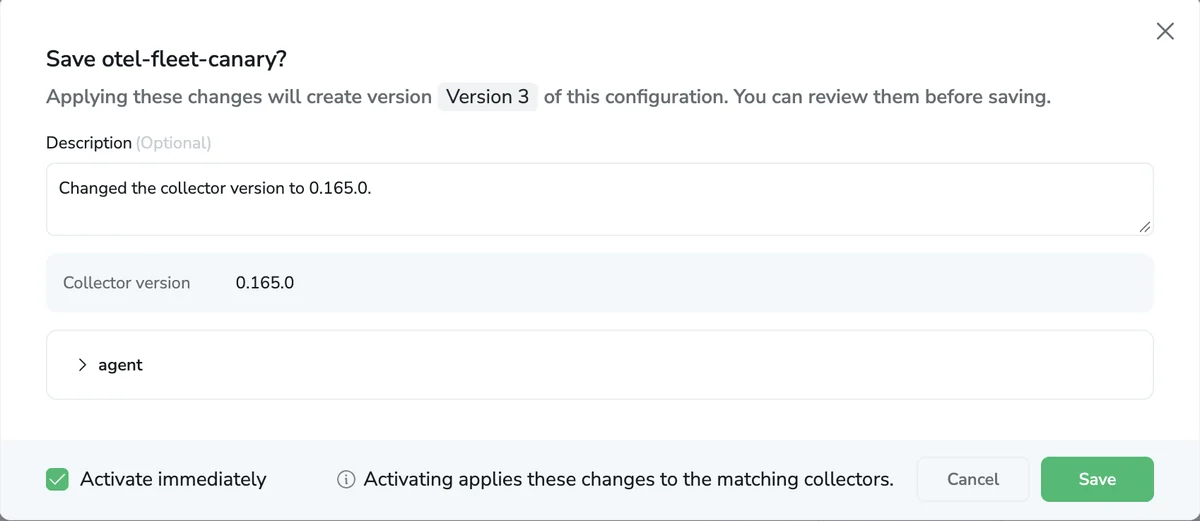
On each matching agent, the Supervisor does the following:
- It downloads the binary from the official OpenTelemetry Collector Contrib releases.
- It verifies the release signature done by the OpenTelemetry Collector release automation before it uses the binary.
- It uses the new binary to validate the current configuration before switching.
- If the new Collector fails to start, it rolls back both the binary and the configuration.
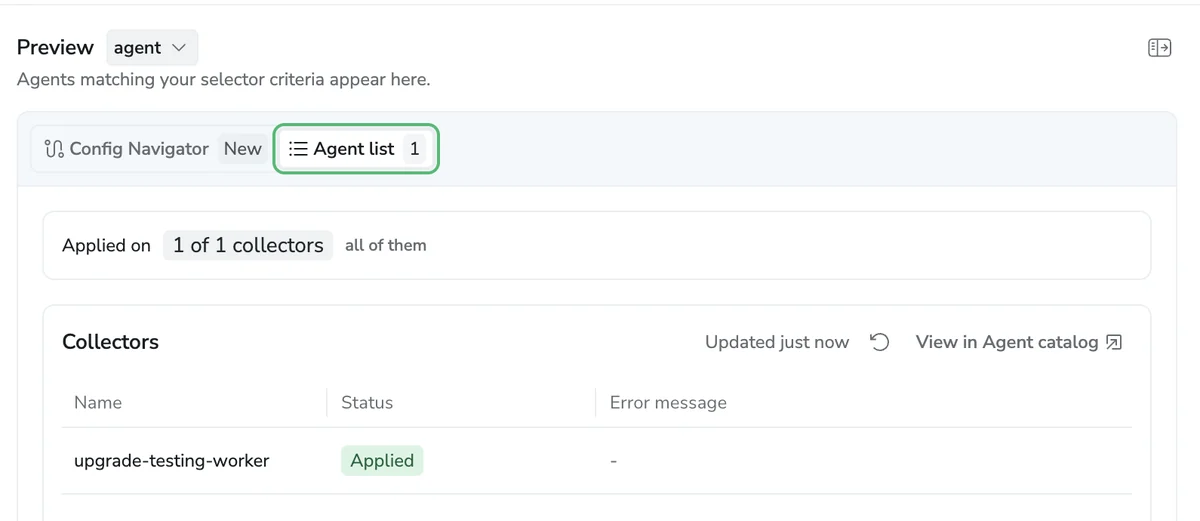
Check the current status of the agents through the Agent list tab on the Preview pane:
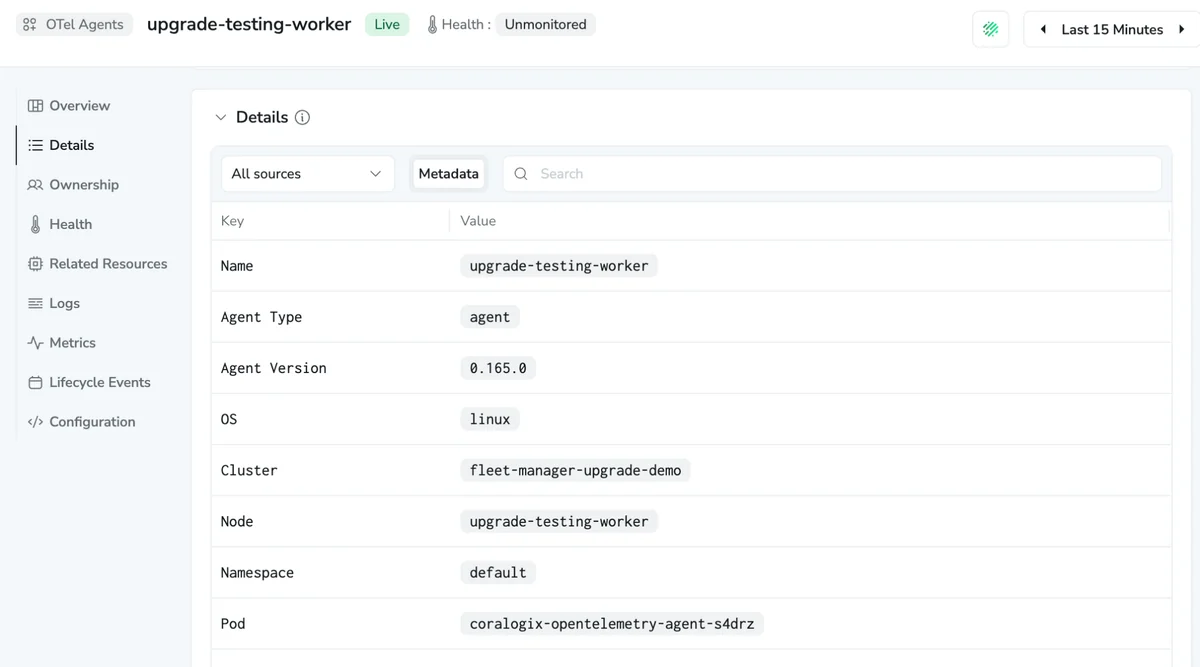
- The version. In Fleet Management → Agents, open the test Collector. Open Details. Agent Version shows the new version.
- The configuration. In its Configuration tab, click Compare to compare the version before the upgrade with the current one. Expect only changes that come with the new version, for example
os.build.idbecomesos.build_id. Automatic rollback doesn't catch changes like this one.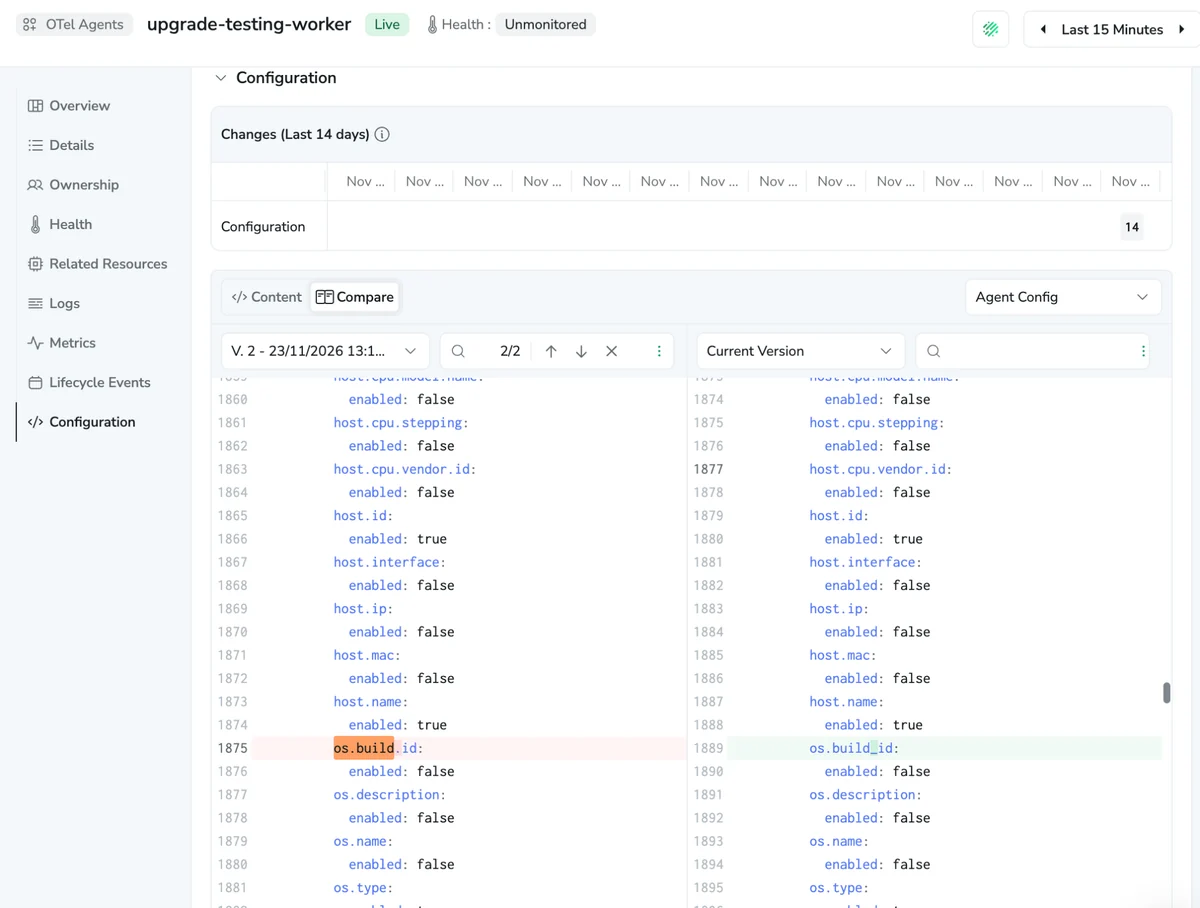
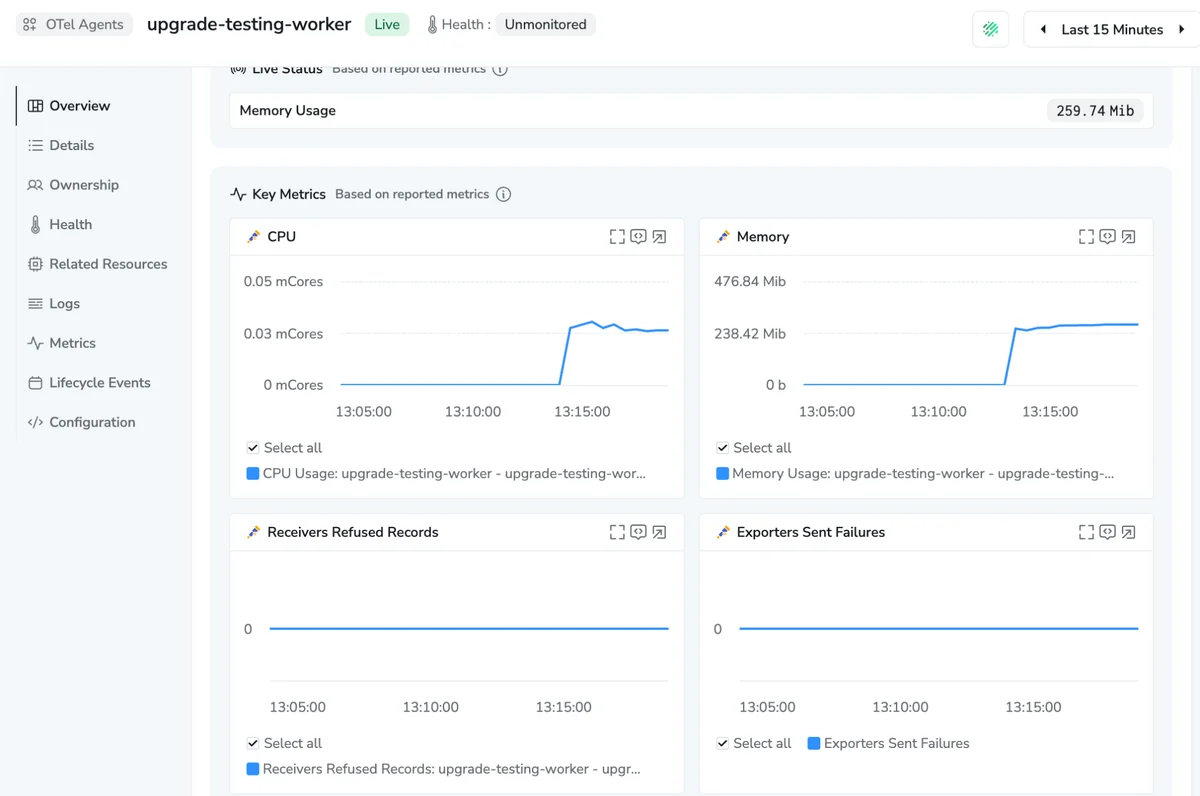
- The data. Its telemetry keeps arriving in Coralogix after the upgrade.
To roll out, set the same version on the original group, then deactivate the clone.
To roll back, deactivate the clone.
Automatic rollback only covers a Collector that fails to start. A Collector can start and still behave differently, for example when a component is deprecated or an attribute name changes. Read the release notes for breaking changes before you roll out. That gap is why the canary step matters.
A few things to agree on
A canary lowers the risk of a change. It doesn't replace agreeing on who changes the fleet and how.
- Permissions. Editing configurations needs remote configuration access, through the
FleetManagementpermission preset orREMOTE-CONFIGURATION:MANAGE. Give that access deliberately. See Fleet Management permissions. - Priority. The canary works only while its group has the higher priority. If someone reorders the groups, the test node can fall back to the original configuration.
- Merge the labels list carefully. If your
k8sattributesprocessor already extracts labels, add to that list. Don't replace it. - Pick labels with few values. Every extracted label becomes an attribute on every signal from that pod. A label with many unique values, such as a commit hash, increases cardinality and cost.
- Clean up. A clone you forget about keeps one node on an old configuration after you change the main group.
The result
The Collector on fleet-demo-worker reports the new labels entries in its configuration. Logs from the pod on that node carry k8s.pod.label.team and k8s.pod.label.cost-center. Logs from pods on other nodes don't, and the rest of the fleet stays unchanged until you roll out.
Keep reading


