Debug frontend issues with AI: Real user monitoring meets the Coralogix MCP server

The 2 AM problem: you have data, but the workflow is fragmented
It is 2 AM. Someone on-call gets paged. Conversion rates on the checkout page dropped 30 percent in the last hour. The immediate questions are familiar. Is this a JavaScript error? A slow API call? A broken third-party script? A performance regression that never throws an exception but quietly drives users away?
In most teams, answering those questions is not hard because the data is missing. It is hard because the investigation is split across too many places. You jump between the RUM dashboard, error tracking, Web Vitals, network requests, and user session context. You build a query, refine it, change the breakdown, and change the time window. The work becomes less about debugging and more about navigating.
Now imagine starting with a single question typed into your AI coding assistant:
“What are the top errors on the checkout page in the last hour, and how many users are affected?”
…and then getting a real answer from your production RUM data in seconds.
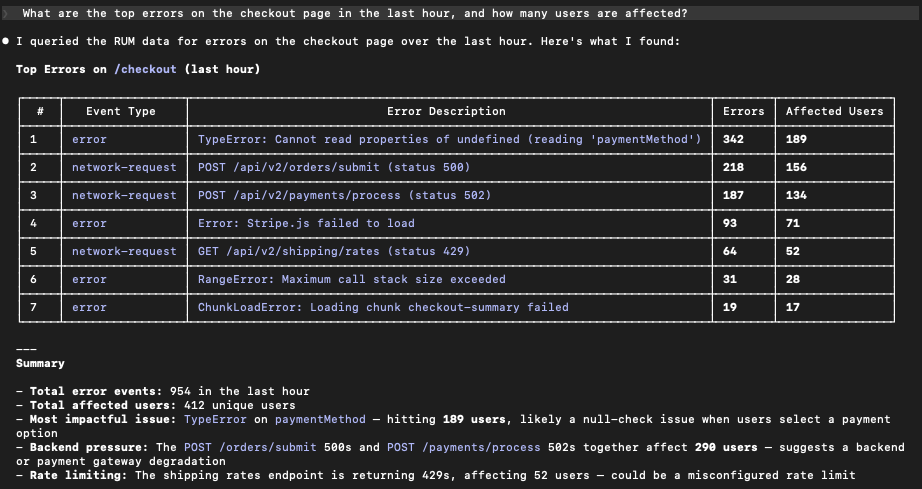
What changed: your AI assistant can query Real user monitoring
The Coralogix MCP Server connects MCP-compatible AI clients directly to Coralogix observability data. That includes assistants like Claude, Cursor, Windsurf, and any client that supports the Model Context Protocol (MCP).
- Coralogix MCP Server (GitHub): https://github.com/coralogix/ws-ai-mcp
- MCP standard: https://modelcontextprotocol.io/
With the latest update, that connection now extends to Real User Monitoring. In practice, this gives your assistant two capabilities that change the pace of investigation:
First, it can query live RUM data using natural language. You can ask about errors, performance signals, Web Vitals, network request behavior, and user interactions without starting by writing a query or remembering which fields to filter on.
Second, it can fetch current SDK documentation for Coralogix RUM SDKs, so setup and configuration questions are grounded in up-to-date published sources instead of memory or outdated snippets.
That combination matters because frontend and mobile debugging requires fast iteration. The best investigators don’t “run one query.” They ask a sequence of narrowing questions until the evidence is undeniable.
Start where incidents start: impact-ranked error triage
Most RUM investigations begin with triage. Something is broken and you need to know what, where, and how widespread. A prompt like this is usually enough to get the first high-signal view:
“What are the top JavaScript errors in our web app this week?”
The value is not just listing errors. It is returning results in a way engineers actually use, such as grouping by error fingerprint, ranking by affected users or sessions, and showing where the error happens most. From there, you iterate the way you would with a teammate:
- “Is this isolated to checkout?”
- “Break it down by browser and app version.”
- “When did it start?”
Instead of spending ten minutes setting up the investigation, you spend just a couple of minutes narrowing down and isolating any events.
Follow the trail: network failures and “it’s not really a frontend bug”
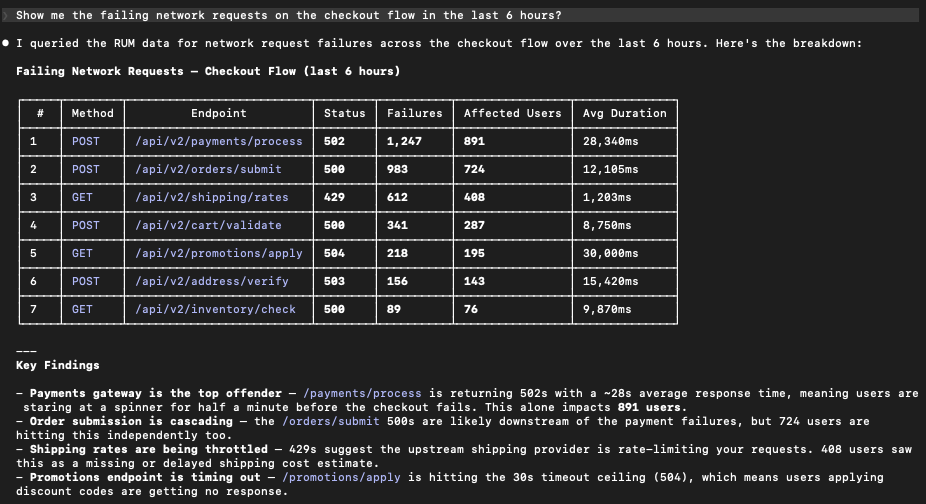
Frontend incidents are often symptoms of something upstream. A user does not experience a backend 500 error. They experience a spinner that never ends, a form that fails to submit, or a checkout step that times out. This is why network request questions are so often the bridge from a broken frontend to the actual failing service.
- “Show me network request failures on the checkout flow.”
- “Which endpoints are timing out?”
- “Did this start after the last deployment window?”
This is where a conversational workflow helps because you rarely know the right breakdown at the start. Each follow-up is a natural next question rather than a new dashboard.
Performance regressions: Web vitals without the deep dive
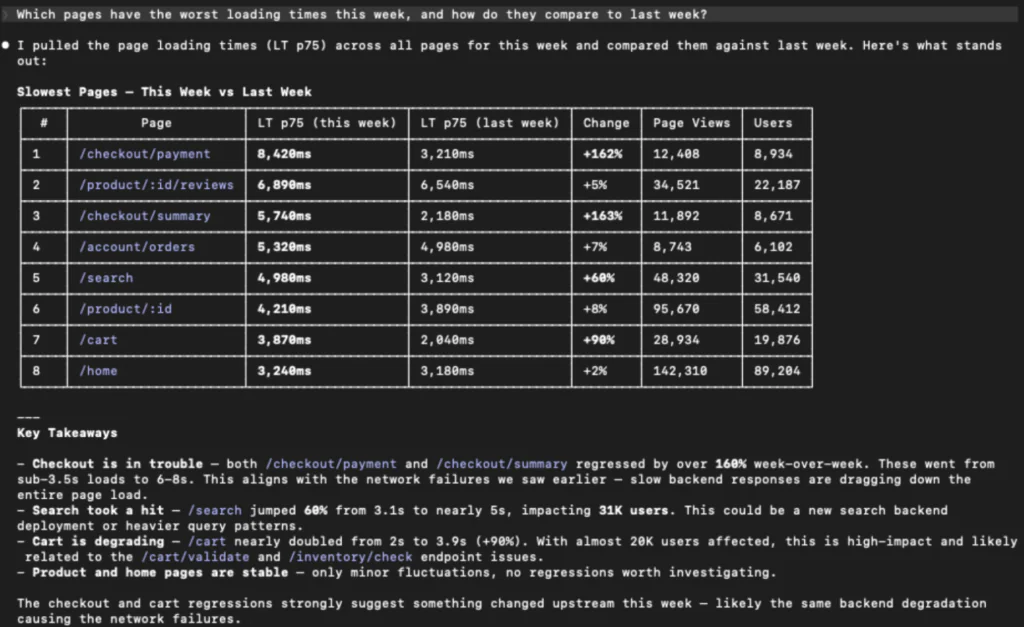
Performance issues are silent killers. They do not always generate errors, but they absolutely change behavior. Users bounce and conversion drops. With RUM connected through the MCP Server, performance investigations become easier to start and easier to repeat:
- “Which pages have the worst LCP this week?”
- “Is CLS getting better or worse on the portal?”
- “Are there long tasks blocking the main thread on the product page?”
A conversational interface makes it practical to ask performance questions during an incident or a release review, rather than waiting for a scheduled performance deep dive.
Closing the loop: From investigation to codebase context
The true power of the Coralogix MCP Server is not just that it brings data to your AI. It is that it brings that data into an environment like Cursor, Windsurf, or Claude Dev that already has a map of your entire codebase.
In a traditional workflow, the investigation and the fix are two separate continents. You find the error in a dashboard, and then you go hunting through your directories to find the file, the component, and the logic that caused it. When your AI assistant lives in your editor and has access to Coralogix RUM via MCP, that gap vanishes. It becomes a closed-loop system:
- The Sensor: RUM identifies a specific JavaScript exception or a performance bottleneck on a specific route.
- The Brain: The AI queries the MCP server, gets the stack trace, and immediately correlates that trace to the files open in your editor.
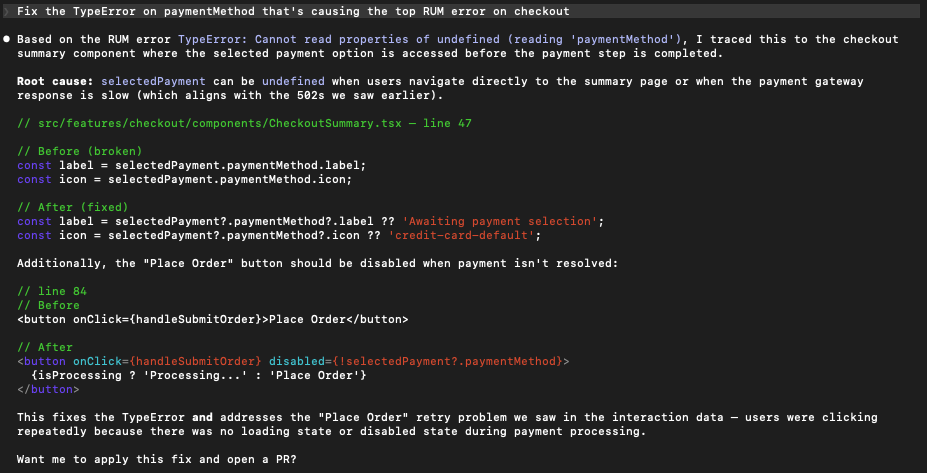
- The Action: You do not just ask why this is happening. You ask the AI to fix the logic in the checkout component that is causing the RUM error.
Because the agent knows the context of your project, it can suggest or even apply the fix based on the real-world evidence it just pulled from Coralogix. This moves you from insight to pull request in a single conversation.
What users actually did: turning RUM into investigation-grade behavior context
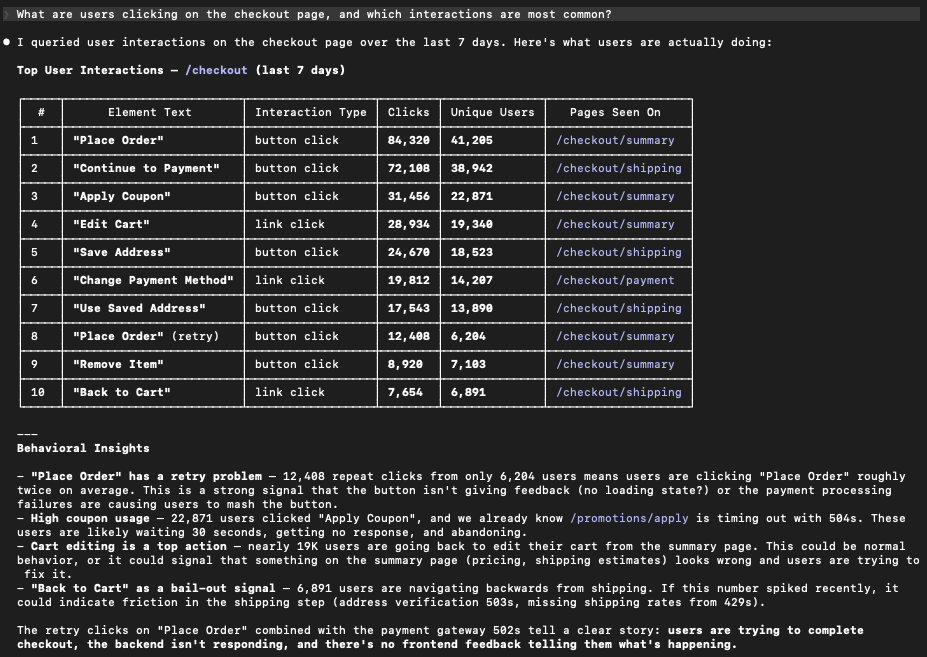
When conversion drops, the most useful question is not always “what error happened.” Sometimes it is “what were users doing when this started?”
RUM captures interaction and navigation context that can quickly validate whether a flow is breaking in a specific step:
“What are users clicking on the checkout page?”
“What are the most common interactions on the onboarding flow?”
“Which fields do users interact with most on the signup form?”
This is not a replacement for a full product analytics program. It is a way to pull behavioral context into engineering investigations without having to pre-build funnels and dashboards for every question.
Mobile is not a special case
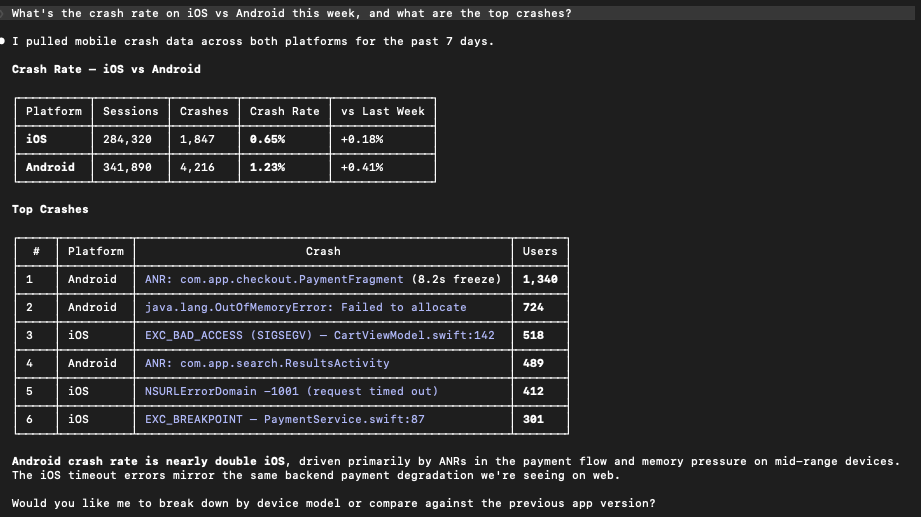
Mobile debugging comes with its own complexity including platform differences, device variability, and crashes that cannot be reproduced locally. The benefit of connecting RUM through MCP is that the workflow stays the same across Android, iOS, React Native, and Flutter.
You ask questions in the same style regarding crash rates, ANR issues, or memory usage. You do not need a different mental model per platform. You keep the same loop of question, evidence, and refinement.
Setup and instrumentation: Up-to-date SDK guidance
Incidents are only half the story. The other half is making sure the next incident is easier to debug. This means better instrumentation and readable stack traces.
In the same place you ask what is happening, you can ask how to set up Coralogix RUM in your React app or how to upload source maps so production stack traces are readable. Instead of interrupting an engineering workflow to hunt for the right documentation, you can keep momentum and get actionable setup guidance immediately.
A realistic incident flow: from page to proof in a few questions
During a real incident, the biggest win is compressing the time between “we see impact” and “we have validated evidence.”
A typical sequence might look like:
- “Are there any new errors spiking in the last 2 hours?”
- “How many users are affected and which pages are impacted?”
- “Did performance degrade in the same window?”
- “Are there network failures pointing to an upstream dependency?”
The point is not that the assistant magically fixes incidents. The point is that it removes friction between the question in your head and the data you need to answer it, so you can spend time reasoning instead of navigating.
Getting started
If you already use the Coralogix MCP Server with your AI assistant, the RUM capabilities are available through the same workflow. Start with a question from a real incident and iterate.
If you are new to it:
- Connect your AI assistant to the Coralogix MCP Server
- Ensure RUM data is flowing from your web or mobile app via a Coralogix RUM SDK
- Start with something simple, like:
“What are the top frontend errors affecting users this week?”
To explore the code, contribute, or report issues:
Beyond investigation: Closing the loop with codebase context
The true power of the Coralogix MCP Server isn’t just that it brings data to your AI; it’s that it brings that data into an environment—like Cursor, or Claude Code—that already has a map of your entire codebase.
In a traditional workflow, the “investigation” and the “fix” are two separate continents. You find the error in a dashboard, then you go hunting through your directories to find the file, the component, and the logic that caused it.
When your AI assistant lives in your editor and has access to Coralogix RUM via MCP, that gap vanishes. It’s a closed-loop system:
- The Sensor: RUM identifies a specific JavaScript exception or a performance bottleneck on a specific route.
- The Brain: The AI queries the MCP server, gets the stack trace, and immediately correlates that trace to the files open in your editor.
- The Action: You don’t just ask “Why is this happening?” You ask, “Fix the logic in the checkout component that is causing this RUM error.”
From insight to pull request
Because the agent knows the context of your project, it can suggest (or even apply) the fix based on the real-world evidence it just pulled from Coralogix.
Learn more in our docs.