How Coralogix’s Data Pipeline Turns Obscure Data into Clear Business Value

Observability data arrives as a flood of signals, full of potential, but rarely consistent. Error messages and debug logs can reveal what businesses care about: reliability, customer experience, and revenue. The challenge is turning raw technical events into information the whole organization can act on.

Many observability systems store data first and structure it later, forcing teams to rebuild context in dashboards and queries, often duplicating logic across services.

Coralogix takes a different approach: by decoupling storage from compute, raw telemetry can be queried and analyzed in real time directly from your own cloud storage using DataPrime and AI-driven capabilities.
Additionally, Data Pipeline continuously refines telemetry at ingest, parsing, enriching, and shaping it into consistent, contextual, business-relevant signals, without requiring app code or logging changes.


The problem with opaque data

Imagine a log line generated during a checkout process:

2026-02-14T10:45:23Z ERROR CheckoutService - Failed to process payment. Error details: item 66VCHJNUP, qty 1, code 500

An engineer might notice the product ID buried in the string. Elsewhere in the organization, that ID maps to a product name, price, and category, information that could immediately quantify business impact. When telemetry carries that context at ingestion time, queries get simpler, correlations get faster, and dashboards become more meaningful.

In legacy systems, achieving this clarity often means a heavy overhead: changing application code and logging formats, redeploying services, and repeating parsing logic across teams. Coralogix centralizes this work in real time, structuring and enriching telemetry as it’s ingested, before it’s analyzed, visualized, or routed.


How the Coralogix Data Pipeline works

As data flows into Coralogix, it passes through a centralized pipeline that transforms raw telemetry into clear, contextual signals. Processing logic can be defined once and applied consistently, without requiring teams to change app code or implement client-side logic. The pipeline operates in-stream, shaping telemetry in real time before it’s written to storage.

The pipeline can be understood as four stages:

  • Stage 1: Create meaning
  • Stage 2: Understand flow
  • Stage 3: Control spend
  • Stage 4: Govern at scale

Let’s walk through them using our checkout example.


Stage 1: Data Shaping – create meaning

Stage 1 turns raw logs into structured, contextual signals that can be used across the platform.

Parsing rules: sanitize and standardize
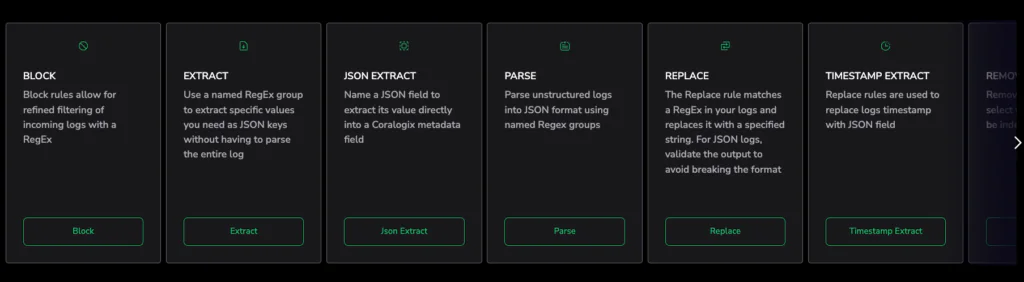
At this step, Parsing Rules transform unstructured messages into consistent key-value fields. Formats are normalized, noise can be removed, and sensitive information can be masked.

For our checkout error, parsing can extract the product ID and restructure the message into a standardized JSON document:

{
"service": "CheckoutService",
"level": "ERROR",
"product_id": "66VCHJNUP",
"quantity": 1,
"error_code": 500
}

Now the event is machine-readable and ready for enrichment.

Data enrichment: add context
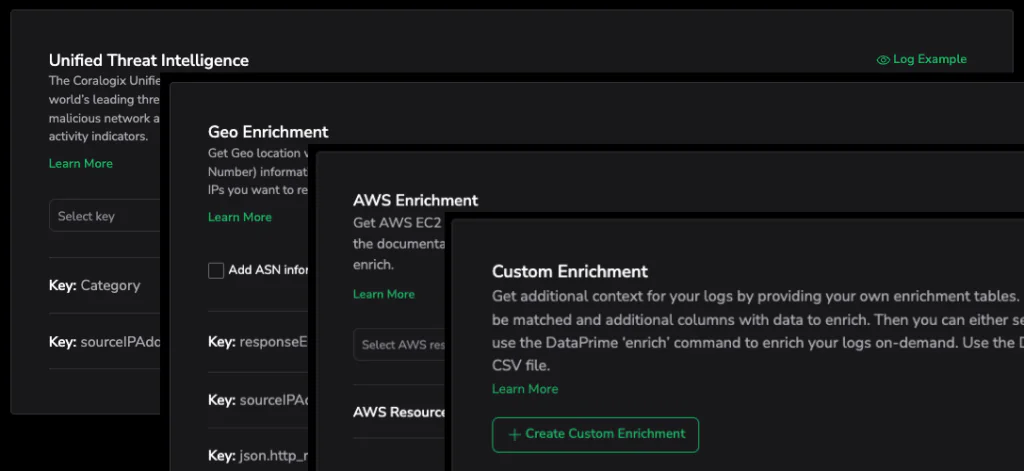
Structured data becomes highly actionable when context is added. Coralogix performs high-scale, stateful enrichment directly within the stream, including:

In our example, once product_id is standardized, it can be joined with a reference table that contains product metadata (name, price, category). The enriched event might look like:

{
"service": "CheckoutService",
"level": "ERROR",
"product_id": "66VCHJNUP",
"quantity": 1,
"error_code": 500,
"product_name": "Wireless Speaker X",
"price": 129,
"category": "Audio"
}

This transforms an error log into a business insight. Instead of only seeing that checkout failed, you can see what revenue was at risk in that moment for a specific product and customer journey. That’s the foundation of Organization Intelligence: engineering and business data speaking the same language.

Events2Metrics, Recording Rules (operational prep)
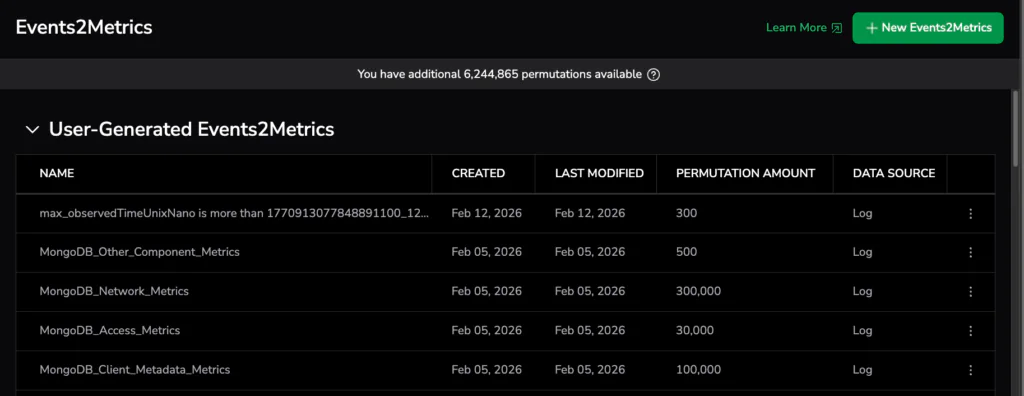
If needed, enriched events can also be operationalized further. Events2Metrics can transform them into measurable metrics for aggregation and alerting. Recording Rules can be created for standardized data that multiple teams rely on.

By the end of Stage 1, a raw log line has become a structured, contextual signal. Meaning has been created at ingestion time. The result is data that is not only immediately queryable but also includes both business and technical contexts.


Stage 2: Data Usage – understand flow
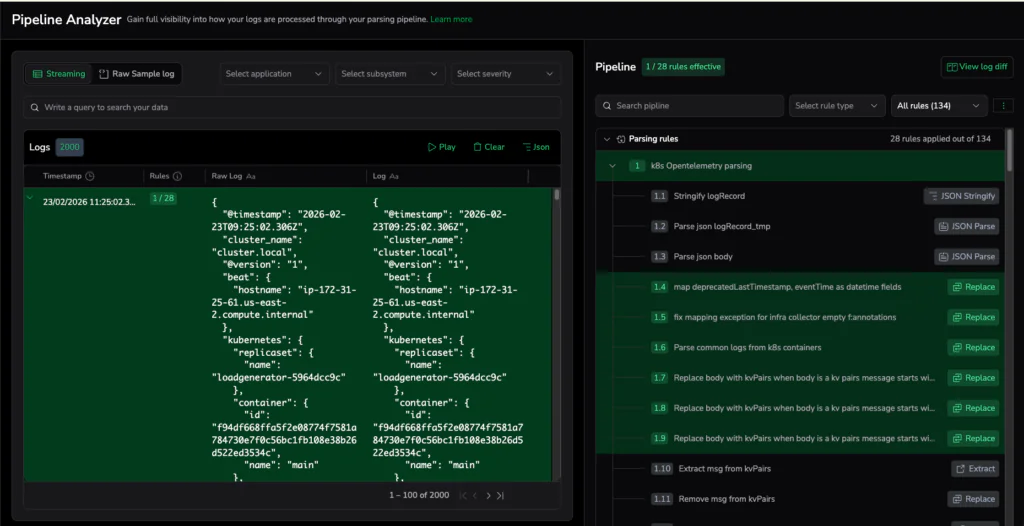
Once data has meaning, the next step is visibility and understanding: how much is flowing, where it’s routed to, and what effect your pipeline rules are having.

Included Features

In the checkout scenario, teams can move from “we saw errors later” to real-time operational awareness, triggering an alert when enriched payment failures cross a threshold, even before logs are persisted. Instead of waiting for dashboards, teams can quantify impact in the moment: frequency, affected products, and potential revenue at risk.


Stage 3: Cost Optimization – align spend with business value

Once you understand what data is flowing through your pipeline and what it represents, the next step is control.

Cost Optimization ensures that observability spend reflects the value of the signals being collected. Some events are tied directly to revenue, security risk, or customer experience. Others are low-impact debug logs that can be routed for archiving.

Included Features

  • TCO Optimizer – Provides visibility into cost drivers and optimization opportunities
  • Quota Rules – Define limits and controls on data ingestion
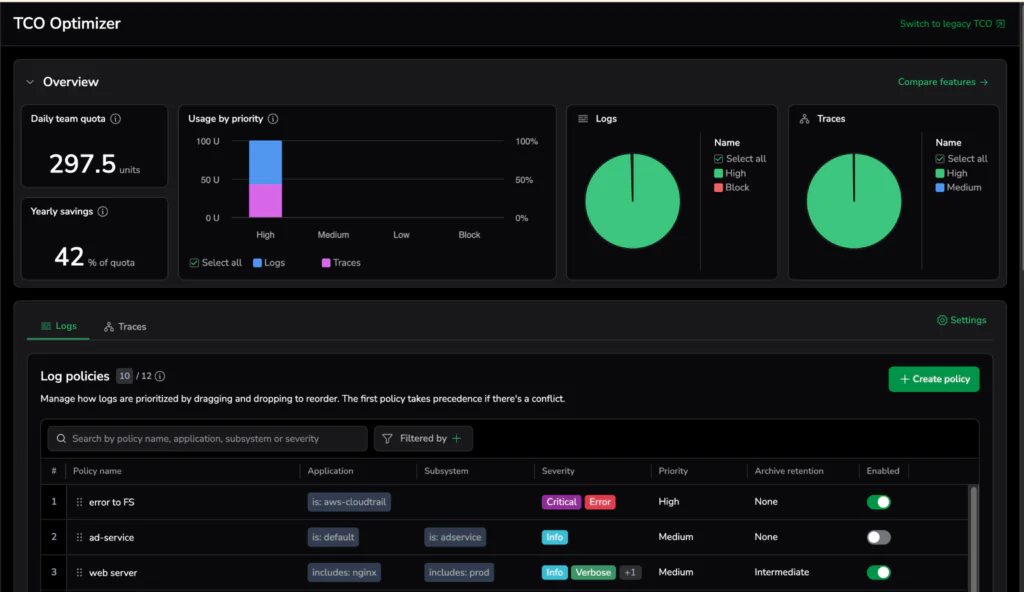
Returning to our checkout example, enriched payment failures tied to revenue impact are high-value signals. These events may deserve a higher performance tier. Verbose debug logs from non-production environments may be routed to lower-cost storage, retained for shorter periods, or limited by quota rules.

Because the data was shaped and contextualized in Stage 1, cost decisions are now based on impact, not guesswork. 


Stage 4: Govern Data – operate at scale
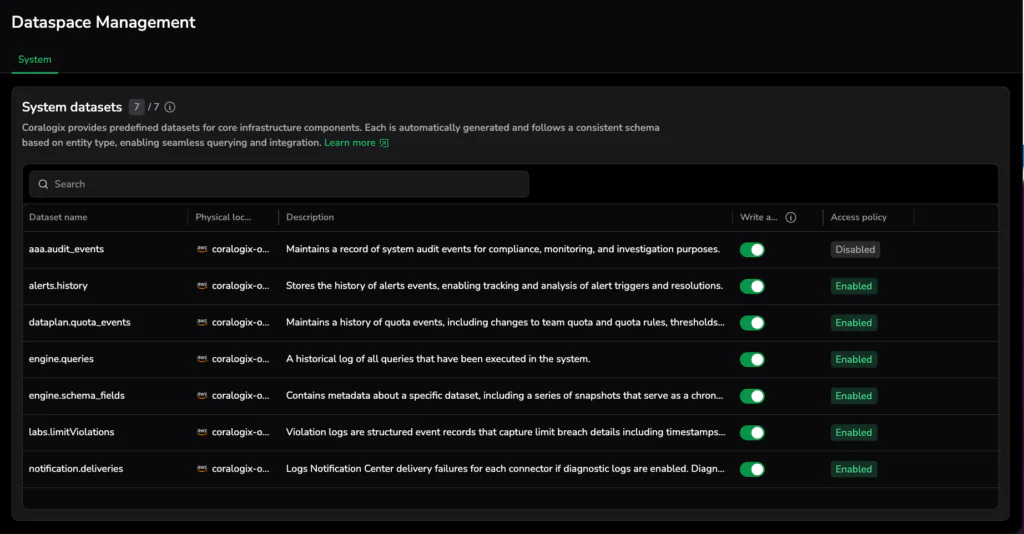
As observability data scales, governance becomes essential. Without clear structure and ownership, even well-shaped data can drift. Granular routing and access rules can also create overhead. 

Stage 4 ensures that observability data remains consistent, organized, and reusable across teams and use cases.

Included Features

  • Dataset Management: Organize data into logical groupings aligned with services, teams, or business domains
  • Forwarders: Route data to the right destinations, internally or externally, based on policy
  • Schema Manager & Reserved Fields: Enforce consistent structure and protect critical fields across environments
  • Metrics Explorer: Explore and standardize metric usage across the organization

Returning to our checkout example, governance makes sure checkout events:

  • Land in the correct datasets
  • Maintain consistent field definitions (like product_id, price, category)
  • Can be safely reused across dashboards, alerts, and AI-driven workflows
  • Remain stable as teams evolve and services scale

Governance keeps data consistent and controlled: schemas stay stable, routing is policy-driven, and permissions are enforced, so teams can scale safely.


Returning to the checkout example: from error to insight

The original checkout failure began as an opaque string. After moving through the Data Pipeline, the product ID is structured, business context is attached, usage is measured, cost policies are applied, and governance maintains consistency.

For example, you could run a simple query to measure checkout failures for a specific product:

source logs
| filter json.service == 'CheckoutService'
| filter json.level == 'ERROR'
| filter json.product_name == 'Wireless Speaker X'
| create hour_bucket from $m.timestamp / 1.toInterval('h')
| groupby hour_bucket
| aggregate count() as failures,
sum(json.price) as revenue_at_risk

Because key fields were extracted and enriched at ingest, calculating failure volume and potential revenue impact becomes straightforward.

Now you can ask and answer questions that weren’t previously obvious:

  • How many checkout failures of this type occurred in the last hour?
  • What is the estimated revenue at risk?
  • Is the issue isolated to a specific region or environment?

Instead of reporting “we have a bug,” teams can report: “Checkout errors affecting Product X have resulted in $360 of revenue risk in the last two hours.” That’s the foundation of Organization Intelligence: engineering and business data speaking the same language.


Conclusion: refinement creates value

In Coralogix, you can query data the moment it arrives, even raw. But as telemetry is shaped, enriched, and standardized in-stream, it becomes easier to correlate, faster to query, and more reliable to reuse across teams.

That’s the difference between technical visibility and actionable business insight: quicker investigations, clearer decisions, and a tighter link between technical events and business impact.

Where is Your Next Release Bottleneck? 

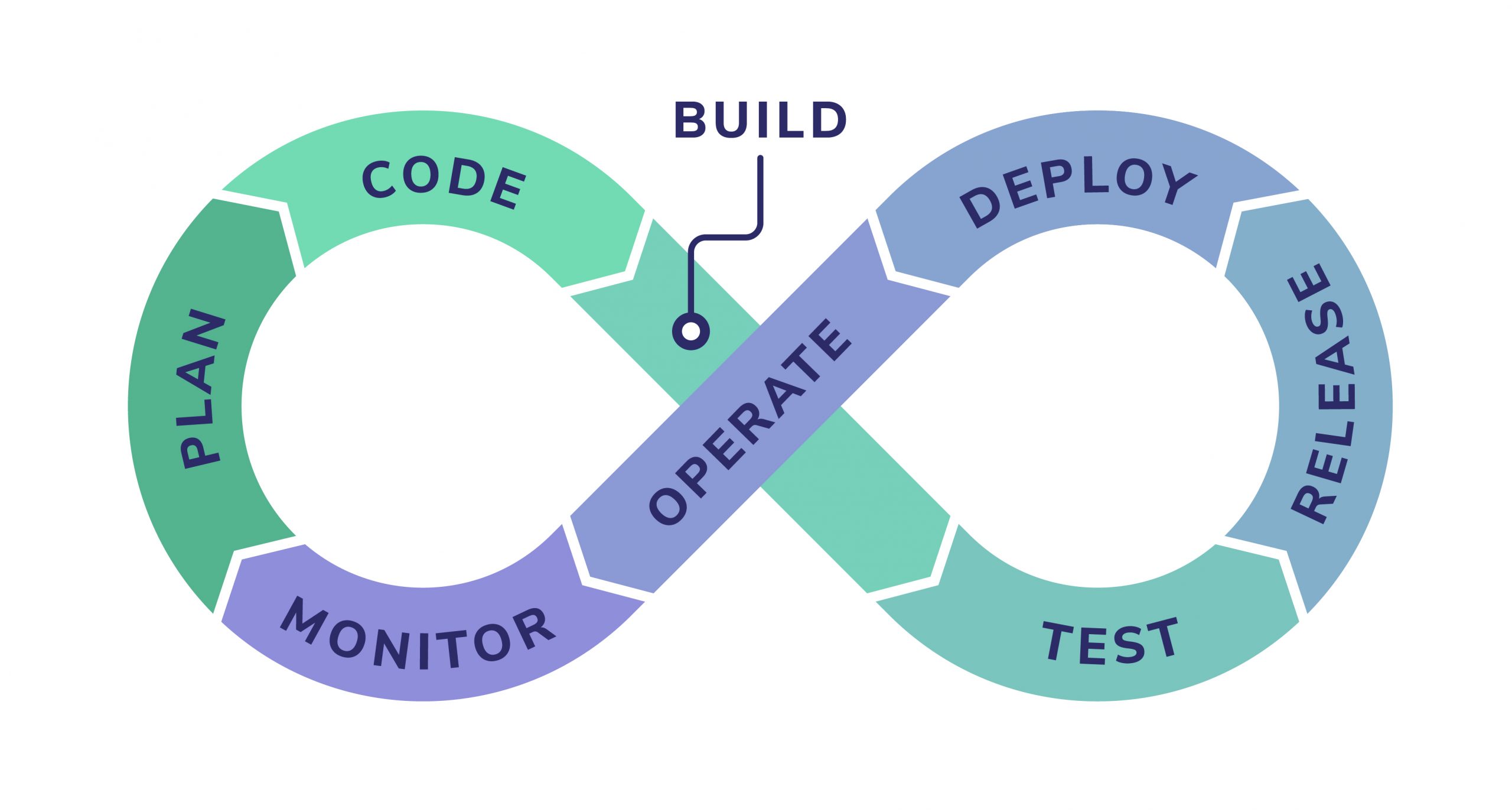
A typical modern DevOps pipeline includes eight major stages, and unfortunately, a release bottleneck can appear at any point:

devops pipeline

These may slow down productivity and limit a company’s ability to progress. This could damage their reputation, especially if a bug fix needs to be immediately deployed into production.

This article will cover three key ways using data gathered from your DevOps pipeline can help you find and alleviate bottlenecks in your DevOps pipeline.

1. Increasing the velocity of your team

To improve velocity in DevOps, it’s important to understand the end-to-end application delivery lifecycle to map the time and effort in each phase. This mapping is performed using the data pulled directly and continuously from the tools and systems in the delivery lifecycle. It helps detect and eliminate bottlenecks and ‘waste’ in the overall system. 

Teams gather data and metrics from build, configuration, deployment and release tools. This data can contain information such as release details, duration of each phase, whether the phase is successful and more. However, none of these tools paint the whole picture.

By analyzing and monitoring this data in aggregate, DevOps teams benefit from an actionable view of the end-to-end application delivery value stream, both in real-time and historically. This data can be used to streamline or eliminate the bottlenecks that are slowing the next release down and also enable continuous improvement in delivery cycle time.

2. Improving the quality of your code

Analyzing data from the testing performed for a release, enables the DevOps teams to see all the quality issues in new releases and remediate them before implementing into production. Ideally preventing post-implementation fixes.

In modern DevOps environments, most (if not all) of the testing process is achieved with automated testing tools. Different tools are usually used for ‘white box’ testing versus ‘black box’ testing. While the former aims to cover code security, dependencies, comments, policy, quality, and compliance testing, the latter covers functionality, regression, performance, resilience, penetration testing, and meta-analysis like code coverage and test duration.

Again, none of these tools paints the whole picture, but analyzing the aggregate data enables DevOps teams to make faster and better decisions about overall application quality, even across multiple QA teams and tools. This data can even be fed into further automation. For example:

  • Notify the development team of failing code which breaks the latest build. 
  • Send a new code review notification to a different developer or team.
  • Push the fix forward into UAT/pre-prod.
  • Implement the fix into production.

There are some great static analysis tools that can be integrated into the developers’ pipeline to validate the quality, security, and unit test coverage of the code before it even gets to the testers. 

This ability to ‘shift left’ to the Test stage in the DevOps loop (to find and prevent defects early) enables rapid go/no-go decisions based on real-world data. It also dramatically improves the quality of the code that is implemented into production, by ensuring failing or poor quality code is fixed or improved. Therefore reducing ‘defect’ bottlenecks in the codebase

3. Focusing in on your market

Data analytics from real-world customer experience enables DevOps teams to reliably connect application delivery with business goals. It is critical to connect technology and application delivery with business data. While technical teams need data on timings like website page rendering speeds, the business needs data on the impact of new releases.

This includes metrics like new users / closed accounts, completed sales/items stuck in the shopping cart and income. No single source provides a complete view of this data, as it’s isolated across multiple applications, middleware, web servers, mobile devices, APIs, and more.

Fail Fast, Fail Small, Fail Cheap!

Analyzing and monitoring the aggregate data to generate business-relevant impact metrics enables DevOps teams to:

  • Innovate in increments 
  • Try new things
  • Inspect the results
  • Compare with business goals
  • Iterate quickly

Blocking low-quality releases can ultimately help contain several bottlenecks that are likely to crop up further along in the pipeline. This is the key behind ‘fail fast, fail small, fail cheap’, a core principle behind successful innovation.

Bottlenecks can appear in a release pipeline. Individually, many different tools all paint part of the release picture. But only by analyzing and monitoring data from all these tools can you see a full end-to-end, data-driven approach that can assist in eliminating bottlenecks. This can improve the overall effectiveness of DevOps teams by enabling increased velocity, improved code quality and increased business impact.
Easily Build Jenkins Pipelines – Tutorial

Are you building and deploying software manually and would like to change that? Are you interested in learning about building a Jenkins pipeline and better understand CI/CD solutions and DevOps at the same time? In this first post, we will go over the fundamentals of how to design pipelines and how to implement them in Jenkins. Automation is the key to eliminating manual tasks and to reducing the number of errors while building, testing and deploying software. Let’s learn how Jenkins can help us achieve that with hands-on examples with the Jenkins parameters. By the end of this tutorial, you’ll have a broad understanding of how Jenkins works along with its Syntax and Pipeline examples. 

What is a pipeline anyway?

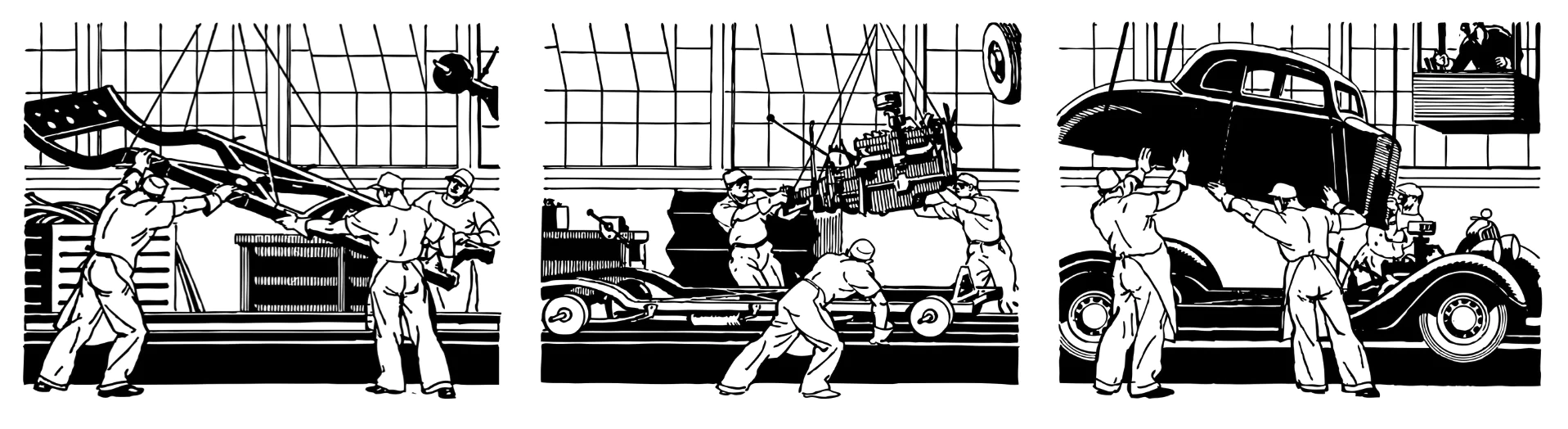
Let’s start with a short analogy to a car manufacturing assembly line. I will oversimplify this to only three stages of a car’s production:

  • Bring the chassis
  • Mount the engine on the chassis
  • Place the body on the car

Even from this simple example, notice a few aspects:

    • These are a series of pipeline steps that need to be done in a particular order 
    • The steps are connected: the output from the previous step is the input for the next step

In software development, a pipeline is a chain of processing components organized so that the output of one component is the input of the next component.

At the most basic level, a component is a command that does a particular task. The goal is to automate the entire process and to eliminate any human interaction. Repetitive tasks cost valuable time and often a machine can do repetitive tasks faster and more accurately than a human can do.

What is Jenkins?

Jenkins is an automation tool that automatically builds, tests, and deploys software from our version control repository all the way to our end users. A Jenkins pipeline is a sequence of automated stages and steps to enable us to accelerate the development process – ultimately achieving Continuous Delivery (CD). Jenkins helps to automatically build, test, and deploy software without any human interaction  – but we will get into that a bit later. 

If you don’t already have Jenkins installed, make sure that you check this installation guide to get you started. 

Create a Jenkins Pipeline Job

Let’s go ahead and create a new job in Jenkins. A job is a task or a set of tasks that run in a particular order. We want Jenkins to automatically execute the task or tasks and to record the result. It is something we assign Jenkins to do on our behalf.

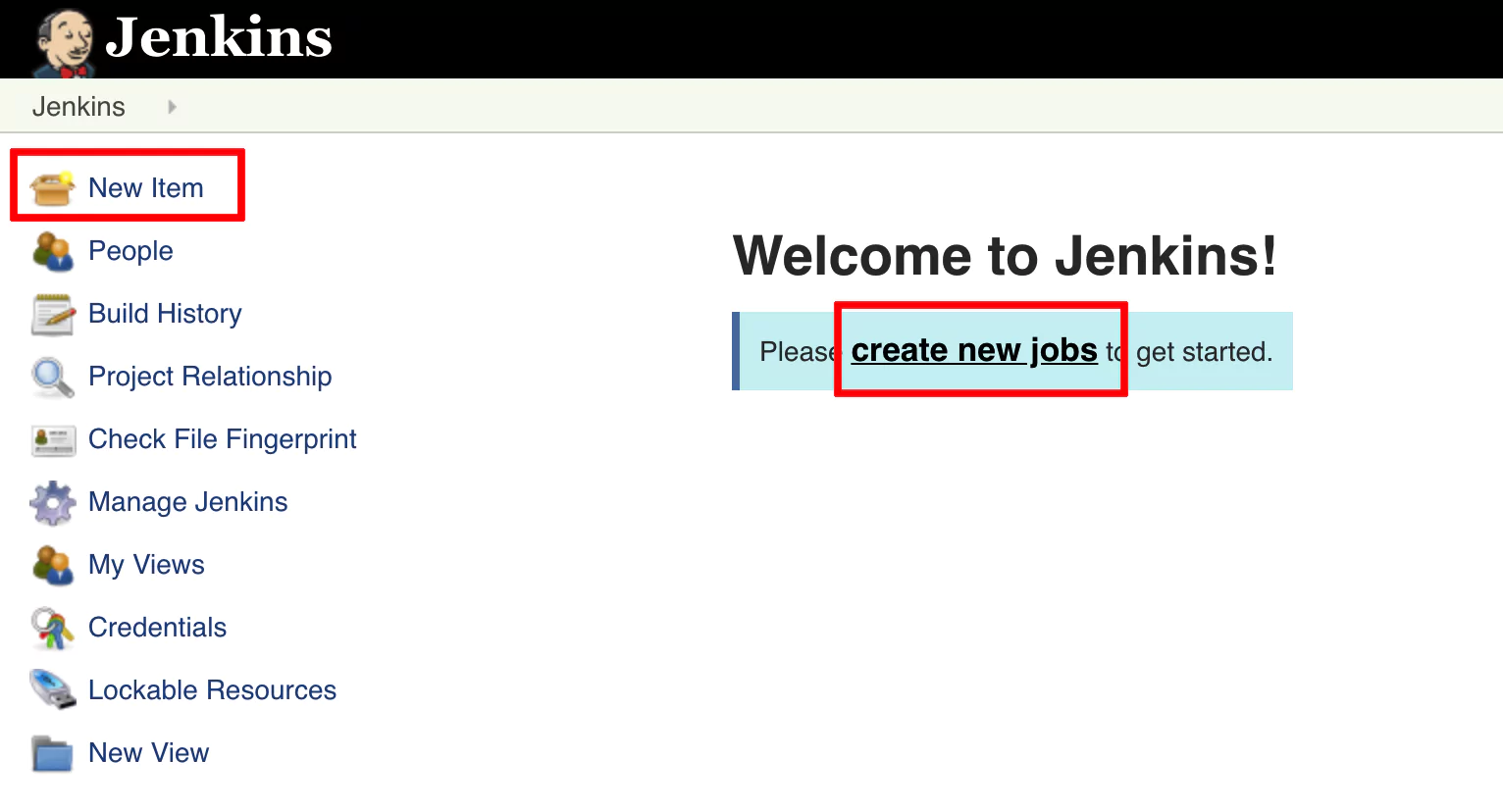
Click on Create new jobs if you see the text link, or from the left panel, click on New Item (an Item is a job). 

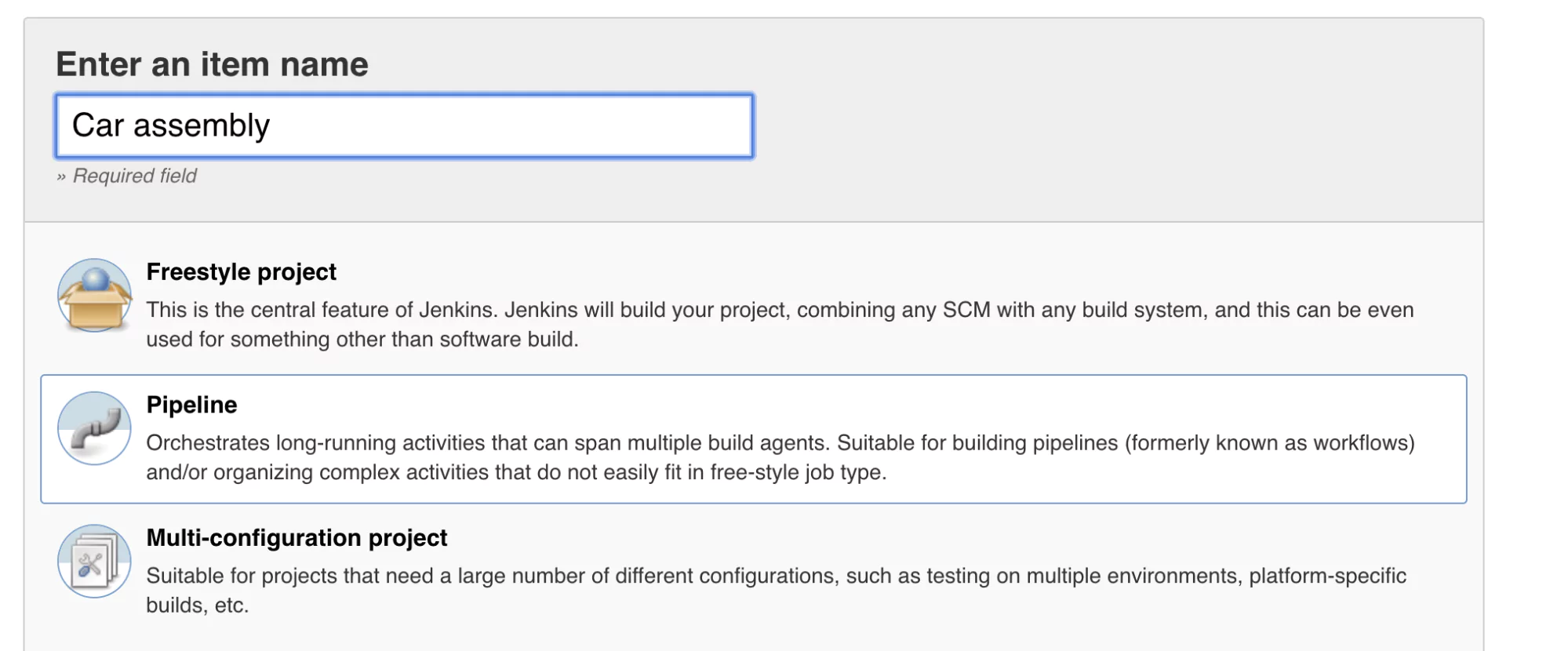
jenkins create pipeline start

Name your job Car assembly and select the Pipeline type. Click ok.

jenkins-create-new-job

Configure Pipeline Job

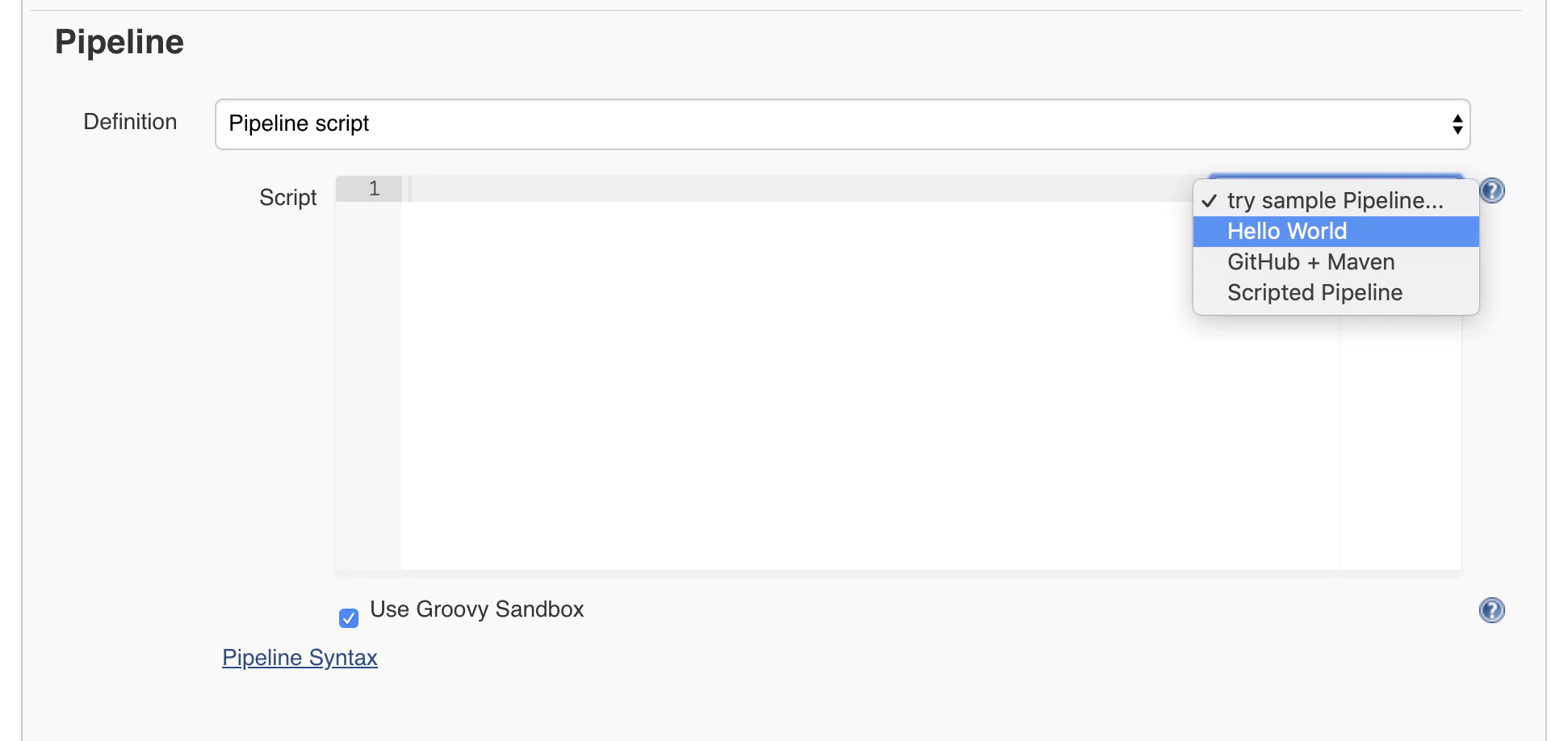
Now you will get to the job configuration page where we’ll configure a pipeline using the Jenkins syntax. At first, this may look scary and long, but don’t worry. I will take you through the process of building Jenkins pipeline step by step with every parameter provided and explained. Scroll to the lower part of the page until you reach a part called PipelineThis is where we can start defining our Jenkins pipeline. We will start with a quick example. On the right side of the editor, you will find a select box. From there, choose Hello World. 

jenkins-hello-world

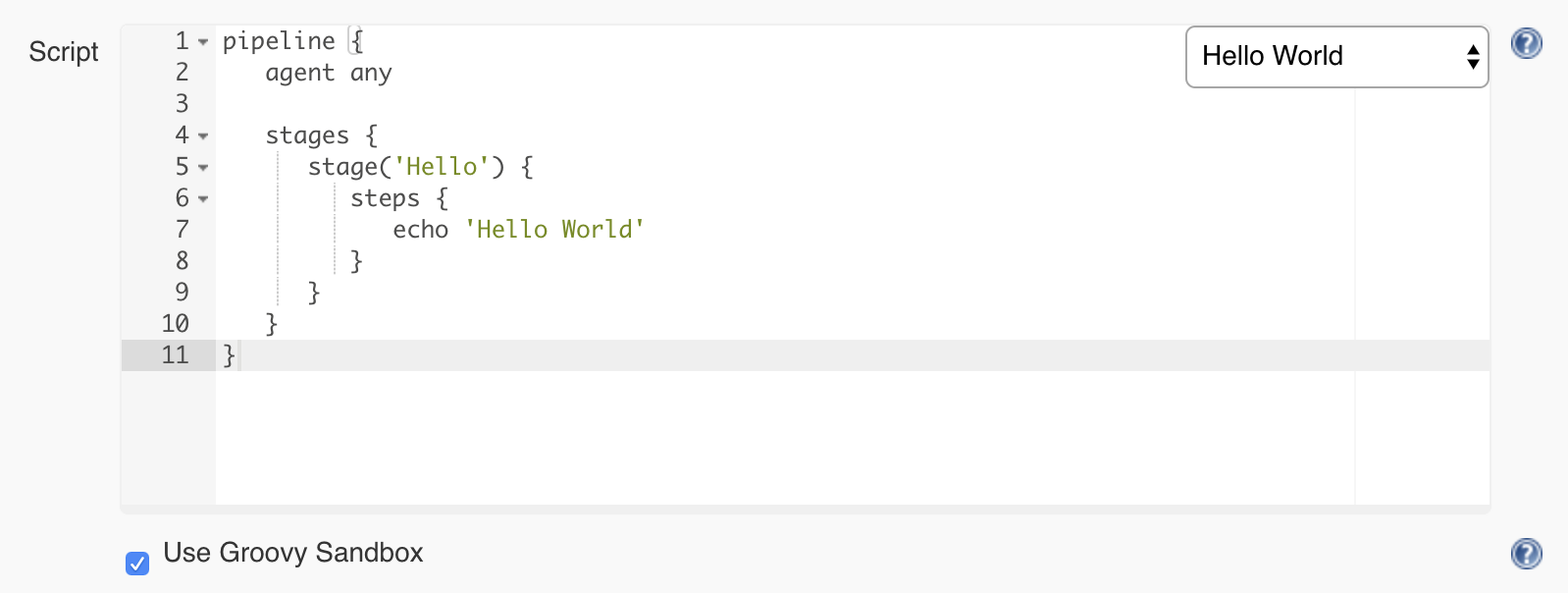
You will notice that some code was generated for you. This is a straightforward pipeline that only has one step and displays a message using the command echo ‘Hello World’

jenkins-first-pipeline

Click on Save and return to the main job page.

Build The Jenkins Pipeline

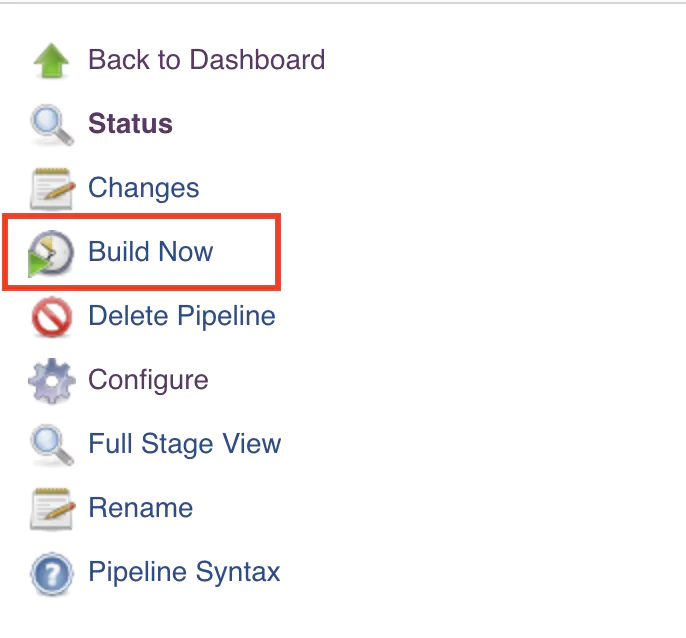
From the left-side menu, click on Build Now.

jenkins-build-now

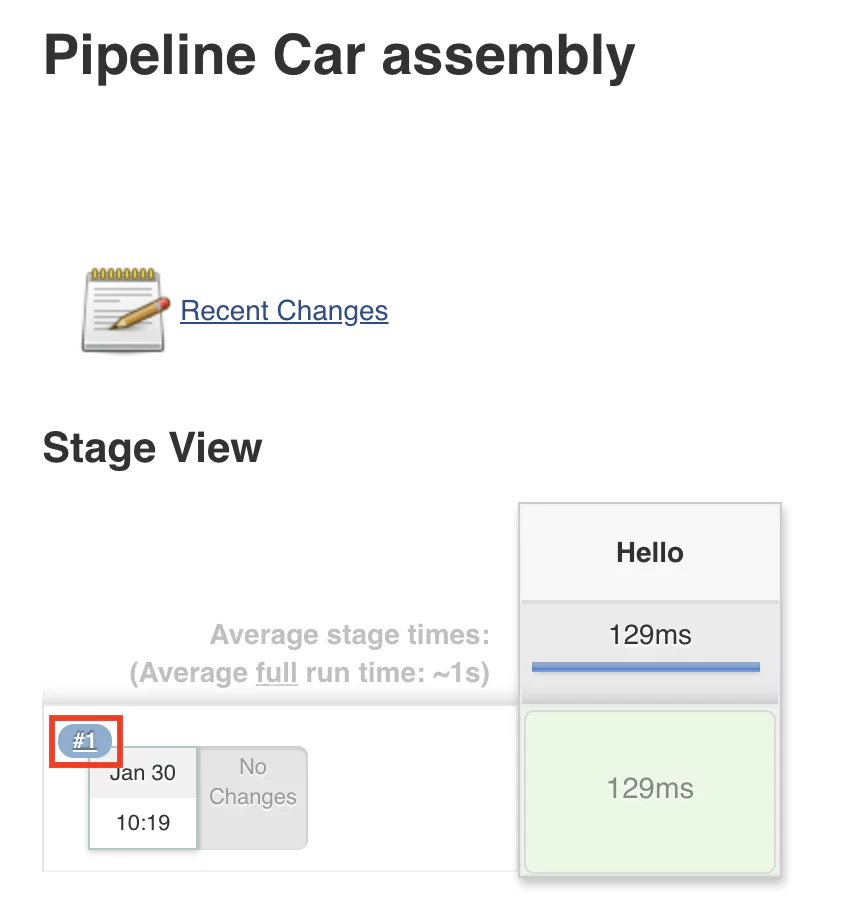
This will start running the job, which will read the configuration and begin executing the steps configured in the pipeline. Once the execution is done, you should see something similar to this layout:

jenkins-pipeline-overview

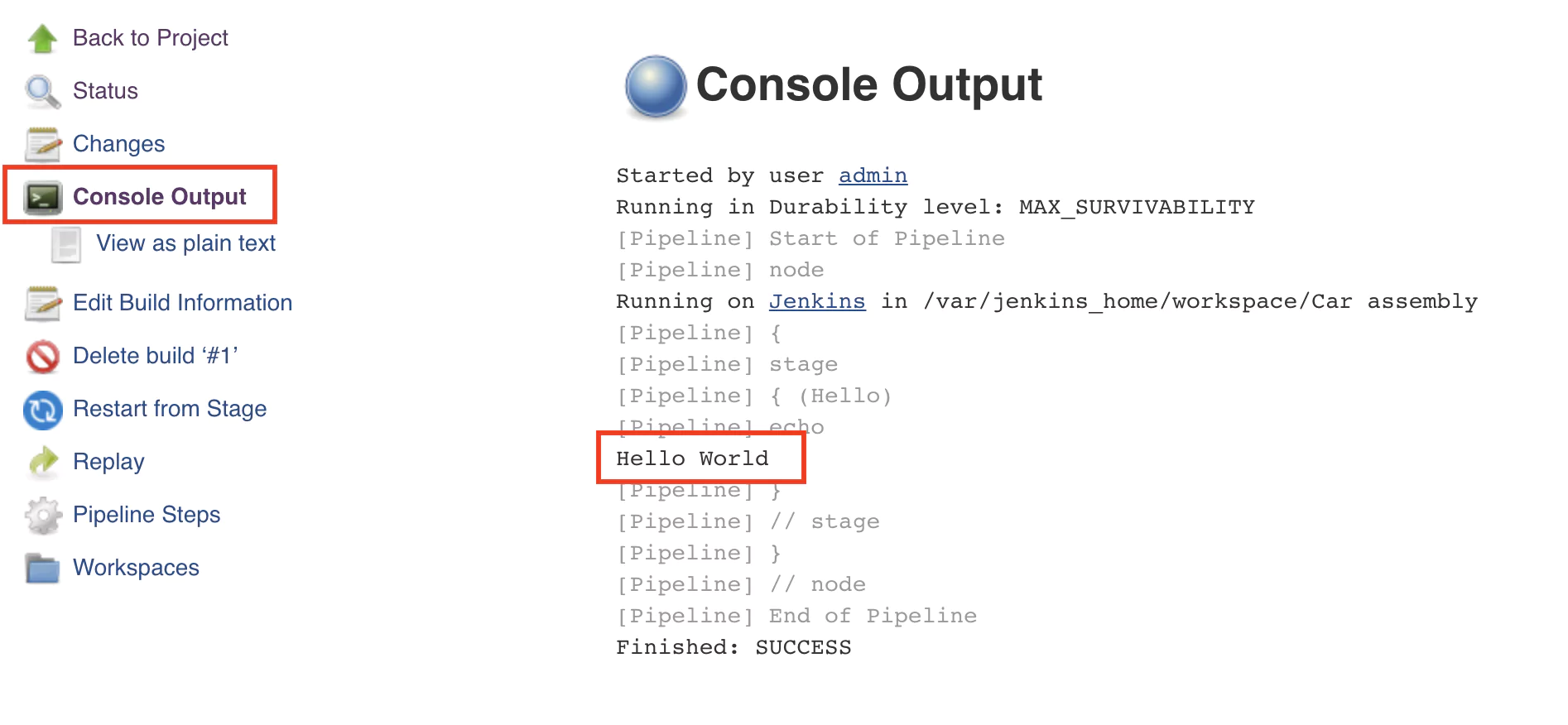
A green-colored stage will indicate that the execution was successful and no errors where encountered. To view the console output, click on the number of the build (in this case #1). After this, click on the Console output button, and the output will be displayed.

jenkins-console-output

Notice the text Hello world that was displayed after executing the command echo ‘Hello World’.

Congratulations! You have just configured and executed your first pipeline in Jenkins.

A Basic Pipeline Build Process

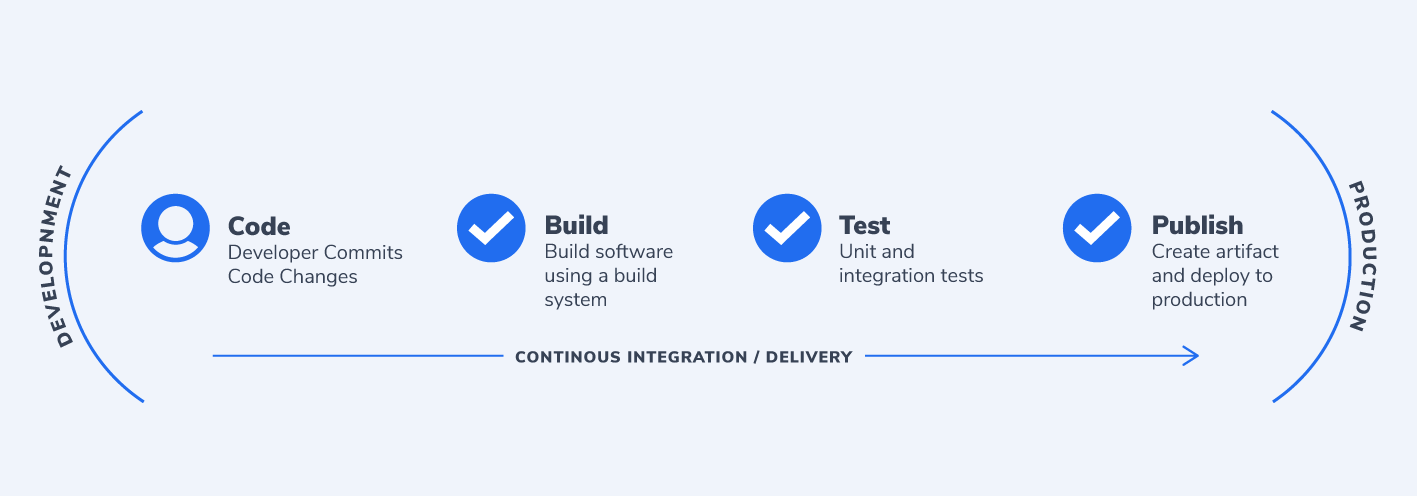
When building software, we usually go through several stages. Most commonly, they are:

  • Build – this is the main step and does the automation work required
  • Test – ensures that the build step was successful and that the output is as expected
  • Publish – if the test stage is successful, this saves the output of the build job for later use

We will create a simple car assembly pipeline but only using folders, files, and text. So we want to do the following in each stage:

Example of a basic Jenkins Pipeline

Build

  • create a build folder
  • create a car.txt file inside the build folder
  • add the words “chassis”, “engine” and “body” to the car.txt file

Test

  • check that the car.txt file exists in the build folder
  • words “chassis”, “engine” and “body” are present in the car.txt file

Publish

  • save the content of the build folder as a zip file

The Jenkins Build Stage

Note: the following steps require that Jenkins is running on a Unix-like system. Alternatively, the Windows system running Jenkins should have some Unix utilities installed.

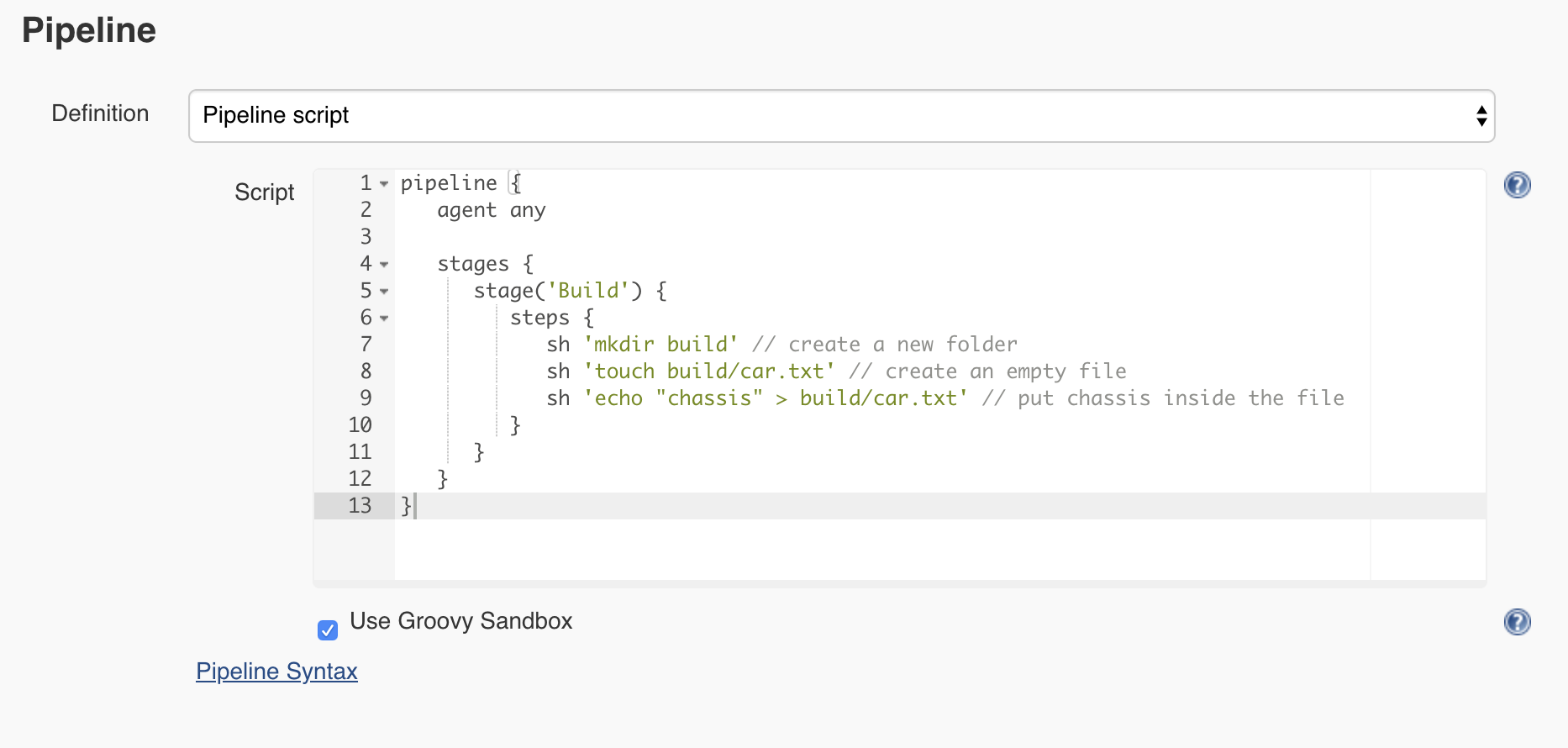
Let’s go back to the Car assembly job configuration page and rename the step that we have from Hello to Build. Next, using the pipeline step sh, we can execute a given shell command. So the Jenkins pipeline will look like this:

jenkins-build-step

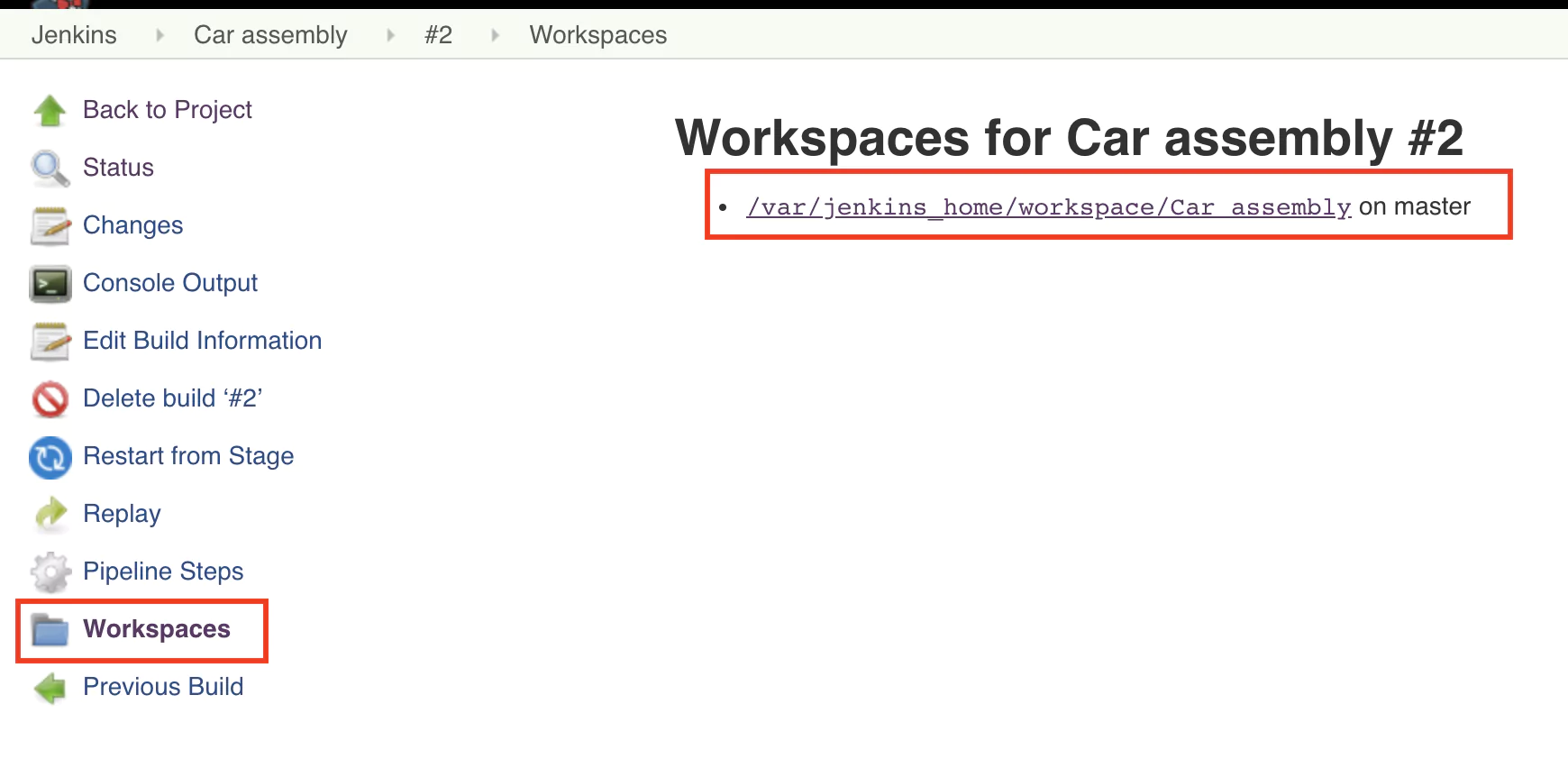
Let’s save and execute the pipeline.  Hopefully, the pipeline is successful again, but how do we know if the car.txt file was created? Do inspect the output, click on the job number and on the next page from the left menu select Workspaces.

jenkins-workspace

Click on the folder path displayed and you should soon see the build folder and its contents.

The Jenkins Test Stage

In the previous step, we manually checked that the folder and the file were created. As we want to automate the process, it makes sense to write a test that will check if the file was created and has the expected contents.

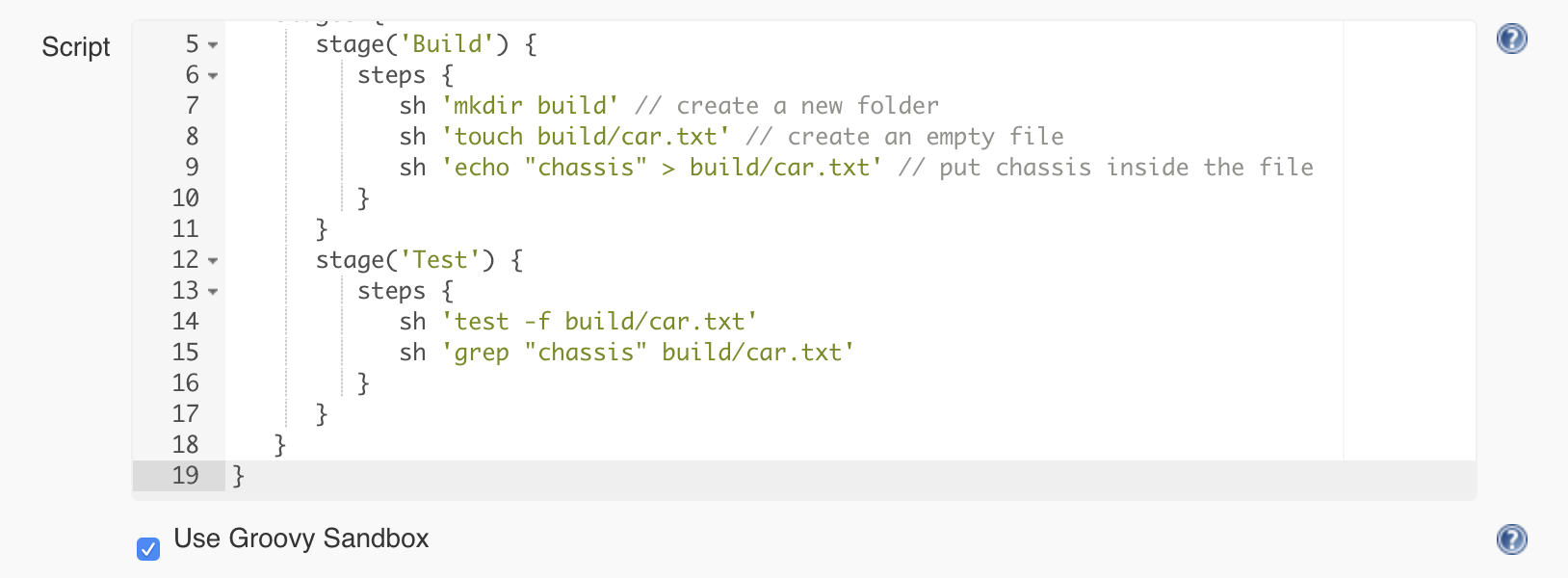
Let’s create a test stage and use the following commands to write the test:

  • the test command combined with the -f flag allows us to test if a file exists
  • the grep command will enable us to search the content of a file for a specific string

So the pipeline will look like this:

jenkins-test-step

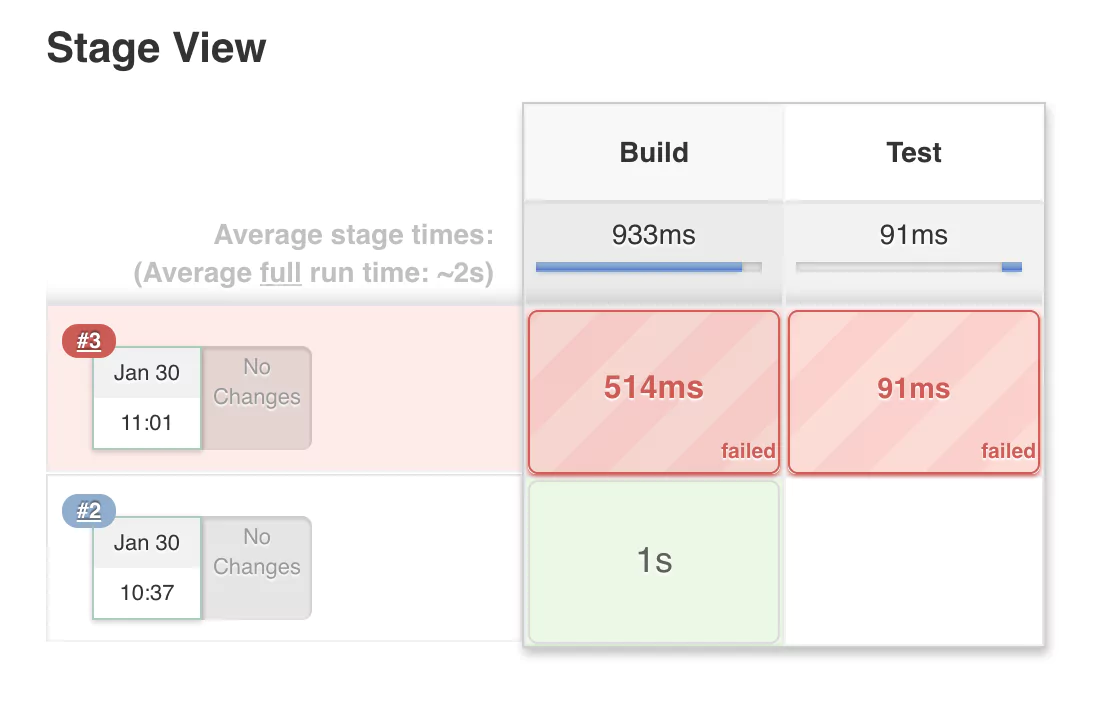
Why did the Jenkins pipeline fail?

If you save the previous configuration and run the pipeline again, you will notice that it will fail, indicated by a red color.

jenkins-failed-pipeline

The most common reasons for a pipeline to fail is because:

  1. The pipeline configuration is incorrect. This first problem is most likely due to a syntax issue or because we’ve used a term that was not understood by Jenkins. 
  2. One of the build step commands returns a non-zero exit code. This second problem is more common. Each command after executing is expected to return an exit code. This tells Jenkins if the command was successful or not. If the exit code is 0, it means the command was successful. If the exit code is not 0, the command encountered an error.

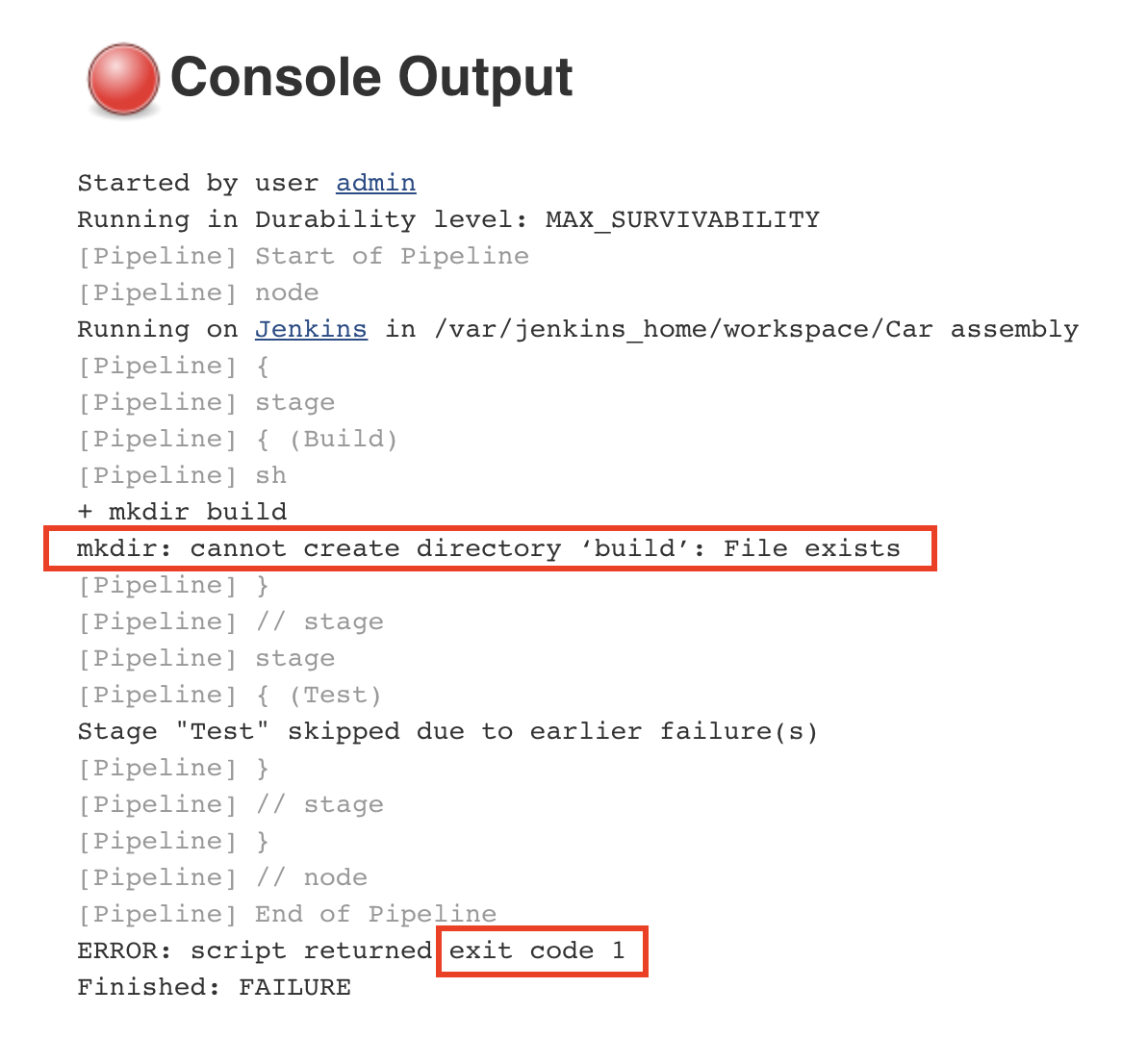
We want to stop the execution of the pipeline as soon as an error has been detected. This is to prevent future steps from running and propagating the error to the next stages. If we inspect the console output for the pipeline that has failed, we will identify the following error:

jenkins-failed-console-output

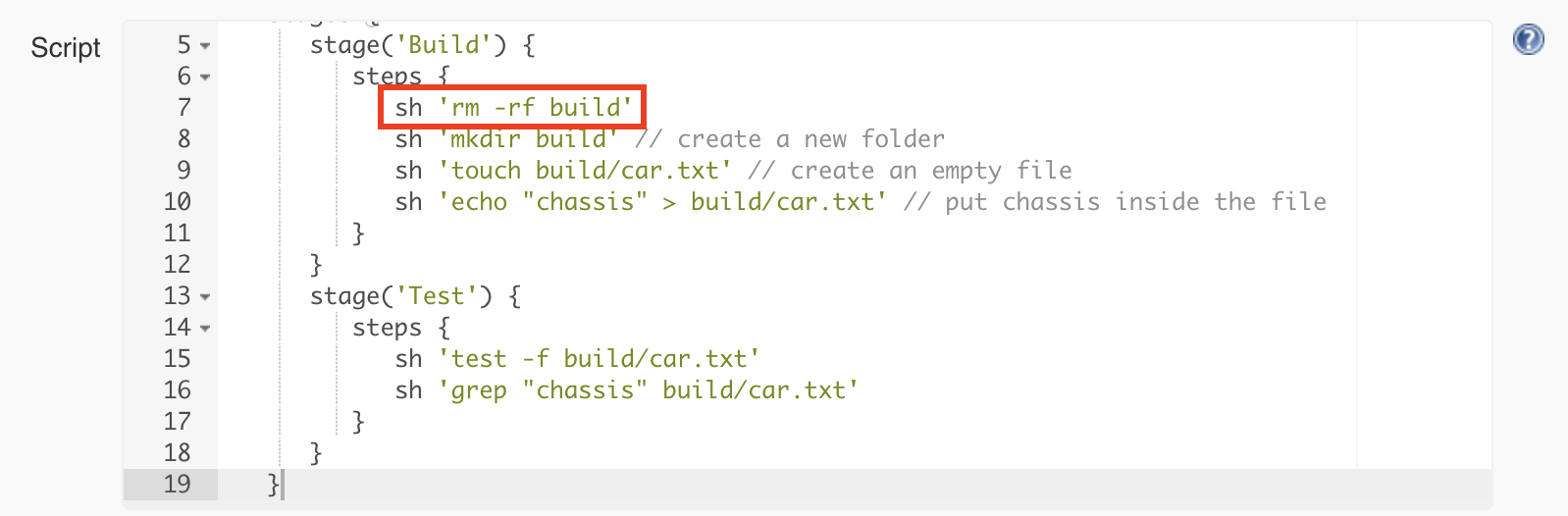
The error tells us that the command could not create a new build folder as one already exists. This happens because the previous execution of the pipeline already created a folder named ‘build’. Every Jenkins job has a workspace folder allocated on the disk for any files that are needed or generated for and during the job execution. One simple solution is to remove any existing build folder before creating a new one. We will use the rm command for this.

jenkins-remove-build

This will make the pipeline work again and also go through the test step.

The Jenkins Publishing Stage

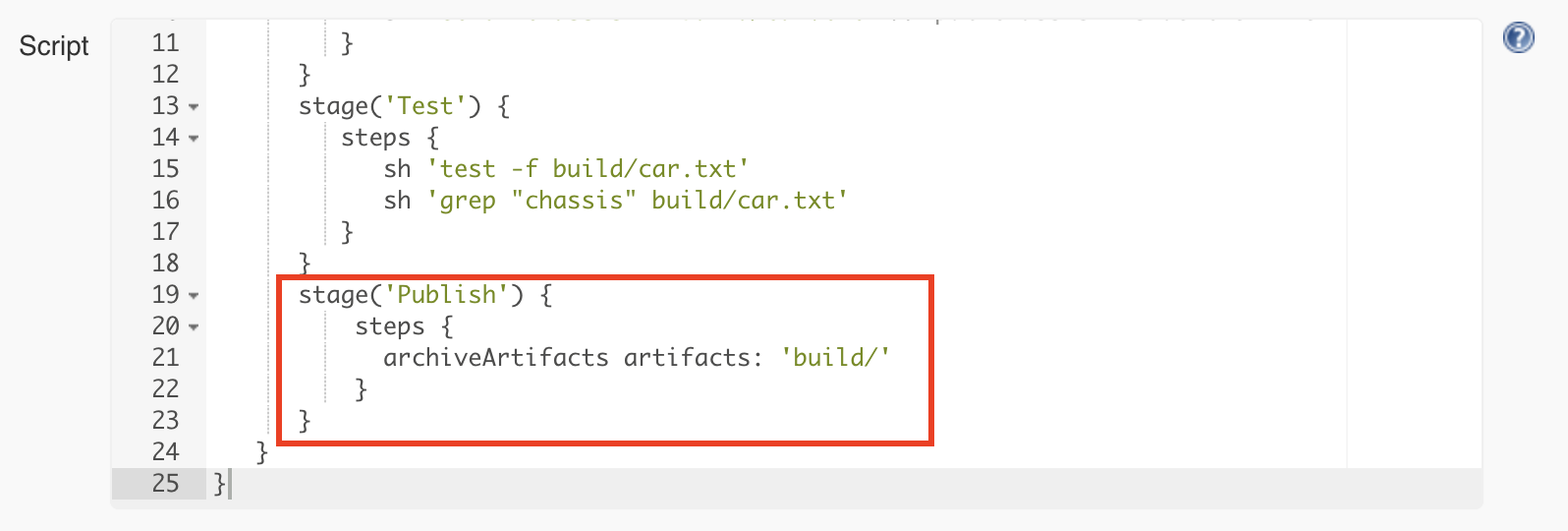
If the tests are successful, we consider this a build that we want to keep for later use. As you remember, we remove the build folder when starting rerunning the pipeline, so it does not make sense to keep anything in the workspace of the job. The job workspace is only for temporary purposes during the execution of the pipeline. Jenkins provides a way to save the build result using a build step called archiveArtifacts

So what is an artifact? In archaeology, an artifact is something made or given shape by humans. Or in other words, it’s an object. Within our context, the artifact is the build folder containing the car.txt file.

We will add the final stage responsible for publishing and configuring the archiveArtifacts step to publish only the contents of the build folder:

jenkins-artifac

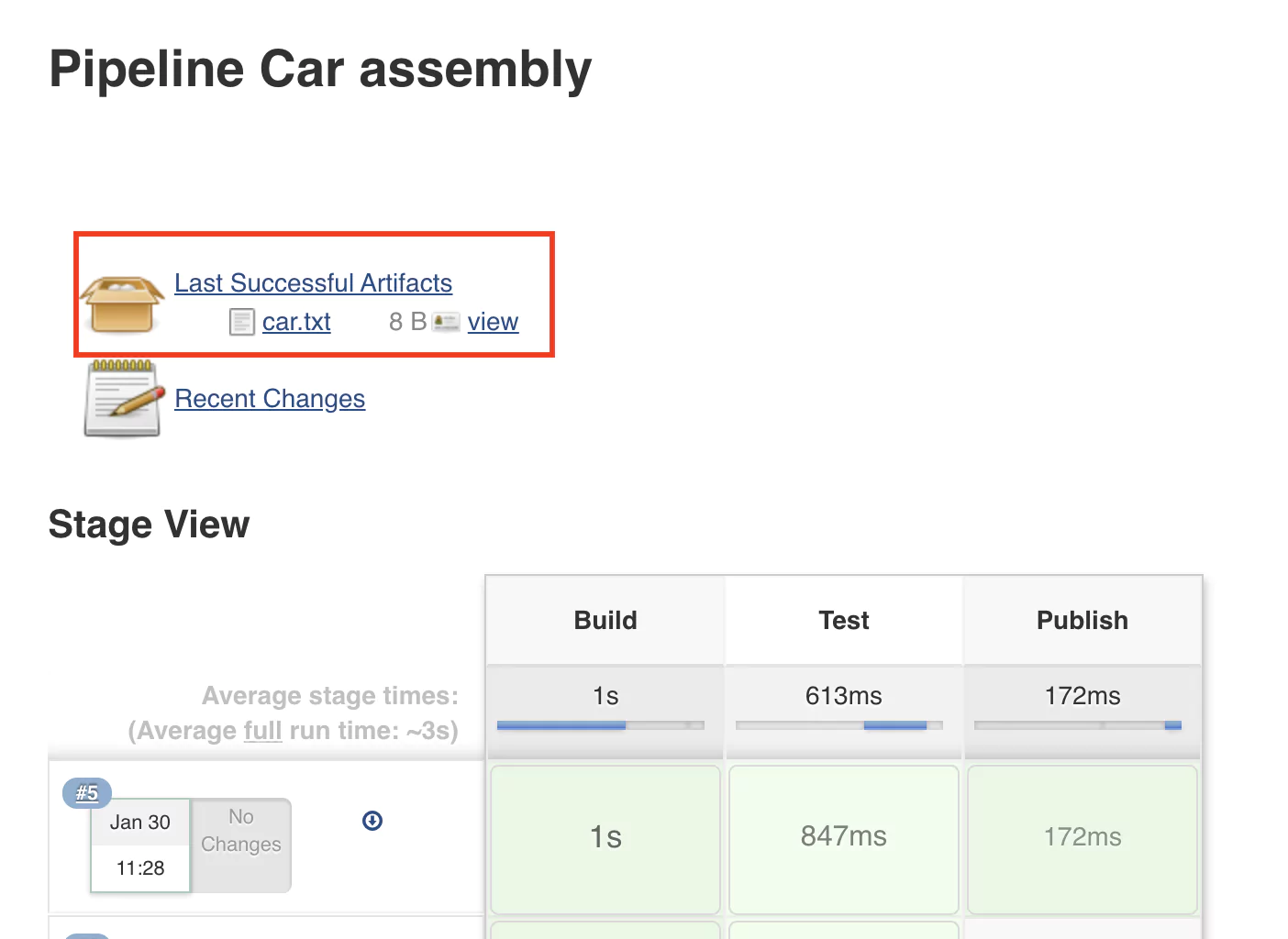
After rerunning the pipeline, the job page will display the latest successful artifact. Refresh the page once or twice if it does not show up. 

last-artifact.

(17-last-artifact.png)

Complete & Test the Pipeline

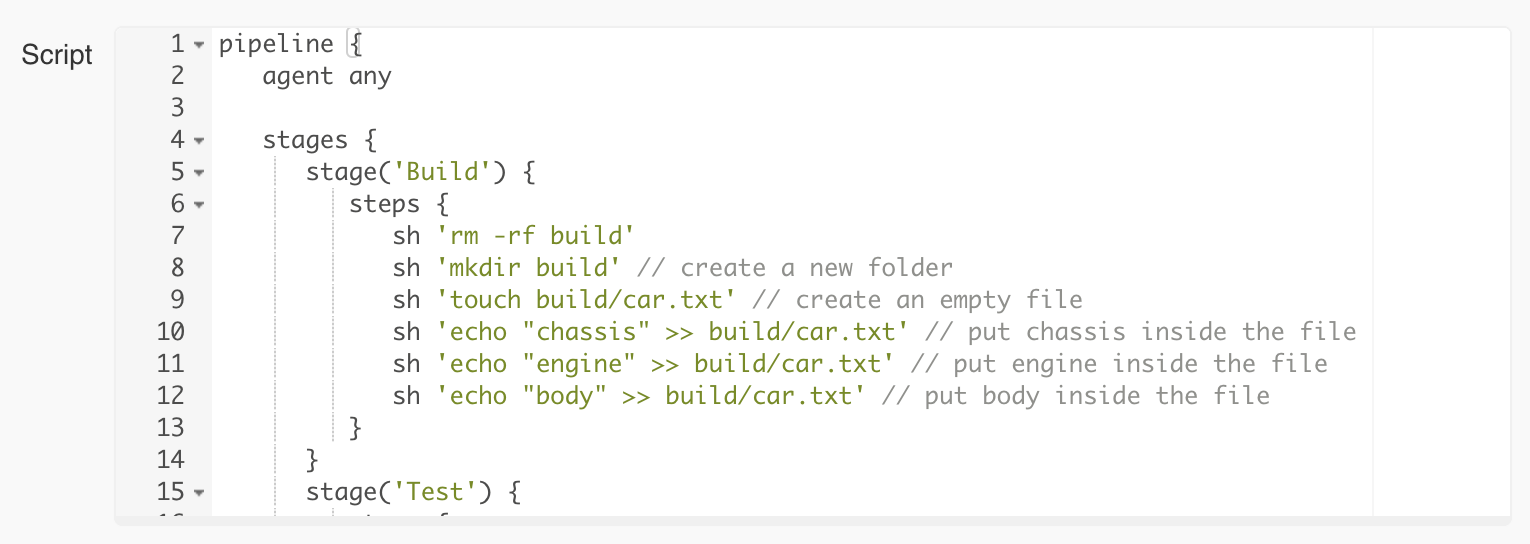
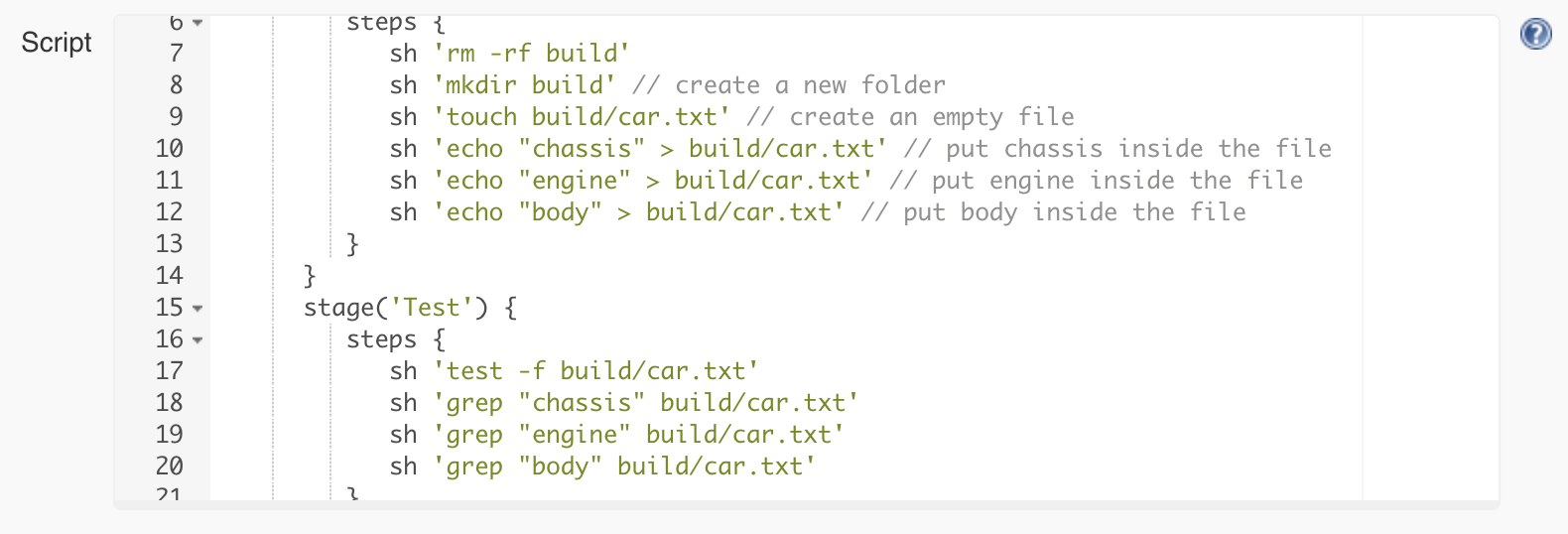
Let’s continue adding the other parts of the car: the engine and the body.  For this, we will adapt both the build and the test stage as follows:

jenkins-pipeline-car-parts

pipeline {
   agent any

   stages {
      stage('Build') {
         steps {
            sh 'rm -rf build' 
            sh 'mkdir build' // create a new folder
            sh 'touch build/car.txt' // create an empty file
            sh 'echo "chassis" > build/car.txt' // add chassis
            sh 'echo "engine" > build/car.txt' // add engine
            sh 'echo "body" > build/car.txt' // body
         }
      }
      stage('Test') {
          steps {
              sh 'test -f build/car.txt'
              sh 'grep "chassis" build/car.txt'
              sh 'grep "engine" build/car.txt'
              sh 'grep "body" build/car.txt'
          }
      }
   }
}

Saving and rerunning the pipeline with this configuration will lead to an error in the test phase. 

The reason for the error is that the car.txt file now only contains the word “body”. Good that we tested it! The > (greater than) operator will replace the entire content of the file, and we don’t want that. So we’ll use the >> operator just to append text to the file.

 
pipeline {
   agent any

   stages {
      stage('Build') {
         steps {
            sh 'rm -rf build' 
            sh 'mkdir build'
            sh 'touch build/car.txt'
            sh 'echo "chassis" >> build/car.txt'
            sh 'echo "engine" >> build/car.txt'
            sh 'echo "body" >> build/car.txt'
         }
      }
      stage('Test') {
          steps {
              sh 'test -f build/car.txt'
              sh 'grep "chassis" build/car.txt'
              sh 'grep "engine" build/car.txt'
              sh 'grep "body" build/car.txt'
          }
      }
   }
}

Now the pipeline is successful again, and we’re confident that our artifact (i.e. file) has the right content.

Pipeline as Code

If you remember, at the beginning of the tutorial, you were asked to select the type of job you want to create. Historically, many jobs in Jenkins were and still are configured manually, with different checkboxes, text fields, and so on. Here we did something different. We called this approach Pipeline as Code. While it was not apparent, we’ve used a Domain Specific Language (DSL), which has its foundation in the Groovy scripting language. So this is the code that defines the pipeline. 

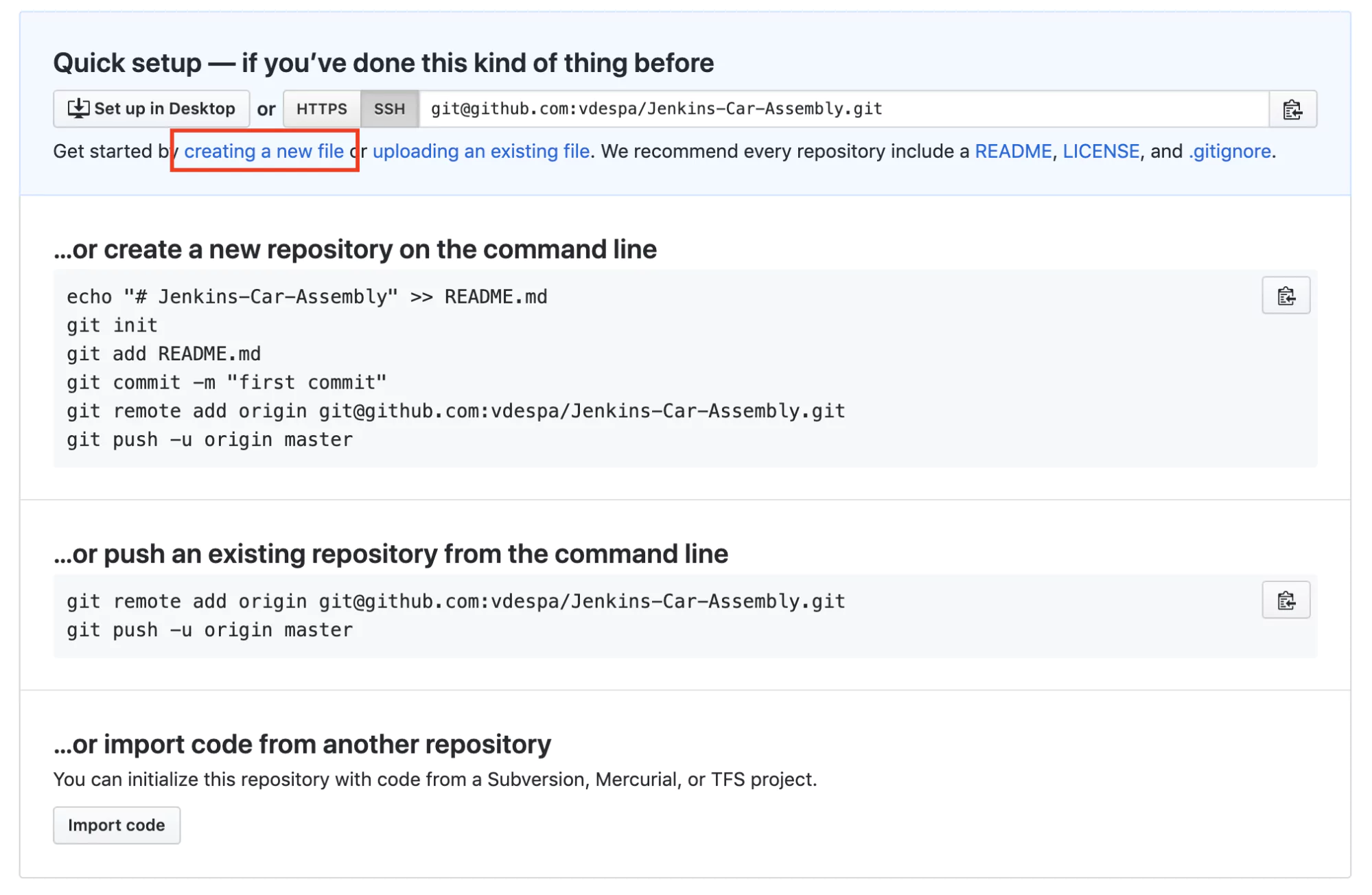
As you can observe, even for a relatively simple scenario, the pipeline is starting to grow in size and become harder to manage. Also, configuring the pipeline directly in Jenkins is cumbersome without a proper text editor. Moreover, any work colleagues with a Jenkins account can modify the pipeline, and we wouldn’t know what changed and why. There must be a better way! And there is. To fix this, we will create a new Git repository on Github.

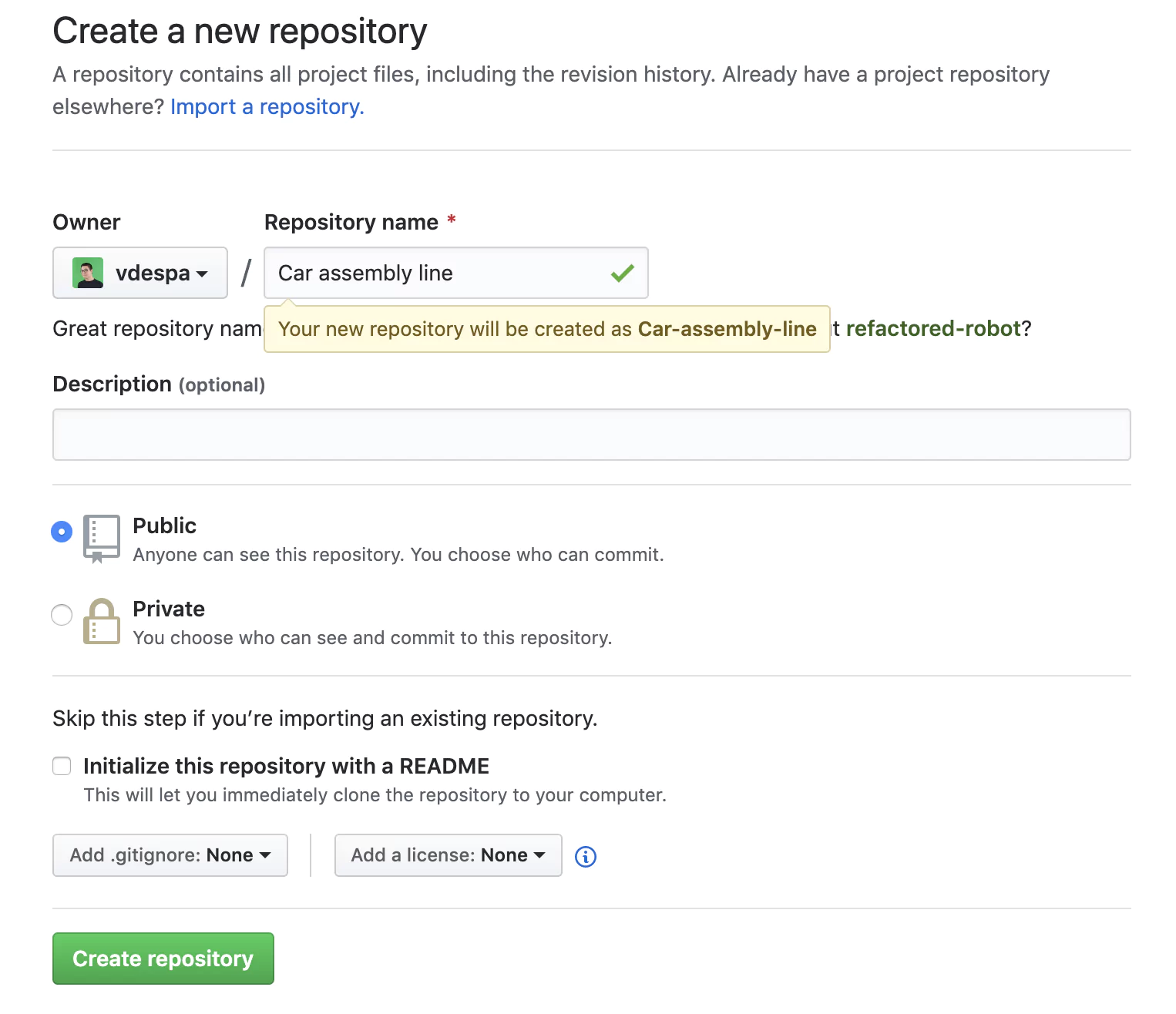
To make things simpler, you can use this public repository under my profile called Jenkins-Car-Assembly.

github-new-repo

Jenkinsfile from a Version Control System

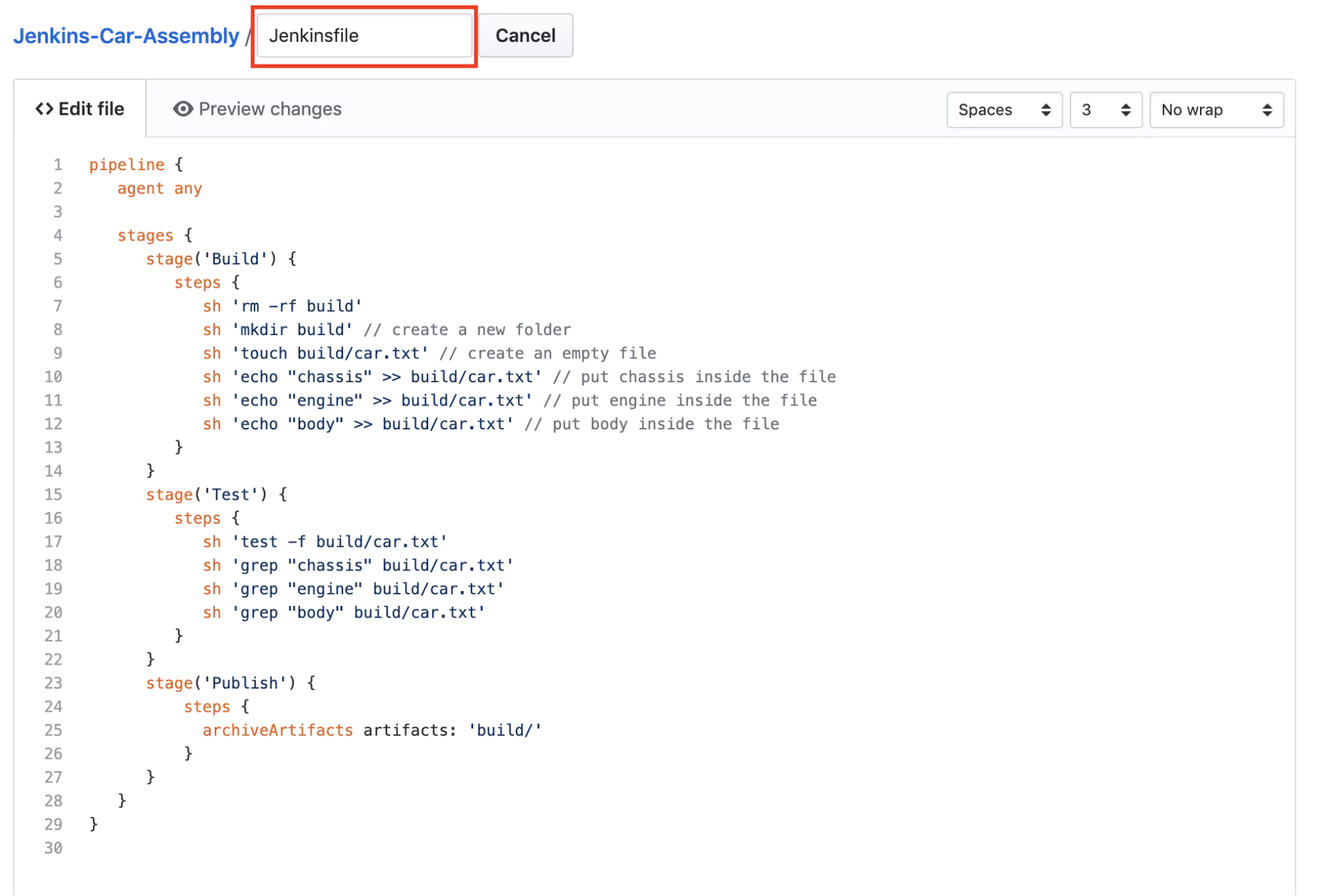
The next step is to create a new file called Jenkinsfile in your Github repository with the contents of the pipeline from Jenkins.

github-new-file

jenkinsfile

Read Pipeline from Git

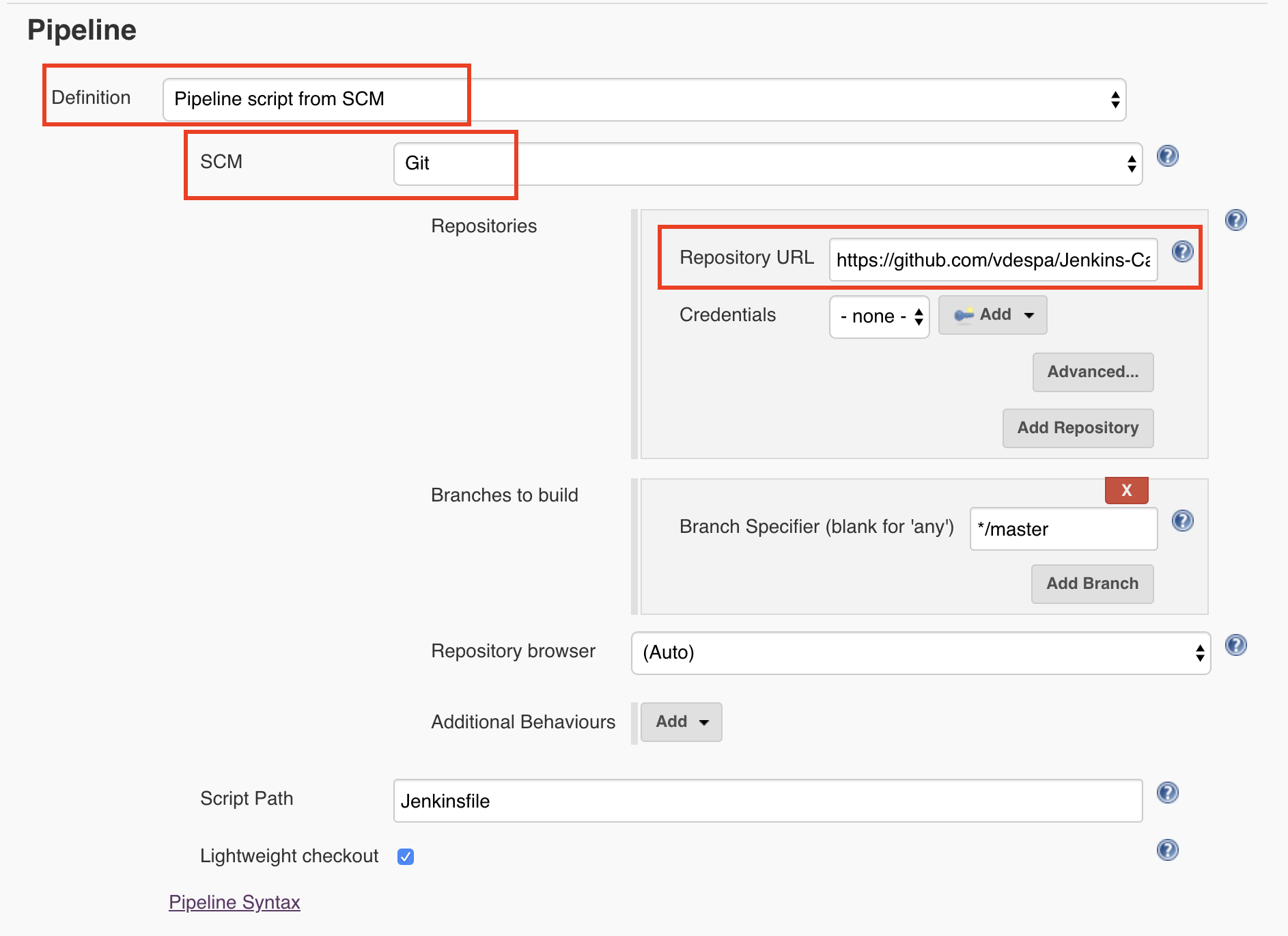
Finally, we need to tell Jenkins to read the pipeline configuration from Git. I have selected the Definition as Pipeline Script from SCM which in our case, refers to Github. By the way, SCM stands for Source code management. 

jenkins-jenkinsfile

Saving and rerunning the pipeline leads to a very similar result. 

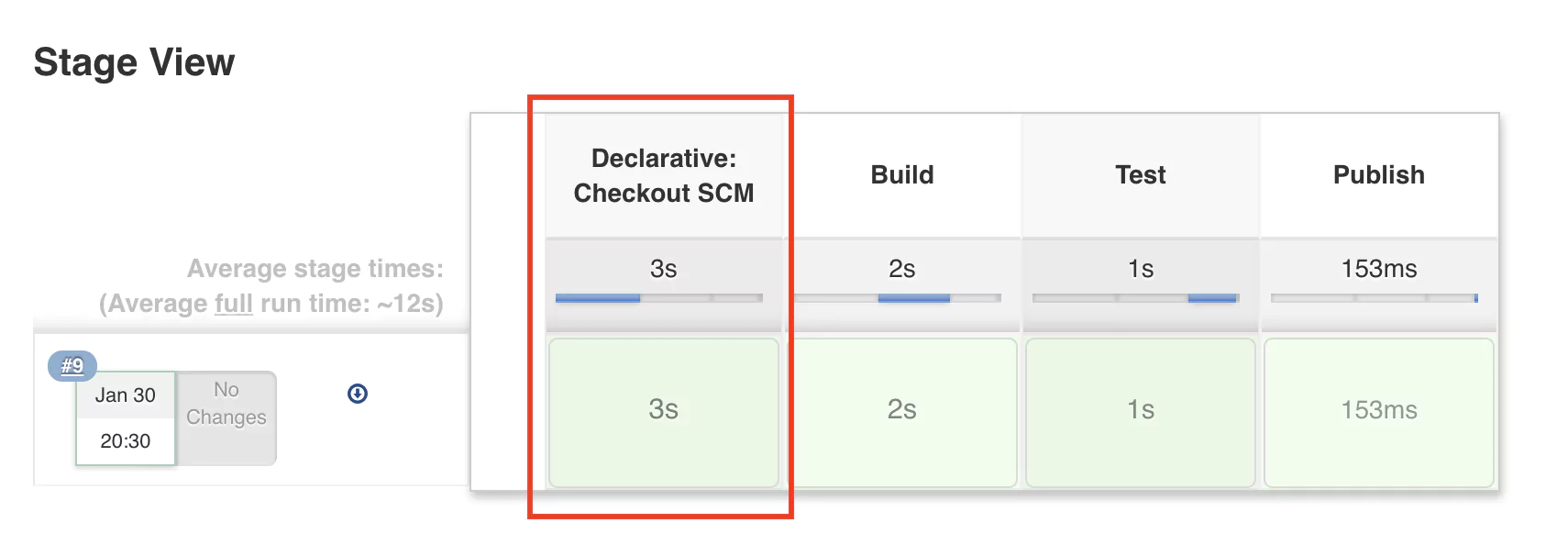
run-with-jenkinsfile

So what happened? Now we use Git to store the pipeline configuration in a file called Jenkinsfile. This allows us to use any text editing software to change the pipeline but now we can also keep track of any changes that happen to the configuration. In case something doesn’t work after making a Jenkins configuration change, we can quickly revert to the previous version.

Typically, the Jenkinsfile will be stored in the same Git repository as the project we are trying to build, test, and release. As a best practice, we always store code in an SCM system. Our pipeline belongs there as well, and only then can we really say that we have a ‘pipeline as code’.

Conclusion

I hope that this quick introduction to Jenkins and pipelines has helped you understand what a pipeline is, what are the most typical stages, and how Jenkins can help automate the build and test process and ultimately deliver more value to your users faster.

For your reference, you can find the Github repository referenced in this tutorial here: 

https://github.com/coralogix-resources/jenkins-pipeline-course/tree/master/Jenkins-Car-Assembly-master

Next: Learn about how Coralogix integrates with Jenkins to provide monitoring and analysis of your CI/CD processes.